(I’m on Arch Linux, using i3 as my wm and xterm as my terminal emulator, though I don’t know if any of that is relevant.)
Occasionally, a website asks me to drag a file with my mouse from my desktop into the internet browser’s window. Almost always, there is an alternative, but recently I found something I want to do that requires the drag and drop. Unfortunately, I don’t have a file manager. I navigate my computer’s file system solely through bash.
Is there a way I can fake the drag and drop action? Can I tell my browser “I just dropped this file onto you” without actually doing it?
Worst case scenario, I can download a graphical file manager exclusively to drop files into my web browser, but I’d like to avoid that solution.
Answers:
Thank you for visiting the Q&A section on Magenaut. Please note that all the answers may not help you solve the issue immediately. So please treat them as advisements. If you found the post helpful (or not), leave a comment & I’ll get back to you as soon as possible.
Method 1
Thanks to @derobert for recommending the Dragbox application to me.
Dragbox does exactly what I need. For example, I have a folder with a number of .png files that I would like to be able to drag into Chromium. Inside that folder, executing dragbox *.png creates this window:

I can use my mouse to drag files from there into Chromium, and it works flawlessly. However, getting to this point was a pain. As far as I am aware, Dragbox only officially supports Debian systems. I couldn’t find it anywhere that natively worked for Arch. So, I’ve written a step-by-step guide to getting Dragbox working in Arch Linux. This is almost exactly what I did on my machine, with a couple modifications to follow better practices. If there’s an error somewhere, you can look in this answer’s edit history to see exactly what I did on my machine.
- Clone Dragbox’s source to your computer by executing
git clone https://github.com/engla/dragbox.git - There will be a new directory called
dragboxcreated inside your current working directory. Go inside. - Dragbox and Dragbox’s installation require Python 2, which comes standard on Arch Linux. However, it expects Python 2 to be the default Python installation, which isn’t true on Arch. Get around this by executing
export PYTHON=/bin/python2. Until you close your current terminal window, the environment variable$PYTHONwill have the value/bin/python2. Dragbox’s installation scripts check for that, and will use it over Python 3. - Execute
./autogen.sh,./configure,makeandmake install.make installmust be done with root privileges (e.g.sudo make install). - Dragbox is now installed on your computer, but is going to try to use Python 3 to run. With root privileges, open
/usr/local/bin/dragboxin a text editor. Modify the shebang (the first line, that tells your shell what executable to run the script with) from#!/usr/bin/env pythonto#!/usr/bin/env python2. -
The script is now working, but it can’t find the module containing the actual program. There are a couple of ways you can fix this.
-
Include in your
~/.bashrcor similar a line readingexport PYTHONPATH=$PYTHONPATH:immediately (as in, not even a space between) followed my the path to a directory. Python will now look in that directory when trying to import modules. Inside the directory created back in step 1, there will be a directory calledDropbox/(with a capital D). Copy that directory to the directory you added to your$PYTHONPATH(e.g. if you wroteexport PYTHONPATH=$PYTHONPATH:~/python/modules, copy theDragbox/directory to create~/python/modules/Dragbox/). -
Probably worse practice, but you can copy that same directory to a directory already in your
$PYTHONPATH. For example, you could copy it to create/usr/lib/python2.7/site-packages/.
-
Include in your
If you’ve followed these steps, Dragbox should be working! You can now execute man dragbox to learn more about how to use it, and launch it by simply typing dragbox.
Method 2
I had exactly the same problem a few months back and ultimately just wrote a tool to do it for me. When I saw this and found someone else had the same itch I cleaned it up so that someone other than me could actually get it running, and finished off my to-do list. The code is up now: https://github.com/mwh/dragon
To get it, run
git clone https://github.com/mwh/dragon.git
cd dragon
make
That will give you a standalone dragon executable – you can move it wherever you want. make install will put it in $HOME/.local/bin.
Either way, you can then:
dragon *.jpg
to get a simple window with draggable buttons for each of those files:
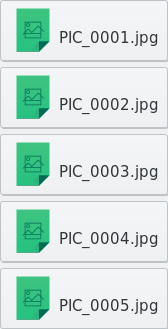
You can drag any of those into a browser, a file manager, an editor, or anywhere else that speaks the standard drag-and-drop protocol.
If you want to go the other way, and drag things in to it, use --target — they’ll be printed to standard output, or available to drag out again with if you use --keep as well.
To build you’ll need a C compiler and the GTK+ 3 development headers – if you’re on Arch you’ll get those just by installing GTK+, but on other distributions you may have to apt-get install build-essentials libgtk3-dev or yum install gtk3-devel or similar first. Other than that it’s entirely self-contained, with no constituent libraries or anything, and you can just put the executable where you want.
My use case is mostly one-off drags of only a few files (usually just one), without particularly caring how they show up, so if that doesn’t line up with what you want then Dragbox (which I didn’t see until recently) might still be better for you. Just yesterday I added the support for using it as a drag target as well, so that part hasn’t had much use on my end. Other than that, though, I’ve been using this successfully for a while now. There are other modes and options described in the readme file.
Method 3
You can easily navigate the filesystem within your browser, using the syntax:
file:///home/username/blah/blah
Open the path in an empty tab and from there you can drag and drop your file.
At least with chrome/chromium, don’t have other browsers here to try.
Method 4
Just solved the issue myself.
Quite possibly the easiest way is to use the “Open file…” dialog.
You can simply drag and drop from the gtk file dialog, just like a file manager.
You may need to open a separate window to make sure the dialog doesn’t steal the screen.
That’s it. That easy.
Method 5
You can start the GTK file dialog using a command line tool like zenity and drag’n’drop from there.
Example:
zenity --file-selection
All methods was sourced from stackoverflow.com or stackexchange.com, is licensed under cc by-sa 2.5, cc by-sa 3.0 and cc by-sa 4.0