I’ve got deb http://debian-multimedia.org squeeze main in “/etc/apt/sources.list“, but wajig update && wajig install acroread results in:
E: Package ‘acroread’ has no installation candidate
What’s happening? Are there alternative repos?
Answers:
Thank you for visiting the Q&A section on Magenaut. Please note that all the answers may not help you solve the issue immediately. So please treat them as advisements. If you found the post helpful (or not), leave a comment & I’ll get back to you as soon as possible.
Method 1
NOTE: The 9.x branch of reader has been EOL’d as of June 26, 2013. If you need native Adobe Reader support on Linux, 9.x is your only option! 10 doesn’t list Linux as being supported, and likely never will. More on it too here: Adobe abandons Linux.
Many may question the relevance of needing Adobe Reader but there are several use cases that the open source versions of reading tools simply do not provide. Signing documents, filling out forms, and printing are just a few of these use cases where your only option is to use Adobe Reader!
To install Adobe Reader on Wheezy or higher you can use the following steps.
Step #1 – Download
Adobe maintains all the official versions of Adobe Reader on their FTP site so you can simply go there and download the latest version, packaged as a .deb file.
If you go to the 2nd URL above you’ll get to a page that looks like this:
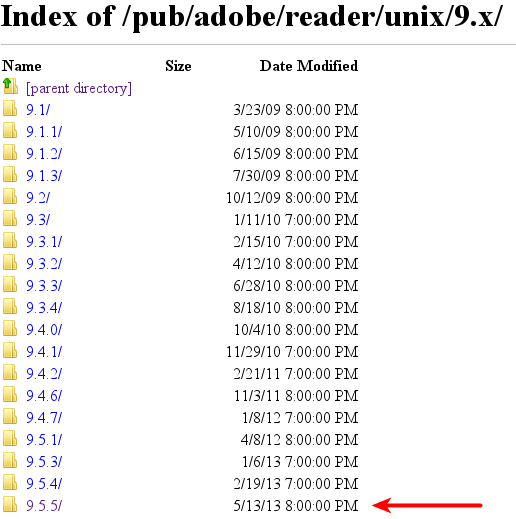
From this page you can select whatever happens to be the latest version of Reader at the time you’re attempting to do this. For this example we’ll be downloading 9.5.5, so we select that link.
This will take us to another page with the link, “enu”. This denotes that we’re downloading the English version of the tool. Apparently they only offer the package in this language. I’m not 100% on this particular point, but no matter, we press on.

At this point we should be at this URL:
From here we can download the .deb file. I typically do this using wget like so:
$ wget ftp://ftp.adobe.com/pub/adobe/reader/unix/9.x/9.5.5/enu/AdbeRdr9.5.5-1_i386linux_enu.deb
After doing this we should have the file, AdbeRdr9.5.5-1_i386linux_enu.deb. Now we’re ready to install it.
Step #2 – Installation
The file we just downloaded is the 32-bit version of Adobe Reader. Adobe only provides Reader as a 32-bit binary, there is no 64-bit variant, but this is perfectly fine, we just need to install it a bit differently than most .deb packages.
-
First we need to add the 32-bit architecture to our system (multiarch), then update.
 $ sudo dpkg --add-architecture i386
 $ sudo apt-get update
-
Now attempt to install Adobe Reader with either
dpkgandapt-getORgdebi. If you pick the first option, it will require you to tellapt-getto fix any broken installed packages. This would seem to be a hack, but it basically getsaptto do the heavy lifting for us and install/fix any missing or broken packages with relatively little fuss. Alternatively, using the second method,gdebiwill automatically resolve the dependencies.-
Using
dpkgandapt-get:$ sudo dpkg -i AdbeRdr9.5.5-1_i386linux_enu.deb $ sudo apt-get install -f
-
Using
gdebi:$ sudo apt-get install gdebi $ sudo gdebi AdbeRdr9.5.5-1_i386linux_enu.deb
-
Using
-
Now, attempting to launch acroread with
$ acroread
gives
/opt/Adobe/Reader9/Reader/intellinux/bin/acroread: error while loading shared libraries: libxml2.so.2: cannot open shared object file: No such file or directory
Adobe forgot a dependency.
We can figure out which package to install usingapt-file.$ apt-file search libxml2.so.2
which gives
libxml2. So we do$ apt-get install libxml2:i386
to install the i386 version of
libxml2. -
Now invoke
acroreadusing a non-root account.$ acroread
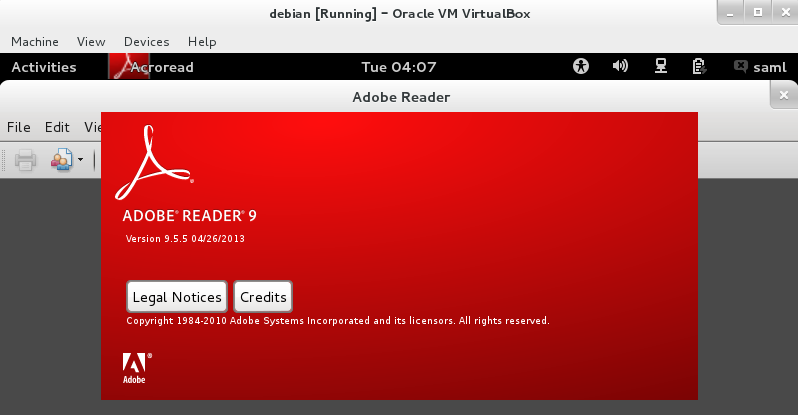
Here is a screenshot of Acrobat Reader running on Debian Wheezy.
NOTE: Adobe installs Acrobat Reader in /opt, which is icky, and in violation of the FHS.
References
Method 2
The problem is that you have just added main to your sources.list. I believe that acroread is in the non-free part of the respository, so you will want to add:
deb http://debian-multimedia.org squeeze non-free
to /etc/apt/sources.list, and then update and install.
Traditionally, even in third-party repos, main only includes files that conform to the Debian Free Software Guidelines. While non-free contains
Packages [that] have some onerous license condition restricting use or redistribution of the software.
(from http://www.debian.org/distrib/packages)
Method 3
Note: This answer installs from the same repository which use to be at www.debian-multimedia.org, but has now renamed its domain to www.deb-multimedia.org. For more information on why this happened (and why this repository is no longer considered part of Debian), please see – http://lists.alioth.debian.org/pipermail/pkg-multimedia-maintainers/2012-May/026678.html
I am running Jessie, here is how I get adobe reader to work. The process should be very similar for Wheezy. I see no need to download from the Adobe website, as the acroread package from http://www.deb-multimedia.org/ can still work ok.
The relevant sources.list line is:
deb http://www.deb-multimedia.org testing main non-free
You can replace testing with stable for Wheezy. Named distributions ie jessie or wheezy are ok too. Both the main and non-free components are necessary since one of acroread‘s dependencies is acroread-debian-files which is in main. Instead of using the /etc/apt/sources.list file, I actually use a separate file in the /etc/apt/sources.list.d directory – /etc/apt/sources.list.d/deb-multimedia.list. Here is a one off command to create the file (can be copy/pasted into a terminal):
echo 'deb http://www.deb-multimedia.org testing main non-free' |
  sudo tee /etc/apt/sources.list.d/deb-multimedia.list
If you do not want to use any of the other www.debian-multimedia.org repository packages, you can give a lower priority than the Debian packages of the same name by adding the following lines to the top of /etc/apt/preferences:
Package: *
Pin: release a=testing, o=Unofficial Multimedia Packages
Pin-Priority: 120
Again testing can be swapped for stable here or named distributions can be used with n=jessie or n=wheezy.
To make www.debian-multimedia.org a trusted source, you can install its keyring package:
sudo apt-get update && sudo apt-get install deb-multimedia-keyring
If you are running 64-bit, you may need to add the i386 architecture as Adobe currently doesn’t do 64-bit builds of Reader for Linux. To check if the i386 architecture has already been added, you can do:
dpkg --print-foreign-architectures
And to add it:
sudo dpkg --add-architecture i386
Installation is as simple as:
sudo apt-get update && sudo apt-get install acroread
Now the problem that I have with running acroread is this error:
/usr/lib/Adobe/Reader9/Reader/intellinux/bin/acroread: error while loading shared libraries: libGL.so.1: cannot open shared object file: No such file or directory
One way to get around this is to use the following script to run acroread:
#!/bin/sh

LD_LIBRARY_PATH=/usr/lib/mesa-diverted/i386-linux-gnu /usr/bin/acroread
If you put this in /usr/local/bin (which appears before /usr/bin in the default PATH), the script will take priority over the actual acroread binary. This should fix running Reader from the command line and from the menu.
For those who are not comfortable adding the script (or who just want a quick way to do it), you can copy and paste the following into a terminal to add the fix:
echo '#!/bin/sh

LD_LIBRARY_PATH=/usr/lib/mesa-diverted/i386-linux-gnu /usr/bin/acroread' >acroread

sudo install acroread /usr/local/bin
rm acroread
An alternative workaround is to do what is suggested here – http://forums.solydxk.com/viewtopic.php?f=7&t=1754:
cd /usr/lib/i386-linux-gnu
sudo ln -s /usr/lib/mesa-diverted/i386-linux-gnu/libGL.so.1 libGL.so.1
This is may be a better option if you want to try to get the browser plugin to work, although the /usr/local/bin should be less intrusive and easier to remember and remove when it is no longer required.
Method 4
The easiest way would be to take the package for Linux Mint Debian Edition (LMDE) and install that instead. LMDE is based on and 100% compatible with Debian testing. You can safely mix LMDE and Debian repositories on a single system.
So, since LMDE packages acroread, you can install it by adding their repo to your /etc/apt/sources.list:
deb http://debian.linuxmint.com/latest/multimedia testing main non-free
Once you have added that line, update the sources and install:
sudo apt-get update
sudo apt-get install acroread
NOTE:
LMDE is 100% compatible with Debian, not Ubuntu, this solution works for Debian but may or may not work for Ubuntu.
For LMDE, I install with apt-get install acroread with these in my sources.list:
deb http://lmde-mirror.gwendallebihan.net/latest testing main contrib non-free
deb http://lmde-mirror.gwendallebihan.net/latest/multimedia testing main non-free
deb http://lmde-mirror.gwendallebihan.net/latest/security testing/updates main contrib non-free
deb http://packages.linuxmint.com/ debian main upstream import romeo
All methods was sourced from stackoverflow.com or stackexchange.com, is licensed under cc by-sa 2.5, cc by-sa 3.0 and cc by-sa 4.0