I have a disk with two partitions: sda1 and sda2. I would like change the number of sda1 to sda2 and sda2 to sda1.
It’s possible but I don’t remember the procedure. i.e. My first partition will be sda2 and the second sda1, so I need to specify a manual order, not an automatic ordering like in fdisk -> x -> f.
How can I change the order? Links to manuals or tutorials are also welcome.
Thanks.
The reason: I have an application that needs to read data from sda1 but the data is in sda2. Changing the partition table is the fastest fix for this issue. The system isn’t critical but I don’t want to keep the system halted for too much time.
Update: the fdisk version of OpenBSD includes this functionality.
Answers:
Thank you for visiting the Q&A section on Magenaut. Please note that all the answers may not help you solve the issue immediately. So please treat them as advisements. If you found the post helpful (or not), leave a comment & I’ll get back to you as soon as possible.
Method 1
I just did this in an easier way:
# sfdisk -d /dev/sdb > sdb.bkp
leave a copy for safety
# cp sdb.bkp sdb.new
now edit sdb.new changing ONLY the lines order and partition numbers, as in my case:
from
# partition table of /dev/sdb
unit: sectors

/dev/sdb1 : start=  1026048, size=975747120, Id=83
/dev/sdb2 : start=     2048, size=   204800, Id=83
/dev/sdb3 : start=   206848, size=   819200, Id= b
/dev/sdb4 : start=        0, size=        0, Id= 0
to
# partition table of /dev/sdb
unit: sectors

/dev/sdb1 : start=     2048, size=   204800, Id=83
/dev/sdb2 : start=   206848, size=   819200, Id= b
/dev/sdb3 : start=  1026048, size=975747120, Id=83
/dev/sdb4 : start=        0, size=        0, Id= 0
then throw it back to the disk partition table?
# sfdisk /dev/sdb < sdb.new
My numbering sequence was mangled after I shrank&shifted right the only partition (sdb1) to add two smaller partitions at the start of the disk using gparted.
If the last command does not work, as in my case, change it for:
# sfdisk --no-reread -f /dev/sdb < sdb.new
Method 2
FYI, it is a bad idea and you can lose everything. If you still want to do it, here are the steps:
- Don’t do it. If this doesn’t help, then:
-
Use the
sfdisktool:
First, make a backup of the partition table usingsfdisk -d /dev/sda > sda.out
Then go for it:
sfdisk /dev/sda -O sda-partition-sectors.save
You will see something like this
Checking that no-one is using this disk right now ...
OK

Disk /dev/sda: 1018 cylinders, 124 heads, 62 sectors/track
Old situation:
Units = cylinders of 3936256 bytes, blocks of 1024 bytes, counting from 0

   Device Boot Start     End   #cyls    #blocks   Id  System
/dev/sda1          0+      5       6-     23063+  83  Linux
/dev/sda2          6    1017    1012    3890128   83  Linux
/dev/sda3          0       -       0          0    0  Empty
/dev/sda4          0       -       0          0    0  Empty
Input in the following format; absent fields get a default value.
<start> <size> <type [E,S,L,X,hex]> <bootable [-,*]> <c,h,s> <c,h,s>
Usually you only need to specify <start> and <size> (and perhaps <type>).

/dev/sda1 :
Now it is asking you to give the new details for the ‘sda1’ partition. So you have to give the numbers of sda2 here. So, I put ‘6 1012’ here and press Enter:
    /dev/sda1 :6 1012
    /dev/sda1          6    1017    1012    3890128   83  Linux
    /dev/sda2 :
Now check if the numbers printed after you pressed Enter are exactly the same as those printed earlier for sda2. If it is okay, continue with giving the new numbers for sda2:
    /dev/sda2 :0
    /dev/sda2          0+      5       6-     23063+  83  Linux
    /dev/sda3 :
This time it was enough to enter “0” in my case – but you have to make sure the numbers aren’t messed up in yours.
Next, continue with the other partitions in the same manner. If you already reached the end of the disk, pressing Enter is enough. Finally, check again that all the numbers are okay and save the partition table (or not). If you messed something up, have a look at man sfdisk and the descriptions of ‘-d’, ‘-O’ and ‘-I’ options.
Notice also, that once you’ve made the crazy changes, you might need to run ‘sync’ so that the partitions are re-read before you try to mount them.
Method 3
All the existing solutions look very safe, but as a result quite complicated.
I wanted to reorder all my partitions so they’d be in order.
If you are more experienced, have non-essential or backed-up data and are happy to fix any issues as a result, you can boot from a Live CD and do it this way:
sudo fdisk /dev/sdX
then:
xto enter Expert Modefto fix the drive order (possiblyito ignore any warnings if required)rto return to normal modewto write changes to the disk and exit
Additional
I don’t recall the exact next steps as I only did it once and haven’t retested, but as I was also moving the install I also mounted the partitions and copied all files:
sudo mkdir /mnt/sda4
sudo mount /dev/sda4 /mnt/sda4
sudo mkdir /mnt/sda5
sudo mount /dev/sda5 /mnt/sda5
date;cp -a /mnt/sda4/* /mnt/sda5;date
And then got the partition ids:
sudo blkid
and updated the following to reflect the new partitions UUID values:
/mnt/sda5/boot/grub/grub.cfg/mnt/sda5/etc/fstab
I then updated GRUB2:
sudo grub-install --root-directory=/mnt/sda5 /dev/sda
Method 4
I just discovered a surprisingly easy solution to this problem. Say you have only one partition left named /dev/sda3. You want it to be called /dev/sda1. Open gdisk, convert the partition table to GPT, write, and exit. Then open it again, press sort (this will change the GPT number to 1), and then convert the GPT back to MBR via the expert options.
Method 5
You would have to rewrite the drive partition table to reverse the order, which is a bit risky to do. If I were you I would fix the problem that makes you want to swap the order of device names and leave the partitions alone.
For instance if you have a script that needs to run on both machines and you want it to access the same device, then create a link in a different directory (not /dev) which is the same name on both servers, but links to /dev/sda1 on one, and /dev/sda2 on the other.
You can use any partition editor (fdisk or cfdisk) to edit the partitions but you need to either write down the current settings or take a photo of the screen. Delete the two partitions, and then create them manually, specifying all the correct values. Boot the system with a LiveCD to do this.
Method 6
First off, this whole thing is an exercise in trying your best to break things, but anyway, here’s another approach you can try.
Note: You didn’t mention where you boot from, and this solution, and no other one at the time I am writing this, are addressing what you would have to do to get LILO or GRUB to work properly.
/dev/sda1 and /dev/sda2 are block devices (8,1) and (8,2). You can try using mknod to simply swap the two.
telinit 1
(...)
rm -f /dev/sda{1,2}; mknod /dev/sda1 b 8 2; mknod /dev/sda2 b 8 1
chmod 640 /dev/sda{1,2}; chown root:disk /dev/sda{1,2}
reboot
Just remember that this swapping will happen only after your partition containing /dev/ is loaded upon boot, so the initrd will still have the “correct” ones unless you fix it there too (exercise for the reader – will mkinitrd copy the strangeness?) This also doesn’t address SELinux contexts.
Method 7
– Editing partitions /dev/sda3 to /dev/sda2 in terminal as root –
-
Backup partition table
sfdisk -d /dev/sda > sda.bkp
-
Copy partition table backup to the new partition table
cp sda.bkp sda.new
-
Edit new partition table
gedit sda.new
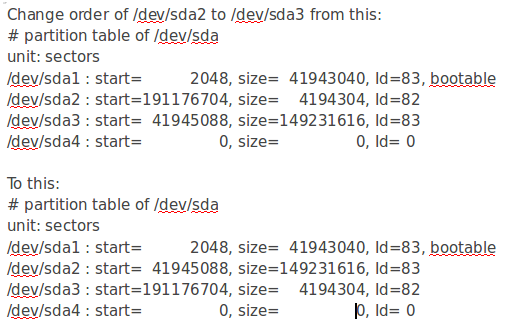
Save, close
-
Reinstall the new partition table
sfdisk –no-reread -f /dev/sda < sda.new
- Reboot computer
All methods was sourced from stackoverflow.com or stackexchange.com, is licensed under cc by-sa 2.5, cc by-sa 3.0 and cc by-sa 4.0