I have a standard keyboard with numerical keys on the right side (I guess it’s called 104-key keyboard). I want to use the numerical keys only as numerical keys. That means I don’t want the NumLock to switch on and off the numerical keys.
However, sometimes it happens (I don’t know how, perhaps by me accidentally hitting the NumLock key) that the NumLock is turned off, and I have to press it again. This is extremely annoying.
Is it possible to disable switching off NumLock?
In other words: I want my numerical keys to always act as number keys, and to disable the NumLock switch.
I am using Debian and LXDE (Openbox).
UPDATE:
I have been using now for several years the solution, where I use in Openbox to execute a script when NumLock key is pressed. This script then turns NumLock on again.
<keybind key="Num_Lock">
  <action name="Execute">
    <command>numlock-on.sh</command>
  </action>
</keybind>
apart from being a dirty hack, this does not work reliably. Somehow, still it happens to me that the numlock key gets disabled on my keyboard.
I am frustrated with the idea of a numlock key. The concept of numlock and Caps Lock are pure evil.
Anyway, I tried the second solution, where I put the following into my openbox autostart script:
xmodmap -e 'keycode 77 = Escape'
but this does not work at all.
First, when I log in to openbox, everything works fine, and the numerical keys work as numerical keys.
But when I press numlock, it not only disables the numerical keys, but when I press 7 for example, I get OH, and then the numerical keys serve as arrow keys.
Pressing NumLock key again does not enable numerical keys. I have to log out and log back in again.
So the xmodmap solution did not work as expected.
How can I once and for all disable completely the satanic feature of NumLock key?
Answers:
Thank you for visiting the Q&A section on Magenaut. Please note that all the answers may not help you solve the issue immediately. So please treat them as advisements. If you found the post helpful (or not), leave a comment & I’ll get back to you as soon as possible.
Method 1
perhaps by me accidentally hitting the NumLock key
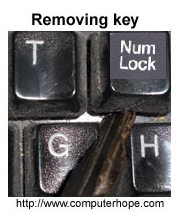
If the keyboard is yours (rather than your employer’s for example), just remove it from the keyboard physically.
You can still press it with a pointy thing if you ever really need to.
Method 2
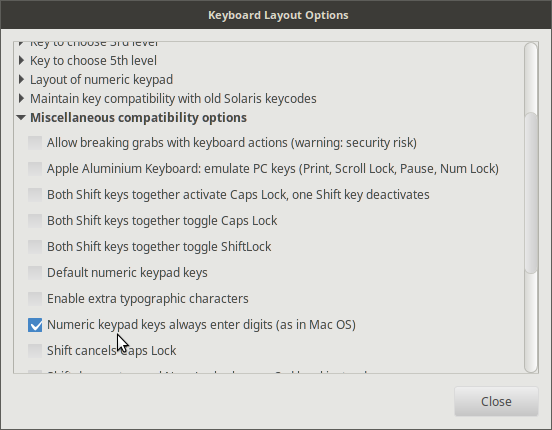 with LinuxMint 17.2 and I imagine other versions of Ubuntu you can go to your KEYBOARD setting and then LAYOUTS on that page you will find a small “options” button.
From there go to “misc compatibility options” and check
“numberic keys always enter digits”
This is a lifesaver for me. It bugs the heck out of me to type a number and be moved somewhere else on the page. Cheers! 😉
Method 3
I have actually been able to solve this once and for all with another way:
There is a whole thread about this: https://codereview.stackexchange.com/a/147817/104270
But actually it is as easy as calling:
# the program `numlockx`  is from the package `numlockx`
# the program `setxkbmap` is from the package `x11-xkb-utils`

numlockx on
setxkbmap -option numpad:mac
after your GUI login. I myself am using it, and it’s working flawlessly.
Method 4
After reading all the answer here I was quite surprised to see that you can do the following.
<keybind key="Num_Lock">
  <action name="Execute">
    <command>numlockx on</command>
  </action>
</keybind>
So every time you press Num, which deactivates the numlock. It will execute numlockx on, which reactivates numlock.
The name comes from my output of xev which gave me the key code 77 and the name Num_Lock
In @MartinVegters case he needed to wait a few seconds so the numlockx on definitely gets executed after the event of Num is handled.
Since there is a race condition between the handling of numlock in the kernel and the execution numlockx.
For this case you can write a small script denumlock.sh like
#!/bin/sh

sleep "$1"
numlockx on
and use it in the Key binding
<command>/bin/sh denumlock.sh 1</command>
This is dirty but it works.
What I recommend is the following which I couldn’t test myself.
You better follow the first answers which suggest to use
xmodmap -e 'keycode 77 = Escape'
But for LXDE you need to use the LXDE autostart mechanism which is different from the Openbox way of editing the ~/.config/openbox/autostart.
In LXDE you apparently need to edit ~/.config/lxsession/LXDE/autostart or with Lubuntu ~/.config/lxsession/Lubuntu/autostart, which holds the commands for the start up. (See Arch docs and LXDE docs) You may need to create that file and add this line.
@xmodmap -e 'keycode 77 = Escape'
Sadly, as I said I cannot test if this works, since I only have a VM running with LXDE.
Method 5
On my laptop keyboard (Ubuntu 10.04) keyboard lock is currently On.
$ xmodmap -pke|grep 77
keycode  77 = Num_Lock Pointer_EnableKeys Num_Lock Pointer_EnableKeys
keycode 177 = XF86Phone NoSymbol XF86Phone
$ xmodmap -e "keycode 77 ="
Voila ! numlock is now disabled.
xmodmap -e "keycode 77 = Num_Lock Pointer_EnableKeys Num_Lock Pointer_EnableKeys"
Puts it back again. (Maybe greping for Num_lock would have been a better idea, but you get the gist).
Reply to @Martin Vegter’s comment.
Ok, in reply to your comment xmodmap ruins your bindings, understood.
I have just checked the Openbox Documentation
Take a look in ~/.config/openbox/lxde-rc.xml
ls -l lxde-rc.xml (do you have an rc.xml as well ?, please check ).
take a copy of it as backup
(use an editor) search for numlock (maybe nmlk).
Do you see something like this ?
<keybind key="Numlock">
<action name="whatEverItSays"/>
</keybind>
Comment it out OR change The keybind key-value to an alternative eg Alt-Numlock to toggle
key="A-Numlock"
Eg
To Comment out
<!-Commented out from here
    <keybind key="Numlock">
    <action name="whatEverItSays"/>
    </keybind>
To Here -->
or
Change to Alt+Numlock toggle
<keybind key="A-Numlock">
  <action name="whatEverItSays"/>
</keybind>
save changes and logout/login or restart.
Method 6
Find your numlock keycode with xev. For example, here, Num_Lock is 77.
Use xmodmap to remap the keycode:
-
For current X sessions, inside a shell, use
xmodmap -e 'keycode 77 = '. -
To all future X sessions, inside
~/.xprofileplacexmodmap -e 'keycode 77 = '.EDIT: Note: Doesn’t work if a software is changing the Num Lock state.
Method 7
Just remove the NumLock key mapping by mapping it to nothing: first run xev and press Num Lock (it will probably print 77), and then run the command:
xmodmap -e "keycode # = """
where # is the keycode of NumLock.
You’d also put this to ~/.xprofile to disable NumLock in x sessions.
Method 8
I’m working off of the assumption that “always on” means “ALWAYS ON!”
I’m also assuming that Num Lock is just as annoying in text mode as it is in graphical mode …because it is.
If building kernels is your jam, and you don’t want to pry the physical cap off of your keyboard, then here is the best solution that I have found…
Jaskaran Veer Singh | Disable Numlock Permanently through the Linux Kernel
To summarize, in case the link breaks, etc.:
Browse the Kernel source to this file and open it in vim (because all other text editors are useless):
./drivers/tty/vt/keyboard.c
Locate the function:
static void k_pad(struct vc_data *vc, unsigned char value, char up_flag)
Locate the if statement:
if (!vc_kbd_led(kbd, VC_NUMLOCK))
And comment (or remove) the whole block:
/*
if (!vc_kbd_led(kbd, VC_NUMLOCK)) {

    switch (value) {
    case KVAL(K_PCOMMA):
    case KVAL(K_PDOT):
        k_fn(vc, KVAL(K_REMOVE), 0);
        return;
    case KVAL(K_P0):
        k_fn(vc, KVAL(K_INSERT), 0);
        return;
    case KVAL(K_P1):
        k_fn(vc, KVAL(K_SELECT), 0);
        return;
    case KVAL(K_P2):
        k_cur(vc, KVAL(K_DOWN), 0);
        return;
    case KVAL(K_P3):
        k_fn(vc, KVAL(K_PGDN), 0);
        return;
    case KVAL(K_P4):
        k_cur(vc, KVAL(K_LEFT), 0);
        return;
    case KVAL(K_P6):
        k_cur(vc, KVAL(K_RIGHT), 0);
        return;
    case KVAL(K_P7):
        k_fn(vc, KVAL(K_FIND), 0);
        return;
    case KVAL(K_P8):
        k_cur(vc, KVAL(K_UP), 0);
        return;
    case KVAL(K_P9):
        k_fn(vc, KVAL(K_PGUP), 0);
        return;
    case KVAL(K_P5):
        applkey(vc, 'G', vc_kbd_mode(kbd, VC_APPLIC));
        return;
    }
}
*/
…save, build, install, boot, profit, and enjoy!
Edit: I thought I should verify this works on my current system… while it does in text mode, in graphical mode it does not. I expect this could have something to do with the Xorg driver… anyway, as mentioned in another answer, adding this to xorg.conf solves it:
Section "InputClass"
    Identifier  "Keyboard Defaults"
    Option      "XkbOptions" "numpad:mac"
EndSection
…and so the final result is perpetual Num Lock goodness.
Method 9
Other answers here suggested using numlockx on with xmodmap -e 'keycode 77 =', but numlockx on wouldn’t work on my system together with that xmodmap command, showing me an error message:
$ numlockx on
X Error of failed request:  BadValue (integer parameter out of range for operation)
  Major opcode of failed request:  132 (XTEST)
  Minor opcode of failed request:  2 (X_XTestFakeInput)
  Value in failed request:  0x0
  Serial number of failed request:  17
  Current serial number in output stream:  20
And also setting xmodmap -e 'keycode 77 =' would for some reason remove all my keybindings made with xbindkeys.
This answer to a similar question has helped me, however. Part of my ~/.xinitrc:
numlockx on
xmodmap -e 'keycode 77 = NoSymbol Num_Lock'
This way the NumLock does nothing by itself, but if pressed with Shift it serves its original (mostly useless) purpose, and most importantly it doesn’t prevent numlockx on from working on my system, or mess up my xbindkeys key bindings.
Method 10
Another way, if you want to disable the numlock key disable permanently. You can do so by modifying your current keymap file by modifying the keycode 77.
Set this value to “none”, so that accidental press the key will do nothing.
Use numlockx at bootup to start it and use the modified keymap file in one of starting script e.g. ~/.bashrc or in /etc/profile.
NOTE: I haven’t tested this, but it should work.
Method 11
On OpenSuse 13.x with KDE, this worked for me:
- install numlockx
- Add Custom Shortcut:
- Custom Shortcuts -> Edit -> New -> Global Shortcut -> Command/URL:
- Action Name: NumLockOn
- Comment: Keep numlock on
- Trigger: set to NumLockk
- Action-> Command/URL: sh -c ‘sleep 0.5;numlockx on’
- Hit apply
- (done)
If NumLock needs to be enabled because its off, just use % numlockx on.
Method 12
I also want the numeric keypad number keys to always be numbers, none of the KP_… stuff.
My solution is part of my Remapping Apple Keyboard for use with Linux repo.
Basically, it just remaps Num_Lock as F20, and the numbers as themselves.
This solution always provides the desired result and an extra function key as fringe benefit.
Method 13
A rather hackish workaround is to add a cron job that runs the following command
setleds +num
every 30 seconds or so to turn NumLock on.
See also
Method 14
It may not be the best solution, but this worked for me:
stdbuf -oL xinput test 11 | mawk -W interactive '$3==77 {printf "/usr/bin/numlockx onn"}' | bash
Where 11 is the id of your keyboard. Do a xinput list to determine your keyboards id (in my case it’s 11):
<a href="https://getridbug.com/cdn-cgi/l/email-protection" class="__cf_email__" data-cfemail="a3d6d0c6d1e3cbccd0d7">[email protected]</a>:~$ xinput list
⎡ Virtual core pointer                      id=2    [master pointer  (3)]
⎜   ↳ Virtual core XTEST pointer                id=4    [slave  pointer  (2)]
⎜   ↳ DualPoint Stick                           id=12   [slave  pointer  (2)]
⎜   ↳ AlpsPS/2 ALPS DualPoint TouchPad          id=13   [slave  pointer  (2)]
⎣ Virtual core keyboard                     id=3    [master keyboard (2)]
    ↳ Virtual core XTEST keyboard               id=5    [slave  keyboard (3)]
    ↳ Video Bus                                 id=6    [slave  keyboard (3)]
    ↳ Sony Vaio Keys                            id=7    [slave  keyboard (3)]
    ↳ Video Bus                                 id=8    [slave  keyboard (3)]
    ↳ Power Button                              id=9    [slave  keyboard (3)]
    ↳ USB 2.0 Camera                            id=10   [slave  keyboard (3)]
    ↳ AT Translated Set 2 keyboard              id=11   [slave  keyboard (3)]
Obviously, numlockx must be installed for that to work.
Explanation:
stdbuf -oLmodifies buffering operations of the output stream to line bufferedxinput test 11prints the pressed keys to stdoutmawk -W interactive '$3==77 {printf "/usr/bin/numlockx onn"}'for every line that is printed and contains 77 (the numlock key), build a command/usr/bin/numlockx on…| bash… and pipe it to bash to execute it.
You can insert this oneliner in one of the desktop environments initial scripts or run it in the background.
Method 15
Create the following script and make it executable with chmod +x <filename>
#!/bin/bash
if [ -x /usr/bin/numlockx ];then
/usr/bin/numlockx on
fi
Put the file path in .config/openbox/autostart
Or place it as a cron job that checks every couple minutes and runs the script if numlocks is off.
crontab -e
*/1 * * * * <path-to-file>
Or just run the script in a loop.
#!/bin/bash
  x=0
  while [ x -eq 0 ];do
    if [ -x /usr/bin/numlockx ];then
    /usr/bin/numlockx on
    fi
  done
If you don’t have numlockx you should be able to get it with sudo apt-get install numlockx
All methods was sourced from stackoverflow.com or stackexchange.com, is licensed under cc by-sa 2.5, cc by-sa 3.0 and cc by-sa 4.0