I would like my default bash shell to go straight into tmux instead of my always having to type tmux every time.
Answers:
Thank you for visiting the Q&A section on Magenaut. Please note that all the answers may not help you solve the issue immediately. So please treat them as advisements. If you found the post helpful (or not), leave a comment & I’ll get back to you as soon as possible.
Method 1
@StarNamer’s answer is generally accurate, though I typically include the following tests to make sure that
tmuxexists on the system- we’re in an interactive shell, and
tmuxdoesn’t try to run within itself
So, I would add this to the .bashrc:
if command -v tmux &> /dev/null && [ -n "$PS1" ] && [[ ! "$TERM" =~ screen ]] && [[ ! "$TERM" =~ tmux ]] && [ -z "$TMUX" ]; then
  exec tmux
fi
References
- Using bash’s
commandto check for existence of a command – http://man7.org/linux/man-pages/man1/bash.1.html#SHELL_BUILTIN_COMMANDS - Why to use
commandinstead ofwhichto check for the existence of commands – https://unix.stackexchange.com/a/85250 - Using
$PS1to check for interactive shell – https://www.gnu.org/software/bash/manual/html_node/Is-this-Shell-Interactive_003f.html - Expected state of
$TERMenvironment variable “for all programs running inside tmux” – http://man7.org/linux/man-pages/man1/tmux.1.html#WINDOWS_AND_PANES
Method 2
Start tmux on every shell login, from Arch wiki, seems to work. Simply add the following line of bash code to your .bashrc before your aliases; the code for other shells is very similar:
[[ $TERM != "screen" ]] && exec tmux
Method 3
Adding a line like
[ -z "$TMUX" ] && { tmux attach || exec tmux new-session && exit;}
in your bashrc file will probably do the job. Note this line will exit ssh and terminate the connection once you detach or exit tmux. I like this configuration as it saves key strokes to terminate the connection. But if you don’t love this(which I think is very unlikely) and would rather remain in the login shell after termination, just remove the exit part:
[ -z "$TMUX" ] && { tmux attach || exec tmux new-session;}
Also note you shouldn’t wrap tmux attach with exec, as this would cause the connection to be closed when there are no tmux sessions to attach to.
Method 4
Go to terminal preferances.
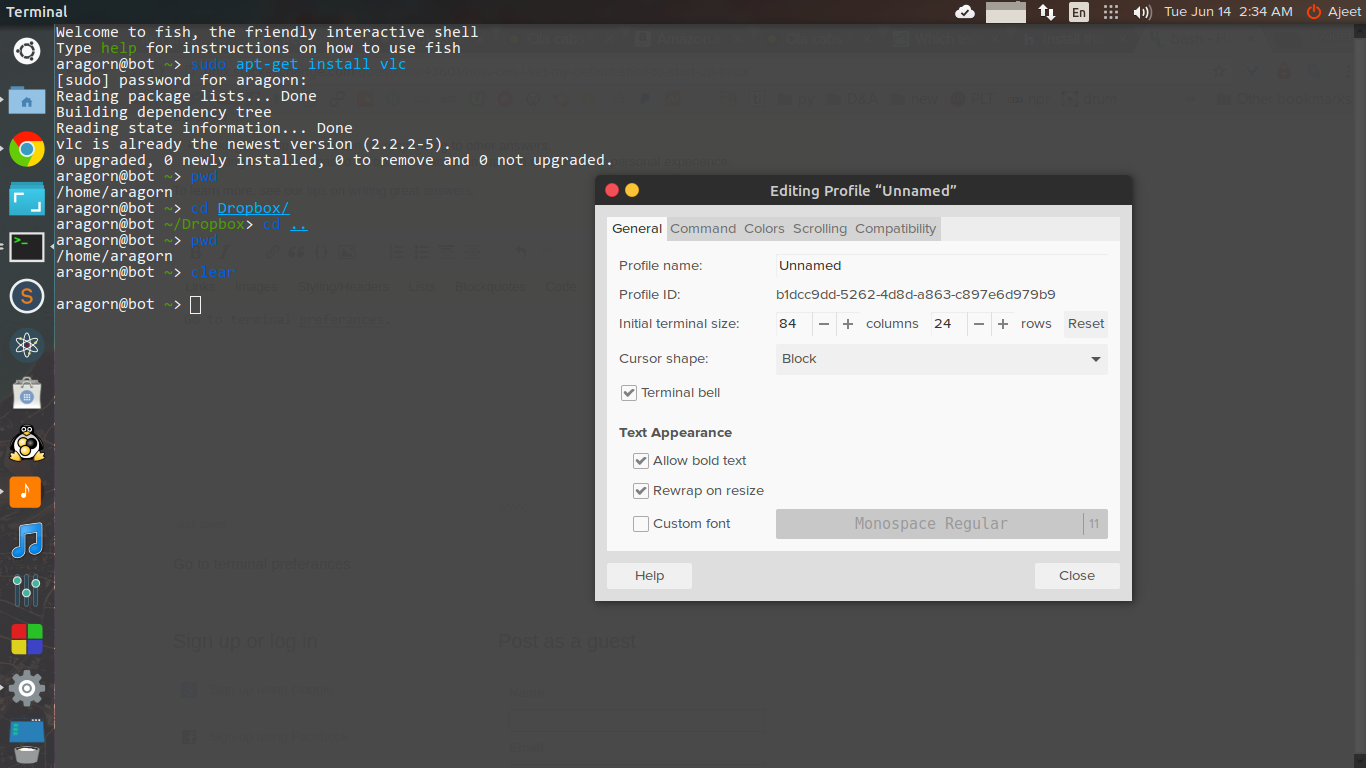
And then click to “command” bar.
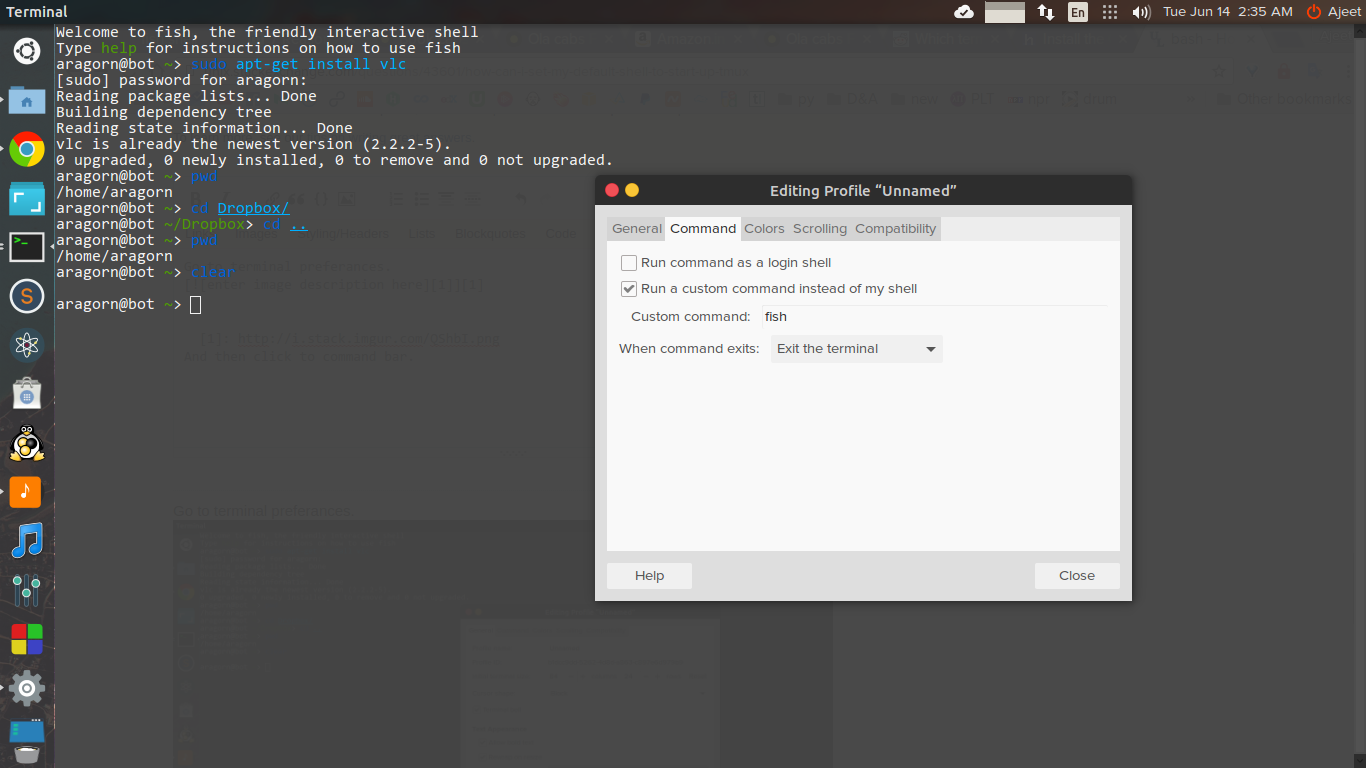
Check the “Run a custom command instead of my sell” and write whatever command you want to execute at the startup of your terminal.
Method 5
I combined the extensive checks, with the conditional session checking, and put my own spin on it, to create a default session that is connected to or else created. Unless you are inside of another tmux session, or other protective conditions are met.
if command -v tmux &> /dev/null && [ -n "$PS1" ] && [[ ! "$TERM" =~ screen ]] && [[ ! "$TERM" =~ tmux ]] && [ -z "$TMUX" ]; then
  tmux a -t default || exec tmux new -s default && exit;
fi
Based on these answers:
https://unix.stackexchange.com/a/306165/198110
https://unix.stackexchange.com/a/113768/198110
Method 6
I’m successfully using
case $- in *i*)
    [ -z "$TMUX" ] && exec tmux
esac
in my .zshrc. If you’re using bash, put it in your .bashrc instead.
I also just tried setting tmux as my default shell (chsh -s $(which tmux)) and it seems to break direct command execution via SSH, e.g. ssh $some_server echo foo will not produce any output.
Method 7
There is command chsh which changes login shell. Consult man chsh.
Make tmux your login shell, but don’t forget to configure the default-shell setting for tmux first!
Example of ~/.tmux.conf:
set-option -g default-shell "/bin/bash"
You need to test this first, before setting tmux as your login shell.
Method 8
Adding to @Louis Maddox ‘s answer, I would execute tmux part with;
(exec tmux attach || exec tmux new-session)
Method 9
None of the above responses worked for me – exec tmux prevents me closing tmux without quitting the shell (whether it’s opened with Ctrl + T or from the application menu).
I use Linux Mint, which lets you map certain hotkeys to commands, and (un-kosher as it may be to some..) I’ve got bash shells with commands starting up there, e.g. Win+Alt+B does some sort of convoluted bash -exec(vim) statement to edit my .bashrc, so it acts like a regular shell.
tmux loaded rather than vim under that situation after placing the above at the top of my .bashrc. I’ve wrapped the tmux executing line in another if statement, checking that it’s running in interactive mode.
if command -v tmux>/dev/null; then
        if [ ! -z "$PS1" ]; then # unless shell not loaded interactively, run tmux
                [[ ! $TERM =~ screen ]] && [ -z $TMUX ] && tmux
        fi
fi
You could wrap all that onto one line but for readability I think that’s fine.
Method 10
This is in my ~/.profile (I’m using ksh93):
if [[ -z "$TMUX" ]]; then
    if tmux has-session 2>/dev/null; then
        exec tmux attach
    else
        exec tmux
    fi
fi
If the TMUX environment variable is unset/empty, then we’re not already in a tmux session, so…
If tmux has-session returns with a zero exit status (true), there is an available session to attach to. Attach to it.
If not, create a new session.
It’s also possible to use tmux as your login shell. If you do this, however, make sure to set default-shell to an actual shell in your ~/.tmux.conf file (see the tmux manual for more info about this).
Method 11
The following solution is built upon the given solutions. It is a improvement on them and addresses few issues.
- If you are using a DE and try to use ‘Right Click > Open In Terminal’ then it will open in current location.
- What happens if you have multiple clients?
In the following solution:
first client always use session named default0
second client always use session named default1
third client always use session named default2
....
if you ‘Right Click > Open In Terminal’ and no session exists, then it will open new session in given directory.
if you ‘Right Click > Open In Terminal’ and session exists, then it will attach and then cd to $PWD.
function tmux-as-default-terminal () {

  # If we are not inside tmux session
  if command -v tmux &> /dev/null && [ -n "$PS1" ] && [ -z "$TMUX" ] && [[ ! "$TERM" =~ screen ]] && [[ ! "$TERM" =~ tmux ]]
  then

    notmuxsession=$(tmux list-clients | wc -l)

    if tmux has-session -t default${notmuxsession}
    then
        tmux send-keys -t default${notmuxsession}:0.0 "^U"
        tmux send-keys -t default${notmuxsession}:0.0 "cd $PWD &> /dev/null" ENTER
        tmux send-keys -t default${notmuxsession}:0.0 "^L"
        tmux attach-session -t default${notmuxsession}:0.0
    else
        tmux new-session -s default${notmuxsession} -c $PWD
    fi
  fi

}

tmux-as-default-terminal
P.S. I have tested this code for few days before publishing here. However, if you find any bug and have any idea for improvement, then please let me know.
Method 12
You could (and as of now probably should) use sudo chsh $(logname) command to set /usr/bin/tmux, or whatever is the path to it, as a default shell, then add the following to ~/.tmux.conf:
set-option -g default-shell </path/to/your/favourite/shell>
Method 13
this make tmux open by default on all new shell of user
cmd='[ $TERM == screen ] || exec tmux'
echo -e "$cmdn$(cat ~/.bashrc)" > ~/.bashrc
Method 14
I had an issue where I could not login (on Ubuntu 20.04). I added the following tweak to huangzonghao’s answer:
# autoload tmux - place at EOF (end-of-file) within ~/.bashrc
# if shell is interactive, and TMUX var is set...
[[ $- == *i* ]] && [[ -z "${TMUX}" ]] && { tmux attach || exec tmux new-session && exit; }
Method 15
Add the below line to ~/.config/fish/conf.d/omf.fish
if not set -q TMUX
    set -g TMUX tmux new-session -d -s base
    eval $TMUX
    tmux attach-session -d -t base
end
The above worked on Fedora 34. However, on exit, only tmux is exited and the running session remains active.
Method 16
Add this into your ~/.tmux.conf
set -g default-command /usr/local/bin/fish
Method 17
As Mikel already stated in his comment to have tmux as your login shell can have side effects. But you can make tmux your default shell, literally. A user’s default shell is defined in /etc/passwd. So you can become root and edit /etc/passwd, e.g. sudo vi /etc/passwd search for the line that begins with your username. It probably ends with :/bin/bash. Change /bin/bash to /usr/bin/tmux and now tmux is your default login shell.
However, no guarantee that this won’t cause problems!
What may work better is to NOT do anything that requries root privileges. I would try to create a file in my home directoy named .bash_login and start tmux from within that file: `echo “tmux” >~/.bash_login.
This should work, but you have to try and find our yourself, b/c the bash documentation is not very exact about what file is read and executed when.
All methods was sourced from stackoverflow.com or stackexchange.com, is licensed under cc by-sa 2.5, cc by-sa 3.0 and cc by-sa 4.0