I read some resources about the mount command for mounting devices on Linux, but none of them is clear enough (at least for me).
On the whole this what most guides state:
$ mount
(lists all currently mounted devices)

$ mount -t type device directory
(mounts that device)

for example (to mount a USB drive):
$ mount -t vfat /dev/sdb1 /media/disk
What’s not clear to me:
-
How do I know what to use for “device” as in
$ mount -t type device directory? That is, how do I know that I should use “/dev/sdb1” in this command$ mount -t vfat /dev/sdb1 /media/diskto mount my USB drive? - what does the “-t” parameter define here? type?
I read the man page ($ man mount) a couple of times, but I am still probably missing something. Please clarify.
Answers:
Thank you for visiting the Q&A section on Magenaut. Please note that all the answers may not help you solve the issue immediately. So please treat them as advisements. If you found the post helpful (or not), leave a comment & I’ll get back to you as soon as possible.
Method 1
You can use fdisk to have an idea of what kind of partitions you have, for example:
fdisk -l
Shows:
   Device Boot      Start         End      Blocks   Id  System
/dev/sda1   *          63   204796619   102398278+   7  HPFS/NTFS
/dev/sda2       204797952   205821951      512000   83  Linux
/dev/sda3       205821952   976773119   385475584   8e  Linux LVM
That way you know that you have sda1,2 and 3 partitions. The -t option is the filesystem type; it can be NTFS, FAT, EXT. In my example, sda1 is ntfs, so it should be something like:
mount -t ntfs /dev/sda1 /mnt/
USB devices are usually vfat and Linux are usually ext.
Method 2
I was really rusty on this, and then it started coming back.. if this doesn’t answer your question, maybe I misread it…
Alibi: this is on an Ubuntu 14 release. Your mileage may vary.
I use lsblk to get my mount points, which is different from mount
For me lsblk is easier to read than mount
Make sure that you have a directory created before you go to mount your device.
sudo mkdir /{your directory name here}
sudo mount /dev/{specific device id} /{your directory name here that is already created}
You should be good to go, however check security permissions on that new directory to make sure it’s what you want.
Method 3
These days, you can use the verbose paths to mount a specific device.
For example:
mount /dev/disk/by-id/ata-ST31500341AS_9VS2AM04-part1 /some/dir
mount /dev/disk/by-id/usb-HTC_Android_Phone_SH0BTRX01208-0:0 /some/dir
Run the ls -l /dev/disk/by-id/ command to see the possibilities.
Method 4
How come we have many ways to do this but as always we also take into consideration and do not know where the file system used in the device may hinder a little, but we can use the “auto” option to give a little help.
mount -t auto /dev/sdb1 /media/pendrv
and ready our device will be mounted: at /media/pendrv ready to use, then simply use:
umount /media/pendrv
… to release the device.
Method 5
mount (the command) usually figures out the “type” of the file system on the device. I think the hard part if figuring out the device file name. You almost have to know the disk drive naming conventions to figure it out.
On an up-to-date Arch linux box:
133 % ls /dev/sd??
/dev/sda1  /dev/sda2  /dev/sda3  /dev/sda4  /dev/sdb1  /dev/sdb2
But that doesn’t work on a mature (2.6.20.9) Slackware box:
1 % ls /dev/sd??
zsh: no matches found: /dev/sd??
2 % ls /dev/hd??
/dev/hda1  /dev/hda2
Without knowing in advance that /dev/sd* or /dev/hd* are hard disk device files, you have to use lspci or lsusb or something to figure out the device file name. USB devices often leave information in /var/log/messages to help you figure out what device file udev assigned to them.
Method 6
On Ubuntu 14, you can also use Disks app:
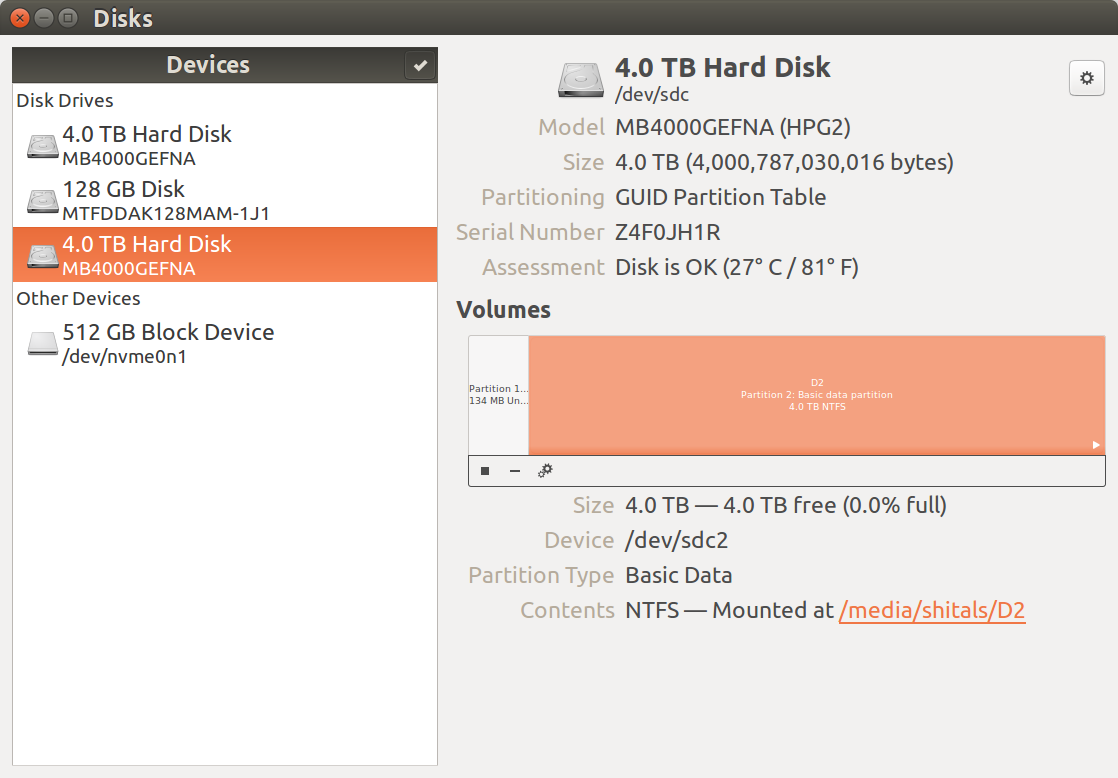
First click on the disk on the left panel and then click on the partition on the right panel. The bottom of right panel shows format, current mounting status etc. You can also use this GUI to create/delete/format partitions.
Method 7
ThoerX Forum
Check the device withfdisk -l
Partition the device as following :-
fdisk /dev/sda
d - Delete old partitions
n - New partition
select partition number
select start block
select end block
v - verify the new partition
w - write through

now fdisk - l should show /dev/sda1 with proper filesystem type (say ext4)
mount -t ext4 /dev/sda1 /myMountPoint
Method 8
I use the following commands in the following order:
 # identify desired partition by name, size and mount point
lsblk

# some disposable directory, mind the permissions if you will
mkdir /tmp/disk

# NO -t: it's auto detected
mount /dev/X /tmp/disk

# equivalent to umount /dev/X; or to "Safely Remove" in Windows
umount /tmp/disk
Method 9
1. Find what the drive is called
You’ll need to know what the drive is called to mount it. To do that enter the command below
lsblk
You’re looking for a partition that should look something like: /dev/sda1 or /dev/sdb1. The more disks you have the higher the letter this is likely to be. Anyway, find it and remember what it’s called.
2. Mount using udisksctl
udisksctl mount -b /dev/sda1
Sample Output:
Mounted /dev/sda1 at /media/myusername/usb_stick_name.
3. Unmount the disk
Similarly, you can unmount the USB drive using command:
udisksctl unmount -b /dev/sda1
The Above approach saves you from,
- figuring out your disk filesystem type 😉
- creating a mount point directory using root privilege 😉
- mounting the disk using
sudo😉
For more details check this question
All methods was sourced from stackoverflow.com or stackexchange.com, is licensed under cc by-sa 2.5, cc by-sa 3.0 and cc by-sa 4.0