Please suggest me any particular unnecessary file that I can clean to back everything to normal condition(temporarily). (i.e. any log or archieve or anything ). My var/log has only 40MB and Home directory has 3GB of space(so I believe that’s not a problem). Other than that what I can clean up to make space.
[<a href="https://getridbug.com/cdn-cgi/l/email-protection" class="__cf_email__" data-cfemail="2752544255674f485453">[email protected]</a>]$ df -h
Filesystem            Size  Used Avail Use% Mounted on
/dev/mapper/vg_inamivm-lv_root
                       18G   17G     0 100% /
tmpfs                 1.9G     0  1.9G   0% /dev/shm
/dev/sda1             485M   71M  389M  16% /boot
I am in a debian machine.
UPDATE1:
output of cd /; du -sxh *
6.1M    bin
61M     boot
156K    dev
22M        etc
3.3G    home
306M    lib
18M     lib64
16K     lost+found
4.0K    media
4.0K    mnt
408K    opt
du: cannot access `proc/18605/task/18605/fd/4': No such file or directory
du: cannot access `proc/18605/task/18605/fdinfo/4': No such file or directory
du: cannot access `proc/18605/fd/4': No such file or directory
du: cannot access `proc/18605/fdinfo/4': No such file or directory
0       proc
208K    root
9.7M    sbin
0       selinux
4.0K    srv
0       sys
8.0K    tmp
536M    usr
187M    var
Update2
Output of ls -la /
dr-xr-xr-x.  22 root root  4096 Aug  7 08:42 .
dr-xr-xr-x.  22 root root  4096 Aug  7 08:42 ..
-rw-r--r--.   1 root root     0 Aug  7 08:42 .autofsck
dr-xr-xr-x.   2 root root  4096 Mar 28 16:53 bin
dr-xr-xr-x.   5 root root  1024 Mar 28 16:54 boot
drwxr-xr-x.  16 root root  3580 Sep  9 03:13 dev
drwxr-xr-x.  69 root root  4096 Aug 23 09:19 etc
drwxr-xr-x.   9 root root  4096 Jun 29 16:10 home
dr-xr-xr-x.   8 root root  4096 Mar  7  2012 lib
dr-xr-xr-x.   9 root root 12288 Mar 28 16:53 lib64
drwx------.   2 root root 16384 Mar  7  2012 lost+found
drwxr-xr-x.   2 root root  4096 Sep 23  2011 media
drwxr-xr-x.   2 root root  4096 Sep 23  2011 mnt
drwxr-xr-x.   3 root root  4096 Mar  7  2012 opt
dr-xr-xr-x. 355 root root     0 Aug  7 08:42 proc
dr-xr-x---.   5 root root  4096 Aug 17 18:27 root
dr-xr-xr-x.   2 root root  4096 May  2 09:13 sbin
drwxr-xr-x.   7 root root     0 Aug  7 08:42 selinux
drwxr-xr-x.   2 root root  4096 Sep 23  2011 srv
drwxr-xr-x.  13 root root     0 Aug  7 08:42 sys
drwxrwxrwt.   3 root root  4096 Sep 13 03:37 tmp
drwxr-xr-x.  13 root root  4096 Mar 28 17:53 usr
drwxr-xr-x.  18 root root  4096 Mar  7  2012 var
Answers:
Thank you for visiting the Q&A section on Magenaut. Please note that all the answers may not help you solve the issue immediately. So please treat them as advisements. If you found the post helpful (or not), leave a comment & I’ll get back to you as soon as possible.
Method 1
daisy’s answer to use a graphical tool to visually find large files and directories is probably the best method. However, do note that “graphical tool” does not mean “requires an X server”! The wonderful ncdu program provides the graphical output in the CLI, and works perfectly on remote servers via SSH:
$ ncdu /

.  43.7GiB [##########] /home
.   5.9GiB [#         ] /usr
    1.1GiB [          ] /lib
.   1.1GiB [          ] /var
  736.9MiB [          ] /opt
. 324.6MiB [          ] /tmp
  218.4MiB [          ] /boot
.  63.8MiB [          ] /etc
   10.0MiB [          ] /sbin
    8.8MiB [          ] /bin
    3.3MiB [          ] /lib32
.   1.0MiB [          ] /run
   64.0KiB [          ] /build
!  16.0KiB [          ] /lost+found
    8.0KiB [          ] /media
    8.0KiB [          ] /mnt
    8.0KiB [          ] /.config
    4.0KiB [          ] /dev
    4.0KiB [          ] /lib64
e   4.0KiB [          ] /srv
e   4.0KiB [          ] /selinux
!   4.0KiB [          ] /root
e   4.0KiB [          ] /cdrom
.   0.0  B [          ] /proc
.   0.0  B [          ] /sys
@   0.0  B [          ]  initrd.img.old
@   0.0  B [          ]  initrd.img
@   0.0  B [          ]  vmlinuz.old
Then, after entering /var/ for instance:
. 395.3MiB [##########] /tmp
. 365.0MiB [######### ] /cache
. 297.8MiB [#######   ] /lib
   16.1MiB [          ] /backups
.   8.0MiB [          ] /log
.  56.0KiB [          ] /spool
   40.0KiB [          ] /games
    8.0KiB [          ] /www
e   4.0KiB [          ] /opt
e   4.0KiB [          ] /mail
e   4.0KiB [          ] /local
e   4.0KiB [          ] /crash
@   0.0  B [          ]  lock
@   0.0  B [          ]  run
Install easily on Debian or Ubuntu:
$ sudo apt-get install ncdu
Install easily on CentOS as root:
# yum install ncdu
Method 2
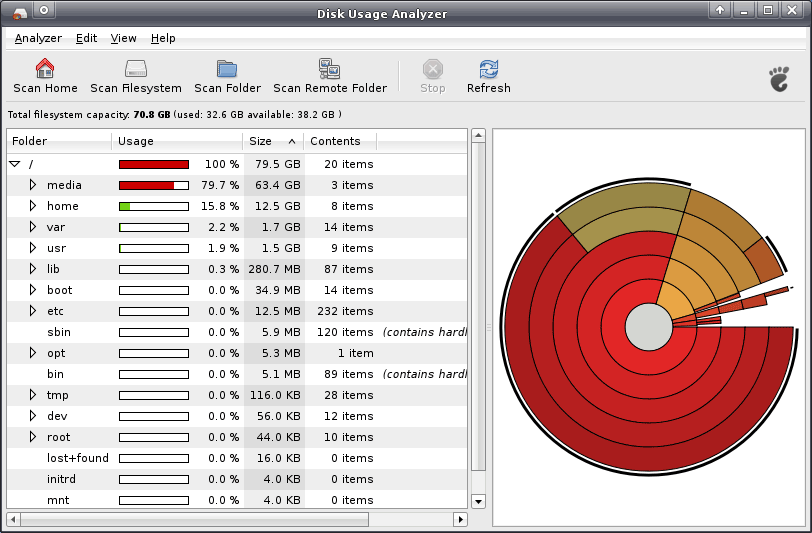
The best way of finding out disk consuming, is using graphical software like baobab:
Launch it with sudo baobab /
Method 3
Debian offers a utility called cruft IIRC that lists files that could possibly be uneeded on your system.
Method 4
You can check for deleted files with lsof | grep -i deleted
Then you can see if a process is hanging on to an inode that you think was deleted. If so, restart the parent process to release the old (deleted) file.
Method 5
make a new file in /bin called treesize
chmod +x /bin/treesize
paste this in it.
#/bin/sh
du -k --max-depth=1 | sort -nr | awk '
     BEGIN {
        split("KB,MB,GB,TB", Units, ",");
     }
     {
        u = 1;
        while ($1 >= 1024) {
           $1 = $1 / 1024;
           u += 1
        }
        $1 = sprintf("%.1f %s", $1, Units[u]);
        print $0;
     }
    '
Output looks like this.
#treesize
3.0 GB .
1.1 GB ./usr
759.9 MB ./var
353.3 MB ./root
307.1 MB ./opt
270.7 MB ./lib
98.6 MB ./home
60.1 MB ./boot
9.8 MB ./etc
8.3 MB ./bin
8.1 MB ./sbin
268.0 KB ./run
40.0 KB ./tmp
16.0 KB ./lost+found
Method 6
This will give you the biggest files on your FS and maybe you will find there some files which can be deleted.
find / -xdev -type f -size +100000c -exec ls -la {} ; 2>/dev/null | sort -nk5 | tail -20
If you need longer output, just change number after tail command.
Please post output from:
df -h /
du -shx /
Both commands should show similar used space of your FS.
Method 7
I’ve found some very useful commands on this post at Askubuntu.com. Paraphrasing:
- Show top 10 biggest subdirs in the current dir:
du -sk * | sort -nr | head -10 - Use filelight/kDirStat/baobab to see where the disk space is going visually
- Check if you have old kernels for deletion:
ls -lh /boot - Clean packages:
sudo apt-get autoremoveandsudo apt-get autoclean - See list of all installed packages, sorted by size:
dpkg-query -W --showformat='${Installed-Size} ${Package}n' | sort -nr | less - Clean unused language files with translations:
sudo apt-get install localepurge - Check content of /var/tmp/:
du -sh /var/tmp/ - Check also
man deborphan - Search for big files:
find / -type f -size +1024korfind / -size +50000 -exec ls -lahg {} ;
Method 8
find . -atime +180 | xargs ls -al | sort -u -n -k5 | numfmt --to=iec --field=5
- find all files in
.whos access time is over 180 days old - show file size
- sort by 5th column, numerical
- format 5th column to human readable
Useful links about access time:
- https://superuser.com/questions/464290/why-is-cat-not-changing-the-access-time
- timestamp, modification time, and created time of a file
All methods was sourced from stackoverflow.com or stackexchange.com, is licensed under cc by-sa 2.5, cc by-sa 3.0 and cc by-sa 4.0