I use bindkey -v (for bash-ers set -o vi I think that works in zsh too) or vi(m) mode. but it bugs me that I don’t have any visual cue to tell me whether I’m in insert mode or command mode. Does anyone know how I can make my prompt display the mode?
Answers:
Thank you for visiting the Q&A section on Magenaut. Please note that all the answers may not help you solve the issue immediately. So please treat them as advisements. If you found the post helpful (or not), leave a comment & I’ll get back to you as soon as possible.
Method 1
I found this via SU. Here’s the basic example, though I’m still customizing it for myself:
function zle-line-init zle-keymap-select {
    RPS1="${${KEYMAP/vicmd/-- NORMAL --}/(main|viins)/-- INSERT --}"
    RPS2=$RPS1
    zle reset-prompt
}

zle -N zle-line-init
zle -N zle-keymap-select
I’d explain it except I don’t really understand it yet
Method 2
You’ve already found zle-keymap-select which is executed whenever the mode changes. You could use it to set some other visual indicator than the prompt, depending on what your terminal supports it (and your taste in mode indicator display, of course).
There is a standard terminfo capability to change the shape of the cursor. However some terminals display the same cursor in both modes. Xterm’s notion of a less visible cursor is to make it blink (and this must be enabled with the -bc command line argument or cursorBlink resource).
zle-keymap-select () {
  case $KEYMAP in
    vicmd) print -rn -- $terminfo[cvvis];; # block cursor
    viins|main) print -rn -- $terminfo[cnorm];; # less visible cursor
  esac
}
With some terminals, you can also change the cursor color with print -n 'e]12;pinka' (by color name) or print -n 'e]12;#abcdefa' (by RGB specification). These sequences are described in the xterm documentation, in the ctlseqs file; modern terminal emulators typically emulate xterm, though they might not support all its features.
Method 3
For the people having problems using reset-prompt with multiline prompts, in combination with https://stackoverflow.com/questions/3622943/zsh-vi-mode-status-line I ended up doing:
terminfo_down_sc=$terminfo[cud1]$terminfo[cuu1]$terminfo[sc]$terminfo[cud1]

function insert-mode () { echo "-- INSERT --" }
function normal-mode () { echo "-- NORMAL --" }

precmd () {
    # yes, I actually like to have a new line, then some stuff and then
    # the input line
    print -rP "
[%D{%a, %d %b %Y, %H:%M:%S}] %n %{$fg[blue]%}%m%{$reset_color%}"

    # this is required for initial prompt and a problem I had with Ctrl+C or
    # Enter when in normal mode (a new line would come up in insert mode,
    # but normal mode would be indicated)
    PS1="%{$terminfo_down_sc$(insert-mode)$terminfo[rc]%}%~ $ "
}
function set-prompt () {
    case ${KEYMAP} in
      (vicmd)      VI_MODE="$(normal-mode)" ;;
      (main|viins) VI_MODE="$(insert-mode)" ;;
      (*)          VI_MODE="$(insert-mode)" ;;
    esac
    PS1="%{$terminfo_down_sc$VI_MODE$terminfo[rc]%}%~ $ "
}

function zle-line-init zle-keymap-select {
    set-prompt
    zle reset-prompt
}
preexec () { print -rn -- $terminfo[el]; }

zle -N zle-line-init
zle -N zle-keymap-select
Method 4
Another solution for changing the cursor shape between I-beam and block (for underscore, use 33[4 q). Add this to your ~/.zshrc.
zle-keymap-select () {
if [ $KEYMAP = vicmd ]; then
    printf "33[2 q"
else
    printf "33[6 q"
fi
}
zle -N zle-keymap-select
zle-line-init () {
zle -K viins
printf "33[6 q"
}
zle -N zle-line-init
bindkey -v
Modified from https://bbs.archlinux.org/viewtopic.php?id=95078. Tested in gnome-terminal 3.22.
Update
Yet another solution to changing the cursor shapes can be found here. This one apparently works for iTerm2, which I don’t have the means to test, but adding it in here in case it is useful for someone else. The final addition to your ~/.zshrc would be
function zle-keymap-select zle-line-init
{
    # change cursor shape in iTerm2
    case $KEYMAP in
        vicmd)      print -n -- "E]50;CursorShape=0C-G";;  # block cursor
        viins|main) print -n -- "E]50;CursorShape=1C-G";;  # line cursor
    esac

    zle reset-prompt
    zle -R
}

function zle-line-finish
{
    print -n -- "E]50;CursorShape=0C-G"  # block cursor
}

zle -N zle-line-init
zle -N zle-line-finish
zle -N zle-keymap-select
Method 5
This is what I use to change the cursor between ‘Block’ and ‘Beam’ shape in zsh:
(Tested with Termite, gnome-terminal and mate-terminal)
# vim mode config
# ---------------

# Activate vim mode.
bindkey -v

# Remove mode switching delay.
KEYTIMEOUT=5

# Change cursor shape for different vi modes.
function zle-keymap-select {
  if [[ ${KEYMAP} == vicmd ]] ||
     [[ $1 = 'block' ]]; then
    echo -ne 'e[1 q'

  elif [[ ${KEYMAP} == main ]] ||
       [[ ${KEYMAP} == viins ]] ||
       [[ ${KEYMAP} = '' ]] ||
       [[ $1 = 'beam' ]]; then
    echo -ne 'e[5 q'
  fi
}
zle -N zle-keymap-select

# Use beam shape cursor on startup.
echo -ne 'e[5 q'

# Use beam shape cursor for each new prompt.
preexec() {
   echo -ne 'e[5 q'
}
Method 6
you can try VimMode
Method 7
I’m currently using Zsh with Bullet Train theme. Following the example given by Sebastian Blask’s answer, I ended up with the code bellow
bindkey -v
KEYTIMEOUT=1

function zle-line-init zle-keymap-select {
    case ${KEYMAP} in
        (vicmd)      BULLETTRAIN_PROMPT_CHAR="N" ;;
        (main|viins) BULLETTRAIN_PROMPT_CHAR="I" ;;
        (*)          BULLETTRAIN_PROMPT_CHAR="I" ;;
    esac
    zle reset-prompt
}

zle -N zle-line-init
zle -N zle-keymap-select
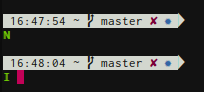
This will only change de default $ to the letters N to normal mode and I to insert mode.
This image is an example when in normal mode I press Ctrl+C:
Method 8
Here’s yet another version, based from Sebastian Blask’s post.
This was intended to be as non-intrusive as possible, as all the other solutions I could find used extra lines, status on the right, or added characters.
This simply changes the color of $ from white to red when normal mode is enabled. Edit the prompt to your liking
bindkey -v
function zle-line-init zle-keymap-select {
    case ${KEYMAP} in
        (vicmd)      PROMPT=$'%{e[0;32m%}%~%{e[0m%} %{e[0;31m%}$%{e[0m%} ' ;;
        (main|viins) PROMPT=$'%{e[0;32m%}%~%{e[0m%} $ ' ;;
        (*)          PROMPT=$'%{e[0;32m%}%~%{e[0m%} $ ' ;;
    esac
    zle reset-prompt
}

zle -N zle-line-init
zle -N zle-keymap-select
Method 9
A version for oh-my-zsh users
There’s a plugin for oh-my-zsh called vi-mode that can be found here:
robbyrussell/oh-my-zsh/plugins/vi-mode
I use Antigen to manage my plugins, so including it was as simple as adding this to my .zshrc:
antigen bundle vi-mode
Method 10
You can use this in your .zshrc to change the cursor based on the mode you’re in. It’s taken from here: https://gist.github.com/LukeSmithxyz/e62f26e55ea8b0ed41a65912fbebbe52
# vi mode
bindkey -v
export KEYTIMEOUT=1

# Change cursor shape for different vi modes.
function zle-keymap-select {
  if [[ ${KEYMAP} == vicmd ]] ||
     [[ $1 = 'block' ]]; then
    echo -ne 'e[1 q'
  elif [[ ${KEYMAP} == main ]] ||
       [[ ${KEYMAP} == viins ]] ||
       [[ ${KEYMAP} = '' ]] ||
       [[ $1 = 'beam' ]]; then
    echo -ne 'e[5 q'
  fi
}
zle -N zle-keymap-select
zle-line-init() {
    zle -K viins # initiate `vi insert` as keymap (can be removed if `bindkey -V` has been set elsewhere)
    echo -ne "e[5 q"
}
zle -N zle-line-init
echo -ne 'e[5 q' # Use beam shape cursor on startup.
preexec() { echo -ne 'e[5 q' ;} # Use beam shape cursor for each new prompt.
You can customise the type of cursor you want (blinking or not, |, rectangle or _) by changing the numbers in the following sequences e[5 q (5 is for beam, 1 is for block) as follows:
Set cursor style (DECSCUSR), VT520.
0  ⇒  blinking block.
1  ⇒  blinking block (default).
2  ⇒  steady block.
3  ⇒  blinking underline.
4  ⇒  steady underline.
5  ⇒  blinking bar, xterm.
6  ⇒  steady bar, xterm.
Method 11
The zsh-vim-mode plugin is able to show an indicator for insert, command, search, replace, and visual modes. It uses the basic technique of other answers to hook in to the various ZLE hooks (zle-keymap-select, zle-isearch-update, etc.). It checks [[ $ZLE_STATE = *overwrite* ]] for replace mode. It checks $REGION_ACTIVE to identify visual mode.
The logic is complicated by some quirks of how ZSH fires events when leaving isearch mode.
Another nice feature of the module is the ability to change the cursor shape and color based on the mode. For example, you can use a vertical bar in INSERT mode and a blinking underline in SEARCH mode.
Method 12
Exactly, I can understand your concern and if you don’t mind using a plugin, I think this one I wrote can help you show the vi mode status perfectly, also the additional bonus of better experience on vi mode and so on.
zsh-vi-mode: A better and friendly vi(vim) mode plugin for ZSH.
https://github.com/jeffreytse/zsh-vi-mode
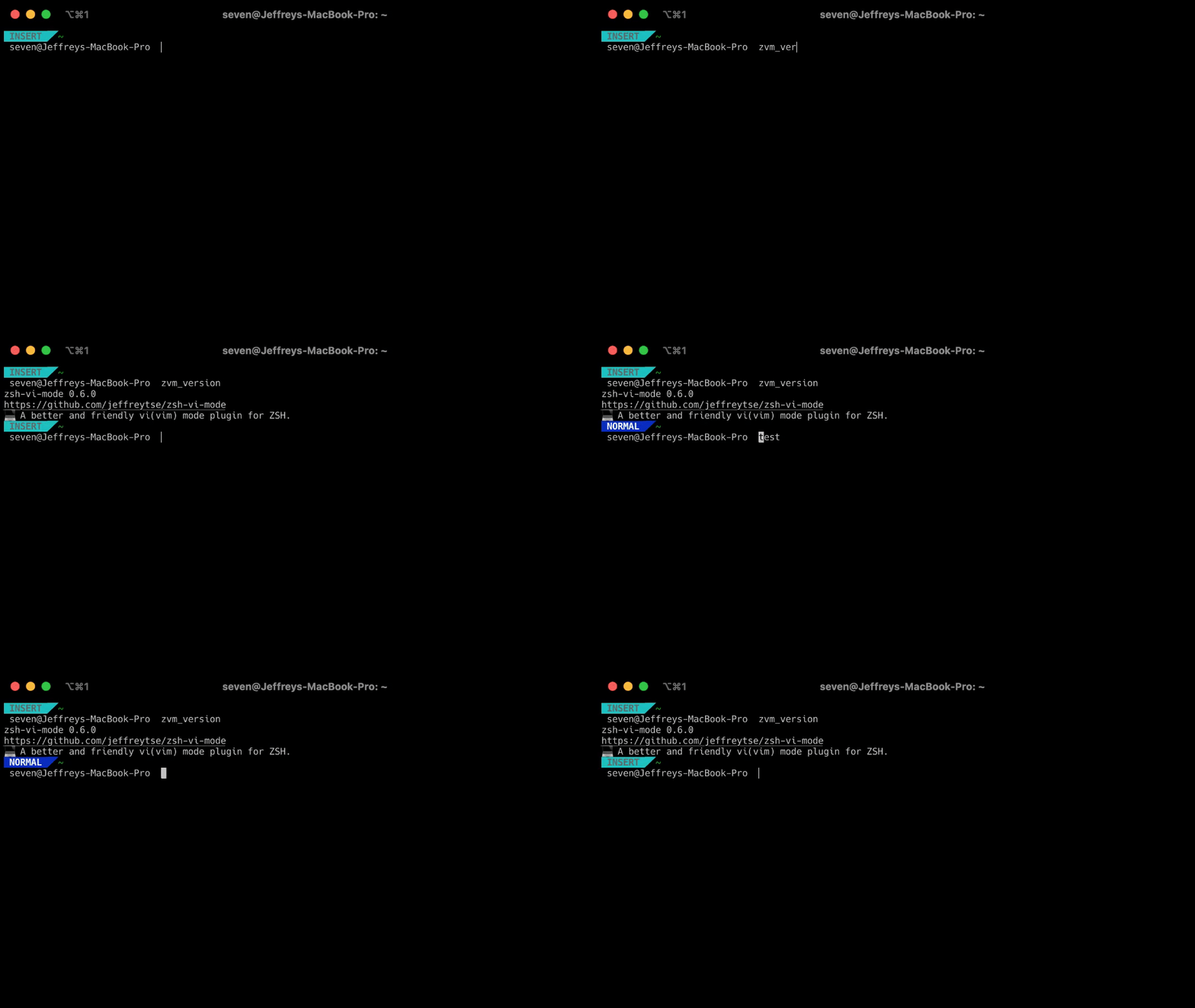
This plugin has provided a ZVM_MODE variable for you to retrieve current vi mode and better show the indicator.
And currently the below modes are supported:
ZVM_MODE_NORMAL
ZVM_MODE_INSERT
ZVM_MODE_VISUAL
ZVM_MODE_VISUAL_LINE
ZVM_MODE_REPLACE
For updating the vi mode indicator, we should add our commands to zvm_after_select_vi_mode_commands. For example:
After you install this plugin
# The plugin will auto execute this `zvm_after_select_vi_mode` function
function zvm_after_select_vi_mode() {
  case $ZVM_MODE in
    $ZVM_MODE_NORMAL)
      # Something you want to do...
      ;;
    $ZVM_MODE_INSERT)
      # Something you want to do...
      ;;
    $ZVM_MODE_VISUAL)
      # Something you want to do...
      ;;
    $ZVM_MODE_VISUAL_LINE)
      # Something you want to do...
      ;;
    $ZVM_MODE_REPLACE)
      # Something you want to do...
      ;;
  esac
}
Here is an example:
All methods was sourced from stackoverflow.com or stackexchange.com, is licensed under cc by-sa 2.5, cc by-sa 3.0 and cc by-sa 4.0