Hey I got problem in running .NET framework 4.0 website on IIS7.0.
the error I got is like:
HTTP Error 404.2 – Not Found “The page you are requesting cannot be served because of the ISAPI and CGI Restriction list settings on the Web server”.
Module : IsapiModule ,
Notification : ExecuteRequestHandler,
Handler : PageHandlerFactory-ISAPI-4.0_32bit ,
Error Code : 0x800704ec
Answers:
Thank you for visiting the Q&A section on Magenaut. Please note that all the answers may not help you solve the issue immediately. So please treat them as advisements. If you found the post helpful (or not), leave a comment & I’ll get back to you as soon as possible.
Method 1
Go to IIS manager and click on the server name. Then click on the “ISAPI and CGI Restrictions” icon under the IIS header. Change ASP.NET 4.0 from “Not Allowed” to “Allowed”.
Method 2
If you look in the ISAPI And CGI Restrictions, and everything is already set to Allowed, then make sure that the ASP.NET v4.0.30319 handlers are even in the list. In my case they were not. This can be easy to overlook.
I added one for 32 %windir%Microsoft.NETFrameworkv4.0.30319aspnet_isapi.dll and another for 64 bit %windir%Microsoft.NETFramework64v4.0.30319aspnet_isapi.dll. You can name them both the same ASP.NET v4.0.30319.
Check Allow extension path to execute.
Method 3
- Go to the IIS Manager.
- open the server name like
(PC-Name). - then double click on the ISAPI and CGI Restriction.
- then select ASP.NET v4.0.30319(32-bit) Restriction allowed.
Method 4
In my case, the problem was more severe: turns out asp.net was not correctly registered.
simply ran the following command at the command prompt
%windir%Microsoft.NETFramework64v4.0.30319aspnet_regiis.exe -iIf I had been on a 32 bit system, it would have looked like the following:
%windir%Microsoft.NETFrameworkv4.0.21006aspnet_regiis.exe -i
Method 5
Step 1: Open IIS and click the server name
Step 2. Double click “ISAPI and CGI Restrictions”
Step 3. Right click ASP.NET v4.0.30319 and select “allow”
After
Stopping and Starting the World Wide Web Publishing Service
1.Go to Start > All Programs > Administrative Tools > Services.
2.In the services list, right-click World Wide Web Publishing Service, and then click Stop (to stop the service), Start (to start it after it has been stopped), or Restart (to restart the service when it is running).
Pramesh
Method 6
If you are running Delphi, or other native compiled CGI, this solution will work:
- As other pointed, go to IIS manager and click on the server name. Then click on the “ISAPI and CGI Restrictions” icon under the IIS header.
- If you have everything allowed, it will still not work. You need to click on “Edit Feature Settings” in Actions (on the right side), and check “Allow unspecified CGI modules”, or “Allow unspecified ISAPI modules” respectively.
- Click OK
Method 7
In our case the solution to this problem did not involve the “ISAPI and CGI Restrictions” settings. The error started occuring after operations staff had upgraded the server to .NET 4.5 by accident, then downgraded to .NET 4.0 again. This caused some of the IIS websites to forget their respective correct application pools, and it caused some of the application pools to switch from .NET Framework 4.0 to 2.0. Changing these settings back fixed the problem.
Method 8
If you look in the ISAPI And CGI Restrictions, and everything is already set to Allowed, and the ASP.NET installed is v4.0.30319, then in the right, at the “Actions” panel click in the “Edit Feature Settings…” and check both boxes. In my case, they were not.
Method 9
Try changing the AppPool Manged Pipeline Mode from “Integration” to “Classic”.
Method 10
Depending on the type of application, another thing to check is under the Advanced Settings for the Application Pool make sure “Enable 32-Bit Applications” is set to True.
I’d checked everything in this thread when I had this issue but all had already been setup correctly, I found this was the problem for me.
Method 11
If you don’t have ISAPI and CGI Restrictions option listed, here is how to add it. How to add ISAPI and CGI Restrictions
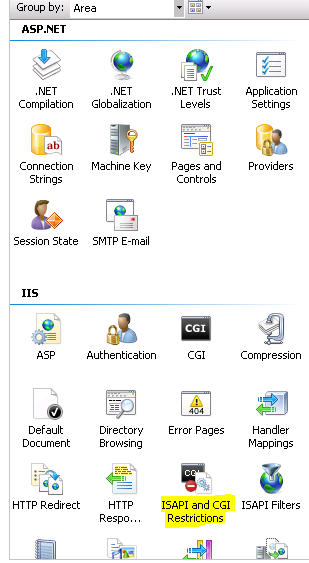
Method 12
After mapping of Application follow these steps
Open IIS
Click on Applications Pools
Double click on website
Change Manage pipeline mode to “classic”
click Ok.
Ow change .Net Framework Version to Lower version
Then click Ok
All methods was sourced from stackoverflow.com or stackexchange.com, is licensed under cc by-sa 2.5, cc by-sa 3.0 and cc by-sa 4.0