I just created a webform that is hosted in my Azure subscription. I set it up with authenication via my works Azure directory for authenticating users. In debug this works fine and I am able to login with my work credentials and then view the website via local host.
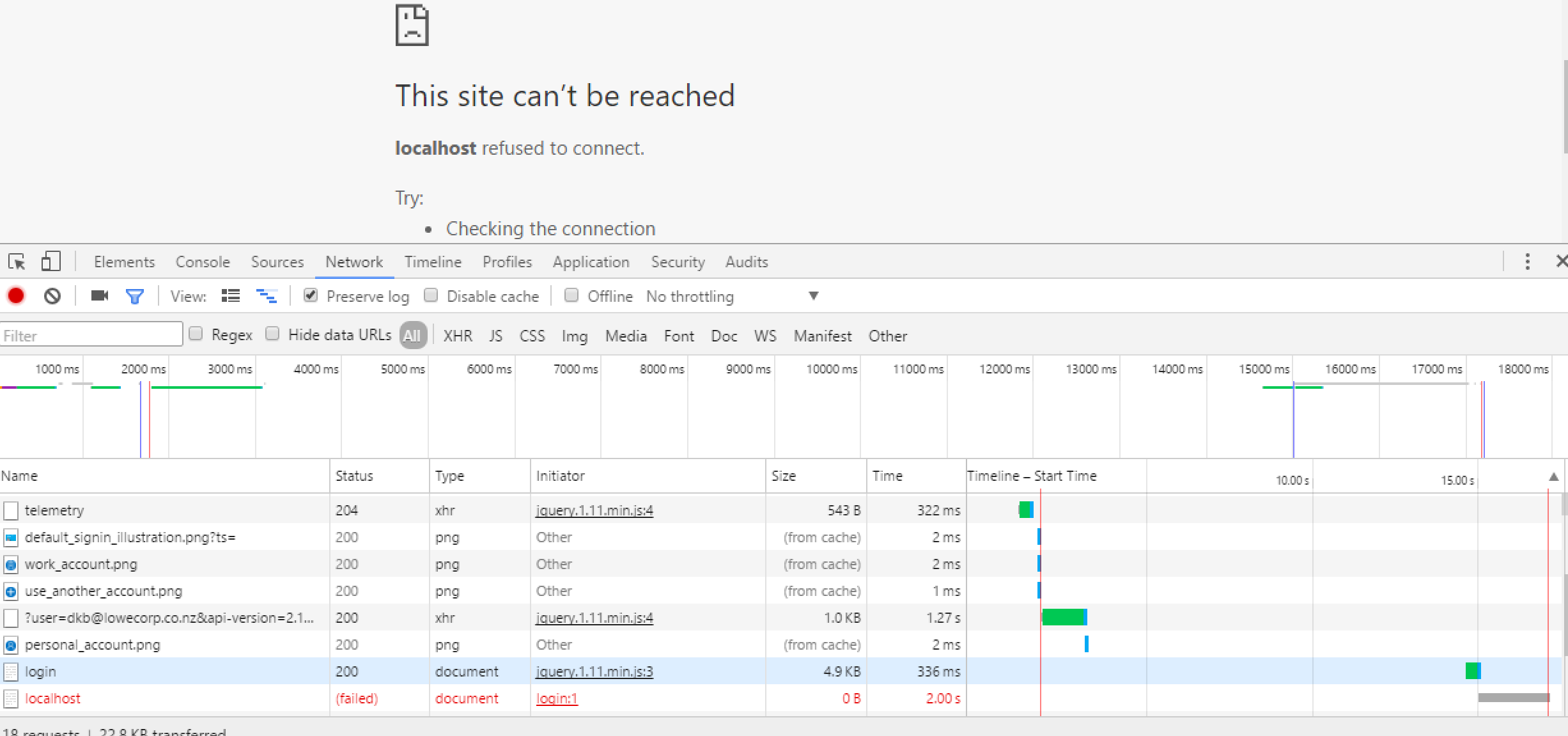
I have published this to my Azure and it says it is running and working fine. So when I try to connect to the website it continuously redirects me to the localhost resulting in an error.
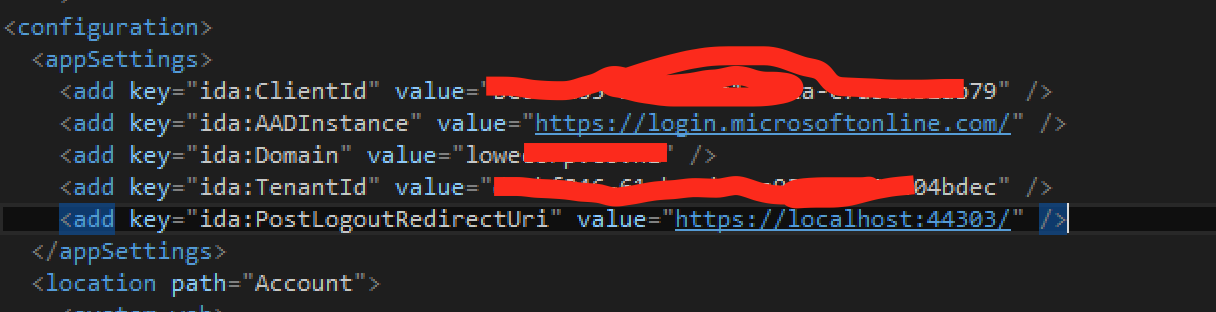
I have checked the web config.
Here is the google network chain of events when it occurs.
I am really lost as to what is wrong and what I need to do to fix this so any help would be greatly appreciated. I’m sorry I can’t offer more but I don’t even know what is wrong to begin with or where to look. Is there some setting in Azure that I need to add the website too?
Answers:
Thank you for visiting the Q&A section on Magenaut. Please note that all the answers may not help you solve the issue immediately. So please treat them as advisements. If you found the post helpful (or not), leave a comment & I’ll get back to you as soon as possible.
Method 1
I have solved this issue. Since it was such a pain I will keep this up as I couldn’t find any answers on this. It was actually quite simple.
You have two options. The one I did and which worked was changing the publish profile as below:
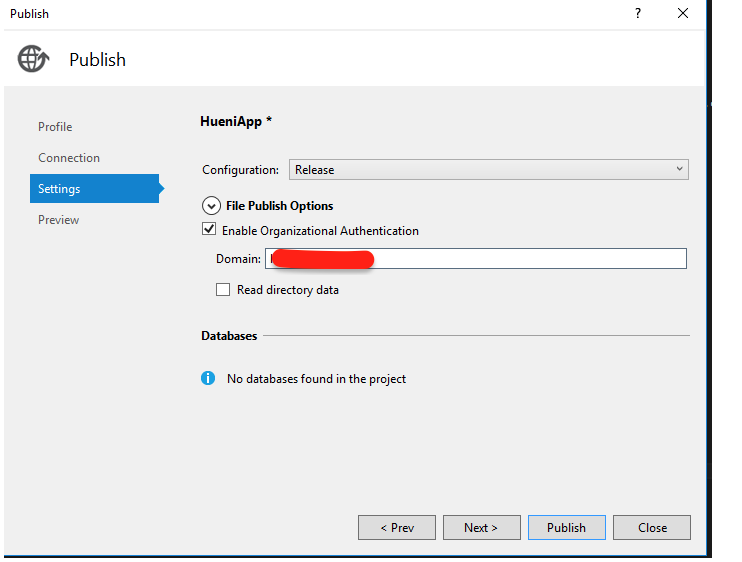
Add the domain where the authentication is occurring. So if you have your web app hosted by a different azure account that which is authenticating the users, use the one that is authenticating.
This will create two versions of your app on the site one for local host and one for the actual site.
The second option(I have not tried this but it should work) is to go to the Azure account where you are authenticating the users and go to applications and then configure. Change the APP URL from local host to the url you are trying to get to.
Here is an excellent link that explains how to do this clearly.
Click this link for detailed explanation
Method 2
I also had this issue and took these steps to resolve
- navigate to the app registration in AAD
- Open the manifest
- Change the
ReplyUrlto the url of the app (e.g.http://appname.azurewebsites.net)
Then I got the error
Bad Request – Request Too Long HTTP Error 400. The size of the request headers is too long.
Next I cleared all cookies from the browser, and this changed the error to just
Bad Request
So I went back to that ReplyUrl and changed it to https://appname.azurewebsites.net/.auth/login/aad/callback and now it appears to work.
Note I also had to make sure I didn’t have the site open in any other tabs before it started working
Method 3
I had this issue when I switched an app from our company Azure over to a customer’s Azure. In my case I’d forgotten to update the ida:ClientId, ida:AADInstance and ida:TenantId, which then meant that the value I’d set for ida:PostLogoutRedirectUri was ignored (I think) and instead my app redirected to localhost.
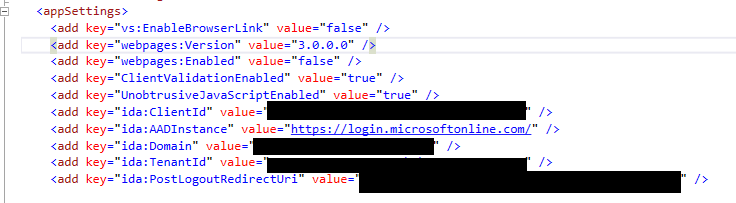
Once I changed those ida values to the values from the app settings and subscriptions settings on our customer’s Azure it all worked as expected.
It took a while to track down all the values in Azure portal as they are all called something different, or aren’t named at all:
ClientIdcan be found at Azure Active Directory > App Registrations > YourAppName. It’s called ‘Application ID’ in AzureDomaincan be found on Azure Active Directory > Overview. It’s currently in the top left in the format somename.onmicrosoft.comTenantIdthis is the Azure AD instance ID, get that from Azure Active Directory > Properties and then it’s called ‘Directory ID’
I spent a lot of time trying to work out where the localhost port that was being redirected to was in the code, but it simply isn’t there as far as I can see, so I have no idea how Azure was choosing what localhost address to redirect to!
Method 4
You need to set another parameter in configuration that is replyUrl and assign to your web app, other wise it takes the url from which it was originated.
Method 5
I was able to fix this by changing my Startup.Auth.cs file redirectUri from “https://localhost:44316/” to https://myapp.com/
All methods was sourced from stackoverflow.com or stackexchange.com, is licensed under cc by-sa 2.5, cc by-sa 3.0 and cc by-sa 4.0