Question: How do I properly setup the database connection when using the File System method to publish an ASP .NET Core 3.1 Web-Api to IIS running on Windows 10? I believe I have added all of the correct Windows features for IIS because it runs and I am running VS 2019 Community in Admin mode.
This is my first time deploying a .NET Core 3.1 Web-API to IIS via the Publish method. I am able to successfully publish the web application to IIS. But it appears that something is wrong with the database configuration because when I try submit a login POST via Postman, I am getting an error message from the API error handling middleware that the credentials are invalid, which effectively means that the Web-API cannot connect to the database. As a test, when I try running in debug with IIS Express and change the connection string, I get the same error. Note: the IIS server logs do not contain any relevant output to confirm this, but I am pretty sure this is the problem.
In searching online, I am struggling to find a simple and direct walk through on how to publish a Web-API with a database connection. I suspect the problem is in the Connected Services section of the publish profile. I had to battle through some build errors that related to missing packages, and this item:
https://obscureproblemsandgotchas.com/development/c/dotnet-core-ef-migration-not-working/
Once I applied this change, the database data context strings could be read from the Publish Settings section of the publish profile, which reads the connection strings from the appsettings.json file. Though, I had to modify that string to remove an escape ” from the actual json value so that the test connection would succeed.
Any help is greatly appreciated.
Answers:
Thank you for visiting the Q&A section on Magenaut. Please note that all the answers may not help you solve the issue immediately. So please treat them as advisements. If you found the post helpful (or not), leave a comment & I’ll get back to you as soon as possible.
Method 1
You could set the connection string at the time of deploy from the visual studio as shown below :
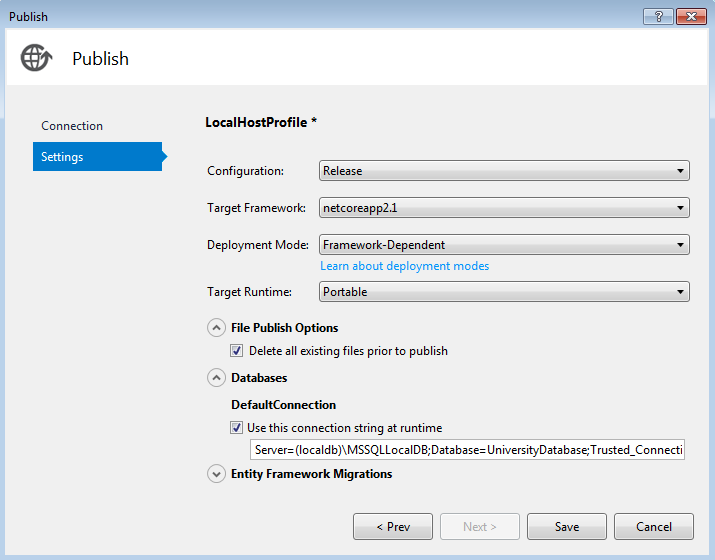
Make sure you installed the .NET Core Hosting Bundle and .NET Core Runtime.
after doing all these things set the application pool identity to the administrator:
- Open iis manager, select your application pool.
- Click on advance setting from the action pane.
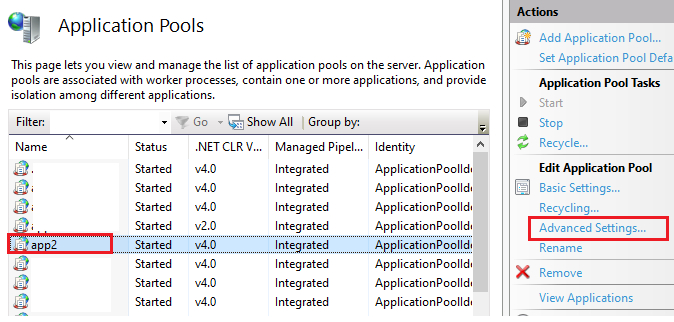
- Under Process Model, click on the “Identity” value and select “Custom account”.
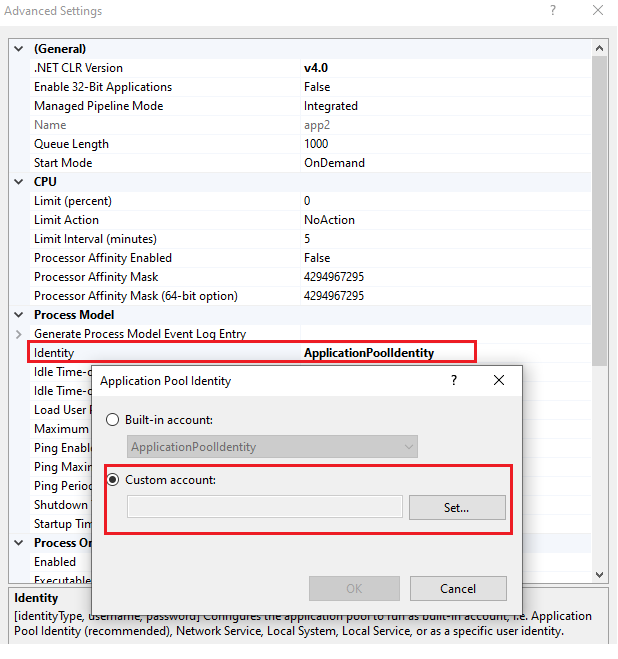
- enter your domain user name and password which user has to access to the database and click ok to apply the changes.
- after applying changes select the application pool and click on the “Recycle”.
- restart your site.
Please refer below link for more detail:
https://forums.iis.net/post/2159167.aspx
All methods was sourced from stackoverflow.com or stackexchange.com, is licensed under cc by-sa 2.5, cc by-sa 3.0 and cc by-sa 4.0