There were before aspdotnet1.0 include/exclude sections on project.json file
{
  "exclude": [
    "node_modules",
    "bower_components"
  ],
  "publishExclude": [
    "**.xproj",
    "**.user",
    "**.vspscc"
  ]
}
Where is this section in ASP.NET Core 1.1 (there is no project.json)?
Are there similar sections on .csproj file or .pubxml?
Answers:
Thank you for visiting the Q&A section on Magenaut. Please note that all the answers may not help you solve the issue immediately. So please treat them as advisements. If you found the post helpful (or not), leave a comment & I’ll get back to you as soon as possible.
Method 1
From documentation: if you wish to specify, for example, some files to get published with your app, you can still use the known mechanisms in
csprojfor that (for example, the<Content>element).
There is a CopyToPublishDirectory attribute for ItemGroup elements that determines whether to copy the file to the publish directory and can have one of the following value:
- Always,
- PreserveNewest
- Never
Note, that there is also similar CopyToOutputDirectory attribute for output folder.
Example (from here):
<ItemGroup>

  <None Include="notes.txt" CopyToOutputDirectory="Always" />
  <!-- CopyToOutputDirectory = { Always, PreserveNewest, Never } -->

  <Content Include="files***" CopyToPublishDirectory="PreserveNewest" />
  <None Include="publishnotes.txt" CopyToPublishDirectory="Always" />
  <!-- CopyToPublishDirectory = { Always, PreserveNewest, Never } -->
</ItemGroup>
If you are interesting how project.json -.csproj migration use CopyToPublishDirectory attribute to migrate publish options, you may look into MigratePublishOptionsRule class in dotnet cli repo.
Method 2
In .csproj for Visual Studio versions 15.3 and higher, this keeps the files visible in Visual Studio (whereas “Content Remove” does not), and prevents the files from being published.
<ItemGroup>
    <Content Update="appsettings*.json" CopyToPublishDirectory="Never" />
</ItemGroup>
Method 3
After Visual Studio 2017 15.3
Edit the .csproj file to manually exclude files/folder from being published
<ItemGroup>
  <Content Remove="src**" />
  <Content Remove="node_modules**" />
</ItemGroup>
Method 4
With Visual Studio 2017 (tested in 15.6.5), you can right-click on the file in the Solution Explorer and set the Build Action to None.
It will update your .csproj file like this:
<ItemGroup>
  <Content Remove="appsettings.Development.json" />
  <Content Remove="appsettings.json" />
  <Content Remove="npm-shrinkwrap.json" />
  <Content Remove="package.json" />
  <Content Remove="tsconfig.json" />
</ItemGroup>

<ItemGroup>
  <None Include="appsettings.Development.json" />
  <None Include="appsettings.json" />
  <None Include="npm-shrinkwrap.json" />
  <None Include="package.json" />
  <None Include="tsconfig.json" />
</ItemGroup>
Hope this helps.
Method 5
For Visual Studio 2019, I managed to exclued a wwwroot subfolder named “dummy” (including all subfolders of “dummy”) from publish output using the following code:
<ItemGroup>
  <Content Update="wwwrootdummy***">
    <CopyToPublishDirectory>Never</CopyToPublishDirectory>
  </Content>
</ItemGroup>
Note: The requirement was to keep the wwwroot and its subfolder(s) included in project but just exclude while publishing.
Method 6
To exclude files on publish, edit your publish file, e.g. FolderProfile.pubxml, and add the appropriate XML elements shown below to include/exclude files and folders.
<?xml version="1.0" encoding="utf-8"?>
<Project ToolsVersion="4.0"
         xmlns="http://schemas.microsoft.com/developer/msbuild/2003">
  <PropertyGroup>
    <WebPublishMethod>FileSystem</WebPublishMethod>
    <PublishProvider>FileSystem</PublishProvider>
    <LastUsedBuildConfiguration>Release</LastUsedBuildConfiguration>
    <LastUsedPlatform>Any CPU</LastUsedPlatform>
    <SiteUrlToLaunchAfterPublish />
    <LaunchSiteAfterPublish>True</LaunchSiteAfterPublish>
    <ExcludeApp_Data>False</ExcludeApp_Data>
    <PublishFramework />
    <ProjectGuid>afa9f185-7ce0-4935-9da1-ab676229d68a</ProjectGuid>
    <publishUrl>binReleasePublishOutput</publishUrl>
    <DeleteExistingFiles>False</DeleteExistingFiles>
  </PropertyGroup>
  <ItemGroup>

    <!-- CopyToPublishDirectory = { Always, PreserveNewest, Never } -->

    <!-- Copying a file located outside of the project into the published site's wwwroot folder. -->
    <ResolvedFileToPublish Include="..ReadMe2.md">
      <RelativePath>wwwrootReadMe2.md</RelativePath>
      <CopyToPublishDirectory>PreserveNewest</CopyToPublishDirectory>
    </ResolvedFileToPublish>

    <!-- Excluding the wwwrootContent folder. -->
    <Content Update="wwwrootContent***" CopyToPublishDirectory="Never" />

    <!-- Excluding the ViewsHomeAbout2.cshtml file. -->
    <Content Update="ViewsHomeAbout2.cshtml" CopyToPublishDirectory="Never" />
  </ItemGroup>
</Project>
See also: Visual Studio publish profiles – Selective file inclusion
Method 7
In my case I need local.settings.json locally during debug, but I do not want it included in my WebDeploy zip file during Release builds or Publish:
  <ItemGroup>
    <Content Include="..local.settings.json" Link="local.settings.json" Condition="'$(Configuration)|$(Platform)'=='Debug|AnyCPU'">
      <CopyToOutputDirectory>PreserveNewest</CopyToOutputDirectory>
    </Content>
    <Content Include="..local.settings.json" Link="local.settings.json" Condition="'$(Configuration)|$(Platform)'=='Release|AnyCPU'">
      <CopyToOutputDirectory>Never</CopyToOutputDirectory>
    </Content>
  </ItemGroup>
**
Method 8
I noticed that my folders with a few files in them were not being published- I tried right clicking the folders in the project to see if I could select an option to include the folder with the deployment- it’s not there, but I did find if I select the files inside the folder and mark them to copy on deployment, it will copy the files and create their folder in the process.
This helps if your folder has files, but doesn’t help if your folders are empty.
Method 9
Edit the .csproj file to manually exclude files/folder from being published.
You can also refer this
For web deployment see https://blogs.msdn.microsoft.com/webdev/2010/04/22/web-deployment-excluding-files-and-folders-via-the-web-applications-project-file/.
project.json has been now replaced by csproj. You can read about it more on https://www.stevejgordon.co.uk/project-json-replaced-by-csproj.
For Upgrading Existing .NET Core 1.0 Projects or for using Using .NET Core 1.1 you can read https://blogs.msdn.microsoft.com/dotnet/2016/11/16/announcing-net-core-1-1/.
Method 10
The Solution from @Craig Wilson worked great to pubish with Visual Studio 2022 and Core 6
The following is a sample to exclude all appsettings except for appsettings.json and also the appsetting.QA.json when you setup an Environment Variable at a system level like ASPNETCORE_ENVIRONMENT=QA
In windows, you can also setup the environment variable on the fly in the same powershell you use to run the dotnet pubish command.
$env:ASPNETCORE_ENVIRONMENT = ‘QA’
That variable will be drop when you close that powershell
    <!-- Publish Settings -->
    <ItemGroup>
        <Content Update="appsettings.*.json">
        <CopyToPublishDirectory>Never</CopyToPublishDirectory>
        </Content>
        <Content Update="appsettings.$(ASPNETCORE_ENVIRONMENT).json">
        <CopyToPublishDirectory>Always</CopyToPublishDirectory>
        </Content>
        <Content Update="appsettings.$(ASPNETCORE_ENVIRONMENT).json">
        <CopyToPublishDirectory>Always</CopyToPublishDirectory>
        </Content>
    </ItemGroup>
Please note, in Visual studio 2022 all files are included by default and you just need to use Update
Method 11
In Visual Studio 2019,
- Right-click the file -> Properties
- Copy To Output Directory-> Copy always
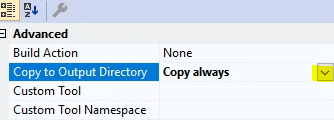
- Save the solution and try publish
Method 12
Visual Studio 2019:
- Go to the “Properties” for the file in the “Solution Explorer”
- Change the “Copy to Output Directory” property to the desired value (“Copy always”, “Do not copy”, “Copy if newer”).
Method 13
In visual studio 2022:
Unload csproj, open the file
To add content and the subfolders, insert:
<ItemGroup>
        <None Update="StaticContent**">
            <CopyToOutputDirectory>Always</CopyToOutputDirectory>
        </None>
    </ItemGroup>
All methods was sourced from stackoverflow.com or stackexchange.com, is licensed under cc by-sa 2.5, cc by-sa 3.0 and cc by-sa 4.0