I have found plenty of information out there about this error: ‘ERROR: Could not load file or assembly ‘*.dll’ or one of its dependencies. Access is denied.’
But i haven’t found answer specific to my scenario.
My site is deploy on 6 different production servers, only on one server i am facing this issue. The issue is random, but after it happens once, it continues until the site is recompile by done a small modification in web.config file(i know trick, after modification in web.config recompile the web application) and site on that server start working.
Yesterday, issue was reproducing after one month period of working.
We can’t afford this issue on production.
Issue detail:
Server Error in ‘/’ Application.
____________________________________
Could not load file or assembly ‘MainCore.DbImpl, Version=0.0.0.0, Culture=neutral, PublicKeyToken=null’ or one of its dependencies. Access is denied.
Description: An unhandled exception occurred during the execution of the current web request. Please review the stack trace for more information about the error and where it originated in the code.Exception Details: System.IO.FileLoadException: Could not load file or assembly ‘MainCore.DbImpl, Version=0.0.0.0, Culture=neutral, PublicKeyToken=null’ or one of its dependencies. Access is denied.
Source Error:
An unhandled exception was generated during the execution of the current web request. Information regarding the origin and location of the exception can be identified using the exception stack trace below.Assembly Load Trace: The following information can be helpful to determine why the assembly ‘MainCore.DbImpl, Version=0.0.0.0, Culture=neutral, PublicKeyToken=null’ could not be loaded.
WRN: Assembly binding logging is turned OFF.
To enable assembly bind failure logging, set the registry value [HKLMSoftwareMicrosoftFusion!EnableLog] (DWORD) to 1.
Note: There is some performance penalty associated with assembly bind failure logging.
To turn this feature off, remove the registry value [HKLMSoftwareMicrosoftFusion!EnableLog].Stack Trace:
[FileLoadException: Could not load file or assembly ‘MainCore.DbImpl, Version=0.0.0.0, Culture=neutral, PublicKeyToken=null’ or one of its dependencies. Access is denied.]
…DbImpl.Event.TTCEventController.GetEventFields(Int32 eventId) +0
WebSuite.SportChannel.ModelImpl.TTCModelController.AddEventFieldList(XmlElement eventNode, ITTCEventController ctrl, Int32 eventId, PlayerType stupidType) in …rootSportChannelModelImplTtcTTCModelController.cs:171
…ModelImpl.TTCModelController.GetLatestFourTourSchedulesXml() in …rootSportChannelModelImplTtcTTCModelController.cs:283
…WebRoot.UserControls.HeadlinesTab.Page_Load(Object sender, EventArgs e) +491
System.Web.Util.CalliHelper.EventArgFunctionCaller(IntPtr fp, Object o, Object t, EventArgs e) +25
System.Web.Util.CalliEventHandlerDelegateProxy.Callback(Object sender, EventArgs e) +42
System.EventHandler.Invoke(Object sender, EventArgs e) +0
System.Web.UI.Control.OnLoad(EventArgs e) +132
System.Web.UI.Control.LoadRecursive() +66
System.Web.UI.Control.LoadRecursive() +191
System.Web.UI.Control.LoadRecursive() +191
System.Web.UI.Page.ProcessRequestMain(Boolean includeStagesBeforeAsyncPoint, Boolean includeStagesAfterAsyncPoint) +2428
____________________________________
Version Information: Microsoft .NET Framework Version:2.0.50727.5446; ASP.NET Version:2.0.50727.5420
Answers:
Thank you for visiting the Q&A section on Magenaut. Please note that all the answers may not help you solve the issue immediately. So please treat them as advisements. If you found the post helpful (or not), leave a comment & I’ll get back to you as soon as possible.
Method 1
For my scenario, I found that there was a identity node in the web.config file.
<identity impersonate="true" userName="blah" password="blah">
When I removed the userName and password parameters from node, it started working.
Another option might be that you need to make sure that the specified userName has access to work with those “Temporary ASP.NET Files” folders found in the various C:WindowsMicrosoft.NETFramework{version} folders.
Hoping this helps someone else out!
Method 2
Had the same issue, fixed with setting the parameter “Enable 32-bit applications” to “true” (in advanced settings of iis application pool).
Method 3
My solution is as follows:
I didn’t find a root folder under C:WindowsMicrosoft.NETFrameworkv2.0.50727Temporary ASP.NET Files.
Google told me that it might be a permission issue against current user, then I found I have a current Identity: IIS APPPOOL in the malfunctioning server where the rest of the server has Current Identity: NT AUTHORITYNETWORK SERVICE.
Then I changed Current Identity from IIS APPPOOL to NT AUTHORITYNETWORK SERVICE.
From here, I found that resetting the web app rebuilds the temporary ASP.NET cache, solving the issue.
Method 4
To anyone else who tried most of the solutions and still having problems.
My solution is different from the others, which is located at the bottom of this post, but before you try it make sure you have exhausted the following lists. To be sure, I have tried all of them but to no avail.
- Recompile and redeploy from scratch, don’t update the existing app. SO Answer
-
Grant IIS_IUSRS full access to the directory “C:WindowsMicrosoft.NETFrameworkv4.0.30319Temporary ASP.NET Files”
Keep in mind the framework version you are using. If your app is using impersonation, use that identity instead of IIS_IUSRS
-
Delete all contents of the directory “C:WindowsMicrosoft.NETFrameworkv4.0.30319Temporary ASP.NET Files”.
Keep in mind the framework version you are using
-
Change the identity of the AppPool that your app is using, from ApplicatonPoolIdentity to NetworkService.
IIS > Application Pools > Select current app pool > Advance Settings > Identity.
SO Answer (please restore to default if it doesn’t work)
- Verify IIS Version and AppPool .NET version compatibility with your app. Highly applicable to first time deployments. SO Answer
- Verify impersonation configuration if applicable. SO Answer
My Solution:
I found out that certain anti-virus softwares are actively blocking compilations of DLLs within the directory “Temporary ASP.NET Files”, mine was McAfee, the IT people failed to notify me of the installation.
As per advice by both McAfee experts and Microsoft, you need to exclude the directory “Temporary ASP.NET Files” in the real time scanning.
Sources:
Don’t disable the Anti-Virus because it is only doing its job. Don’t manually copy missing DLL files in the directory Temporary ASP.NET Files{project name} because thats duct taping.
Method 5
If you are using impersonation, be sure to give permissions, including write and modify permission to the relevant user account on the following folder:
C:Users[username]AppDataLocalTempTemporary ASP.NET Files
I was missing the modify permission, which was why just adding the default permissions wasn’t working for me.
Method 6
Go to IIS -> Application Pool -> Advance Settings -> Enable 32-bit Applications
Method 7
If you still facing the issue try this:
Open your IIS Manager -> Application Pools -> select your app pool -> Advance Setting -> Under ‘Process Model’ set ‘Load User Profile’ setting as True
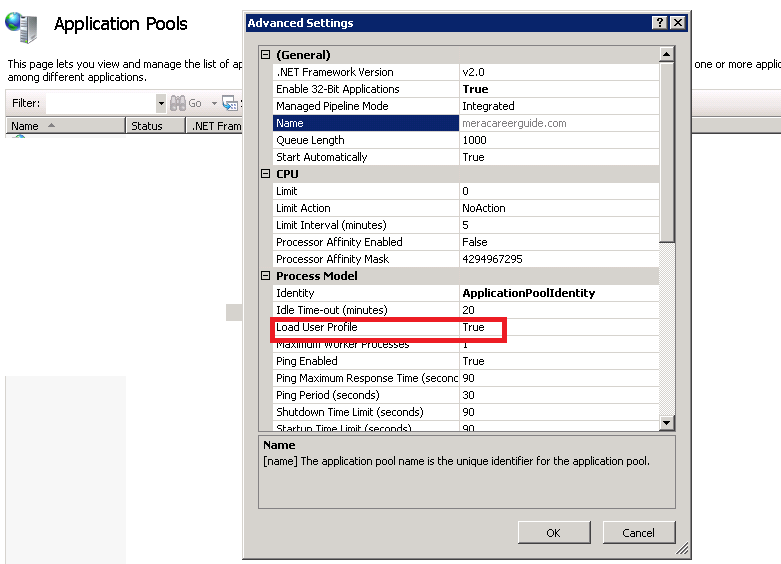
Method 8
I believe I wasted like 1 day on researching it and this what I have come out with.
You need to add the Impersonating user to the Debug folder of your Solution as the Framework will try to access the DLL from this location and place it in Temporary Asp.Net Folder.
So basically follow these 2 steps
-
Give permission to Temporary Asp.Net Folder under
C:WindowsMicrosoft.NETFrameworkv4.0.30319Temporary ASP.NET Filesand make sure the user you are adding here is the same you are using while Impersonating. -
Add the Impersonating user to the Debug folder of your Solution
YourSolutionPath .. binDebug
This should work
Method 9
For me, the following hack worked;
Go to IIS -> Application Pools -> Advance Settings -> Process Model -> Identity
Changed from Built-in Account (ApplicationPoolIdentity) to Custom Account (My Domain User)
Method 10
I had the same issue, fixed by rebuild and redeploy ALL Dependents Dll files
Method 11
In my case it was due to the Access Protection feature of my anti-virus (McAfee). It was obviously blocking access to this file, as of such the error.
I disabled it and the solution ran. You might want to check any utility application you might have running that could be affecting access to some files.
Method 12
Check the IIS settings. I use IIS 7.5 with 32 or 64 bit compilation within the .NET framework. If you have an app that uses 32-bit mode, make sure to enable the App Pool to be able to use 32-bit instruction. Otherwise, nothing seems to work no matter how much you set the security or strong sign the DLL.
Method 13
I am setting-up environment on new server. My web.config got identity node like below.When I faced with “Could not load file or assembly or one of its dependencies. Access is denied. The issue is random, but after it happens once, it continues”
Added ccsHJKWeb as users list of my new server.
  <authentication mode="Windows" />
        <identity impersonate="true" password="******" userName="ccsHJKWeb" />
Method 14
I was not using impersonation in my case. My solution was to give full access to my project directory for the user group “IIS_IUSRS”.
Method 15
 Go to run  : ctrl + R
 Type : %temp%
delete All files & folders
 Rebuild Project.
 done!
Method 16
I ran into this problem and it turned out that a referenced package/assembly was being encrypted by Windows. This happened because my company implemented a policy to require the My Documents folder to be encrypted and my Visual Studio solutions happened to be under that directory.
I could manually go into the file/directory properties in Windows Explorer and disable encryption. But in my case this was a temporary solution since the network policy would eventually change it back. I wound up moving my VS solution to another un-encrypted location.
Method 17
In my case, I had copied a service from one server to another without performing a proper deployment from Visual Studio. Long story.
Anyway, I had setup all of the appropriate NTFS permissions and whatnot, but it still couldn’t load the main DLL for the service.
I fixed it by renaming the corresponding service.pdb file to something else.
For example here’s my bin folder:
    bin

        service.dll

        service.dll.config

        service.pdb
I renamed service.pdb to zzservice.pdb, and then the service.dll loaded fine.
Method 18
If you get the DLL could not be found instead of access denied, make sure you have the appropriate VC++ Redistributable installed.
Method 19
I got this error running from VS. Turned out I’d opened a solution without running Visual Studio as admin. Closing Visual studio down and running it again as admin then rebuilding solved this for me.
Hope that helps someone.
Method 20
In my case, I was using simple impersonation and the impersonation user had trouble accessing one of the project assemblies. My solution:
- Look for the message of the inner exception to identify the problematic assembly.
-
Modify the security properties of the assembly file.
a) Add the user account you’re using for impersonation to the Group and user names.
b) Give that user account full access to the assembly file.
Method 21
In my case Users with read access had to be added to the folder permissions. I removed them by accident.
COMPUTERUsers
All methods was sourced from stackoverflow.com or stackexchange.com, is licensed under cc by-sa 2.5, cc by-sa 3.0 and cc by-sa 4.0