Is there a tool to create a gif animation from a set of png files?
I tried the convert command from the ImageMagick suite, but this doesn’t always succeed. Also, I have several issues with this:
- I can’t tell what the progress is.
- No matter what I try, the
-delayflag doesn’t change the frame rate of the gif animation. convertdetermines the frame order based upon the alphabetical order of the files names. This means thatname500.pngwill be placed right aftername50.pngand not aftername450.pngI can fix this by adding 0’s but this is annoying.
Answers:
Thank you for visiting the Q&A section on Magenaut. Please note that all the answers may not help you solve the issue immediately. So please treat them as advisements. If you found the post helpful (or not), leave a comment & I’ll get back to you as soon as possible.
Method 1
convert is a handy command line tool to do that.
cd to the folder containing your png-files and run this command:
convert -delay 10 -loop 0 *.png animation.gif
Source: http://ubuntuforums.org/showthread.php?t=1132058
Method 2
Newer versions of ffmpeg have no -sameq (see faq) but do have GIF support.
ffmpeg -i %03d.png output.gifWhere %03d is the frame ID in 3 digits.
You may also try to use ffmpeg to create a movie out of a sequence of images and then convert the movie to a GIF animation (again using ffmpeg).
# cf. http://pages.uoregon.edu/noeckel/MakeMovie.html

# first convert an image sequence to a movie
ffmpeg -sameq -i %03d.jpg output.mp4

# ... and then convert the movie to a GIF animation
ffmpeg -i output.mp4 -pix_fmt rgb24 -s qcif -loop_output 0 output.gif
Method 3
The convert‘s --delay option only applies to the next image on the command line. So convert -delay 10 * will only set the delay of the first frame to 0.1 second. The option need to be repeated:
convert $(for a in *; do printf -- "-delay 10 %s " $a; done; ) result.gif
For your sorting need, convert does not sort frames, the shell globing * does. If you know your frames are numbered from 0 to 700, you can just compute the numbers yourself:
convert $(for ((a=0; a<700; a++)); do printf -- "-delay 10 name%s.png " $a; done;) result.gif
Method 4
ffmeg important GIF options + test data
To complement this answer:
wget -O opengl-rotating-triangle.zip https://github.com/cirosantilli/media/blob/master/opengl-rotating-triangle.zip?raw=true
unzip opengl-rotating-triangle.zip
cd opengl-rotating-triangle
ffmpeg
  -framerate 60
  -pattern_type glob
  -i 'tmp.*.png'
  -r 15
  -vf scale=512:-1
  out.gif
;
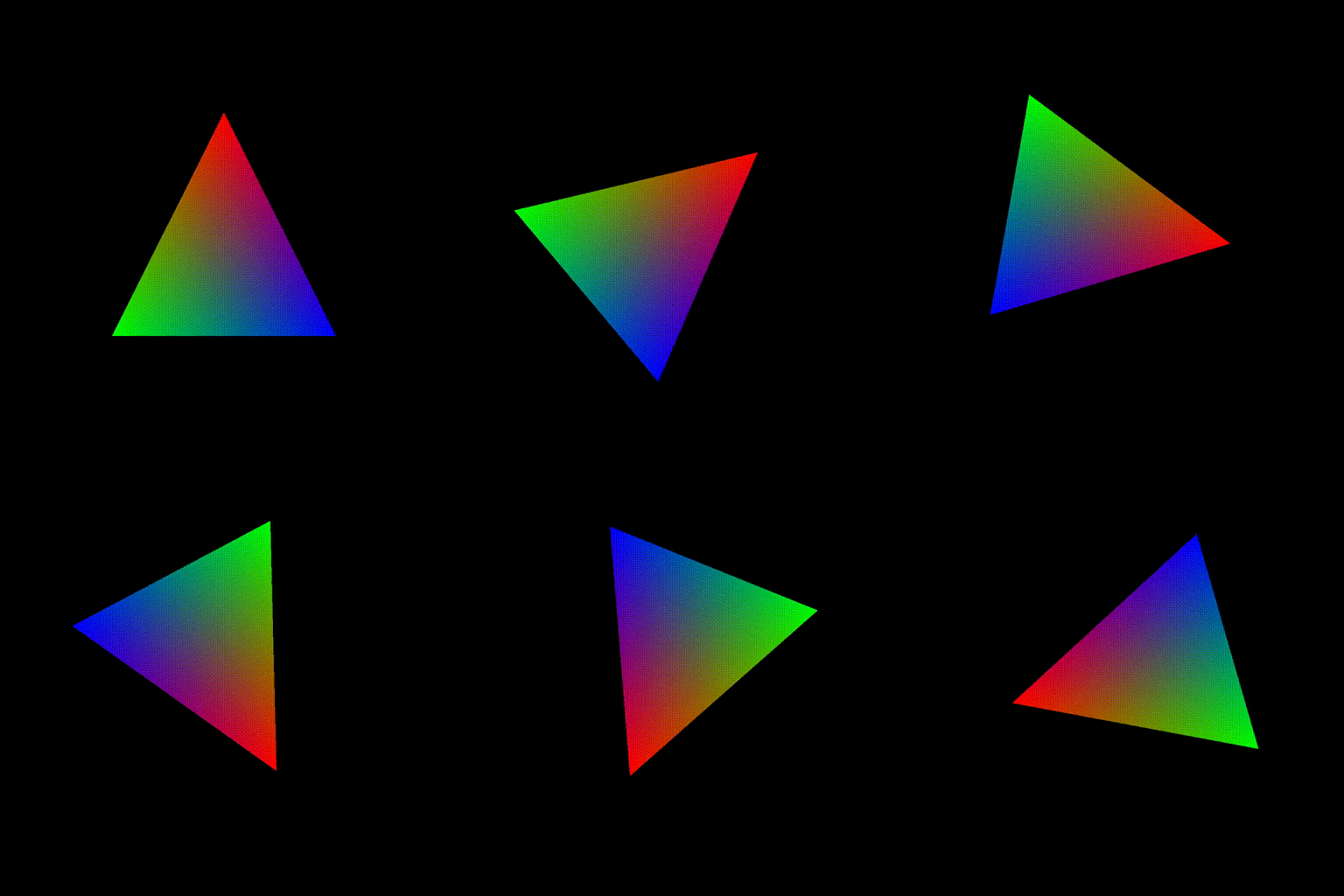
The test data was generated with: https://stackoverflow.com/questions/3191978/how-to-use-glut-opengl-to-render-to-a-file/14324292#14324292
The important ffmpeg options I wanted to highlight are:
-pattern_type glob: convenient way to select images-framerate 60and-r 15: assume 60 FPS on input images (ffmpegcannot know otherwise since no FPS data in images as in video formats), pick one every 4 images so reduce size (4 == 60 / 15)-vf scale=512:-1: set the width, scale height proportionally, usually to reduce size and save space
See also:
- Video from images: https://stackoverflow.com/questions/24961127/how-to-create-a-video-from-images-with-ffmpeg/37478183#37478183)
- GIF from video: https://askubuntu.com/questions/648603/how-to-create-an-animated-gif-from-mp4-video-via-command-line)
Tested in Ubuntu 18.10, ffmpeg 4.0.2.
Method 5
Update:
Use convert for the png-to-gif, then use gifsicle for the animation.
It’s not a One App To Do It All solution, but scriptable, for sure.
GIMP can create animated gifs and provides control for timing/delay and repeat, etc
Method 6
ImageMagick can generate a good quality gif animation. Check this video – http://www.youtube.com/watch?v=OFusYizJ-bA
Method 7
ffmpeg can do it all for you but it is really hard to get your head around it. I wrote a tiny script to do the job so I don’t have to remember. It runs through the images twice: pass “a” to work out an optimal colour palette, then pass “b” to actually create the gif file using the created palette.
Paste the following into a text file:
#!/bin/bash
ffmpeg -framerate 24 -start_number_range 999 -f image2 -i $1%3d.png -filter_complex "[0:v] split [a][b];[a] palettegen [p];[b][p] paletteuse" $1.gif
Save the file as “creategif”, or something else to your taste, make it executable and put it in the same directory as your sequence of pngs
For a sequence foobar004.png, foobar005.png, foobar006.png…
open a command line and cd to the directory with everything in it then type
./creategif foobar
and it will create a file foobar.gif from the png’s. You could add a few parameters to the script to make it a bit more flexible, but I find it easier to just hack the script if I want a different framerate or something. Many thanks to whoever it was on this forum that steered me in the right direction a few years back.
Method 8
In regards to point 2
The version of ImageMagick “display” I have (ImageMagick 6.7.2-7 2017-01-12) ignores the frame rate set using the convert command to produce the animated gif. Try another program to view the animate gif like firefox.
All methods was sourced from stackoverflow.com or stackexchange.com, is licensed under cc by-sa 2.5, cc by-sa 3.0 and cc by-sa 4.0