I recently upgraded my disk from a 128GB SSD to 512GB SSD. The / partition is encrypted with LUKS. I’m looking for help extending the partition to use all the free space on the new disk. I’ve already dd’d the old drive onto the new one:
[<a href="https://getridbug.com/cdn-cgi/l/email-protection" class="__cf_email__" data-cfemail="15677a7a6155797a7674797d7a6661">[email protected]</a> ~]# fdisk -l /dev/sda
Disk /dev/sda: 477 GiB, 512110190592 bytes, 1000215216 sectors
Units: sectors of 1 * 512 = 512 bytes
Sector size (logical/physical): 512 bytes / 4096 bytes
I/O size (minimum/optimal): 4096 bytes / 4096 bytes
Disklabel type: dos
Disk identifier: 0x00009f33

Device     Boot   Start       End   Sectors   Size Id Type
/dev/sda1  *       2048   1026047   1024000   500M 83 Linux
/dev/sda2       1026048 250064895 249038848 118.8G 83 Linux
There’s about 380GB of unused space after sda2.
More relevant info:
[<a href="https://getridbug.com/cdn-cgi/l/email-protection" class="__cf_email__" data-cfemail="75071a1a0135191a1614191d1a0601">[email protected]</a> ~]# vgs
  VG             #PV #LV #SN Attr   VSize   VFree
  fedora_chocbar   1   3   0 wz--n- 118.75g 4.00m

[<a href="https://getridbug.com/cdn-cgi/l/email-protection" class="__cf_email__" data-cfemail="25574a4a5165494a4644494d4a5651">[email protected]</a> ~]# lvs
  LV   VG             Attr       LSize  Pool Origin Data%  Meta%  Move Log Cpy%Sync Convert
  home fedora_chocbar -wi-a----- 85.55g
  root fedora_chocbar -wi-a----- 29.30g
  swap fedora_chocbar -wi-a-----  3.89g

[<a href="https://getridbug.com/cdn-cgi/l/email-protection" class="__cf_email__" data-cfemail="2654494952664a4945474a4e495552">[email protected]</a> ~]# pvs
  PV                    VG             Fmt  Attr PSize   PFree
  /dev/mapper/encrypted fedora_chocbar lvm2 a--  118.75g 4.00m
There seems to be a lot of info regarding how to do this, but very little explanation. I appreciate any help on this.
Answers:
Thank you for visiting the Q&A section on Magenaut. Please note that all the answers may not help you solve the issue immediately. So please treat them as advisements. If you found the post helpful (or not), leave a comment & I’ll get back to you as soon as possible.
Method 1
OK! The definitive answer finally. My steps to expand a LUKS encrypted volume…
cryptsetup luksOpen /dev/sda2 crypt-volumeto open the encrypted volume.parted /dev/sdato extend the partition.resizepart NUMBER END.vgchange -a n fedora_chocbar. Stop using the VG so you can do the next step.cryptsetup luksClose crypt-volume. Close the encrypted volume for the next steps.cryptsetup luksOpen /dev/sda2 crypt-volume. Open it again.cryptsetup resize crypt-volume. Will automatically resize the LUKS volume to the available space.vgchange -a y fedora_chocbar. Activate the VG.pvresize /dev/mapper/crypt-volume. Resize the PV.lvresize -l+100%FREE /dev/fedora_chocbar/home. Resize the LV for /home to 100% of the free space.e2fsck -f /dev/mapper/fedora_chocbar-home. Throw some fsck magic at the resized fs.resize2fs /dev/mapper/fedora_chocbar-home. Resize the filesystem in /home (automatically uses 100% free space)
I hope someone else finds this useful. I now have 300+GB for my test VMs on my laptop!
Method 2
For those that come to the answer to find out how to simply resize a LUKS partition to the size of the resized container, the commands are as follows:
-
with LUKS encrypted volume opened and the opened volume mapped as
opened-volume, executesudo cryptsetup resize /dev/mapper/opened-volume
-
then resize the file system. E.g. if it is an Ext4 filesystem, you can resize it even if it is mounted with
sudo resize2fs /dev/mapper/opened-volume
I did both commands with a mounted file system with no interruption; it was possible to resize the container without unmounting it first because the encrypted volume was on a LVM logical volume (using lvresize)!
Method 3
I found a much easier solution. Run Xubuntu live, install and launch partitionmanager. It can very well handle encrypted partitions.
Complete details are here: http://e1z.ca/devlog/encrypted_partition_resize.html
Method 4
Since this appears not to be a LVM specific question I want to mention that I successfully moved and extended one of my LUKS partitions 100GiB forward(!) with GParted on Fedora 28. It could not be done in Ubuntu 18.04 though and every other solution looked like a hassle of dd’ing around or backup and restore (I made a backup anyway). The LUKS container is automatically extended – IIRC GParted informs you about this – the only thing left is to extend the filesystem, so I had to do fsck.ext4 -f and resize2fs in my case.
A big thank you to the GParted developers.
Method 5
Backstory:
I had originally installed Linux Mint (like Ubuntu) completely encrypted, and it wiped out my Windows installation in order to check those boxes. That made it so I would up with a supersized LUKS partition with an LVM2 VG inside that took up almost the entire disk. To reinstall Windows on my laptop, I needed approximately 160GB, and so that meant making the LUKS partition smaller. Here’s how I shrunk LUKS to give me raw unallocated disk space for Windows.
Shrinking LUKS with LVM
- First, you’ll need to boot into a live disk. (Mine was a thumb drive.)
- Now install Partition Manager. (For me it was
sudo apt-get install partitionmanager. - Run Partition Manager with
sudo partitionmanager. - Right click the encrypted LUKS partition and click “decrypt”. (This only decrypts it in memory, and DOES NOT remove the LUKS encryption. We want to keep LUKS in place.)
- Click the newly decrypted partition on the left-side menu. You’ll now see the partitions embedded in the LVM container. Right click the partition in there and then resize it to however large/small you want it to be.
- Now click “Apply” in the top right of the window. That makes sure the contents of the LUKS partition is the correct size.
- Now we need to resize the LUKS partition itself. To do that, click the device listed in the left-side menu which contains the LUKS partition.
- Right click the LUKS partition that you need to resize, then click “Resize/Move” again and resize it by dragging the right side of the partition bar at the top, inward until it won’t drag any further. Partition Manager knows how far it can shrink, so you don’t need to fiddle with the numbers to make it work.
- Now click “Apply” in the top left again and you’re all set!
Credit for the initial idea: How to resize Linux encrypted partition
Method 6
Resize from command line with parted without LVM (on an ms-dos partition table for added fun).
I expanded my VPS from 50G to 150G.
Crypttab reads:
# cat /etc/crypttab
vda5_crypt UUID=c5e67d21-6af4-4d55-a4bc-2978e50c00c3 none luks
vda6_crypt /dev/vda6 /dev/urandom cipher=aes-xts-plain64,size=256,swap
Sizes:
# df -h
Filesystem              Size  Used Avail Use% Mounted on
/dev/mapper/vda5_crypt   47G   12G   35G  26% /
/dev/vda1               641M   63M  532M  11% /boot
The partition layout is:
# parted /dev/vda print
Model: Virtio Block Device (virtblk)
Disk /dev/vda: 161GB
Sector size (logical/physical): 512B/512B
Partition Table: msdos
Disk Flags:

Number  Start   End     Size    Type      File system  Flags
 1      1049kB  700MB   699MB   primary   ext4         boot
 2      701MB   53.7GB  53.0GB  extended
 5      701MB   51.7GB  51.0GB  logical
 6      51.7GB  53.7GB  1985MB  logical
As you can see my swap partition (partition 6) is in the way; i need to remove it to expand the partition. First switch off swap:
swapoff -a && free -lm
The ‘Swap:’ line should read all zeros.
Now, the tricky bit is to resize the partitions and restore them before rebooting and expanding (parted will complain that it cannot inform the kernel, I (I)gnored that several times).
First remove the swap partition:
parted /dev/vda
(parted) rm 6
Error: Partition(s) 6 on /dev/vda have been written, but we have been unable to inform the kernel of the change, probably because it/they are in use.  As a
result, the old partition(s) will remain in use.  You should reboot now before making further changes.
Ignore/Cancel? i
Extend the logical partition (2) to hold the extended partitions, to the end of the disk (-1):
(parted) resizepart 2 -1
Resize logical partition 5, keeping space for the swap partition (parted will complain again, just go on and (i)gnore:
(parted) resizepart 5 -4G
Recreate the swap partition – as you can see from crypttab it is randomized on every boot so we do not bother with UUID – not good for suspend – but for servers and no suspend it is the preferred way. Create it from the end of the previous partitioin (157G) to the end of the disk (-1):
(parted) mkpart
Partition type?  primary/logical? l
File system type?  [ext2]? linux-swap
Start? 157GB
End? -1
Check the results:
(parted) print
Model: Virtio Block Device (virtblk)
Disk /dev/vda: 161GB
Sector size (logical/physical): 512B/512B
Partition Table: msdos
Disk Flags:

Number  Start   End    Size    Type      File system     Flags
 1      1049kB  700MB  699MB   primary   ext4            boot
 2      701MB   161GB  160GB   extended
 5      701MB   157GB  156GB   logical
 6      157GB   161GB  3998MB  logical   linux-swap(v1)  lba
(parted) quit
Now reboot and you should normally boot the system, unlocking the partition.
After reboot, check your swapspace:
# swapon
NAME      TYPE      SIZE USED PRIO
/dev/dm-1 partition 3.7G   0B   -1
Time to expand! Use ‘cryptsetup resize /dev/mapper/opened-volume’ and ‘resize2fs /dev/mapper/opened-volume’
cryptsetup resize /dev/mapper/vda5_crypt
resize2fs /dev/mapper/vda5_crypt
Resulting in my encrypted volume resized to 132G:
# df -h
Filesystem              Size  Used Avail Use% Mounted on
/dev/mapper/vda5_crypt  144G   12G  132G   9% /
/dev/vda1               641M   63M  532M  11% /boot
Method 7
I had the same problem with Ubuntu 20.04 LTS and this solved the problem for me: https://help.ubuntu.com/community/ResizeEncryptedPartitions
The main steps are:
- Boot into live USB
-
Decrypt your file system.
sudo cryptsetup luksOpen /dev/sda5 crypt1 -
Get the live CD to recognize (activate) your LVM.
sudo vgscan --mknodes sudo vgchange -ay -
Resize the Crypt.
sudo cryptsetup resize crypt1 -
Resize the (LVM) Physical Volume.
sudo pvresize /dev/mapper/crypt1 -
Resize your root (LVM) Logical Volume.
-
Unlock the (LVM) Physical Volume.
sudo pvchange -x y /dev/mapper/crypt1 -
Resize the (LVM) Physical Volume.
sudo lvresize -l +4G /dev/ubuntu-vg/
Note: Change the
+4Gto the amount of space you are adding, or+100%FREEto use all of the available space.- Re-lock the physical volume.
sudo pvchange -x n /dev/mapper/crypt1
-
Unlock the (LVM) Physical Volume.
-
Resize the filesystem.
sudo e2fsck -f /dev/mapper/ubuntu--vg-root sudo resize2fs -p /dev/mapper/ubuntu--vg-root - Reboot
Method 8
How to clone your hard drive (SSD or HDD) and expand your LUKS-encrypted partition to fill the new full disk space:
All I was missing were these 2 commands:
sudo e2fsck -f /dev/mapper/system-root
sudo resize2fs -p /dev/mapper/system-root
I found this problem quite challenging, but here are the steps I just took tonight (25 Oct. 2021) to get it done.
The steps below were determined by looking here: https://help.ubuntu.com/community/ResizeEncryptedPartitions#Detailed_resizing_.2BAH4_Enlarging_an_encrypted_partition, as well as by looking at most of the other answers here, as well as by doing a lot of trial and error and just figuring things out.
Tested using an Ubuntu 20.04.3 LTS live USB image, created using mkusb, as described here: https://www.howtogeek.com/howto/14912/create-a-persistent-bootable-ubuntu-usb-flash-drive/.
Hardware I used:
- PNY CS2130 2TB M.2 PCIe NVMe Gen3 x4 Internal Solid State Drive (SSD), Read up to 3,500 – M280CS2130-2TB-RB, $200
- Sabrent USB 3.2 Type-C Tool-Free Enclosure for M.2 PCIe NVMe and SATA SSDs (EC-SNVE), $27
TLDR summary:
While running Linux from an external live USB, do the following:
- Carefully clone your disk using
ddrescue(see below for full details). - Use gparted to unlock your LUKS-encrypted partition and grow (resize) it. Leave ~10% of the space at the end of the SSD unpartitioned for over-provisioning.
- With the now-unlocked/decrypted file system NOT mounted, run
e2fsckto check and fix the disk. In the command below,system-rootis what I see as my most-logical option when I typesudo e2fsck -f /dev/mapper/and then press Tab Tab to have it list out all valid auto-complete options.:sudo e2fsck -f /dev/mapper/system-root - Now run the
resize2fscommand to expand the unlocked file system to fill the full size of your newly-expanded LUKS-encrypted partition it is in:sudo resize2fs -p /dev/mapper/system-root - Mount your unlocked and newly-resized LUKS partition file system to ensure that it actually grew
cd ~ mkdir mnt sudo mount /dev/mapper/system-root mnt df -h # look for the new size of the `/dev/mapper/system-root` file system # optionally unmount sudo umount ~/mnt - Reboot and use your new disk as normal.
df -hwill now show your expanded size! Everything will work exactly as it did before you cloned your drive!
Details and full steps:
How to clone your hard drive (SSD or HDD) and expand your LUKS-encrypted partition to fill the new full disk space:
1. clone your disk
I’m assuming you’ve just cloned your disk to a larger drive using dd or ddrescue, as I explain in my steps on my personal website article here: https://www.electricrcaircraftguy.com/2018/01/how-to-clone-your-hard-drive.html.
In short, while booted onto an Ubuntu live USB flash drive (make one with mkusb), do:
# Install GNU ddrescue (gddrescue)
sudo add-apt-repository universe
sudo apt update
sudo apt install gddrescue

# Do the clone.
# WARNING WARNING WARNING: do NOT get these drives backwards or you will
# WIPE ALL YOUR DATA ON YOUR ORIGINAL DISK!!
# A 500 GB clone will take:
#  1. ~3~6 hrs using an external spinning USB 2.0 HDD
#  2. ~2.5~3 hrs using an external spinning USB 3.0 HDD
#  3. ~20 minutes using a brand new m.2 SSD in a USB C external enclosure
time sudo ddrescue -f -n /dev/FROM_DRIVE /dev/TO_DRIVE dd_rescue.log
# Try to copy bad sectors 3 more times each; takes a few seconds usually
time sudo ddrescue -d -f -r3 /dev/FROM_DRIVE /dev/TO_DRIVE dd_rescue.log
Example output of the first clone cmd above:
<a href="https://getridbug.com/cdn-cgi/l/email-protection" class="__cf_email__" data-cfemail="aadfc8dfc4dedfeadfc8dfc4dedf">[email protected]</a>:~$ time sudo ddrescue -f -n /dev/sda /dev/sdb dd_rescue.log
GNU ddrescue 1.23
Press Ctrl-C to interrupt
     ipos:  512110 MB, non-trimmed:        0 B,  current rate:    558 MB/s
     opos:  512110 MB, non-scraped:        0 B,  average rate:    410 MB/s
non-tried:        0 B,  bad-sector:        0 B,    error rate:       0 B/s
  rescued:  512110 MB,   bad areas:        0,        run time:     20m 46s
pct rescued:  100.00%, read errors:        0,  remaining time:         n/a
                              time since last successful read:         n/a
Finished

real    21m2.331s
user    0m6.264s
sys 8m24.021s
2. Use gparted to grow your partition
While still running Ubuntu from its installation media (a live USB probably), open gparted, which is the GNU Partition Editor GUI. Choose your external /dev/TO_DRIVE in the drop-down menu on the top right. Ex: mine is /dev/sdb. You’ll see something like this in the destination disk after doing the clone:
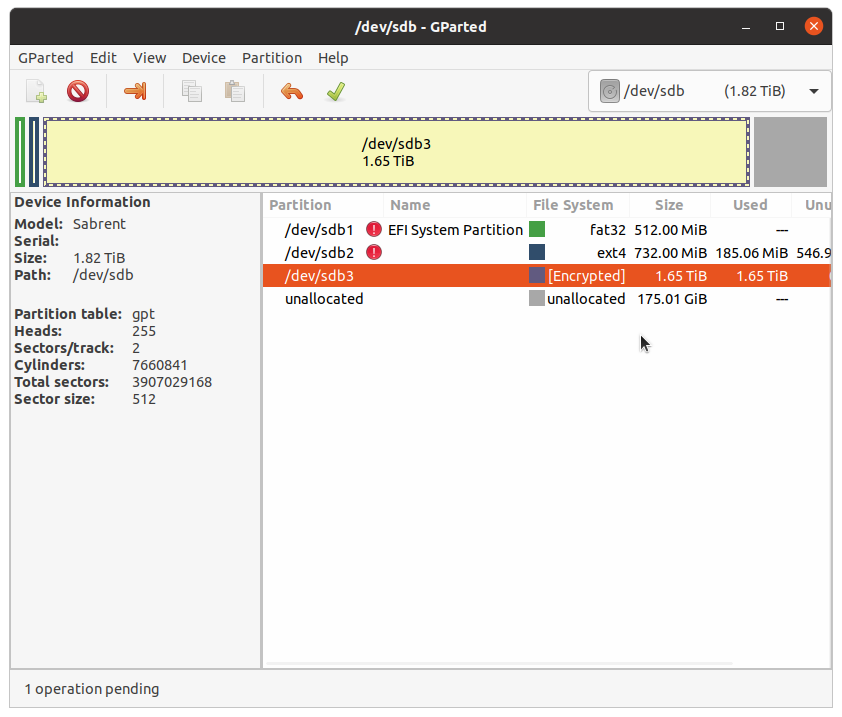
Notice that ddrescue automatically cloned the partitions too, since it does a direct byte-for-byte copy, which is a lower-level copy than the file system even.
As you can see above, /dev/sdb3 shows that it is [Encrypted]. That is what a LUKS-encrypted partition looks like in gparted.
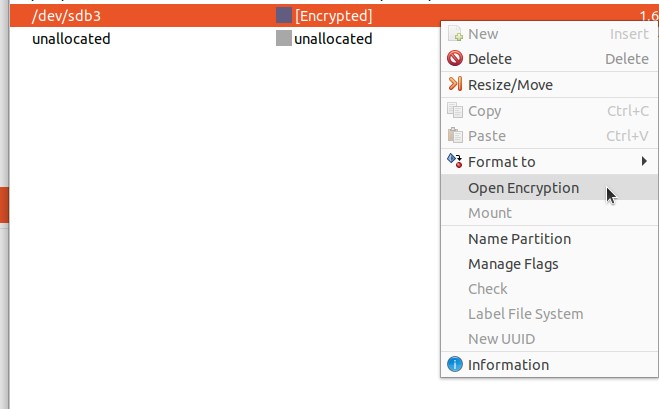
Right-click the LUKS-locked partition and go to Open Encryption:
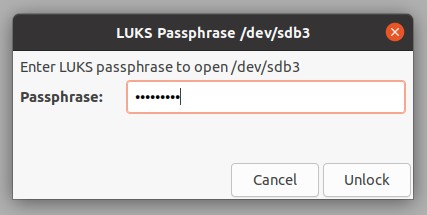
Type in your LUKS password to unlock it:
That partition’s name will now change from [Encrypted] to [Encrypted] lvm2 pv, indicating it is unlocked. The mount point will now show system, as shown here:
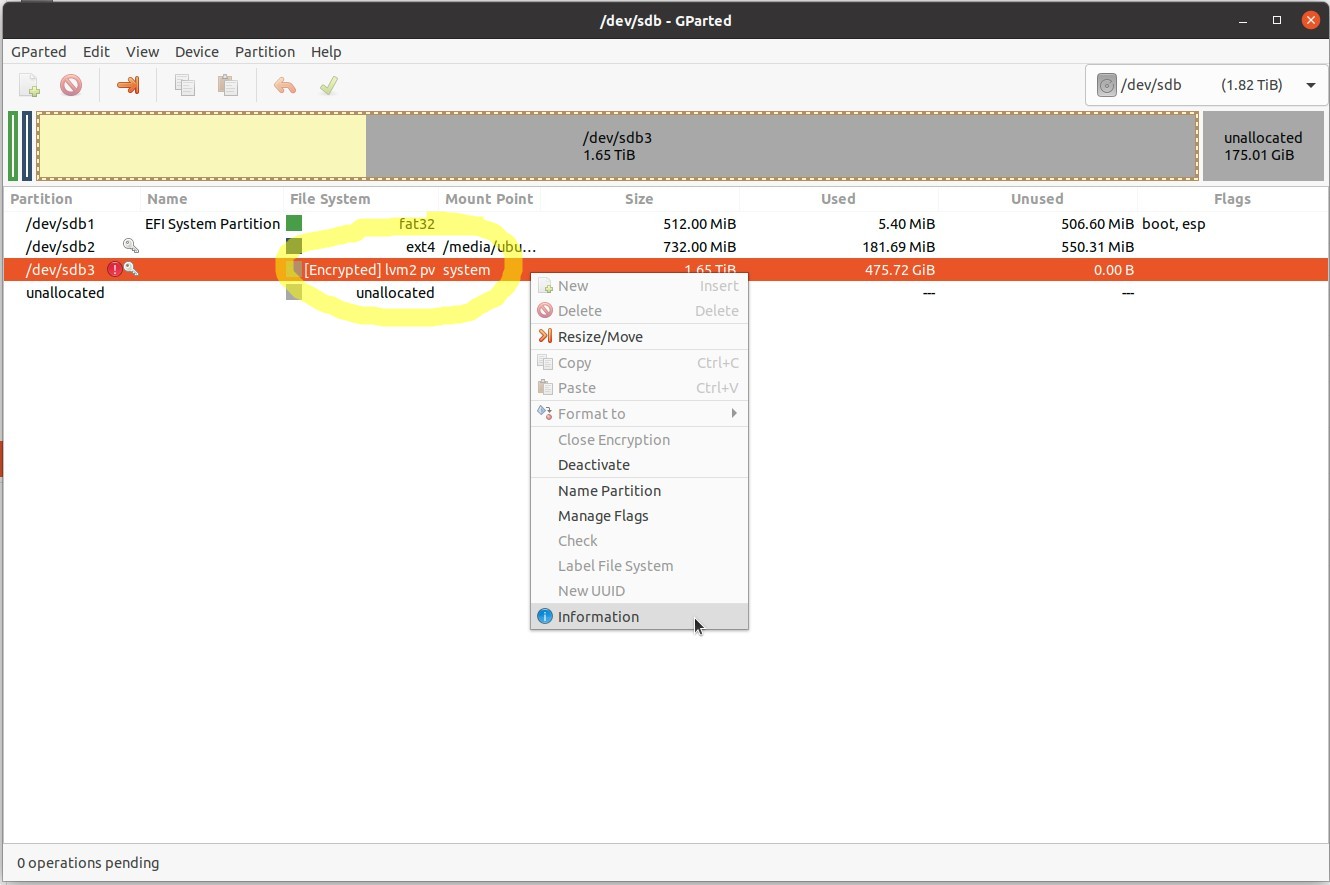
You can optionally right-click the partition and go to “Information” for more information.
Next, Right-click the partition and go to Resize/Move.
As shown below, drag the right-side of the graphical partition box to the right to grow the partition. If this is an ssd, leave about 10% of the total disk space UNUSED on the far right, for dynamic over-provisioning. See here for what that means:
- https://en.wikipedia.org/wiki/Write_amplification#Over-provisioning
- https://www.seagate.com/tech-insights/ssd-over-provisioning-benefits-master-ti/
Essentially, it improves SSD read and write speed and reduces wear, as the SSD will automatically use this unpartitioned space as a sort of SSD-firmware-level swap space.
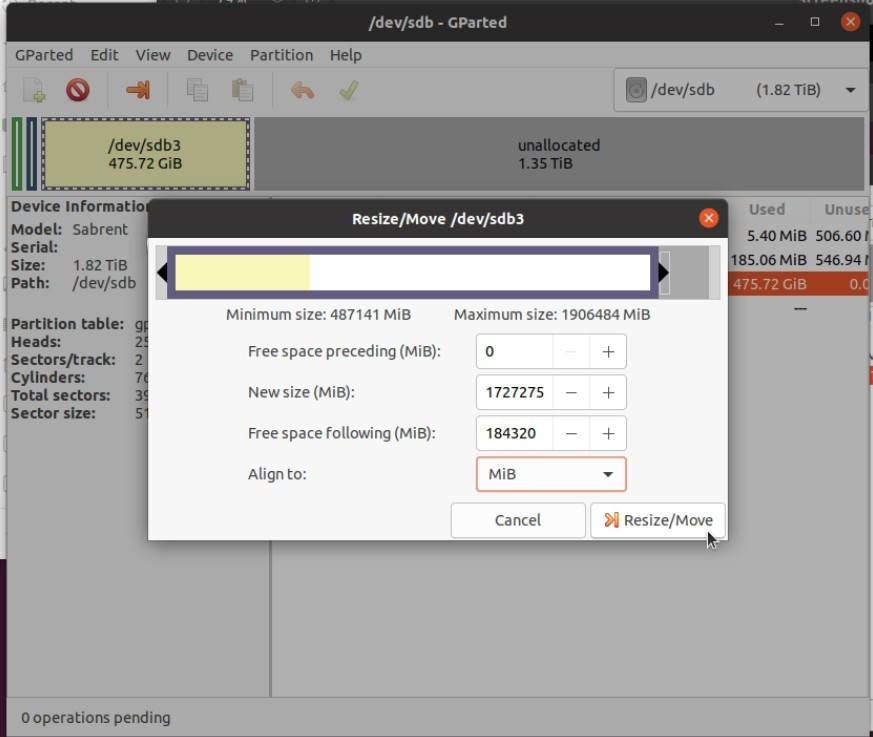
Click “Resize/Move” when done, then click the green check mark at the top of the gparted window to apply these changes (hovering over the green check mark shows “Apply All Operations”).
If you look at the gparted output details, you’ll see it conducted the following steps to grow the partition (this screenshot is from the output HTML details if you save them):
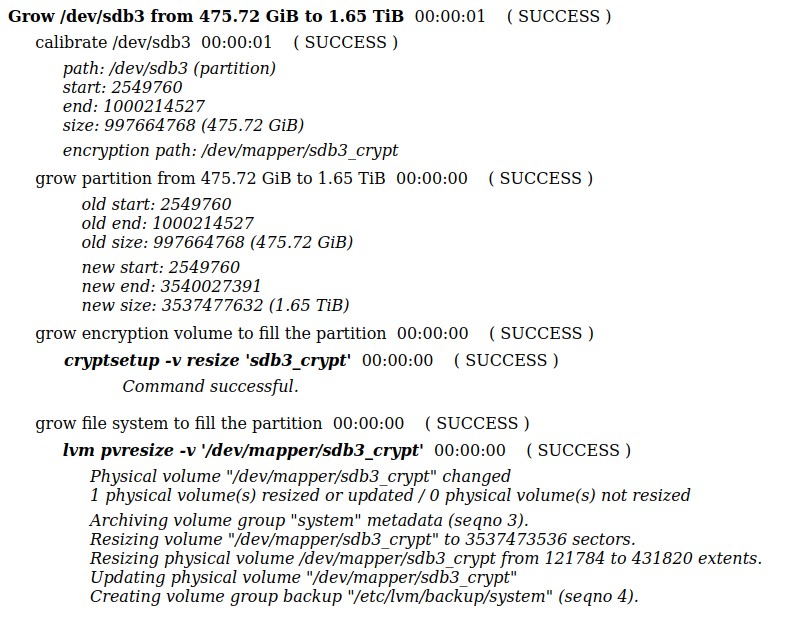
Notice it ran cryptsetup -v resize 'sdb3_crypt' and lvm pvresize -v '/dev/mapper/sdb3_crypt' for you.
IMPORTANT: Once resizing the partition completes, if at any point from here on out you see this warning pop up, click the “Fix” button:
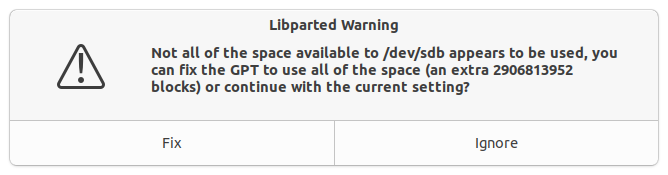
Libparted Warning
Not all of the space available to /dev/sdb appears to be used, you can fix the GPT to use all of the space (an extra 2906813952 blocks) or continue with the current setting?
Fix
Ignore
Now that you resized the partition, you’ll see it has grown, as shown here:
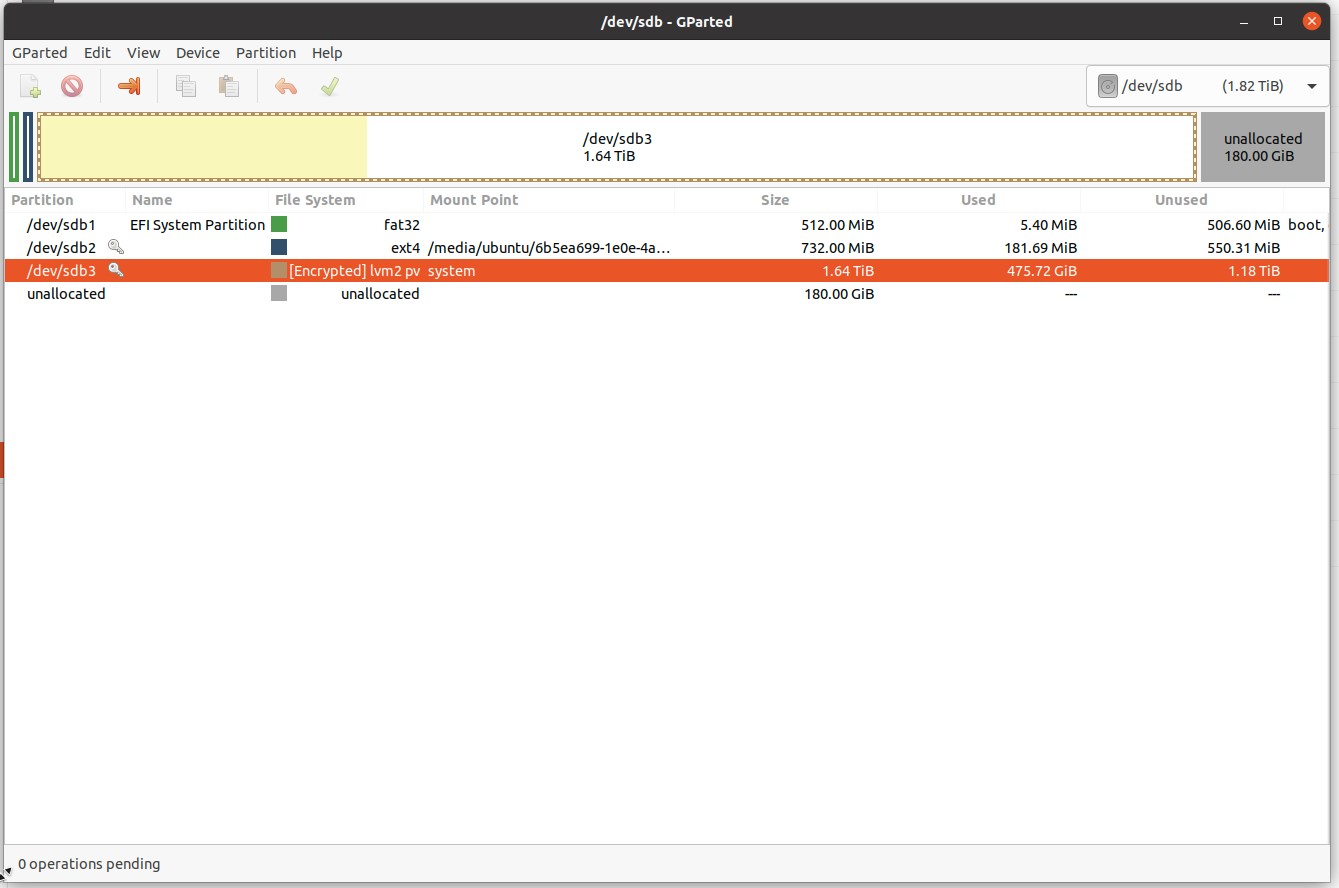
If you mount this unlocked LUKS partition at this time (I have mount instructions further below if you’re curious), however, and run df -h to see the disk usage, it will show that the mounted and decrypted disk has NOT yet grown. We’ll fix that next.
3. Change out the disks
Assuming you want your cloned disk to be your new internal disk, make that hardware change now. Turn off the computer (shutdown from the live USB), take apart the computer, remove the old drive, and put in the newly-cloned drive as the primary drive inside the computer.
If you choose not to do that at this time, you should change the GUID or whatever its called of the new disk so it doesn’t match the old disk (since you just did an exact clone). I don’t remember those details so I’ll let you Google if you really need to use both the old disk and the new disk at the same time in the same computer. If you’re like me, however, and you’re removing the old disk entirely, just continue on to the next step.
4. Grow the decrypted file system to fit the newly-resized partition it is in
With your newly-cloned drive now in your computer as the main disk, and the original drive NOT plugged in at all, boot back onto your live USB.
Again, open gparted to decrypt/unlock the drive, as described previously above:
Right-Click the LUKS-encrypted partition –> Open Encryption –> type password.
Now run this, where system-root is what I see as my most-logical option when I type sudo e2fsck -f /dev/mapper/ and then press Tab Tab to have it list out all valid auto-complete options.
# WARNING WARNING WARNING: do NOT run this cmd while this partition is mounted!
# It says that file system corruption WILL occur.
sudo e2fsck -f /dev/mapper/system-root
This e2fsck step is REQUIRED to be run before the resize2fs step, which comes next. e2fsck checks and fixes the newly-cloned and decrypted (unlocked) file system. Example output:
<a href="https://getridbug.com/cdn-cgi/l/email-protection" class="__cf_email__" data-cfemail="e49186918a9091a49186918a9091">[email protected]</a>:~$ sudo e2fsck -f /dev/mapper/system-root
e2fsck 1.45.5 (07-Jan-2020)
Pass 1: Checking inodes, blocks, and sizes
Inode 27012476 extent tree (at level 2) could be narrower.  Optimize<y>? yes
Inode 27013750 extent tree (at level 2) could be narrower.  Optimize<y>? yes
Inode 27191704 extent tree (at level 2) could be narrower.  Optimize<y>? yes
Pass 1E: Optimizing extent trees
Pass 2: Checking directory structure
Pass 3: Checking directory connectivity
Pass 4: Checking reference counts
Pass 5: Checking group summary information

/dev/mapper/system-root: ***** FILE SYSTEM WAS MODIFIED *****
/dev/mapper/system-root: 4106785/31121408 files (0.5% non-contiguous), 114717248/124455936 blocks
Now run the resize2fs command to expand the unlocked file system to fill the full size of your newly-expanded LUKS-encrypted partition it is in:
# This command can be run with this partition mounted, but if you're following
# my instructions exactly right now, it will *not* be mounted at this time.
sudo resize2fs -p /dev/mapper/system-root
Example output if you did have it mounted when you ran it:
<a href="https://getridbug.com/cdn-cgi/l/email-protection" class="__cf_email__" data-cfemail="790c1b0c170d0c390c1b0c170d0c">[email protected]</a>:~$ sudo resize2fs -p /dev/mapper/system-root
resize2fs 1.45.5 (07-Jan-2020)
Filesystem at /dev/mapper/system-root is mounted on /home/ubuntu/mnt; on-line resizing required
old_desc_blocks = 60, new_desc_blocks = 211
The filesystem on /dev/mapper/system-root is now 441932800 (4k) blocks long.
Now the file system is expanded! Next we will mount it and run df -h to prove it.
5. Mount the decrypted (unlocked) partition and run df -h to prove its file system is expanded
We are still running in the live USB, and we have already unlocked the LUKS partition with our password using gparted. Let’s mount it so we can read and access it if we want!
cd ~
mkdir mnt
# Mount `/dev/mapper/system-root` to the local ~/mnt directory
sudo mount /dev/mapper/system-root mnt
Now run df -h and you’ll see this. Notice my disk is only 28% used now, with 1.2 TB available!
$ df -h
Filesystem               Size  Used Avail Use% Mounted on
/dev/mapper/system-root  1.7T  430G  1.2T  28% /home/ubuntu/mnt
Previously it was 97% used with only 14 GB available!
Filesystem               Size  Used Avail Use% Mounted on
/dev/mapper/system-root  467G  430G   14G  97% /home/ubuntu/mnt
Optionally, unmount the file system when done with:
sudo umount ~/mnt
6. Reboot and use your new disk as normal
Shut down the live USB and unplug it from your computer. Turn your computer back on to boot from the newly-cloned and now-expanded new internal drive. Type in your LUKS password when prompted, as an early part of the boot process. Log in like normal. You’ll see your computer operating system and files are all intact and everything operates as if nothing was changed!
df -h, however, shows your new root (/) mount point has much more space!:
new df -h:
Notice I am 28% used with 1.2 TB available!
Filesystem               Size  Used Avail Use% Mounted on
/dev/mapper/system-root  1.7T  430G  1.2T  28% /
old df -h:
Notice I am 97% used with only 14 GB available!
Filesystem               Size  Used Avail Use% Mounted on
/dev/mapper/system-root  467G  430G   14G  97% /
Extra notes
To use gparted to “eject and remove” a LUKS file system, after unlocking it with your password, do the following:
- In gparted, right-click the partition and go to –> Deactivate.
- Then, right-click the partition again and go to “Close Encryption”.
- Now you can safely unplug it, as far as I know.
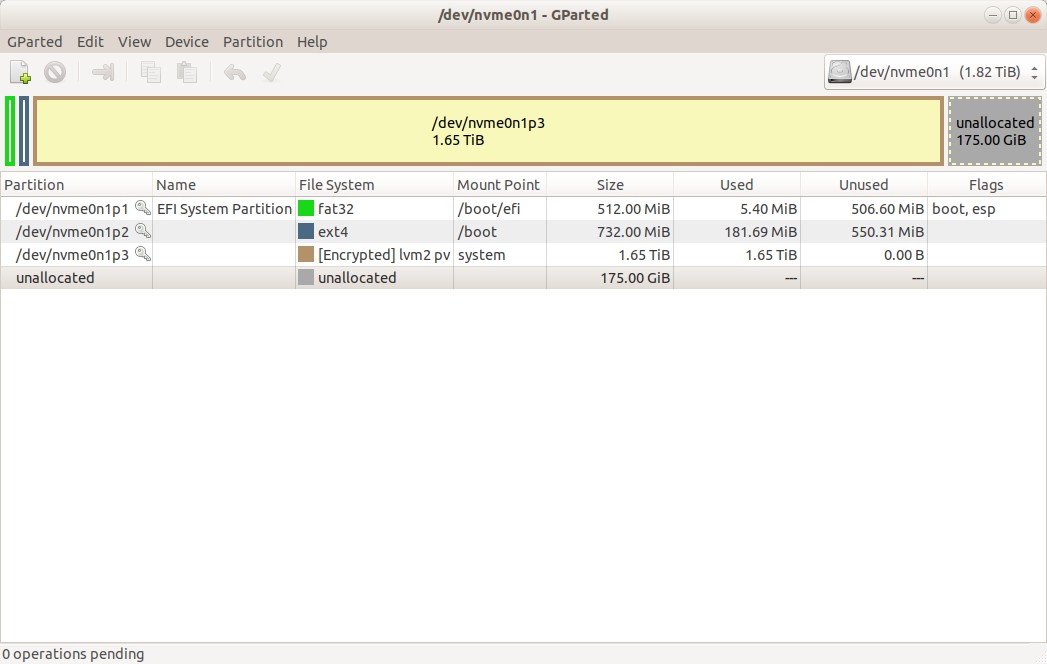
I don’t know what happened or why, but somewhere along the way gparted went from showing the true partition usage when unlocked to NOT showing the true partition usage when unlocked. It now shows full 100% usage even when unlocked. I think I did something weird. See the image below. Everything seems to work ok though, so I guess I can ignore it? If anyone knows why it does NOT show my true disk usage for this partition anymore, please let me know!
Keywords: expand encrypted LUKS partition: how to clone your Ubuntu OS or hard drive and expand your LUKS-encrypted hard drive / file system when done! ssd over-provisioning; clone ssd; clone hdd
All methods was sourced from stackoverflow.com or stackexchange.com, is licensed under cc by-sa 2.5, cc by-sa 3.0 and cc by-sa 4.0