I followed this tutorial about Nvidia drivers installation and I accidentally forget to do 5th point (disabling nouveau drivers), so now I can’t boot my system. I know I am idiot but is there anything I can do to fix this?
EDIT
My boot options are (I don’t if this is correct or not)
Fedora (3.8.9-200.fc18.x86_64)
other two with different version
When I press e to any of these I get lines setparams, then indenticated load_video, setgfxpayload, insmod 3x, set root, then if-else, linux, initrd. There is no line starting with kernel unfortunately.
Ok, I was able to unistall the drivers so I could boot with nouveau again.
Answers:
Thank you for visiting the Q&A section on Magenaut. Please note that all the answers may not help you solve the issue immediately. So please treat them as advisements. If you found the post helpful (or not), leave a comment & I’ll get back to you as soon as possible.
Method 1
You can boot into single user mode or text-only mode, make the necessary changes, and then boot back into graphical mode.
You can force booting into a specific mode when first turn on your computer by appending a number to the end of the linux line in GRUB2 (or the kernel line, in GRUB Legacy). When you boot your computer, press e at the GRUB screen (the screen where you select which kernel you want to boot). This will produce a GRUB menu editor containing the selected boot commands. Find a long line that begins with linux. At the end of the line, add a number corresponding to the mode you want to boot:
1 - Single User Mode
3 - Text-only Mode
5 - Graphics Mode (Usually the default mode)
For problems with a graphics driver, it’s usually sufficient to boot into text-only mode (i.e., 3). From here you can log in as your normal user, then become root and perform any administrative tasks that you need. This includes uninstalling the nVidia driver or recreating the initramfs as per the tutorial.
See Also (with screenshots): http://www.if-not-true-then-false.com/2012/howto-change-runlevel-on-grub2/
Alternatively, depending on how far your system makes it in the boot process, you may be able to access a text-only console without changing any boot parameters. Boot your system as normal and wait for it to make it as far as it goes. Then press ctrlaltF2. If your system has booted to a sufficiently advanced state and is not hung, you should then see a login prompt. Here you can log in as your normal user, become root, and then perform any administrative tasks to finish installing the nVidia driver.
Method 2
Boot to single user mode by appending ‘1’ (without the quotes) to the GRUB kernel command line, blacklist nouveau and reboot.
Method 3
You can do the following at the grub menu.
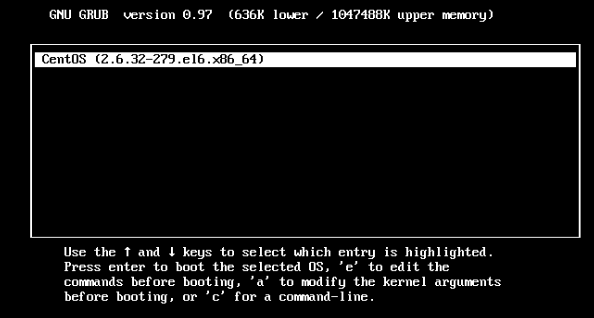
2. edit the boot options
Hit the “e” key to edit the boot options.
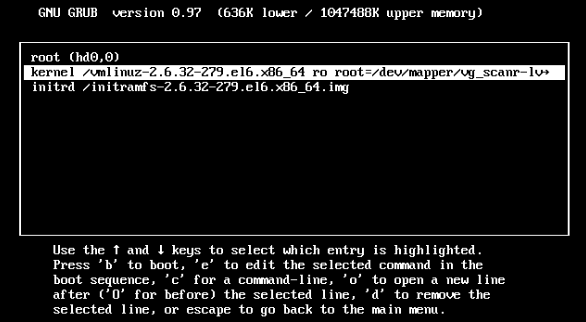
3. edit kernel boot options
Using the arrow keys arrow down to the kernel line. Hit the “e” key again to edit the boot options to the kernel.
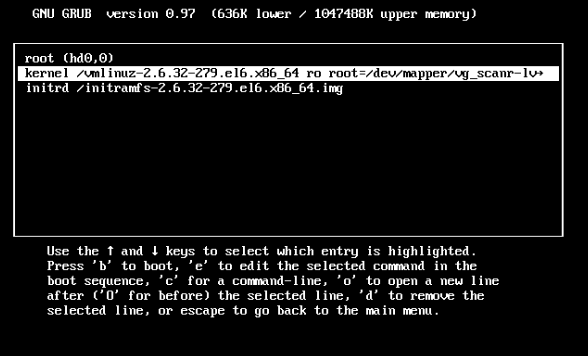
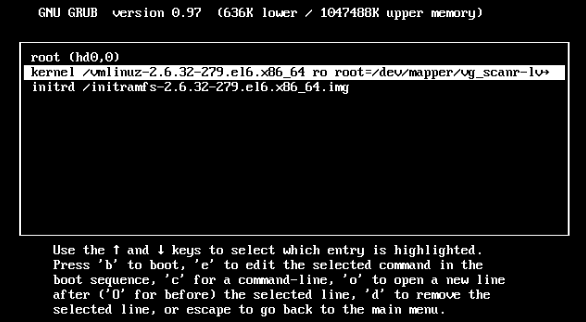
4. Add the run level
Add a number 1 to the end of the kernel options, and hit the Enter key.
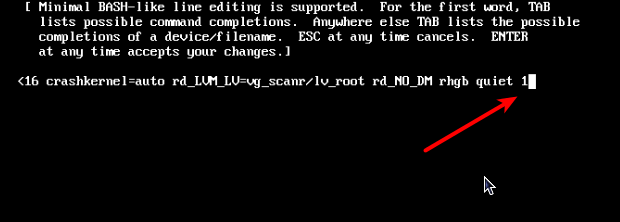
5. Boot the kernel
Hit the b key to boot the kernel.
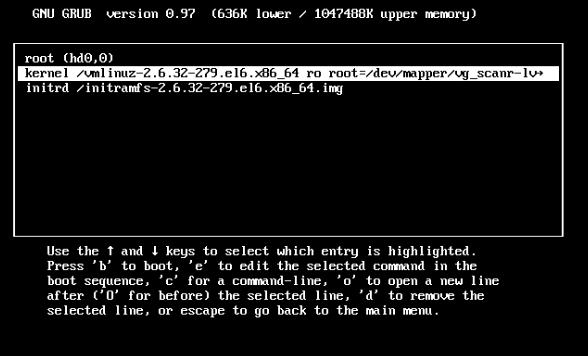

Method 4
I think the problem here is that Fedora does not use sysV system runlevels anymore (I had similar problem with Archlinux) so above examples doesn’t work anymore.
Instead it uses systemd targets, which can be specified as following:
kernel=vmlinuz parameter_and_so_on systemd.unit=multi-user
multi-user boots into what is equal to sysV 3 runlevel. If that not helps use: systemd.unit=rescue
Which is similar to SysV 1 runlevel.
When you done fixing just delete this from the end of the line. To switch on the run to graphical target when you done fixing run:
systemctl start graphical.target Or just reboot and remove parameter in grub command line.
EDIT:
I’d seen that there is no in my system (as in askers too) kernel= cmd line I think correct line to add this should be either linux= or intrd=
Method 5
Please install kernel-devel and after that, run command “akmods –force” with root permission. After reboot, it will be working well.
All methods was sourced from stackoverflow.com or stackexchange.com, is licensed under cc by-sa 2.5, cc by-sa 3.0 and cc by-sa 4.0