I can use my home computer A to connect by SSH to a server B where access to the external network is blocked. In other words, all requests to Internet from B throw an error: Network is unreachable. Can I redirect all these requests to pass through the computer A which has an unrestricted access to Internet?
Server B is a server which hosts one of my website. I want to download files in order to install some software. But the connection is blocked. I was able to transfer files but it was complicated because the software versions are different on A and B, so the dependencies where different and it required different files on A and B.
I searched on Internet and it seems that I need a reverse tunnel. But I only found solutions where a port is redirected. But it’s not what I need since I don’t want B to access to A but to Internet.
Answers:
Thank you for visiting the Q&A section on Magenaut. Please note that all the answers may not help you solve the issue immediately. So please treat them as advisements. If you found the post helpful (or not), leave a comment & I’ll get back to you as soon as possible.
Method 1
Just adding some more and clear steps to @Lawrence and @SpiRail’s answers.
Do the setup as follows:
Setup on Host A:
- Install proxy server Squid on Host A . By default Squid listens on port 3128.
yum install squid - Comment the
http_access deny allthen addhttp_access allow allin /etc/squid/squid.conf - If Host A itself uses some proxy say 10.140.78.130:8080 to connect to internet then also add that proxy to
/etc/squid/squid.confas follows:
refresh_pattern (Release|Packages(.gz)*)$ 0 20% 2880
cache_peer 10.140.78.130 parent 8080 0 no-query default
never_direct allow all
Setup on Host B:
- Add the following entries to /etc/environment
export http_proxy=http://127.0.0.1:3129
export https_proxy=http://127.0.0.1:3129
source /etc/environment
Now our setup is complete.
Creating SSH tunnel with Remote port forwarding
-
Make sure the server is started on Host A (e.g.
sudo service squid start). -
Run the following SSH command from Host A
ssh -R 3129:localhost:3128 [email protected]If you want to make persistent SSH tunnel, you can use autossh as follows:
autossh -M 20000 -f -NT -R 3129:localhost:3128 [email protected]
For above autossh command to work, you should be having SSH Keys setup from HostA to HostB - This will allow Host B to access the internet through Host A.
Checking the internet:
- Run the following command from Host B
wget https://google.com
Traffic flow diagram :
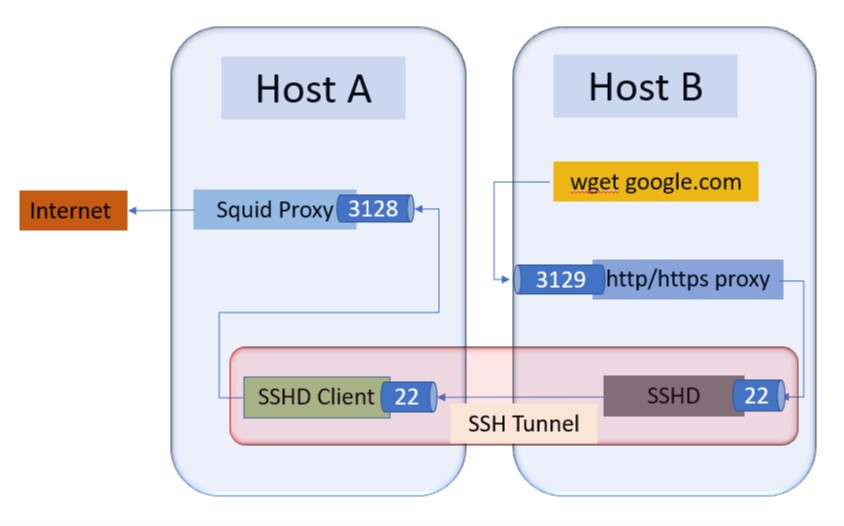
Method 2
You can run a proxy on Computer A that computer B would then connect to in order to access the internet through Computer A.
Something like this
             +----------+            +-----------+
             |          |+----SSH+-->|           |
             |     A    |            |    B      |
             |+--------+|            |           |
  Internet <-++-+PROXY<++<SSH Tunnel--+          |
             |+--------+|            |           |
             +----------+            +-----------+
Install a proxy like squid on A which listens on port 3128, and then you can ssh to the server with this –
ssh -L 3128:127.0.0.1:3128 [email protected]
That will allow B to access the internet through A
Method 3
@Lawrence ‘s answer was good enough for me to get it all down. But here are the more detailed steps I used.
I used this for using my laptops 4g dongle to route internet to a raspberry pi with a fixed line connection to a wifi router.
If your host is a mac:
install squidman
http://squidman.net/squidman/
(not just generic squid, I had too much trouble with building it)
The default settings seemed good enough for me.
connect to 4g
connect to wifi
– configure a static ip on your wifi and remove the gateway address (unless you are doing advanced things) else you get two default routes and its very annoying.
– make sure your wifi router is not using the same 192.168.x.y range (configure a different “x” in this case)
ssh -R 8080:localhost:8080 <a href="https://getridbug.com/cdn-cgi/l/email-protection" class="__cf_email__" data-cfemail="b0c0d9f0">[email protected]</a><ip address of the pi or target machine>
On the PI
export http_proxy=http://localhost:8080
with visudo add the text:
Defaults env_keep = "http_proxy https_proxy ftp_proxy"
Now wget will work and so will sudo apt-get so you can install packages.
If you want git as well its here:
https://stackoverflow.com/questions/128035/how-do-i-pull-from-a-git-repository-through-an-http-proxy
All methods was sourced from stackoverflow.com or stackexchange.com, is licensed under cc by-sa 2.5, cc by-sa 3.0 and cc by-sa 4.0