I want to find out my Python installation path on Windows. For example:
C:Python25
How can I find where Python is installed?
Answers:
Thank you for visiting the Q&A section on Magenaut. Please note that all the answers may not help you solve the issue immediately. So please treat them as advisements. If you found the post helpful (or not), leave a comment & I’ll get back to you as soon as possible.
Method 1
In your Python interpreter, type the following commands:
>>> import os
>>> import sys
>>> os.path.dirname(sys.executable)
'C:\Python25'
Also, you can club all these and use a single line command. Open cmd and enter following command
python -c "import os, sys; print(os.path.dirname(sys.executable))"
Method 2
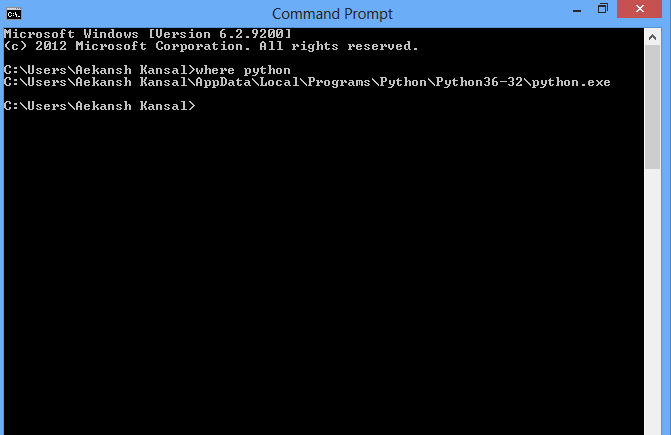
If you have Python in your environment variable then you can use the following command in cmd or powershell:
where python
or for Unix enviroment
which python
command line image :
Method 3
It would be either of
- C:Python36
- C:Users(Your logged in User)AppDataLocalProgramsPythonPython36
Method 4
If you need to know the installed path under Windows without starting the python interpreter, have a look in the Windows registry.
Each installed Python version will have a registry key in either:
HKLMSOFTWAREPythonPythonCoreversionnumberInstallPathHKCUSOFTWAREPythonPythonCoreversionnumberInstallPath
In 64-bit Windows, it will be under the Wow6432Node key:
HKLMSOFTWAREWow6432NodePythonPythonCoreversionnumberInstallPath
Method 5
Simple way is
- open CMD
- type
where pythonin cmd
Method 6
On my windows installation, I get these results:
>>> import sys
>>> sys.executable
'C:\Python26\python.exe'
>>> sys.platform
'win32'
>>>
(You can also look in sys.path for reasonable locations.)
Method 7
If you have the py command installed, which you likely do, then just use the --list-paths/-0p argument to the command:
py --list-paths
Example output:
Installed Pythons found by py Launcher for Windows
-3.8-32 C:UserscscottAppDataLocalProgramsPythonPython38-32python.exe *
-2.7-64 C:Python27python.exe
The * indicates the currently active version for scripts executed using the py command.
Method 8
Its generally
‘C:Usersuser-nameAppDataLocalProgramsPythonPython-version’
or
try using (in cmd )
where python
Method 9
In the sys package, you can find a lot of useful information about your installation:
import sys
print sys.executable
print sys.exec_prefix
I’m not sure what this will give on your Windows system, but on my Mac executable points to the Python binary and exec_prefix to the installation root.
You could also try this for inspecting your sys module:
import sys
for k,v in sys.__dict__.items():
    if not callable(v):
        print "%20s: %s" % (k,repr(v))
Method 10
If You want the Path After successful installation then first open you CMD and type
python or python -i
It Will Open interactive shell for You and Then type
import sys
sys.executable
Hit enter and you will get path where your python is installed …
Method 11
To know where Python is installed you can execute where python in your cmd.exe.
Method 12
You can search for the “environmental variable for you account”. If you have added the Python in the path, it’ll show as “path” in your environmental variable account.
but almost always you will find it in
“C:Users%User_name%AppDataLocalProgramsPythonPython_version”
the ‘AppData‘ folder may be hidden, make it visible from the view section of toolbar.
Method 13
If anyone needs to do this in C# I’m using the following code:
static string GetPythonExecutablePath(int major = 3)
{
    var software = "SOFTWARE";
    var key = Registry.CurrentUser.OpenSubKey(software);
    if (key == null)
        key = Registry.LocalMachine.OpenSubKey(software);
    if (key == null)
        return null;

    var pythonCoreKey = key.OpenSubKey(@"PythonPythonCore");
    if (pythonCoreKey == null)
        pythonCoreKey = key.OpenSubKey(@"Wow6432NodePythonPythonCore");
    if (pythonCoreKey == null)
        return null;

    var pythonVersionRegex = new Regex("^" + major + @".(d+)-(d+)$");
    var targetVersion = pythonCoreKey.GetSubKeyNames().
                                        Select(n => pythonVersionRegex.Match(n)).
                                        Where(m => m.Success).
                                        OrderByDescending(m => int.Parse(m.Groups[1].Value)).
                                        ThenByDescending(m => int.Parse(m.Groups[2].Value)).
                                        Select(m => m.Groups[0].Value).First();

    var installPathKey = pythonCoreKey.OpenSubKey(targetVersion + @"InstallPath");
    if (installPathKey == null)
        return null;

    return (string)installPathKey.GetValue("ExecutablePath");
}
Method 14
This worked for me: C:UsersYour_user_nameAppDataLocalProgramsPython
My currently installed python version is 3.7.0
Hope this helps!
Method 15
Go to C:UsersUSERAppDataLocalProgramsPythonPython36
if it is not there then
open console by windows+^R
Then type cmd and hit enter
type python if installed in your local file it will show you its version from there type the following
import os
import sys
os.path.dirname(sys.executable)
Method 16
You could have many versions of Python installed on your machine. So if you’re in Windows at a command prompt, entering something like this…
py --version
…should tell you what version you’re using at the moment. (Maybe replace py with python or python3 if py doesn’t work). Anyway you’d see something like
Python 3.10.2
If you then create a virtual environment using something like this…
py -m venv venv
…that environment will also use that Python version. To verify, activate the environment…
venvscriptsactivate.bat
You’ll see the name of the command prompt. Now if execute:
where python
…it will show you which Python executable that virtual environment uses. It will be a copy of Python.exe what’s actually in the Scripts subfolder of the virtual environment folder. Of course to see which version that is, again use py --version.
Method 17
Make use of the Python Launcher for Windows (available as of 3.3). It is compatible with all available versions of python.
First, check if the launcher is available:
py
starts the latest installed version of Python
To see all Python versions available on your system and their path:
py -0p
or
py --list-paths
For a specific Python version path—especially useful with multiple python installations:
py -3.7 -c "import os, sys; print(os.path.dirname(sys.executable))"
python 2
py -2 -c "import os, sys; print(os.path.dirname(sys.executable))"
py installed location is C:Windowspy.exe if installed for all users, otherwise can be found at C:UsersusernameAppDataLocalProgramsPythonLauncher.
It does not require the environment PATH variable to be set if installed for all users.
Method 18
You can find it in the Windows GUI, but you need to select “show hidden” in the menu. Directory where python is installed on my Win10 computer:
C:UsersusernameAppDataLocalProgramsPythonPython310
Very handy if you use python pip to install packages.
Method 19
if you still stuck or you get this
C:\Users\name of your\AppData\Local\Programs\Python\Python36
simply do this replace 2 with one
C:UsersakshayAppDataLocalProgramsPythonPython36
Method 20
I installed 2 and 3 and had the same problem finding 3. Fortunately, typing path at the windows path let me find where I had installed it. The path was an option when I installed Python which I just forgot. If you didn’t select setting the path when you installed Python 3 that probably won’t work – unless you manually updated the path when you installed it.
In my case it was at c:Program FilesPython37python.exe
Method 21
If you use anaconda navigator on windows, you can go too enviornments and scroll over the enviornments, the root enviorment will indicate where it is installed. It can help if you want to use this enviorment when you need to connect this to other applications, where you want to integrate some python code.
Method 22
Simplest Answer
There are many Pythonic Ways to Answer, this Question, but I am going to stick to the old and trusted way.
Steps on Windows
- Open Search and Type Edit the System Environment Variables.
- Then Click on the “Environment Variables” Button in the Down Corner.
- There you can see all of the paths associated to where python, pip and other binaries are located that you call on command line.

All methods was sourced from stackoverflow.com or stackexchange.com, is licensed under cc by-sa 2.5, cc by-sa 3.0 and cc by-sa 4.0