Is there any tool/command in Linux that I can use to run a command in more than one tab simultaneously? I want to run the same command: ./myprog argument1 argument2 simultaneously in more than one shell to check if the mutexes are working fine in a threaded program. I want to be able to increase the number of instances of this program so as to put my code under stress later on.
I am kind of looking for something like what wall does. I can think of using tty’s, but that just seems like a lot of pain if I have to scale this to many more shells.
Answers:
Thank you for visiting the Q&A section on Magenaut. Please note that all the answers may not help you solve the issue immediately. So please treat them as advisements. If you found the post helpful (or not), leave a comment & I’ll get back to you as soon as possible.
Method 1
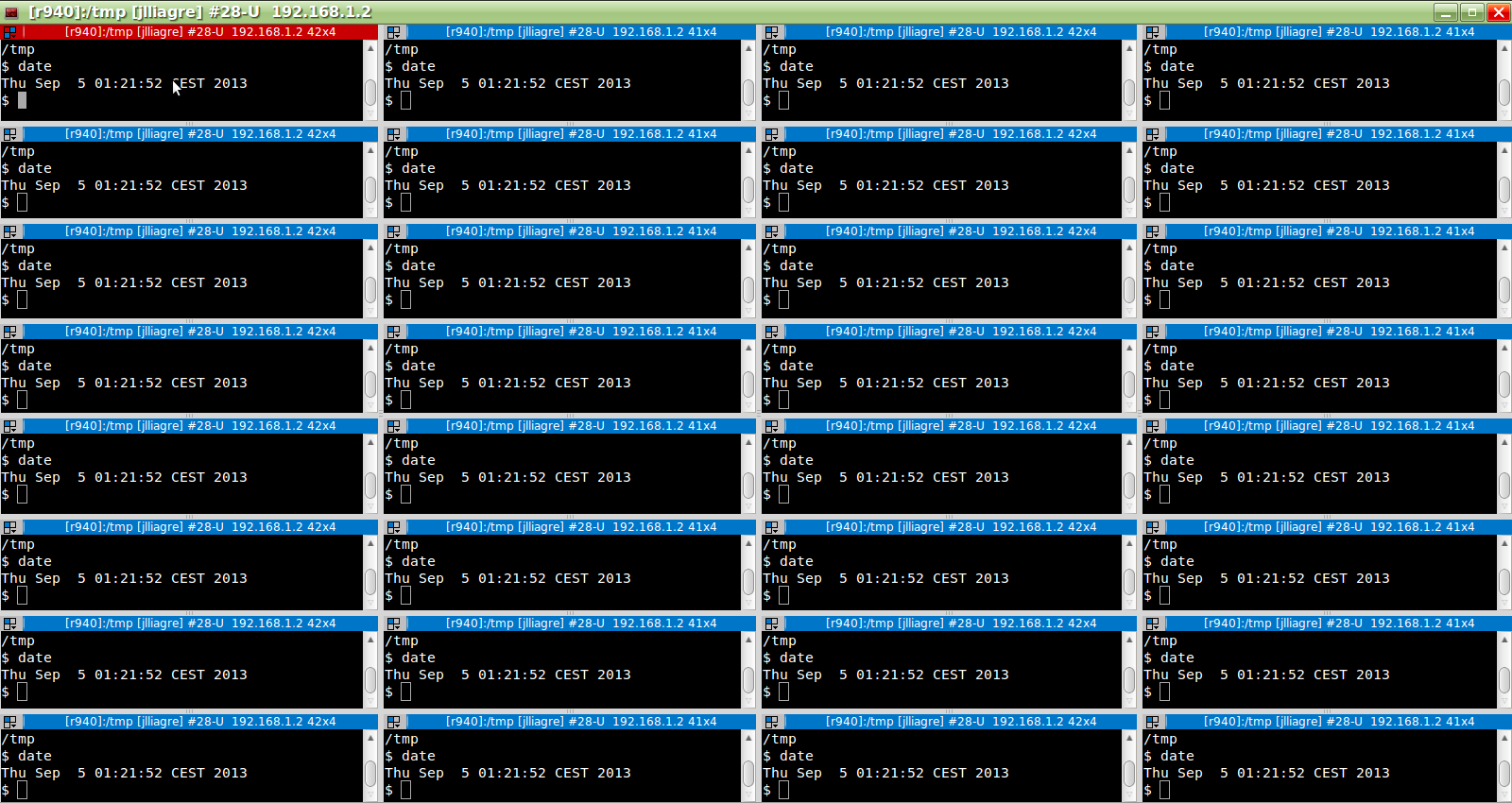
As mavillan already suggested, just use terminator. It allows to display many terminals in a tiled way. When enabling the broadcasting feature by clicking on the grid icon (top-left) and choosing “Broadcast All”, you can enter the very same command simultaneously on each terminal.
Here is an example with the date command broadcasted to a grid of 32 terminals.
Method 2
tmux has this capability. (along with many other useful capabilities in the same vein)
Can be done via:
:setw synchronize-panes on
Method 3
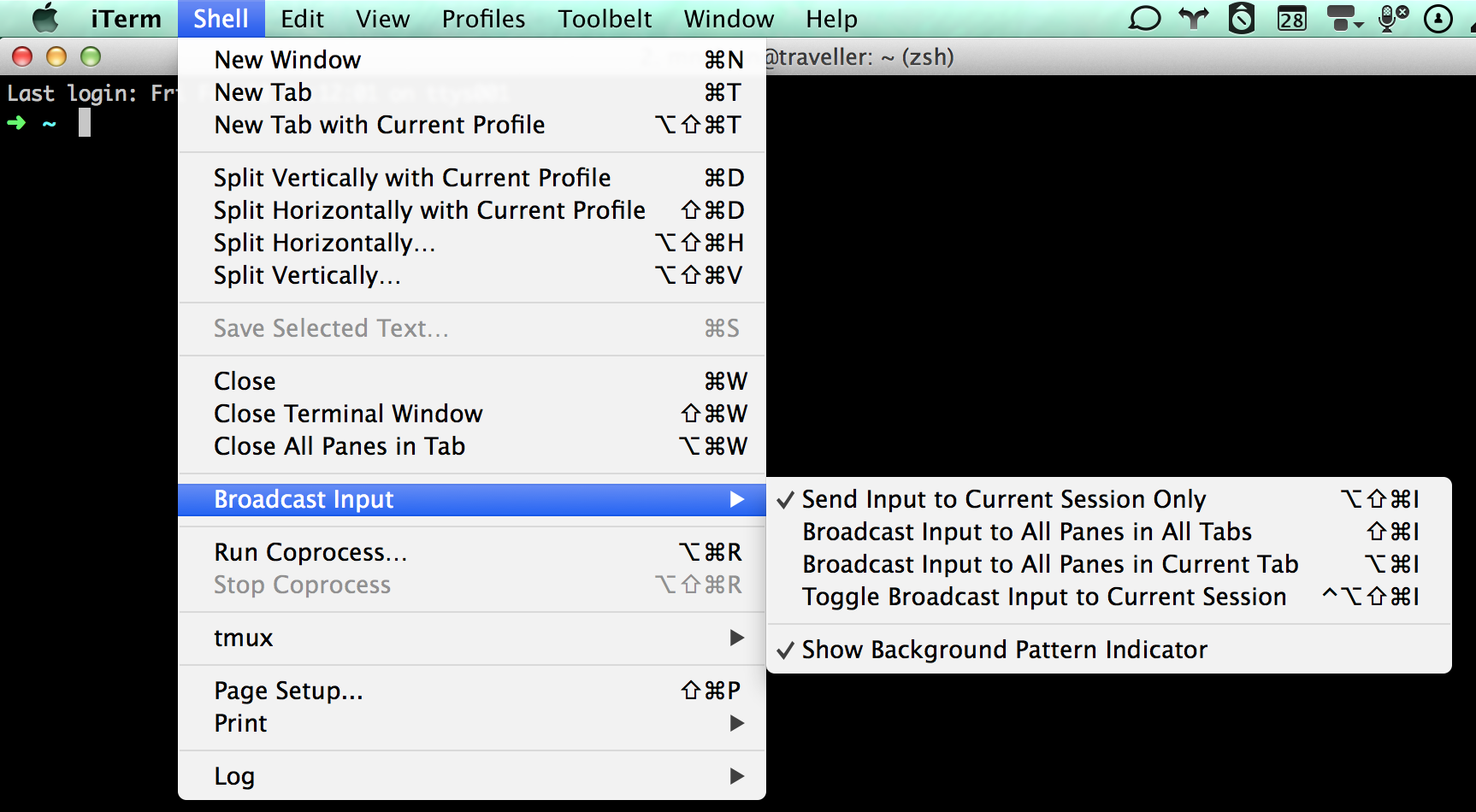
It can be achieved using iTerm2
Reference: http://korishev.com/blog/2014/02/28/iterm2-broadcast-input/
Method 4
Multixterm
Another tool to add to the list is one called multixterm. It uses xterm terminals. You can invoke it like so:
$ multixterm
And once up you’ll be presented with a GUI.
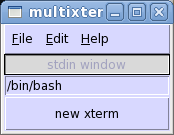
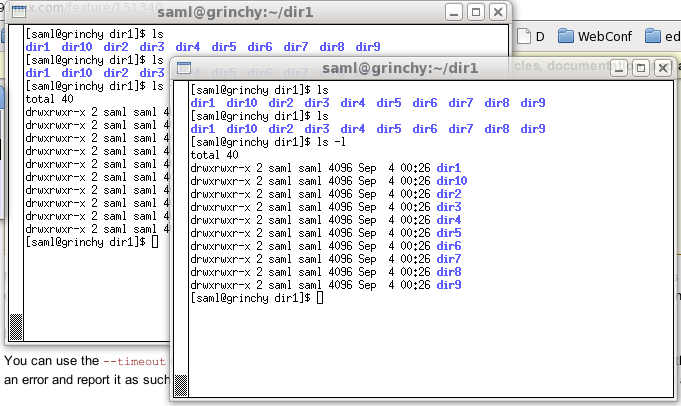
You can then start spinning up xterm windows by clicking the new xterm button. Here for example I’ve invoked 2. If you then click on the primary window, you can start typing commands in both windows simultaneously:
keyboardcast
Appears to only be available on Ubuntu, looks similar to multixterm.
excerpt
The purpose of keyboardcast is to allow you to send keystrokes to multiple
X windows at once. This allows you, for example, to control a number of
terminals connected to different but similar hosts for purposes of mass-
administration.You can also select non-terminals. If you come up with a reasonable use
for this ability I’d be interested in hearing about it.The program can select windows to send to either by matching their titles
(using a substring) or by clicking on them (in a method similar to GIMP’s
screenshot feature).The program also features the ability to spawn off multiple instances of
gnome-terminal executing a single command on multiple arguments (for example
executing ‘ssh’ on several hosts). The gnome-terminals are invoked with
the profile ‘keyboardcast’ if it exists (so, for example, your font size
can be smaller).
Method 5
You can do something like:
max_processes=20
for ((i=0; i<$max_processes; i++))
do
    /path/to/myprog arg1 arg2 > /tmp/myprog.${i}.log &
done
Or if the output of each command is relevant during execution, you can setup screen.
vi ~/.screenrc
screen -t inst1    1 /path/to/myprog arg1 arg2
screen -t inst2    2 /path/to/myprog arg1 arg2
screen -t inst3    3 /path/to/myprog arg1 arg2
screen -t inst4    4 /path/to/myprog arg1 arg2
The screen requires more manual work.
Method 6
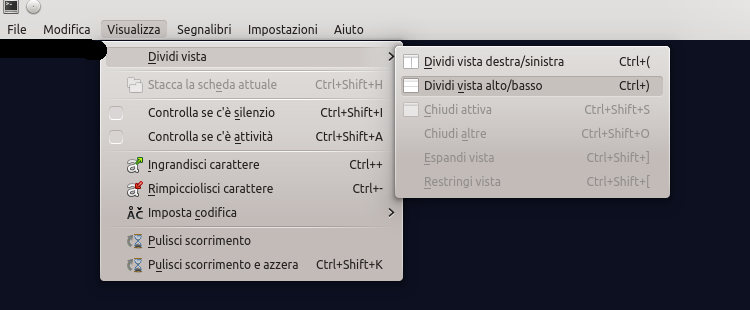
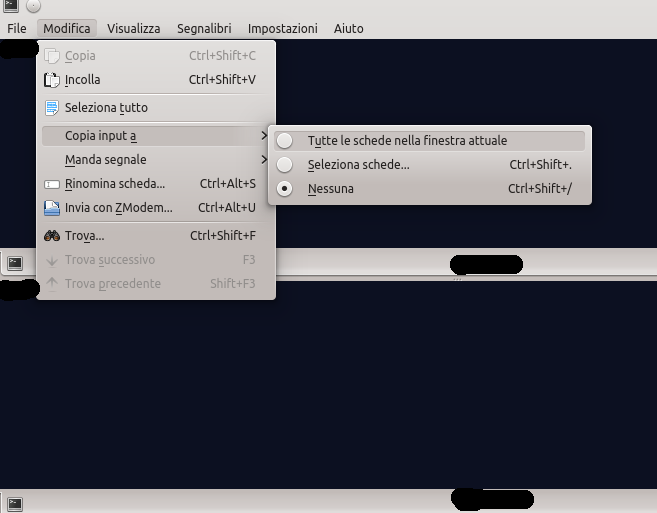
I’m a KDE user, with konsole 2.13.2 on KDE 4.13.3 you can do this:
- open konsole
-
split view vertically
-
write simultaneously on each terminal inside the window
Method 7
Try Terminator (emulator terminal). It can have many shell sessions in the same window and you can broadcast a command to all of them.
Method 8
You could use a tool like MobaXterm and it will allow you to connect simultaneously and then paste your commands into all of your windows.
Method 9
If you only want to see output from the 100th program execution:
#!/bin/bash

prog="/path/to/myprog"
args="argument1 argument2"
max=100
for i in $(seq $max); do
    if [ $i -lt $max ]; then
        exec $prog $args &> /dev/null &
    else
        exec $prog $args
    fi
done
Method 10
You can control konsole through DCOP. An example is from here:
#!/bin/bash

checkfile() {
  if [ ! -f $1 ]; then
    echo "could not find $1"
    exit 99
  else
    echo "OK"
  fi
}

# Check for App1 XML
echo -n "Checking for App 1 XML... "
XMLA=/domain/DM.xml
checkfile ${DEVROOT}/${XMLA}

# Check for App2 XML
echo -n "Checking for App 2 XML... "
hostname=$(hostname)
XMLB=/domain/DM_${hostname}.xml
checkfile ${DEVROOT}/${XMLB}

# Launch Konsole
echo -n "Launching konsole... "
K=$(dcopstart konsole-script)

[ -z "${K}" ] && exit 98
# Create second tab and resize
SDA=$(dcop $k konsole currentSession)
SDB=$(dcop $k konsole newSession)
dcop $K $SDA setSize 121x25

# Let bash login, etc.
sleep 1

# Rename the tabs
dcop $K $SDA renameSession "App 1"
dcop $K $SDB renameSession "App 2"

# Start services, letting user watch
echo -n "starting app1... "
dcop $K konsole activateSession $SDA
dcop $K $SDA sendSession "echo -ne '33]0;DEV (${hostname})07' && clear && starter $XMLA"
sleep 2
echo -n "starting app2... "
dcop $K konsole activateSession $SDB
dcop $K $SDB sendSession "echo -ne '33]0;DEV (${hostname})07' && clear && starter $XMLB"
echo done.
Method 11
sh <<-STRESS &
$( printf 'myprog &n%.0b'
    `seq 1 ${MAX_CONCURRENT_PROCS}` )
STRESS
echo "$!"
I agree with the comment @msw makes above. This will write you a script to be launched by a backgrounded sh process and print out the child sh process’s pid so you can monitor it and its children as it works.
Method 12
@Jinpeng was on the right track with GNU Parallel, just not the implementation.
Example: Run 10 parallel instances of your program, with each thread running your program only once:
parallel -j10 './myprog argument1 argument2 #' ::: {1..10}
Example: Run 10 parallel threads, with each of those threads running your program infinitely:
parallel -j10 'while true ; do ./myprog argument1 argument2 ; done #' ::: {1..10}
You can easily scale this to the hundreds of threads by replacing the 10 in my examples.
parallel -j200 ... ::: {1..200}
If your program produces any stdout messages and you want to see them as they are produced (rather than the default which collates them), the --ungroup option to parallel may be useful.
parallel --ungroup ...
If you are running a lot of threads from your workstation and don’t want things to become unresponsive, consider niceing the whole process subtree at launch time.
nice -n19 parallel ...
Side note, GNU Parallel is usually not installed by default but is usually in your normal package repos, so just install it like any other package: dnf install parallel, apt-get install parallel, brew install parallel, etc.
Method 13
You can start processes in the background with nohup.
Example:
nohup ./myprog -arg1 -arg2 &
Output:
[1] 1769
nohup: ignoring input and appending output to 'nohup.out'
Remember to kill the task later with the given PID:
kill 1769
To bring the process in the foreground you must enter the jobnumber, in this case [1]:
fg %1
Method 14
gnu parallel is exactly the tool you are looking for.
parallel -j 9 yourcommand
Method 15
My little to mill:
#!/bin/sh

[ $# -lt 1 ] && {
        echo "Use: $0 <file>
        where file includes list of server"
        exit 9
}

cp ~/.config/terminator/config ~/.config/terminator/config.`date +%Y%m%d-%H%M`

cat ~/.config/terminator/config.`date +%Y%m%d-%H%M`|grep -v "^.plugins" >~/.config/terminator/config

inc=5
echo "  [[terms]]" >>~/.config/terminator/config
for i in `cat $1` ; do
        echo "   [[[window${inc}]]]"
        echo "       type = Window"
        echo "   [[[terminal${inc}]]]"
        echo "     profile = default"
        echo "     order = 0"
        echo "     type = Terminal"
        echo "     parent = window${inc}"
        echo "     command = ssh $i"
        inc=$((inc+1))
done >>~/.config/terminator/config

echo "[plugins]" >>~/.config/terminator/config
Will make terminator config (layout terms) for many windows in one group.
EDIT: At least, terminator is able to send broadcast into every terminal in same group. This function is switchable – so you may enable it write ‘su -‘ then disable and write owen password to onces terminals and enable it again.
All methods was sourced from stackoverflow.com or stackexchange.com, is licensed under cc by-sa 2.5, cc by-sa 3.0 and cc by-sa 4.0