Is it possible to check the progress of running cp process? Some processes respond to various KILL signals so that you can check what is their status. I know that I can run cp with parameter -v but what if forgot to do that, cp is running for a very long time and I want to know which file is being copied, or how many were already copied.
Answers:
Thank you for visiting the Q&A section on Magenaut. Please note that all the answers may not help you solve the issue immediately. So please treat them as advisements. If you found the post helpful (or not), leave a comment & I’ll get back to you as soon as possible.
Method 1
On recent versions of Mac OS X you can just hit CTRL+T to see progress.
From the OSX 10.6 man page for cp(1):
 "If cp receives a SIGINFO (see the status argument for stty(1)) signal,
 the current input and output file and the percentage complete will be
 written to the standard output."
Hitting CTRL+T is equivalent to signaling the current process with SIGINFO
on BSD-ish machines, including OSX.
This works for dd(1) as well.
I don’t think Linux has this SIGINFO mechanism, and don’t see anything
in the GNU man page for cp(1) about signals that can be used to report
progress.
Method 2
Yes, by running stat on target file and local file, and get a file size,
i.e stat -c "%s" /bin/ls
And you get the percentage of data copied by comparing the two value, that’s it
In a very basic implementation that will look like this:
function cpstat()
{
  local pid="${1:-$(pgrep -xn cp)}" src dst
  [[ "$pid" ]] || return
  while [[ -f "/proc/$pid/fd/3" ]]; do
    read src dst < <(stat -L --printf '%s ' "/proc/$pid/fd/"{3,4})
    (( src )) || break
    printf 'cp %d%%r' $((dst*100/src))
    sleep 1
  done
  echo
}
Method 3
When you’re copying a lot of files, du -s /path/to/destination or find /path/to/destination | wc -l gives you an idea of how much has already been done.
You can find out which file is being copied with lsof -p1234 where 1234 is the process ID of cp. Under many systems, pgrep -x cp reports the process IDs of all running processes named cp. This may not be very useful as the order in which the files inside a given directory are copied is essentially unpredictable (in a large directory under Linux, ls --sort=none will tell you; with a directory tree, try find).
lsof -p1234 also tells you how many bytes cp has already read and written for the current file, in the OFFSET column.
Under Linux, there are IO usage statistics in /proc/$pid/io (again, use the PID of the cp process for $pidf). The rchar value is the total number of bytes that the process has read, and wchar is the number of bytes that the process has written. This includes not only data in files but also metadata in directories. You can compare that figure with the approximate figure obtained with du /path/to/source (which only counts file data).
read_bytes and write_bytes only include what has been read or written from storage, i.e. it excludes terminal diagnostics and data already in cache or still in buffers.
Method 4
A relatively new tool that does exactly that is progress (formerly cv [coreutils viewer]).
What is it?
This tool can be described as a Tiny, Dirty, Linux-and-OSX-Only C command that looks for coreutils basic commands (cp, mv, dd, tar, gzip/gunzip, cat, etc.) currently running on your system and displays the percentage of copied data.
How does it work?
It simply scans
/procfor interesting commands, and then looks at directoriesfdandfdinfoto find opened files and seek positions, and reports status for the largest file.
Method 5
One of my favorite tricks for this (under Linux) is to find out the PID of the cp process (using ps | grep cp or similar), and then to look in /proc/$PID/fd/ and /proc/$PID/fdinfo/.
$ cp -r y z
^Z
$ ls -l /proc/8614/fd
lrwx------ 1 jander jander 64 Aug  2 15:21 0 -> /dev/pts/4
lrwx------ 1 jander jander 64 Aug  2 15:21 1 -> /dev/pts/4
lrwx------ 1 jander jander 64 Aug  2 15:20 2 -> /dev/pts/4
lr-x------ 1 jander jander 64 Aug  2 15:21 3 -> /home/jander/y/foo.tgz
l-wx------ 1 jander jander 64 Aug  2 15:21 4 -> /home/jander/z/foo.tgz
This will show you what files the process has open. If you want to see how far into the file the process is…
$ cat /proc/8614/fdinfo/3
pos:    105381888
flags:  0500000
the pos parameter is the position of the read (or write) pointer, in bytes.
Method 6
There are a few things you can do. You could attach strace to it to see what it’s doing (output may be copious!):
strace -p [pid of cp]
or you could get lsof to tell you which files it currently has open:
lsof -p [pid of cp]
If you’re running a big recursive cp, you could use pwdx to get the current working directory, which may give you some idea of how it’s doing:
pwdx [pid of cp]
Method 7
While the OP has specifically mentioned the ability to see how the “cp” command is progressing, it must be said that other utilities are better for this particular issue.
For example:
rsync -avP FROM TO
will show the progress of copying the FROM file/folder to the TO file/FOLDER.
# rsync -avP Video.mp4  /run/media/user1/3.8G/

sending incremental file list
Video.mp4
    565,170,046 100%   51.23MB/s    0:00:10 (xfr#1, to-chk=0/1)

sent 565,308,115 bytes  received 134 bytes  5,210,214.28 bytes/sec
total size is 565,170,046  speedup is 1.00
And rsync will tell you how much it’s copied (and the transfer rate) along the way. It works for single files or folder both on the same machine or across the network.
Method 8
I would like to add cpv, a little wrapper for pv that I wrote that imitates the usage of cp.
Simple and useful
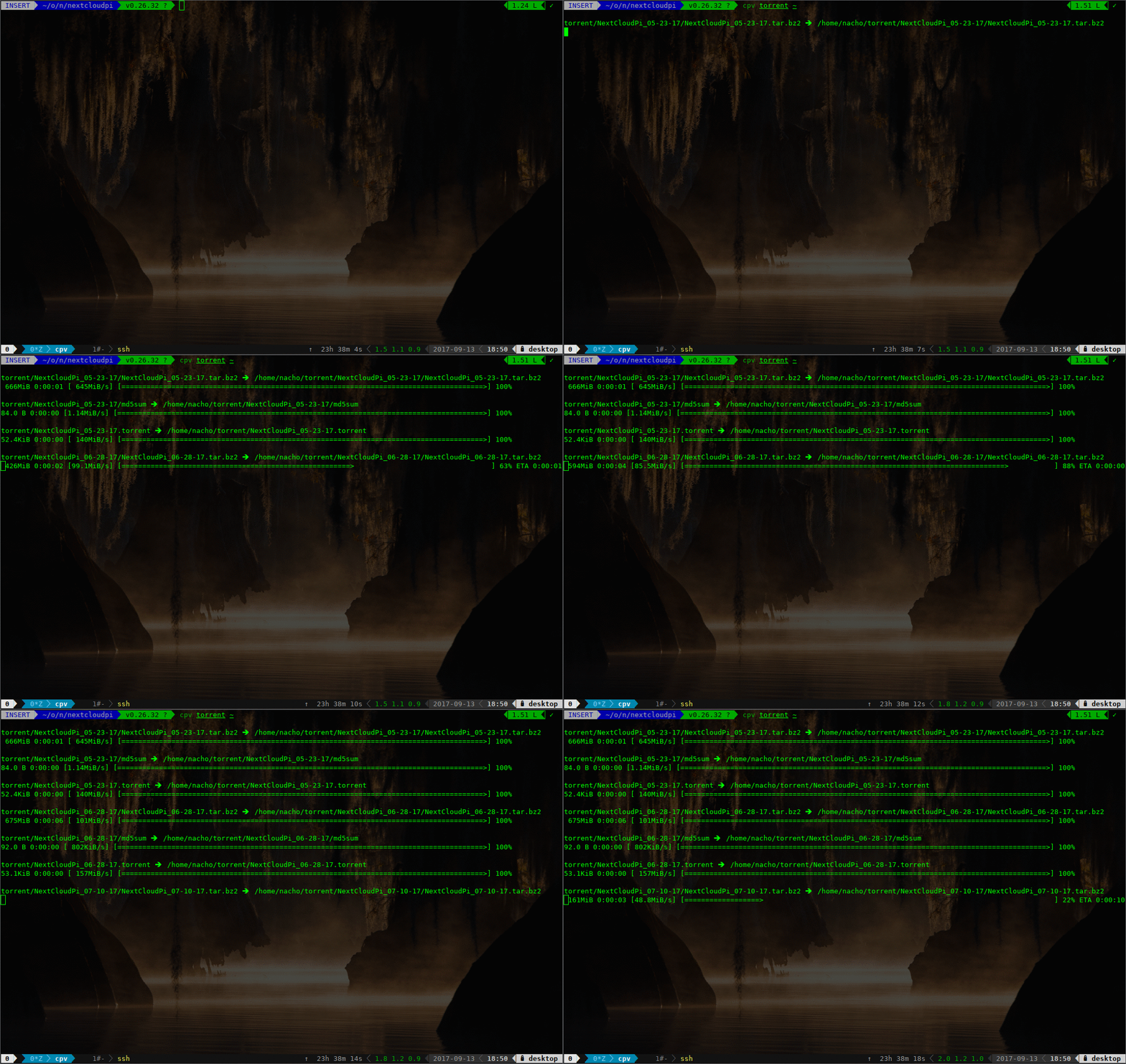
You can get it here
Method 9
What you can do is check the files at destination.
If your cp commands is something like cp -a <my_source> <my_dest_folder> I would check which files are already copied in <my_dest_folder> and each file size, so I can see the progress. If the <my_source> is a bit complex (several layers of directories) then a small script would be able to check the status. Although such a script could consume a bit of I/O that would then not be used by the cp process.
Method 10
This tool is a Linux utility command that looks for coreutils basic commands (cp, mv, dd, tar, gzip/gunzip, cat, etc.) currently running on your system and displays the percentage of copied data:
Method 11
Use pv -d:
-d PID[:FD], --watchfd PID[:FD]
Instead of transferring data, watch file descriptorFDof processPID, and show its progress. […] If only aPIDis specified, then that process will be watched, and all regular files and block devices it opens will be shown with a progress bar. Thepvprocess will exit when processPIDexits.
(source)
Find out the PID of your running cp (pidof cp), let’s say it’s 12345; then simply
pv -d 12345
Notes:
- Run
pvas the same user who runscp(or as root). - Since copying means reading one file and writing to the other, expect to see two files being monitored at a time.
- If
cpis processing small files at the moment, you will probably not see all of them in the output (a small file may get closed too fast forpvto pick it up). Yet some will appear, so even then you will be able to tell whatcpdoes. pv -d "$(pidof cp)"may work; but if there’s more than onecprunning, it won’t work. There ispidof -swhich returns at most one PID, but you cannot be sure it will belong to the rightcpprocess if there are many.
Method 12
You can get a realtime output of the lsof command referenced in the answer by @gilles by using watch like this:
watch -n1 lsof -p$(pgrep -x cp)
The -n1 flag sets the update interval to 1 second but you can set it to something lower like 0.5 for more accuracy. The default is 2 seconds.
You can also run the watch command with cp by using an ampersand &. For example, to copy somefile to /someplace, you can do this:
cp somefile /someplace & watch lsof -n1 -p$(pgrep -x cp)
Method 13
You may also use pipeviewer.
for f in *; do
  pv $f > destination/$f
done
Method 14
@nachoparker provided a modern way of doing it. If you work on servers and don’t have time to implement external things: use cp --verbose.
Method 15
You can send a signal to the process:
kill -SIGUSR1 pid
It is even more useful to create a script that polls until you press Ctrl-C or the process finished:
while [ : ] ; do kill -SIGUSR1 $1 && sleep 1m || exit ; done
Works for dd. Doesn’t work for cp. Maybe you have to use another signal. I once tried SIGINFO, but it doesn’t seem to exist any more on the Intel platform.
All methods was sourced from stackoverflow.com or stackexchange.com, is licensed under cc by-sa 2.5, cc by-sa 3.0 and cc by-sa 4.0