A few days ago I started to care a lot about my data security, I end up nmaping myself with: nmap 127.0.0.1
Surprise, surprise, I have lots of active services listen to localhost:
$ nmap 127.0.0.1
Starting Nmap 5.21 ( http://nmap.org ) at 2013-05-05 00:19 WEST
Nmap scan report for localhost (127.0.0.1)
Host is up (0.00025s latency).
Not shown: 993 closed ports
PORT    STATE SERVICE
22/tcp  open  ssh
25/tcp  open  smtp
53/tcp  open  domain
111/tcp open  rpcbind
139/tcp open  netbios-ssn
445/tcp open  microsoft-ds
631/tcp open  ipp

Nmap done: 1 IP address (1 host up) scanned in 0.05 seconds
The only one that I might use is ssh (although it is probably not well configured, I will keep this matter to another question).
As far as I know ipp protocol is used by CUPS to share my printers, I don’t need to share them, just access printers from a server.
This is the output of netstat -lntup by the root user, removing the localhost addresses:
Active Internet connections (only servers)
Proto Recv-Q Send-Q Local Address           Foreign Address         State       PID/Program name
tcp        0      0 0.0.0.0:22              0.0.0.0:*               LISTEN      497/sshd
tcp        0      0 0.0.0.0:17500           0.0.0.0:*               LISTEN      2217/dropbox
tcp        0      0 0.0.0.0:445             0.0.0.0:*               LISTEN      892/smbd
tcp        0      0 0.0.0.0:50022           0.0.0.0:*               LISTEN      1021/rpc.statd
tcp        0      0 0.0.0.0:139             0.0.0.0:*               LISTEN      892/smbd
tcp        0      0 0.0.0.0:111             0.0.0.0:*               LISTEN      906/rpcbind
tcp6       0      0 :::22                   :::*                    LISTEN      497/sshd
tcp6       0      0 :::42712                :::*                    LISTEN      1021/rpc.statd
tcp6       0      0 :::445                  :::*                    LISTEN      892/smbd
tcp6       0      0 :::139                  :::*                    LISTEN      892/smbd
tcp6       0      0 :::111                  :::*                    LISTEN      906/rpcbind
udp        0      0 0.0.0.0:51566           0.0.0.0:*                           615/avahi-daemon: r
udp        0      0 0.0.0.0:68              0.0.0.0:*                           7362/dhclient
udp        0      0 0.0.0.0:111             0.0.0.0:*                           906/rpcbind
udp        0      0 192.168.1.255:137       0.0.0.0:*                           1782/nmbd
udp        0      0 192.168.1.67:137        0.0.0.0:*                           1782/nmbd
udp        0      0 0.0.0.0:137             0.0.0.0:*                           1782/nmbd
udp        0      0 192.168.1.255:138       0.0.0.0:*                           1782/nmbd
udp        0      0 192.168.1.67:138        0.0.0.0:*                           1782/nmbd
udp        0      0 0.0.0.0:138             0.0.0.0:*                           1782/nmbd
udp        0      0 0.0.0.0:655             0.0.0.0:*                           906/rpcbind
udp        0      0 0.0.0.0:17500           0.0.0.0:*                           2217/dropbox
udp        0      0 0.0.0.0:5353            0.0.0.0:*                           615/avahi-daemon: r
udp        0      0 0.0.0.0:34805           0.0.0.0:*                           1021/rpc.statd
udp6       0      0 :::40192                :::*                                1021/rpc.statd
udp6       0      0 :::111                  :::*                                906/rpcbind
udp6       0      0 :::655                  :::*                                906/rpcbind
udp6       0      0 :::5353                 :::*                                615/avahi-daemon: r
udp6       0      0 :::42629                :::*                                615/avahi-daemon: r
How do I configure those services so they only listen to the outside world when I’m actually using them?
Answers:
Thank you for visiting the Q&A section on Magenaut. Please note that all the answers may not help you solve the issue immediately. So please treat them as advisements. If you found the post helpful (or not), leave a comment & I’ll get back to you as soon as possible.
Method 1
Determine your exposure
Taking your output from the netstat command, what looks like a lot of services is actually a very short list:
$ netstat -lntup | awk '{print $6 $7}'|sed 's/LISTEN//'| cut -d"/" -f2|sort|uniq|grep -v Foreign
avahi-daemon:r
dhclient
dropbox
nmbd
rpcbind
rpc.statd
smbd
sshd
Getting a lay of the land
Looking at this list there are several services which I’d leave alone.
- dhclient
- DHCP server daemon responsible for getting your IP address, have to have this one.
- dropbox
- obviously Dropbox, have to have
Start reducing it – disable Samba
You can probably right off the bat disable Samba, it accounts for 2 of the above services, nmbd and smbd. It’s questionable that you’d really need that running on a laptop whether on localhost or your IP facing your network.
To check that they’re running you can use the following command, status:
$ status nmbd
nmbd start/running, process 19457
$ status smbd
smbd start/running, process 19423
Turning services off can be confusing with all the flux that’s been going on with upstart, /etc/rc.d, business so it might be difficult to figure out which service is under which technology. For Samba you can use the service command:
$ sudo service nmbd stop
nmbd stop/waiting
$ sudo service smbd stop
smbd stop/waiting
Now they’re off:
$ status nmbd
nmbd stop/waiting
$ status smbd
smbd stop/waiting
Keeping them off … permanently
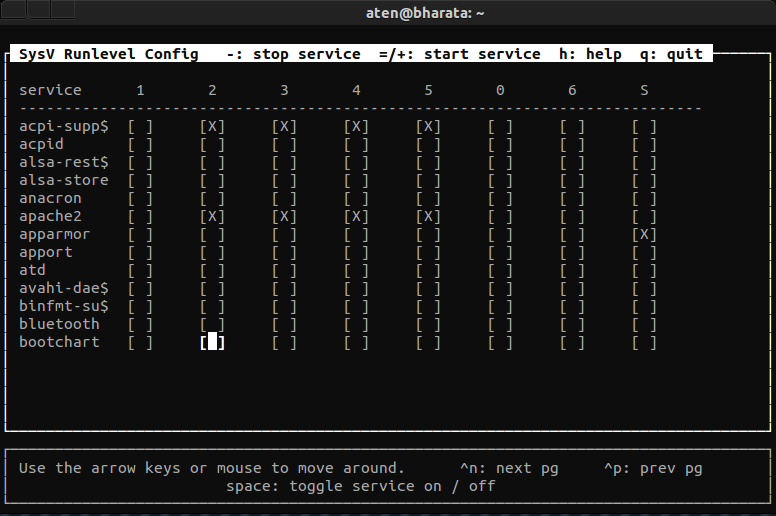
To make them stay off I’ve been using this tool, sysv-rc-conf, to manage services from a console, it works better than most. It allows you to check which services you want to run and in which runlevel they should be started/stopped:
$ sudo apt-get install sysv-rc-conf
Disabling the rest of what’s NOT needed
So now Samba’s off we’re left with the following:
- avahi-daemon
- part of zeroconf (plug-n-play), turn it off
- rpcbind
- needed for NFS – turn it off
- rpc.statd
- needed for NFS – turn it off
For the remaining 3 you can do the same things we did for Samba to turn them off as well.
CUPS?
To turn CUPS off, which you don’t really need by the way, you can follow the same dance of turning the service off and then disabling it from starting up. To be able to print you’ll need to setup each printer individually on your system. You can do so through the system-config-printer GUI.
Making these services on demand?
This is really the heart of your question but there isn’t really a silver bullet solution to making these services “smart” so that they run when they’re being used, rather than all the time.
#1 – systemd vs. upstart
Part of it is the current split between systemd and upstart. There’s a good overview of the 2 competing technologies here.
Both technologies are trying to do slightly different things, IMO, given their feature sets, systemd seems geared more towards servers whereas upstart seems geared more towards the desktop roll. Over time this will work itself out, IMO, and both services will be stable and feature rich.
Eventually both services will offer on demand starting & stopping across the board for all the services they manage. Features such as StopWhenUnneeded=yes already exist in systemd for example, so it’s only a matter of time until these capabilities get fleshed out.
#2 – service support
Some services don’t support being stopped/started very well if at all. Services such as sshd seem to make little sense to run as on-demand, especially if they’re used heavily. Also some services such as Apache provide mechanisms within themselves to spin up more or less of their own listeners managing themselves. So it’s unclear how on-demand provided by systemd or upstart are going to integrate with these types of services.
- starting sshd on first connection to port 22 with upstart’s new socket bridge
- CUPS and systemd: on demand start and stop
Is this really necessary?
You’ll hear from both sides that this is overkill or that you should take a minimalist’s approach only installing what you absolutely need, but it’s really a personal choice. Understanding that these services are there and what they do is really what’s important. At the end of the day a computer is a tool, and by using a Unix system you’re already saying that you’re willing to peek behind the curtain and understand what makes your computer tick.
I’d say that this type of questioning is exactly the frame of mind one should strive for when dealing with computers and Unix in general.
References
- Recommended way to enable & disable services
- upstart – wikipedia
-
systemd – wikipedia
[10: http://tech.cueup.com/blog/2013/03/08/running-daemons/
Method 2
127.0.0.1 is not the “outside world”, it is looking around inside the house.
Check your firewall configuration (iptables in Linux today), most of them shouldn’t be accessible from the ouside.
Don’t run services you don’t need. Uninstall all not required software.
Change passwords to be stronger. Check your usage of the system, don’t go chasing any interesting website at random. Check the browser’s anti-phising, anti-scripts, etc. configuration. Revise you usage of SSH and su/sudo.
But most of all, excessive paranoia is counterproductive. Don’t get trapped by the glitter of technology.
Method 3
While you can ‘shut’ individual services – perhaps it may just be easier to setup a firewall. Nearly all common distro’s (Ubuntu, Debian, Centos, etc) have support for iptables built-in.
A simple rule-set to get started: (you can just type these in at a command-prompt; to make them permanent add them to your startup scripts or tell us what distro you’re using. On Centos for example: system-config-firewall is a good UI for configuring iptables rules)
iptables -A INPUT -p tcp --dport ssh -j ACCEPT
iptables -A INPUT -j DROP
Basically – allow ssh inbound; drop everything else.
Your INPUT chain now looks like this:
- If a packet is coming into my computer for ‘ssh’ – allow it
- If a packet has not matched any of the previous rules – just throw it away.
Then at a later date, say you want to allow ‘samba’ (windows file sharing): you could run
iptables -I INPUT-p tcp --dport 465 -j ACCEPT
The -I prepends and rule to the list; -A appends a rule. So your chain now looks like this:
- If a packet is coming into my computer for ‘samba’ – allow it
- If a packet is coming into my computer for ‘ssh’ – allow it
- If a packet has not matched any of the previous rules – just throw it away.
The INPUT chain refers to packets destined for your system. Other chains are OUTPUT for packets from your computer, going to the internet and FORWARD for packets that are routed through your computer (that is packets that ‘transit’ your computer, like an airport’s transit area – stuff that is not INPUT because it is not entering your computer).
As a parting note: nmap’ing 127.0.0.1 is not very useful; a lot of services are accessible only from 127.0.0.1 and no other address. If you don’t have another machine you can run nmap from – try using Gibson Research’ Shields UP! (https://www.grc.com/shieldsup) – which is a free, online nmap-lite. Or add a comment with your IP/email and I’ll nmap you 🙂
All methods was sourced from stackoverflow.com or stackexchange.com, is licensed under cc by-sa 2.5, cc by-sa 3.0 and cc by-sa 4.0