In the terminal, I can type Ctrl + R to search for a matching command previously typed in BASH. E.g., if I type Ctrl + R then grep, it lists my last grep command, and I can hit enter to use it. This only gives one suggestion though. Is there any way to cycle through other previously typed matching commands?
Answers:
Thank you for visiting the Q&A section on Magenaut. Please note that all the answers may not help you solve the issue immediately. So please treat them as advisements. If you found the post helpful (or not), leave a comment & I’ll get back to you as soon as possible.
Method 1
If I understand the question correctly you should be able to cycle through
alternatives by repeatedly hitting Ctrl + R.
E.g.:
- Ctrl + R
grep- Ctrl + R
- Ctrl + R
…
That searches backwards through your history. To search forward instead, use Ctrl + S, but you may need to have set: stty -ixon (either by .bash_profile or manually) prior to that to disable the XON/XOFF feature which takes over Ctrl + S. (More details here.)
Method 2
If you feel the command will be used frequently, you could add a tag
command #useful
Then
Ctrl + R #useful
This works because # is a comment delimiter, i.e. everything that comes after the symbol is not interpreted as a command. However, it will be recorded in the history and is thus searchable.
Method 3
You can also set up the up and down arrows to do a slightly different search by adding these lines to ~/.inputrc:
"e[A": history-search-backward
"e[B": history-search-forward
Instead of searching for a substring anywhere in the command (like Ctrl–r) it will search for a command starting with the text to the left of the cursor. For example, if I run these commands:
$ ls bart
$ ls fools
then type ls and press Up twice, it will show ls bart and the cursor in the same place. Compare with Ctrl–r, where it would find the ls twice in the last line, so you’d have to press it once again to find the previous line.
These approaches both have their strengths, and both of them can save a lot of time.
Method 4
There’s a replacement for built-in Ctrl + R called hstr. It allows to search command history matching all search tokens at the same time (among other things), and cycle through result using arrow keys:
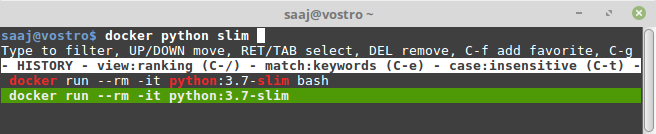
Here’s is a demo screencast.
It can be installed on a Debian-family OS like:
add-apt-repository ppa:ultradvorka/ppa
apt-get update
apt-get install hstr

hstr --show-configuration >> ~/.bashrc
And then use Ctrl + R (after reopening the terminal).
All methods was sourced from stackoverflow.com or stackexchange.com, is licensed under cc by-sa 2.5, cc by-sa 3.0 and cc by-sa 4.0