I have a Linux Mint 20.0 (Ulyana) Cinnamon, which is Ubuntu 20.04 based.
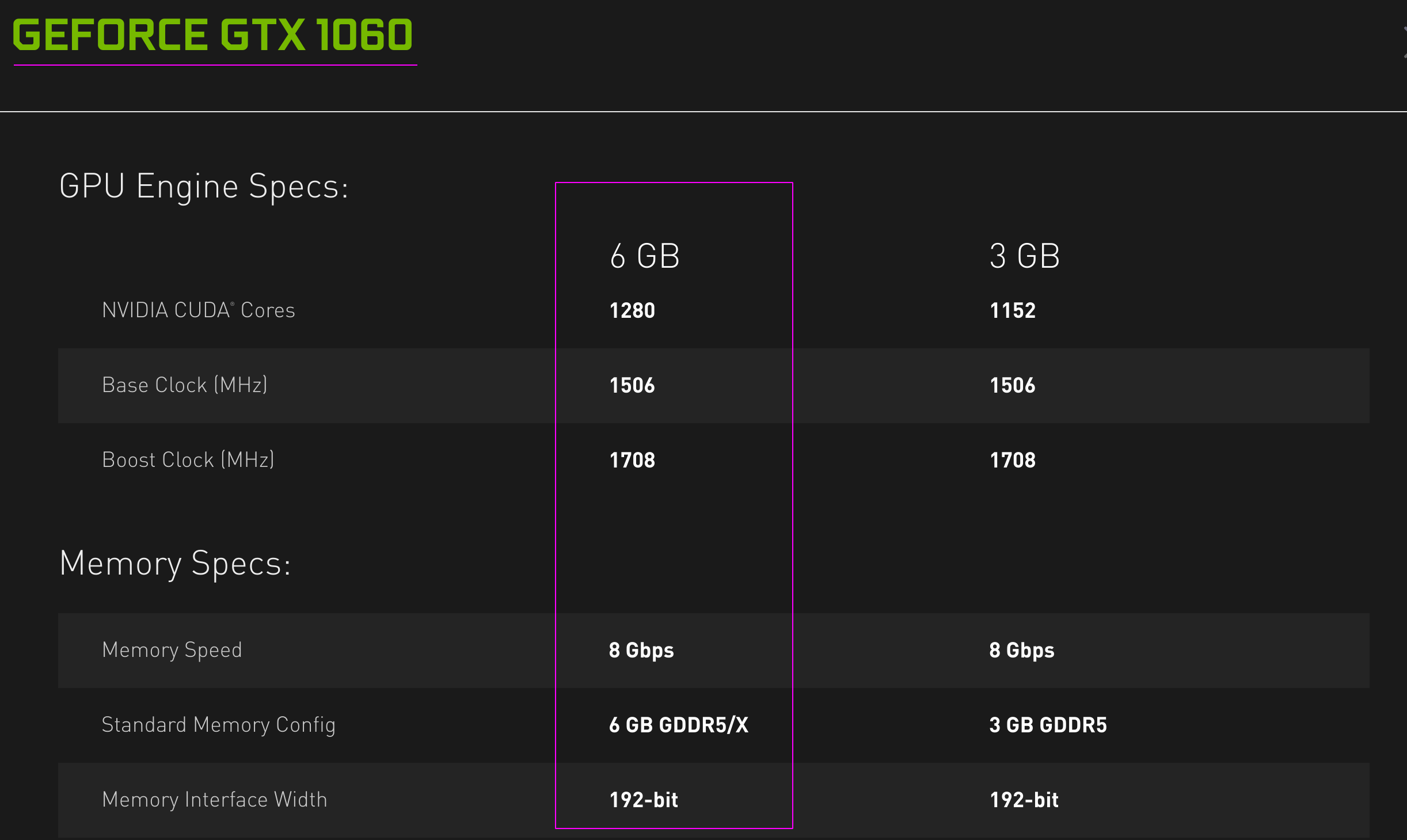
GPU: NVIDIA, GeForce GTX 1060, Max-Q Design, 6 GB GDDR5/X VRAM
which has the basic specification as follows:
Objective
To install the latest available drivers without using any PPA (Personal Package Archive).
Status
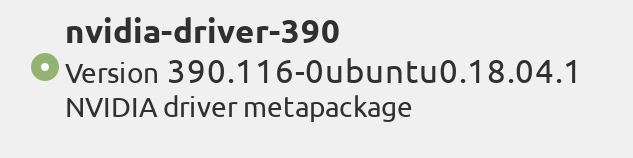
If I run the integrated Mint’s Driver Manager, I only see an old version 390 available below.
Answers:
Thank you for visiting the Q&A section on Magenaut. Please note that all the answers may not help you solve the issue immediately. So please treat them as advisements. If you found the post helpful (or not), leave a comment & I’ll get back to you as soon as possible.
Method 1
Disclaimer – please read before you install anything
Today, I ran into an old laptop, with Nvidia Geforce GT 520M, which is not supported by the latest driver anymore, version 390 works fine though. Therefore, I must strongly recommend running a search on the Nvidia drivers page before you try to install any driver version!
Generic way – the recommended way
If you’d like to have the recommended packages installed too, then you could run this (the version was last updated on 2021-Aug-04):
sudo apt-get install --install-recommends nvidia-driver-470
I may not update the version anymore, so I will tell you instead, how to find out (manually) that there is a new version.
As there are many ways, the most comfortable for me is (as a normal user or root) typing to terminal:
apt-cache policy nvidia-driver-4
and double-tapping the Tab, an example output follows:
nvidia-driver-418         nvidia-driver-440-server  nvidia-driver-460-server
nvidia-driver-418-server  nvidia-driver-450         nvidia-driver-465
nvidia-driver-430         nvidia-driver-450-server  nvidia-driver-470
nvidia-driver-435         nvidia-driver-455         nvidia-driver-470-server
nvidia-driver-440         nvidia-driver-460
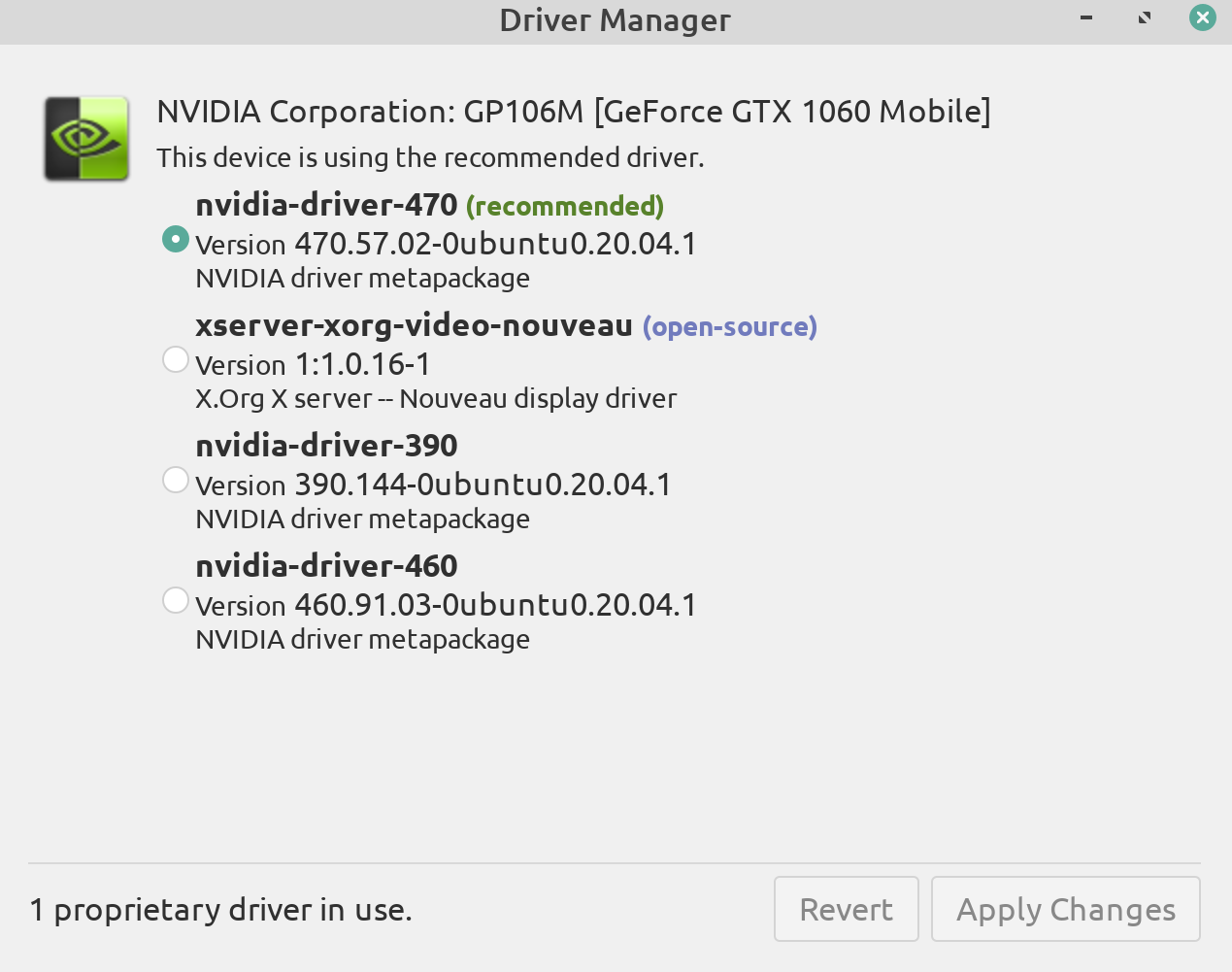
Linux Mint 20.2 – Driver Manager
It may be possible to even use GUI driver manager for this. Generally, I like the command-line way much more, actually, I never use this GUI, because it does not tell you what is happening, you would just blindly look at the progress bar. Therefore I strongly recommend not using this tool, and do the job via terminal as shown above.
Ubuntu way – NOT RECOMMENDED (!!!)
Thanks to the Ubuntu base, one can also take advantage of, which takes care of everything, but I do not recommend it due to one has no control over what happens, and things can break as a side effect, so the following I note only for completeness (click your mouse to show):
sudo ubuntu-drivers autoinstall
To only list drivers applicable to your system, you can do:
sudo ubuntu-drivers list
which will list all drivers available to install on your Ubuntu-based system.
Method 2
With NVIDIA being a 3rd party / proprietary driver, they are never included in any linux distribution whether it is MINT, or RHEL, or SLES, or UBUNTU.
If you go to https://www.nvidia.com/en-us/drivers navigate to your model graphics card and for Operating System you will see the only relevant one being Linux 64-bit and in doing so will download a NVIDIA-Linux-x86_64-470.57.02.run file for example. I don’t believe Nvidia distinguishes between any modern 64-bit linux, except for “solaris” and “freebsd”. So it is this same .run file for rhel or sles or ubuntu or mint or whatever is a popular distro these days.
Having that file present on your system, change to runlevel 3 either by doing init 3 or if you are systemd based then systemcyl isolate multi-user.target. Then as root do a chmod 700 NVIDIA-Linux-x86_64-470.57.02.run followed by a ./NVIDIA-Linux-x86_64-470.57.02.run and simply step through the semi-graphical install which usually at the end prompts you if you want to run nvidia-xconfig {which will create an /etc/X11/xorg.conf file on a RHEL-7 system that previously was not present.}
This method I have used for ~5 years now reliably, the main points being
- I have gotten the driver directly from the source, which is Nvidia
- I have gotten the latest version
- It works; at least in RHEL/CentOS 7 which is what I use now but it has worked for me back when I was using SLES/SuSE 11 and it should work for other distro’s such as Mint or Ubuntu and so on.
- if it doesn’t work I would be interested in knowing so let me know in a comment.
- know that you have to disable
nouveauat least in RHEL/CentOS 7 and that is done by modifying/etc/default/gruband appending amodprobe.blacklist=nouveautoGRUB_CMDLINE_LINUXand then doing agrub2-mkconfig -o /boot/efi/EFI/redhat/grub.cfgand asystemctl set-default multi-user.targetfollowed by a reboot then installing the nvidia .run file andsystemctl set-default graphical.target. Modify syntax here appropriately for linux distros other than rhel.
Method 3
This works for me.
First I remove all the Nvidia drivers:
$ sudo dpkg --purge $(dpkg -l | grep nvidia | awk '{print $2}')
$ sudo dpkg --purge $(dpkg -l | grep libnvidia | awk '{print $2}')
After that, I install the latest version:
$ sudo apt-get install --install-recommends nvidia-driver-455
Note: Done on Linux Mint 19.3
All methods was sourced from stackoverflow.com or stackexchange.com, is licensed under cc by-sa 2.5, cc by-sa 3.0 and cc by-sa 4.0