Right now, my /etc/resolv.conf looks like this:
# Generated by NetworkManager
nameserver 10.165.246.33
nameserver 192.135.82.60
nameserver 10.165.74.2
The first two nameservers are automatically configured through DHCP; the last one is the one I added manually, in NetworkManager. It’s also the most important one, since it resolves our internal domain names (e.g. build-server-17.our-company-domain.com).
The trouble is, NetworkManager adds it to the bottom of /etc/resolv.conf, so when accessing an intranet URL, my browser tries to resolve it using the first two servers, and it takes ages.
How do I make NetworkManager add the manually-configured DNS server before the automatically-configured ones?
Answers:
Thank you for visiting the Q&A section on Magenaut. Please note that all the answers may not help you solve the issue immediately. So please treat them as advisements. If you found the post helpful (or not), leave a comment & I’ll get back to you as soon as possible.
Method 1
I accidentally created a duplicate question here. The answer is there, but essentially, you need to create:
/etc/dhcp/dhclient.conf
if it doesn’t already exist, and add:
prepend domain-name-servers [ip address of server];
Don’t forget the semicolon at the end!
After that, simply rebooting automagically moved the ‘nameserver [ip address of server]’ line in the ‘/etc/resolv.conf’ up to the top!
Method 2
I don’t see which system to address specifically, but if yours is using resolvconf, try the following as root (su - or sudo -i):
echo 'nameserver 10.165.74.2' >> /etc/resolvconf/resolv.conf.d/head
resolvconf -u
There is a warning in that file which states that manual changes will be overwritten; but, in context, the message applies to /etc/resolv.conf, not /etc/resolvconf/resolv.conf.d/head.
This should place the desired name server first in the list. Of course, if this works on your operating system, then 10.165.74.2 can be removed from NetworkManager.
The local resolver, dnsmasq, is also an excellent path forward. Using dnsmasq, one can utilize much more control over DNS and DHCP. For example, in this scenario, dnsmasq can query a specific name server based on a specified domain name with its server option. See a snippet from dnsmasq.conf that might pertain to your objective below.
# Add other name servers here, with domain specs if they are for
# non-public domains.
server=/our-company-domain.com/10.165.74.2
Update
Thanks for mentioning the operating system. On CentOS 7, there are many methods. In the GUI, click Applications > System Tools > Settings > Network. Select a connection to configure.
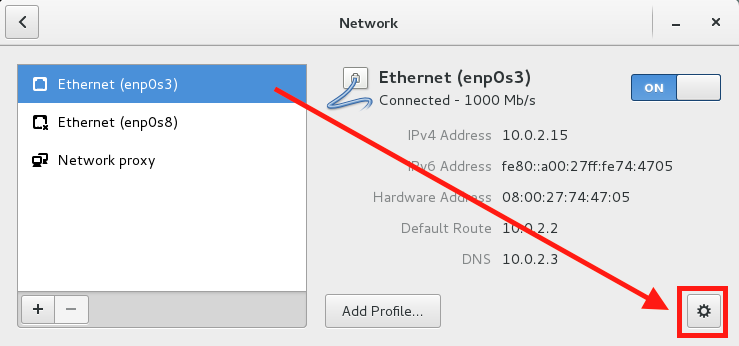
Turn off Automatic DNS and supply name servers. Apply the configuration.
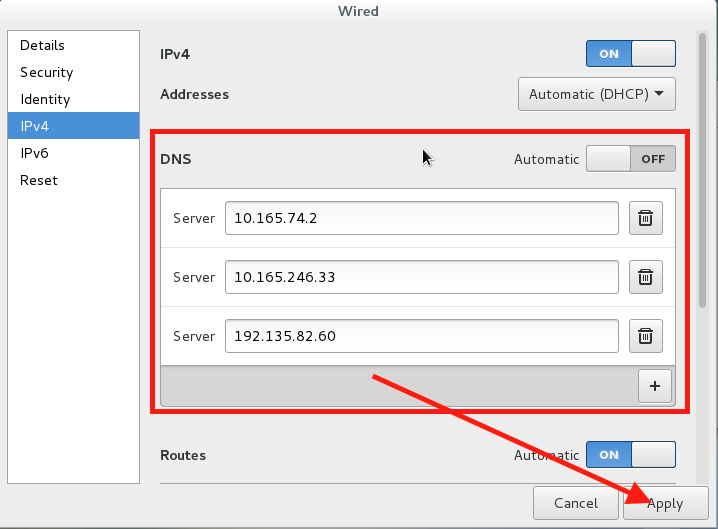
Next time NetworkManager starts that connection, it writes the custom values. (While testing, I turned the network off and then on again because I had two network connections.)
According to documentation,
- A simple curses-based text user interface (TUI) for NetworkManager, nmtui, is available.
- A command-line tool, nmcli, is provided to allow users and scripts to interact with NetworkManager. Note that nmcli can be used on GUI-less systems like servers to control all aspects of NetworkManager. It is on an equal footing with the GUI tools.
In particular, the nmcli documentation looked very good.
Method 3
There is another way, no need to turn off NetworkManager.service.
Just set ifcfg-idevice:
PEERDNS=no
DNS1=10.165.74.2
DNS2=OTHERDNS
DOMAIN=DEMO.COM
You don’t need to set /etc/NetworkManager/NetworkManager.conf settings, like:
[main]
dns=none
All methods was sourced from stackoverflow.com or stackexchange.com, is licensed under cc by-sa 2.5, cc by-sa 3.0 and cc by-sa 4.0