In Gnome 3, moving windows with the keyboard shortcuts Meta+← and Meta+→ can be convenient.
Now, I have two displays installed and would like to move windows across the displays without touching the mouse. More precisely, I would like to see what is the default behavior in Windows 7, namely four locations, left half of first screen, right half of first screen, left half of second screen, right half of second screen.
Any solution involving a sequence of multiple shortcuts is also appreciated.
Note that I am using only one desktop but multiple displays.
Answers:
Thank you for visiting the Q&A section on Magenaut. Please note that all the answers may not help you solve the issue immediately. So please treat them as advisements. If you found the post helpful (or not), leave a comment & I’ll get back to you as soon as possible.
Method 1
In Fedora 24 (also Ubuntu 20.04, and probably many more distros which use Gnome) the key combination SuperShift← or SuperShift→ moves windows between monitors by default.
If you play with Super + Cursor Keys and then use SuperShift + Cursor Keys you should be able to move/minimise/maximise windows with ease.
Method 2
First Option: You can use overview to drag the windows between monitors.
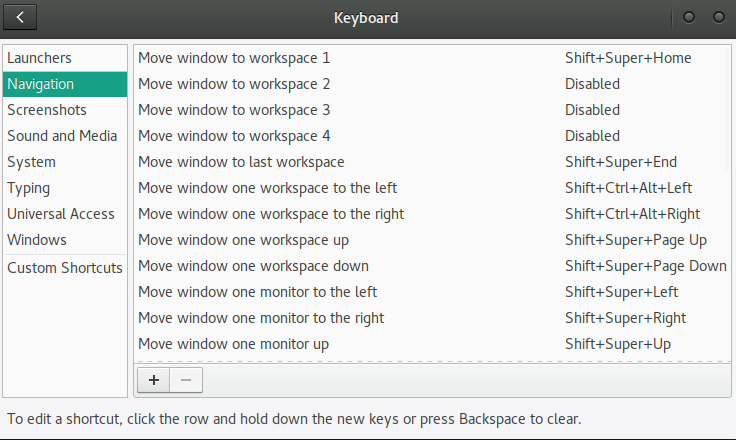
Second Option: You can set shortcuts for the keyboard to move it.
Method 3
An OOTB key combination for Gnome 3 is Alt+F7, then you can use arrows to move the window.
If it’s not convenient, you can try Put Windows extension. I didn’t manage to get a default key combination working, but changing it to Shift + Alt + ← and Shift + Alt + → worked for me.
Method 4
This depends your version and configuration. The easiest is to open your preferences and keyboard. Click to Shortcuts and Navigation. So you can configure your shortcuts as you like.
The second method is when your side pane is open,then you can move your windows in the side pane from one to another.
The last method I know is to right click on the window title. Select the menu item you need.
Method 5
A further way of defining shortcuts for moving windows to other workspaces: use gsettings.
Here is an example for moving current window to the given worksspace (which involves switching to that workspace).
    gsettings set org.gnome.desktop.wm.keybindings move-to-workspace-1 "['<mouse1>F1']"
    gsettings set org.gnome.desktop.wm.keybindings move-to-workspace-2 "['<mouse1>F2']"
    gsettings set org.gnome.desktop.wm.keybindings move-to-workspace-3 "['<mouse1>F3']"
    gsettings set org.gnome.desktop.wm.keybindings move-to-workspace-4 "['<mouse1>F4']"
One may define also other shortcuts and activities, of course. For a list of possible commands, see for instance https://gitlab.com/rubdos/gsettings-desktop-schemas/blob/dwt/schemas/org.gnome.desktop.wm.keybindings.gschema.xml.in
All methods was sourced from stackoverflow.com or stackexchange.com, is licensed under cc by-sa 2.5, cc by-sa 3.0 and cc by-sa 4.0