To keep the overview I like to place multiple commands always in the same order and start them automatically together (gradle, git, database, scala-REPL, jboss…)
-H (hold) seems to mean that the terminal isn’t closed after termination, but how do I terminate such a process willfully? Not at all? In such a way that I can continue to use the terminal.
I’m using xubuntu with with xfce4-terminal and bash. Is there a better GUI-solution to startup multiple commands, with the ability to continue working in that window/tab?
Update: If you don’t know these commands: Jboss and gradle are continously producing output, which you don’t want to have intermixed in the same terminal. And sometimes they need to be interrupted with ^C, and restarted. I don’t like to reopen an xfce4-term and navigate to the directory I need to act in.
Database and scala-REPL are interactive so there is no sense in starting them in the background.
My current startup-script just navigates to the desired directories, and opens all tabs in the right order to find them always at the same position, naming every tab for its purpose:
xfce4-terminal -T eclipse   --working-directory=/home/stefan/oximity -e "/opt/eclipse/eclipse"
    --tab -T arandr --working-directory=/home/stefan/oximity -e "arandr /home/stefan/.screenlayout/oximity.sh"
    --tab -T bash       --working-directory=/home/stefan/oximity
    --tab -T gradle     --working-directory=/home/stefan/oximity/med
    --tab -T git        --working-directory=/home/stefan/oximity/med
    --tab -T mysql      --working-directory=/opt/mini/mysql
    --tab -T jboss      --working-directory=/opt/mini/jboss
    --tab -T jboss-log  --working-directory=/opt/mini/jboss/standalone/log
    --tab -T scala-REPL --working-directory=/home/stefan/proj/mini/forum -e /opt/scala/bin/scala
Eclipse and arandr are detached from the shell and run in their own window, so there the -e (execute) param works. I think for the scala-REPL it works since it is the last command in the list.
Answers:
Thank you for visiting the Q&A section on Magenaut. Please note that all the answers may not help you solve the issue immediately. So please treat them as advisements. If you found the post helpful (or not), leave a comment & I’ll get back to you as soon as possible.
Method 1
The -H/-hold option is to keep the terminal emulator Window open once the applications started in it (shell or other) has exited. In that state, nothing more can happen.
If you want to start a command as a job of an interactive shell in the xfce4-terminal terminal emulator and keep the shell running and use it interactively after the application has exited, with bash, you can make use of the $PROMPT_COMMAND environment variable, to have xfce-terminal start an interactive shell that starts the given command just before the first prompt.
xfce4-terminal
  -T eclipse
  --working-directory=/home/stefan/oximity
  -e 'env PROMPT_COMMAND="unset PROMPT_COMMAND; /opt/eclipse/eclipse" bash'

  --tab -T arandr
  --working-directory=/home/stefan/oximity
  -e 'env PROMPT_COMMAND="unset PROMPT_COMMAND; arandr /home/stefan/.screenlayout/oximity.sh" bash'

  --tab -T bash
  --working-directory=/home/stefan/oximity
  ...
That way, the commands are jobs of that shell which means you can suspend them with Ctrl-Z and resume them later with fg/bg as if you had entered them at the prompt of that interactive shell.
That assumes though that you don’t set the $PROMPT_COMMAND in your ~/.bashrc. Also note that the exit status of the command will not be available in $?.
To make it even more like the command was entered at the shell prompt you can even add it to the history list. Like:
xfce4-terminal -T /etc/motd -e 'env PROMPT_COMMAND="
  unset PROMPT_COMMAND
  history -s vi /etc/motd
  vi /etc/motd" bash'
That way, once you exit vi, you can press the Up key to recall that same vi command.
An easier way to write it:
PROMPT_COMMAND='unset PROMPT_COMMAND; history -s "$CMD"; eval "$CMD"'
  xfce4-terminal --disable-server
          -T /etc/motd -e 'env CMD="vi /etc/motd" bash'
    --tab -T       top -e 'env CMD=top bash'
The:
xfce4-terminal -e 'sh -c "cmd; exec bash"'
solution as given in other answers works but has some drawbacks:
- If you press Ctrl-C while
cmdis running, that kills the outershsince there’s only one process group for bothshandcmd. - You can’t use Ctrl-Z to suspend
cmd - Like in the
$PROMPT_COMMANDapproach, the exit status of the command will not be available in$?.
You can work around 1 above by doing:
xfce4-terminal -e 'sh -c "trap : INT; cmd; exec bash"'
Or:
xfce4-terminal -e 'sh -ic "cmd; exec bash"'
With that latter one, you’ll also be able to suspend the process with Ctrl-Z, but you won’t be able to use fg/bg on it. You’ll be able to continue it in background though by doing a kill -s CONT on the pid of cmd.
Method 2
As far as I understood your question, you want to run some processes in a terminal, being able to Ctrl+C them and, after that, keep the window open, with the shell.
If I am right, this could be accomplished with a command like this:
xfce4-terminal -e "bash -c 'COMMAND; exec bash'"
Method 3
multiple apps in xfce4-terminal tabs
Adding an interactive shell to each xfce tab
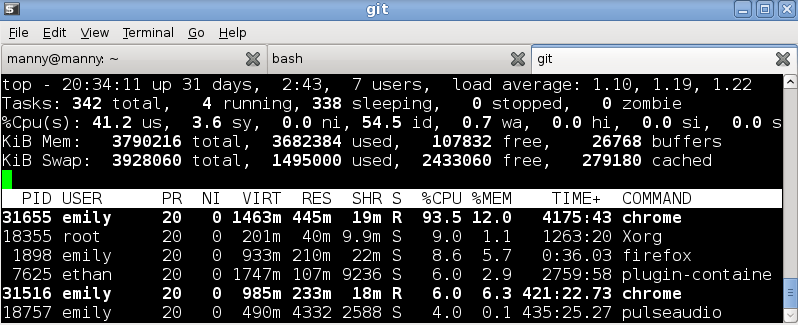
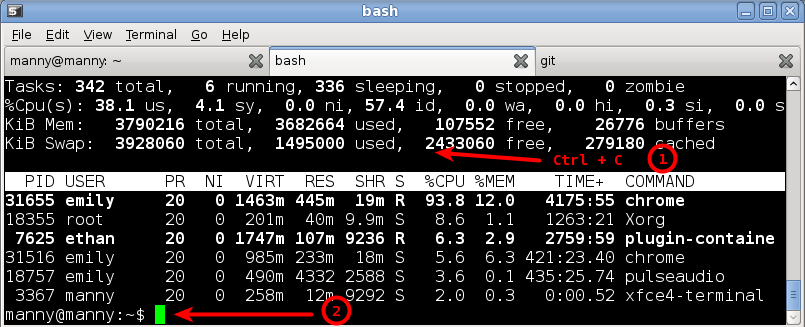
You can use this hack to add a shell if/when you Ctrl+C a tab:
$ xfce4-terminal -H
     --tab -T bash -e "bash -c 'top;bash'"
     --tab -T git  -e "bash -c 'top;bash'"
This will give you the following:
Method 4
When exiting the shell without -H the terminal will be closed, too. With this flag the terminal will keep running, but the shell process is closed and cannot be revived.
I think you are trying to archieve that you just start your terminal and your development environment starts up?
You may create a shell script and put all your commands inside it. At the end of the script you just start your shell:
#!/bin/sh

gradle &
git &
... &
.... &
jboss &

$SHELL

# some cleanup commands if needed
Then call this script via xfce4-terminal -e /the/script. When quitting from $SHELL the parent process (your script) finished and the background tasks will receive the exit signal and quit, too.
If you want to keep them alive, use e.g. nohup jboss & in your script
All methods was sourced from stackoverflow.com or stackexchange.com, is licensed under cc by-sa 2.5, cc by-sa 3.0 and cc by-sa 4.0