I’m trying to install the most up-to-date NVIDIA driver in Debian Stretch. I’ve downloaded NVIDIA-Linux-x86_64-390.48.run from here, but when I try to do
sudo sh ./NVIDIA-Linux-x86_64-390.48.run
as suggested, an error message appears.
ERROR: An NVIDIA kernel module 'nvidia-drm' appears to already be loaded in your kernel.  This may be because it is in use (for example, by an X server, a CUDA program, or
         the NVIDIA Persistence Daemon), but this may also happen if your kernel was configured without support for module unloading.  Please be sure to exit any programs
         that may be using the GPU(s) before attempting to upgrade your driver.  If no GPU-based programs are running, you know that your kernel supports module unloading,
         and you still receive this message, then an error may have occured that has corrupted an NVIDIA kernel module's usage count, for which the simplest remedy is to
         reboot your computer.
When I try to find out who is using nvidia-drm (or nvidia_drm), I see nothing.
~$ sudo lsof | grep nvidia-drm
lsof: WARNING: can't stat() fuse.gvfsd-fuse file system /run/user/1000/gvfs
      Output information may be incomplete.
~$ sudo lsof -e /run/user/1000/gvfs | grep nvidia-drm
~$
And when I try to remove it, it says it’s being used.
~$ sudo modprobe -r nvidia-drm
modprobe: FATAL: Module nvidia_drm is in use.
~$
I have rebooted and started in text-only mode (by pressing Ctrl+Alt+F2 before giving username/password), but I got the same error.
Besides it, how do I “know that my kernel supports module unloading”?
I’m getting a few warnings on boot up related to nvidia, no idea if they’re related, though:
Apr 30 00:46:15 debian-9 kernel: nvidia: loading out-of-tree module taints kernel.
Apr 30 00:46:15 debian-9 kernel: nvidia: module license 'NVIDIA' taints kernel.
Apr 30 00:46:15 debian-9 kernel: Disabling lock debugging due to kernel taint
Apr 30 00:46:15 debian-9 kernel: NVRM: loading NVIDIA UNIX x86_64 Kernel Module  375.82  Wed Jul 19 21:16:49 PDT 2017 (using threaded interrupts)
Answers:
Thank you for visiting the Q&A section on Magenaut. Please note that all the answers may not help you solve the issue immediately. So please treat them as advisements. If you found the post helpful (or not), leave a comment & I’ll get back to you as soon as possible.
Method 1
I imagine you want to stop the display manager which is what I’d suspect would be using the Nvidia drivers.
After change to a text console (pressing Ctrl+Alt+F2) and logging in as root, use the following command to disable the graphical target, which is what keeps the display manager running:
# systemctl isolate multi-user.target
At this point, I’d expect you’d be able to unload the Nvidia drivers using modprobe -r (or rmmod directly):
# modprobe -r nvidia-drm
Once you’ve managed to replace/upgrade it and you’re ready to start the graphical environment again, you can use this command:
# systemctl start graphical.target
Method 2
CUDA Installation
1) Download the latest CUDA Toolkit
2) Switch to tty3 by pressing Ctl+Alt+F3
3) Unload nvidia-drm before proceeding.
3a) Isolate multi-user.target
sudo systemctl isolate multi-user.target
3b) Note that nvidia-drm is currently in use.
lsmod | grep nvidia.drm
3c) Unload nvidia-drm
sudo modprobe -r nvidia-drm
4d) Note that nvidia-drm is not in use anymore.
lsmod | grep nvidia.drm
5) Go to your download folder and run the cuda installation.
sudo sh cuda_10.1.168_418.67_linux.run
6) Answer any prompts during installation.
7) When installation has finished, confirm that the CUDA Version has been updated.
nvidia-smi
8) Start the GUI again.
sudo systemctl start graphical.target
Method 3
lsof lists any files that are in use by userspace processes. But nvidia_drm is a kernel module, so lsof won’t necessarily see whether or not it is actually in use. (The module file won’t be open because the kernel has already completely loaded it into RAM. But the module might be providing services to the userspace or other kernel components, and that is what prevents the unloading of the module.)
Run lsmod | grep nvidia.drm and see the numbers to the right of the nvidia_drm module name. The first number is simply the size of the module; the second is the use count. In order to successfully remove the module, the use count must be 0 first.
If the X11 server is running and using the nvidia driver, then the nvidia_drm kernel module will most assuredly be in use. So you’ll need, at the very least, switch into text console and shutdown the X11 server. Usually this can be done by stopping whichever X Display Manager service you’re using (depends on which desktop environment you’re using).
As the error message said, if you are running nvidia-persistenced, you’ll need to stop that too before you can unload the nvidia_drm module.
Method 4
I had a similar problem.
*Reason: nvidia.drm package was in use
I fixed it by purging all NVIDIA packages.
Remove all previous NVIDIA installations with these 2 commands:
$ sudo apt-get purge nvidia*
$ sudo apt-get autoremove
Module should be removed.
Reboot and go forth.
Method 5
I solved this problem by disabling the GUI, rebooting, logging in and installing the driver, enabling GUI, and reboot.
Please make sure you know your username and password!!!
Open a terminal and write
sudo systemctl set-default multi-user.target
sudo reboot 0
Now login and you’ll get to a terminal directly, install the driver Do note that I am installing here the 440.44 so you need to modify for your driver version.
sudo ./NVIDIA-Linux-x86_64-440.44.run
After installing the driver enable the GUI and Reboot:
sudo systemctl set-default graphical.target
sudo reboot 0
You should be done
In my case, nvidia-smi reported the new version 440.44, whine in the Ubuntu 18.04 Software & Updates Utilities, Additional Drivers Tab shows 435!! Another NVIDIA mystery, but heck my new docker works!!!
Method 6
You report in comments that stopping the systemd-logind service takes you back to the graphic login. If you have a graphical login then X is running, so the video driver is loaded and in use. This very likely explains in part why the nvidia-drm module is in use.
Additionally, you betray an apparent misconception when you say
I have rebooted and started in text-only mode (by pressing Ctrl+Alt+F2
before giving username/password), but I got the same error.
Pressing Ctrl+Alt+F2 switches to a virtual terminal #2, which may well be configured for text-mode login, but that’s a far cry from “starting in text mode”. If you had a graphical login screen on the default virtual terminal then X is running, and switching to a different VT doesn’t change that. You’re just logging in to a non-X session.
The first and easiest thing to try is to actually shut down the X server. The old-school way to do this would be to log in to your text-mode session and execute the command
telinit 3
to switch to runlevel 3. That should work with systemd, too, but the native systemd way would be to instead run
systemctl isolate multi-user.target
Both of those require privilege, of course, so you’ll need to use sudo or make yourself root.
If that doesn’t remove the module, or at least make it possible for you to do so manually, then your next best bet would be to boot the system directly into runlevel 3 (multi-user target), or maybe even into runlevel 1 (rescue target). I usually do this by adding “3” (or “1”) to the end of the kernel argument list at boot time via the bootloader. You can also change the default boot target as described in this article.
Do also note that the nVidia driver is available in pre-built packages for most Linux distros. Few include those packages in their own standard repos because the driver is, after all, proprietary, but you can surely find a reputable 3rd-party repo that has it. I strongly recommend using such packages instead of running the installer directly, but to get there from where you are now, you may need to first manually uninstall the driver.
Method 7
Stopping systemd-logind fixed it for me:
sudo systemctl stop systemd-logind
This is suggested as a workaround in this github issue on the nvidia-xrun github page:
Good news guys, systemd-logind is the culprit here. The current
workaround is to run the following command after logging out from the
“nvidia-xrun” session sudo systemctl stop systemd-logindThen, you’ll have manually remove the other nvidia modules and switch
off the DGPU manually. Here’s the code snippet that runs after you log
out from the “nvidia-xrun” session.echo 'Unloading nvidia_drm module' execute "sudo rmmod nvidia_drm" echo 'Unloading nvidia_modeset module' execute "sudo rmmod nvidia_modeset" echo 'Unloading nvidia module' execute "sudo rmmod nvidia" echo 'Turning off nvidia GPU' execute "sudo tee /proc/acpi/bbswitch <<<OFF" echo -n 'Current state of nvidia GPU: ' execute "cat /proc/acpi/bbswitch"
Method 8
Had the same problem with Debian Stretch when trying to install the Nvidia drivers. When in text mod my only solution was to remove the driver, reinstall gdm and gnome-shell. I know it’s a clumsy solution, but I remember I first tried fixing the gnome-shell and only removing Nvidia driver and reinstalling GDM. Turned out it was much easier to just reinstall the whole shell.
Method 9
I also encountered the same problem. The reason for the error was that I accidentally selected “Install nvidia driver” during the installation of cuda.
So, during the installation of CUDA, when you encounter the following options:
Install NVIDIA Accelerated Graphics Driver for Linux-x86_64 384.81?
(y)es/(n)o/(q)uit:
Please select q , the problem will be solved.
Method 10
what worked for me was to change system to start in text more
systemctl set-default runlevel3.target
then restart and install nvidia cuda driver
once finished you may want to change system to start in graphics mode again
systemctl set-default runlevel5.target
Method 11
The accepted answer by filbranden got me in the right direction, but did not quite work for me (it seems that at least the nouveau driver was always loaded and causing problems).
What did work for me, however (as shown here in more detail), was to temporary boot to console mode (text mode). This seemed to make sure that no nvidia or nouveau driver was loaded.
I then followed @filbrandens answer for stopping/removing nvidia-drm and then I installed the nvidia driver from there and rebooted the system. The latter may have been not necessary but since it worked I listed it here.
Method 12
Additional answer for the one who are facing this problem.
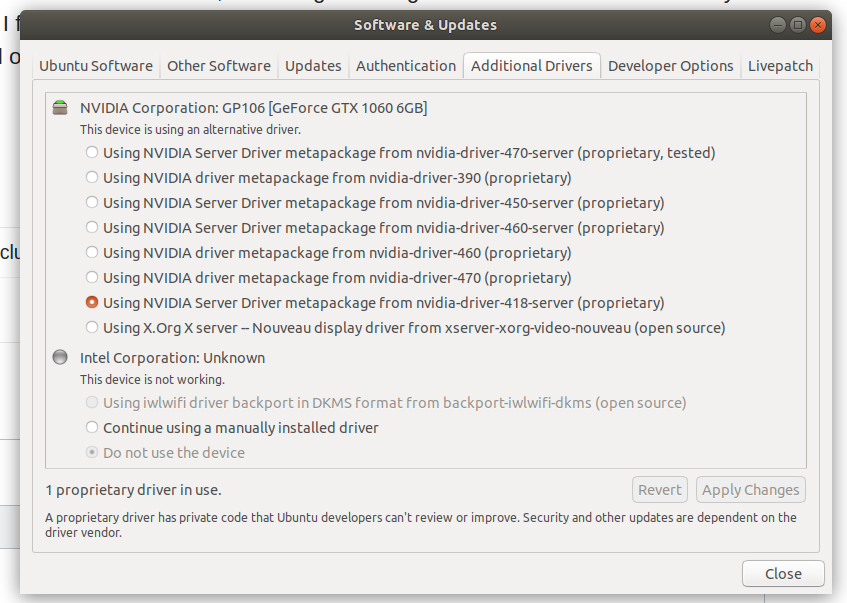
For me, I have to switch the driver to be not Nvidia on software&update, then, reboot and perform installation again.
Method 13
I was getting this error during boot:
[54.285826] [drm:nv_drm_master_set [nvidia_drm]] *ERROR* [nvidia-drm] [GPU ID 0x00000800] Failed to grab modeset ownership
during run of the NVIDIA Builder/Installer/Configurator
It told me to use the software Updater App (additional Drivers). But this did not work because there was not other options to change the Driver
If you are a new install you could get errors with:
gcc, make, pkg-config, & libglvnd
If you are installing a new driver downloaded manually
e.g. before running this with sh…
$ sudo sh {NVIDIA-Linux-x86_64-510.60.02.run}
1st as per other answers…
$ systemctl isolate multi-user.target
ensure gcc, make, pkg-config, & libglvnd-dev are install
$ sudo apt install gcc
$ sudo apt install make
$ sudo apt install gcpkg-configc
$ sudo apt install libglvnd-dev
also
$ sudo apt update && sudo apt upgrade
and
$ sudo apt autoremove (if you like)
Now run the builder:
$ sudo sh NVIDIA-Linux-x86_64-510.60.02.run
should get no errors during the run of the driver builder/installer/configurator
turn graphics back on???
$ systemctl start graphical.target
possibly do a reboot to check on boot everything is now ok.
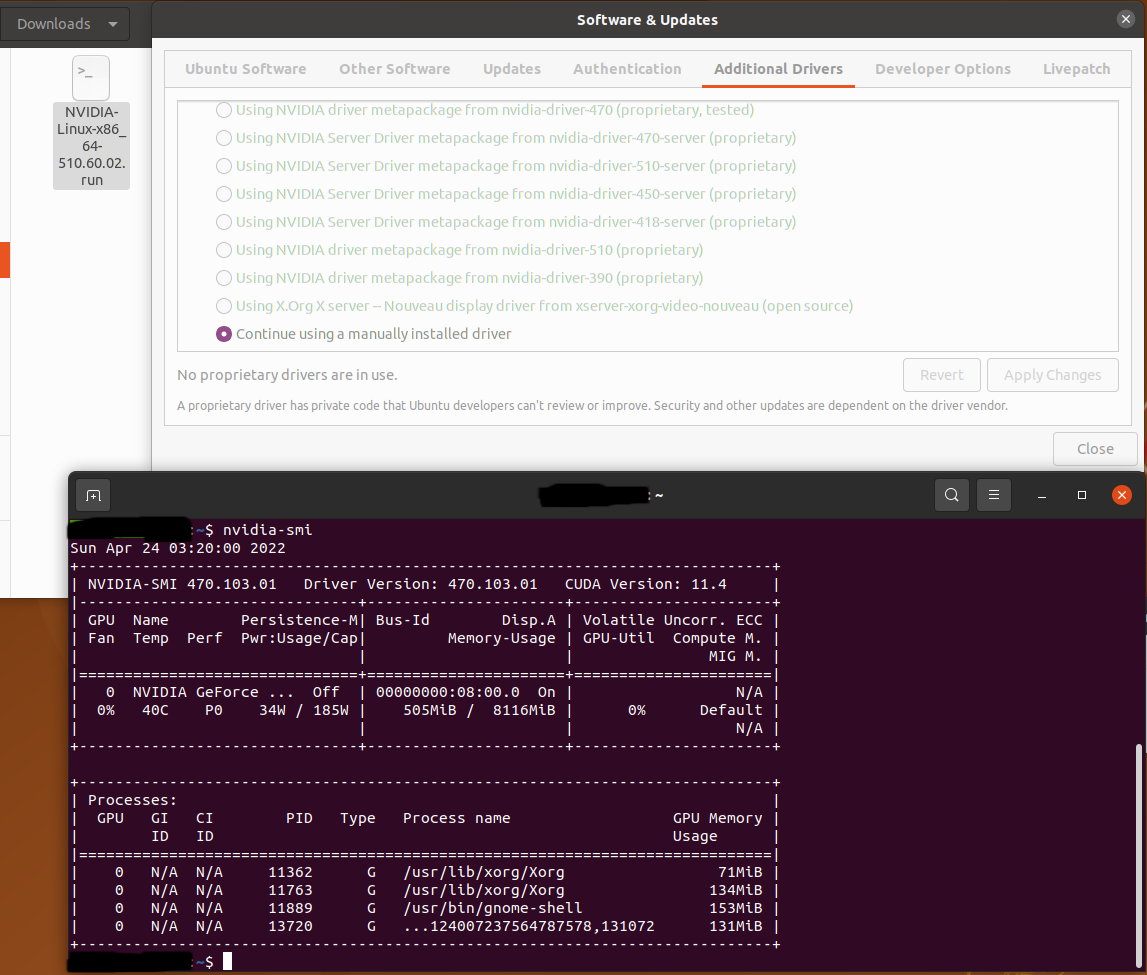
Pic of my previous state:
NVIDIA 470 needed updating to 510
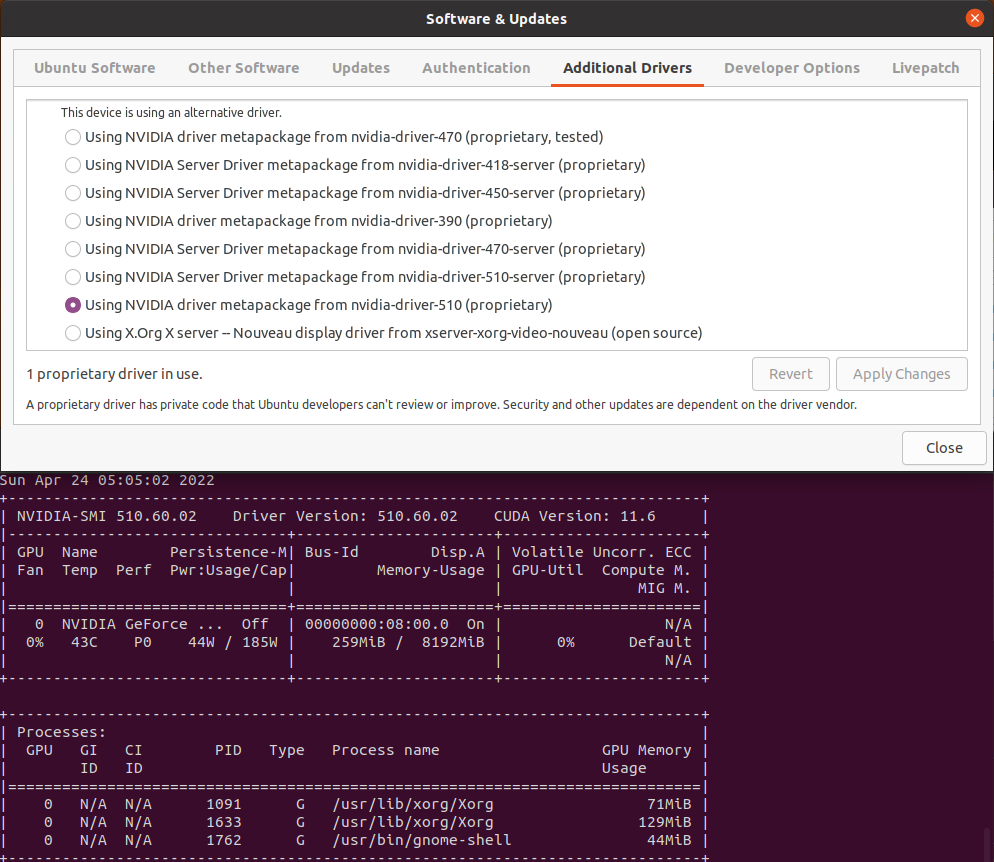
Final Outcome:
Wish it was cleaner:
All methods was sourced from stackoverflow.com or stackexchange.com, is licensed under cc by-sa 2.5, cc by-sa 3.0 and cc by-sa 4.0