I’m trying to publish ClickOnce application and test it locally. I want to provide installation link so I need to update location with an IP address otherwise I won’t be able to install it (because localhost is translated into computer name and it’s not accessible). The problem is, that on my IIS I can access my page only by using localhost in the address.
http://localhost:9995/publish/Publish.htm <-- working
http://192.168.1.104:9995/publish/Publish.htm <-- not working (my IP address)
http://my_pc_name:9995/publish/Publish.htm <-- not working
http://127.0.0.1:9995/publish/Publish.htm <-- even that is not working
I’m using Windows 7 and Visual Studio 2012 with IIS Express 8.0, but I tried the same on Visual Studio 2010 and it’s ASP.NET server and still failed. I have my firewall turned off.
Do you have any ideas what can be wrong?
Answers:
Thank you for visiting the Q&A section on Magenaut. Please note that all the answers may not help you solve the issue immediately. So please treat them as advisements. If you found the post helpful (or not), leave a comment & I’ll get back to you as soon as possible.
Method 1
So I had this same problem with WSUS and it turned out that IIS 8.5 was not binding to my ipv4 ip address, but was binding to ipv6 address. when I accessed it via localhost:8580 it would translate it to the ipv6 localhost address, and thus would work. Accessing it via ip was a no go. I had to manually bind the address using netsh, then it worked right away. bloody annoying.
Steps:
- Open command prompt as administrator
- Type the following:
netsh http add iplisten ipaddress (IPADDRESSOFYOURSERVER)
that’s it. You should get:
IP address successfully added
I found the commands here
https://serverfault.com/questions/123796/get-iis-7-5-to-listen-on-ipv6
Method 2
Maybe it helps someone too:)
I’m not allowed to post images, so here goes extra link to my blog. Sorry.
IIS webpage by using IP address
In IIS Management : Choose Site, then Bindings.
Add
- Type : http
- HostName : Empty
- Port : 80
- IP Address : Choose from drop-down menu the IP you need (usually there is only one IP)
Method 3
The IIS is a multi web site server. The way is distinct the site is by the host header name. So you need to setup that on your web site.
Here is the steps that you need to follow:
How to configure multiple IIS websites to access using host headers?
In general, open your web site properties, locate the Ip Address and near its there is the advanced, “multiple identities for this web site”. There you need ether to add all income to this site with a star: “*”, ether place the names you like to work with.
Method 4
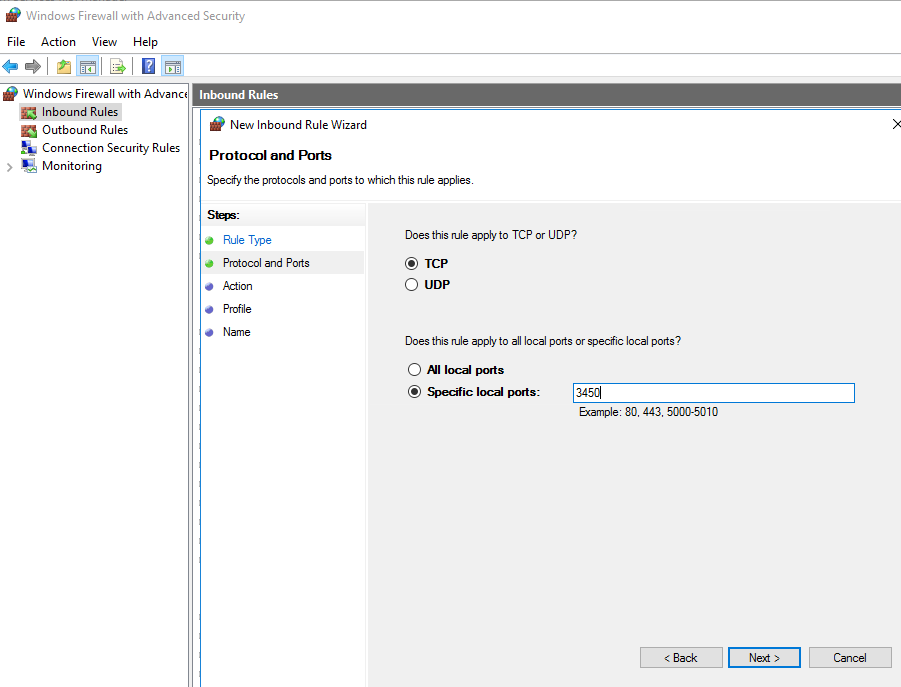
In my case it was because I was using a port other than the default port 80. I was able to access the site locally using localhost but not on another machine using the IP address.
To solve the issue I had to add a firewall inbound rule to allow the port.
Method 5
Check the settings of the browser proxy . For me it helped , traffic was directed outside.
Method 6
Try with disabling Windows Firewall, it worked for me, but in my case, I was able to access IIS through 127.0.0.1
Method 7
I was trying to access my web pages on specific port number and tried much things, but I’ve found the port was filtered by firewall. Just added a bypass rule and everything was done.
Maybe help someone!
Method 8
In IIS Manager, I added a binding to the site specifying the IP address. Previously, all my bindings were host names.
Method 9
Follow the below steps –
- In IIS Right click the “Default Web Site”
- Click Edit Buildings in the context menu
- Select and edit
- Give your machine IP instead of “*” in IP Address
All methods was sourced from stackoverflow.com or stackexchange.com, is licensed under cc by-sa 2.5, cc by-sa 3.0 and cc by-sa 4.0