For Windows, I think Process Explorer shows you all the threads under a process.
Is there a similar command line utility for Linux that can show me details about all the threads a particular process is spawning?
I think I should have made myself more clear. I do not want to see the process hierarcy, but a list of all the threads spawned by a particular process
See this screenshot
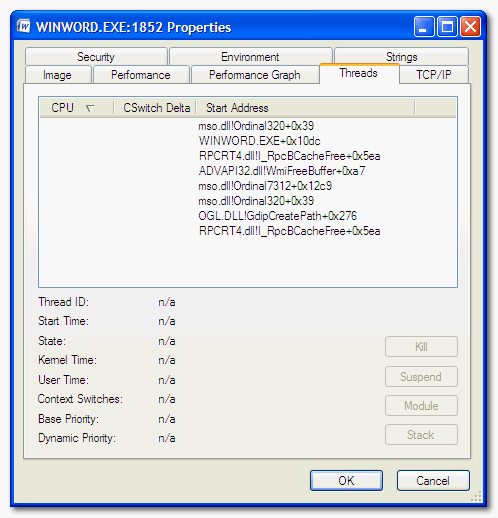
How can this be achieved in Linux? Thanks!
Answers:
Thank you for visiting the Q&A section on Magenaut. Please note that all the answers may not help you solve the issue immediately. So please treat them as advisements. If you found the post helpful (or not), leave a comment & I’ll get back to you as soon as possible.
Method 1
The classical tool top shows processes by default but can be told to show threads with the H key press or -H command line option. There is also htop, which is similar to top but has scrolling and colors; it shows all threads by default (but this can be turned off). ps also has a few options to show threads, especially H and -L.
There are also GUI tools that can show information about threads, for example qps (a simple GUI wrapper around ps) or conky (a system monitor with lots of configuration options).
For each process, a lot of information is available in /proc/12345 where 12345 is the process ID. Information on each thread is available in /proc/12345/task/67890 where 67890 is the kernel thread ID. This is where ps, top and other tools get their information.
Method 2
Listing threads under Linux
Current provide answers
I would like to make it clear that each answer here is providing you with exactly what you have specified, a list of all threads associated with a process, this may not be obvious in htop as it, by default, lists all threads on the system, not just the process but top -H -p <pid> works better for example:
top - 00:03:29 up 3 days, 14:49,  5 users,  load average: 0.76, 0.33, 0.18
Tasks:  18 total,   0 running,  18 sleeping,   0 stopped,   0 zombie
Cpu(s): 22.6%us,  5.7%sy,  4.2%ni, 66.2%id,  0.8%wa,  0.5%hi,  0.1%si,  0.0%st
Mem:   2063948k total,  1937744k used,   126204k free,   528256k buffers
Swap:  1052220k total,    11628k used,  1040592k free,   539684k cached

  PID USER      PR  NI  VIRT  RES  SHR S %CPU %MEM    TIME+  COMMAND
30170 daniel    20   0  371m 140m 107m S 10.0  7.0   0:31.37 source:src
30066 daniel   -90   0  371m 140m 107m S  2.0  7.0   0:07.87 clementine
30046 daniel    20   0  371m 140m 107m S  0.0  7.0   0:32.05 clementine
30049 daniel    20   0  371m 140m 107m S  0.0  7.0   0:00.03 clementine
30050 daniel    20   0  371m 140m 107m S  0.0  7.0   0:00.31 clementine
30051 daniel    20   0  371m 140m 107m S  0.0  7.0   0:00.00 clementine
30052 daniel    20   0  371m 140m 107m S  0.0  7.0   0:00.00 clementine
30053 daniel    20   0  371m 140m 107m S  0.0  7.0   0:00.00 clementine
30054 daniel    20   0  371m 140m 107m S  0.0  7.0   0:00.03 clementine
30055 daniel    20   0  371m 140m 107m S  0.0  7.0   0:00.00 clementine
30056 daniel    20   0  371m 140m 107m S  0.0  7.0   0:00.00 clementine
30057 daniel    20   0  371m 140m 107m S  0.0  7.0   0:00.04 clementine
30058 daniel    20   0  371m 140m 107m S  0.0  7.0   0:00.00 clementine
30060 daniel    20   0  371m 140m 107m S  0.0  7.0   0:00.16 clementine
30061 daniel    20   0  371m 140m 107m S  0.0  7.0   0:00.00 clementine
30062 daniel    20   0  371m 140m 107m S  0.0  7.0   0:00.00 clementine
30064 daniel    20   0  371m 140m 107m S  0.0  7.0   0:00.00 clementine
30065 daniel    20   0  371m 140m 107m S  0.0  7.0   0:00.00 clementine
As a side note, the thread with -90 is actually a real-time thread.
but
There’s also another option which is true CLI: ps. It depends if you want to look for a process id (pid), for an application name, or more filters.
It does not work on MacOS or BSD, as there the -T parameter has a different meaning and there is no alternative to show threads.
ps with a pid
Use ps -T -p <pid>
-Tlists all threads-pspecifies the process id
Here’s an example:
$ ps -T -p 30046
  PID  SPID TTY          TIME CMD       # this is here for clarity
30046 30046 pts/2    00:00:17 clementine
30046 30049 pts/2    00:00:00 clementine
30046 30050 pts/2    00:00:00 clementine
30046 30051 pts/2    00:00:00 clementine
30046 30052 pts/2    00:00:00 clementine
30046 30053 pts/2    00:00:00 clementine
30046 30054 pts/2    00:00:00 clementine
30046 30055 pts/2    00:00:00 clementine
30046 30056 pts/2    00:00:00 clementine
30046 30057 pts/2    00:00:00 clementine
30046 30058 pts/2    00:00:00 clementine
30046 30060 pts/2    00:00:00 clementine
30046 30061 pts/2    00:00:00 clementine
30046 30062 pts/2    00:00:00 clementine
30046 30064 pts/2    00:00:00 clementine
30046 30065 pts/2    00:00:00 clementine
30046 30066 pts/2    00:00:03 clementine
ps with an application name
Use ps -T -C <application name>
-Tlists all threads-Cspecifies the<application name>
Here’s an example:
$ ps -e -T -C clementine
  PID  SPID TTY          TIME CMD       # this is here for clarity
30046 30046 pts/2    00:00:17 clementine
30046 30049 pts/2    00:00:00 clementine
30046 30050 pts/2    00:00:00 clementine
30046 30051 pts/2    00:00:00 clementine
30046 30052 pts/2    00:00:00 clementine
30046 30053 pts/2    00:00:00 clementine
30046 30054 pts/2    00:00:00 clementine
30046 30055 pts/2    00:00:00 clementine
30046 30056 pts/2    00:00:00 clementine
30046 30057 pts/2    00:00:00 clementine
30046 30058 pts/2    00:00:00 clementine
30046 30060 pts/2    00:00:00 clementine
30046 30061 pts/2    00:00:00 clementine
30046 30062 pts/2    00:00:00 clementine
30046 30064 pts/2    00:00:00 clementine
30046 30065 pts/2    00:00:00 clementine
30046 30066 pts/2    00:00:03 clementine
ps with a filter
Use ps -e -T | grep <filter>
-eshows all processes-Tlists all threads|pipes the output to the next commandgrepthis filters the contents by a<filter>(in this case<application name>)
Here’s an example:
$ ps -e -T | grep clementine
  PID  SPID TTY          TIME CMD       # this is here for clarity
30046 30046 pts/2    00:00:17 clementine
30046 30049 pts/2    00:00:00 clementine
30046 30050 pts/2    00:00:00 clementine
30046 30051 pts/2    00:00:00 clementine
30046 30052 pts/2    00:00:00 clementine
30046 30053 pts/2    00:00:00 clementine
30046 30054 pts/2    00:00:00 clementine
30046 30055 pts/2    00:00:00 clementine
30046 30056 pts/2    00:00:00 clementine
30046 30057 pts/2    00:00:00 clementine
30046 30058 pts/2    00:00:00 clementine
30046 30060 pts/2    00:00:00 clementine
30046 30061 pts/2    00:00:00 clementine
30046 30062 pts/2    00:00:00 clementine
30046 30064 pts/2    00:00:00 clementine
30046 30065 pts/2    00:00:00 clementine
30046 30066 pts/2    00:00:03 clementine
Each of these has the same PID so you know they are in the same process.
Method 3
htop, a curses version of top, has a display option for showing all the threads for each process in a tree view. Starting htop and pressing F5 will result in:

Method 4
You may try to use:
/usr/bin/pstree $PID
For example:
# pstree -p `pidof iceweasel`
iceweasel(3630)─┬─{iceweasel}(3662)
                ├─{iceweasel}(3663)
                ├─{iceweasel}(3664)
                ├─{iceweasel}(3665)
                ├─{iceweasel}(3666)
                ├─{iceweasel}(3674)
                ├─{iceweasel}(3675)
                ├─{iceweasel}(3676)
                ├─{iceweasel}(3677)
                ├─{iceweasel}(3681)
                ├─{iceweasel}(3682)
                ...
Each thread has its own PID. From the man page:
Child threads of a process are found under the parent process and are shown with the process name in curly braces, e.g.
icecast2---13*[{icecast2}]
Method 5
The two standard tools to show process informations are ps and top (and htop which is similar/improved).
Notes:
- Many program change the apparent name of the threads to something meaningful, the tools below can either display the binary name or that apparent name (check PID 1086 in the examples below).
- In the examples below, I have removed most process to keep the answer short.
- The command arguments example below are common ones. check the manpage for alternate options (
ps -m,ps m,ps H…)
Realtime view of all or process, using top -H
top - 16:24:42 up  3:49,  3 users,  load average: 0.23, 0.29, 0.31
Threads: 503 total,   2 running, 501 sleeping,   0 stopped,   0 zombie
%Cpu(s):  9.7 us,  1.6 sy,  0.0 ni, 88.5 id,  0.2 wa,  0.0 hi,  0.0 si,  0.0 st
KiB Mem:   3938668 total,  2148708 used,  1789960 free,   133524 buffers
KiB Swap:  3903484 total,        0 used,  3903484 free.   822904 cached Mem

  PID USER      PR  NI    VIRT    RES    SHR S %CPU %MEM     TIME+ COMMAND
 1054 root      20   0  258664   3524   2692 S  0.0  0.1   0:00.00 rsyslogd
 1086 root      20   0  258664   3524   2692 S  0.0  0.1   0:00.03 in:imuxsock
 1087 root      20   0  258664   3524   2692 S  0.0  0.1   0:00.00 in:imklog
 1090 root      20   0  258664   3524   2692 S  0.0  0.1   0:00.05 rs:main Q:Reg
 2452 fpiat     20   0   25292   7520   3580 S  0.0  0.2   0:00.69 bash
 2495 fpiat     20   0   25088   6988   3256 S  0.0  0.2   0:00.05 bash
Instant view of all process and threads, using ps -eLf
$ ps -eLf
UID        PID  PPID   LWP  C NLWP STIME TTY          TIME CMD
root      1054     1  1054  0    4 12:34 ?        00:00:00 /usr/sbin/rsyslogd -n
root      1054     1  1086  0    4 12:34 ?        00:00:00 /usr/sbin/rsyslogd -n
root      1054     1  1087  0    4 12:34 ?        00:00:00 /usr/sbin/rsyslogd -n
root      1054     1  1090  0    4 12:34 ?        00:00:00 /usr/sbin/rsyslogd -n
franklin  2452  2448  2452  0    1 12:35 pts/0    00:00:00 /bin/bash
franklin  2495  2448  2495  0    1 12:36 pts/1    00:00:00 /bin/bash
Threads information of a process, using ps -T
ps -T -C rsyslogd
  PID  SPID TTY          TIME CMD
 1054  1054 ?        00:00:00 rsyslogd
 1054  1086 ?        00:00:00 in:imuxsock
 1054  1087 ?        00:00:00 in:imklog
 1054  1090 ?        00:00:00 rs:main Q:Reg
(note: use either option -C command, or -p PID to select the process)
Details threads information of a process, using custom ps
$ ps -L -o pid,lwp,pri,nice,start,stat,bsdtime,cmd,comm  -C rsyslogd
  PID   LWP PRI  NI  STARTED STAT   TIME CMD                         COMMAND
 1054  1054  19   0 12:34:53 Ssl    0:00 /usr/sbin/rsyslogd -n       rsyslogd
 1054  1086  19   0 12:34:53 Ssl    0:00 /usr/sbin/rsyslogd -n       in:imuxsock
 1054  1087  19   0 12:34:53 Ssl    0:00 /usr/sbin/rsyslogd -n       in:imklog
 1054  1090  19   0 12:34:53 Ssl    0:00 /usr/sbin/rsyslogd -n       rs:main Q:Reg
Method 6
You can try top -H -p <pid>.
But please note on some Unix flavors ‘-H’ option is not available in top command.
Method 7
ps -H le <pid>
This shall display threads as processes.
Also remember that all threads of a multi-threaded must have same PID. Linux does this by making thread groups. First thread is the leader of the group and its PID will be tgid(thread groupID) of the thread group.
You can find out actual PID and status of threads by using /proc file system.
Another way to achieve this is to check the PID by using ps, then run following command:
cat /proc/pid/status
Then check further pids/tgid of threads and run following command:
cat /proc/pid/task/threadid/status
Method 8
top -H -p <process_id>
This will list you the threads, associated with your process (i.e. process_id) [Used on Ubuntu. There is possibility that the option -H is not available on some of the linux flavors]
Method 9
ps huH -p pid | wc -l
Above command shows the number of running thread for specific process pid if for java process
Method 10
I was looking for the same, and was able to come up with the following bash script,
This is still work in progress, I will update this as I improve the script.
I am no unix expert,I am sure some expert can write it in 2 lines, with a better quality, but my intention is to provide a working solution for others.
update with filter and process information
#!/bin/bash

ps -ef --no-headers | while read line; do                 # for each process read the info (without headers)
   IFS='        ' read -r -a array <<< "$line"             # split info into array
   psResultStr="ps -p ${array[1]} -lfT |  wc -c"           # count how many threads per PID
   numThreads=$(eval $psResultStr)                         # trying to convert it to number so i can filter later
   if [ "$numThreads" -gt "1000" ]                          #only show process with 1K or more
   then
        printf "Number of threads for PID:${array[1]} Has $numThreads Threads.  Process info: "
              for ((i = 7; i < ${#array[@]}; ++i)); do       #Process info starts at idx 7
                                position=$(( $i + 1 ))  # bash arrays are 0-indexed
                                lineText=$(echo ${array[$i]}|tr -d 'n')   # remove any new lines
                                printf "%s" "$lineText"                     #output line item
                        done
                        printf "nn"
   fi
done
All methods was sourced from stackoverflow.com or stackexchange.com, is licensed under cc by-sa 2.5, cc by-sa 3.0 and cc by-sa 4.0