For example:
[<a href="https://getridbug.com/cdn-cgi/l/email-protection" class="__cf_email__" data-cfemail="6c1e0303182c051c415d5c415c415b415d5e59">[email protected]</a> ~]# history | grep free
  594  free -m
  634  free -m | xargs | awk '{print "free/total memory" $17 " / " $ 8}'
  635  free -m
  636  free -m | xargs | awk '{print "free/total memory" $9 " / " $ 10}'
  736  df -h | xargs |  awk '{print "free/total disk: " $11 " / " $9}'
  740  df -h | xargs |  awk '{print "free/total disk: " $11 " / " $8}'
  741  free -m | xargs | awk '{print "free/total memory: " $17 " / " $8 " MB"}'
I’m just wondering if there any way to execute the 636 command without typing it again, just type something plus the number, like history 636 or something.
Answers:
Thank you for visiting the Q&A section on Magenaut. Please note that all the answers may not help you solve the issue immediately. So please treat them as advisements. If you found the post helpful (or not), leave a comment & I’ll get back to you as soon as possible.
Method 1
In bash, just !636 will be ok.
Method 2
Yes, it’s called “history expansion.” See
LESS='+/^HISTORY EXPANSION' man bash
for full details.
Using an exclamation point followed by a number is arguably the simplest use:
!636
However, you can also run the last executed command directly without knowing its history number:
!!
Or you can run two commands back:
!-2
The form I most often use, however, is to repeat the last argument of the last command:
echo this text goes into a file > /tmp/afile.txt
cat !$
Or, let’s say I’m inspecting a file. Using tab completion, I might do the following:
ls -l /really/long/path/to/some/file
less !$
Again, read the man page for more details:
LESS='+/^HISTORY EXPANSION' man bash
Method 3
A nice one, if you don’t want to first history, note the number, etc:
in bash (and maybe others):
ctrl-r something
(ctrl-r = “reverse search interactively”) (something = a part of a previous command)
This will show you the latest history line containing something . To get the one before, do ctrl-r (alone) again, each time it gets a previous line.
ex:
ctrl-r 10
to show the latest history line containing ’10’ (for exemple the line with $10, in your exemple), and ctrl-r again until you retrieve the history line you were looking for
When the line you wanted appear, just Enter to run it (or you can also edit it, using the arrow keys, backspace, and ctrl-a to go to the beginning of the line, ctrl-e to get to the End, ctrl-k : to “kill” from cursor to end of line (=deletes+saves it in a buffer), ctrl-y : to restore, from the buffer, a previously killed bit, etc.)
If you want to search forward (ctrl-s), you first need to disable XON : see https://stackoverflow.com/a/791800/1841533 :
” just to disable XON/XOFF by running
stty -ixon
”
(and then you will be able to use ctrl-s, without having it freeze the terminal)
Method 4
You can use the shell builtin fc:
fc -s 636
Method 5
There is HSTR – hstr command for bash and zsh interactive command selection, better than Ctrl-R reverse search:
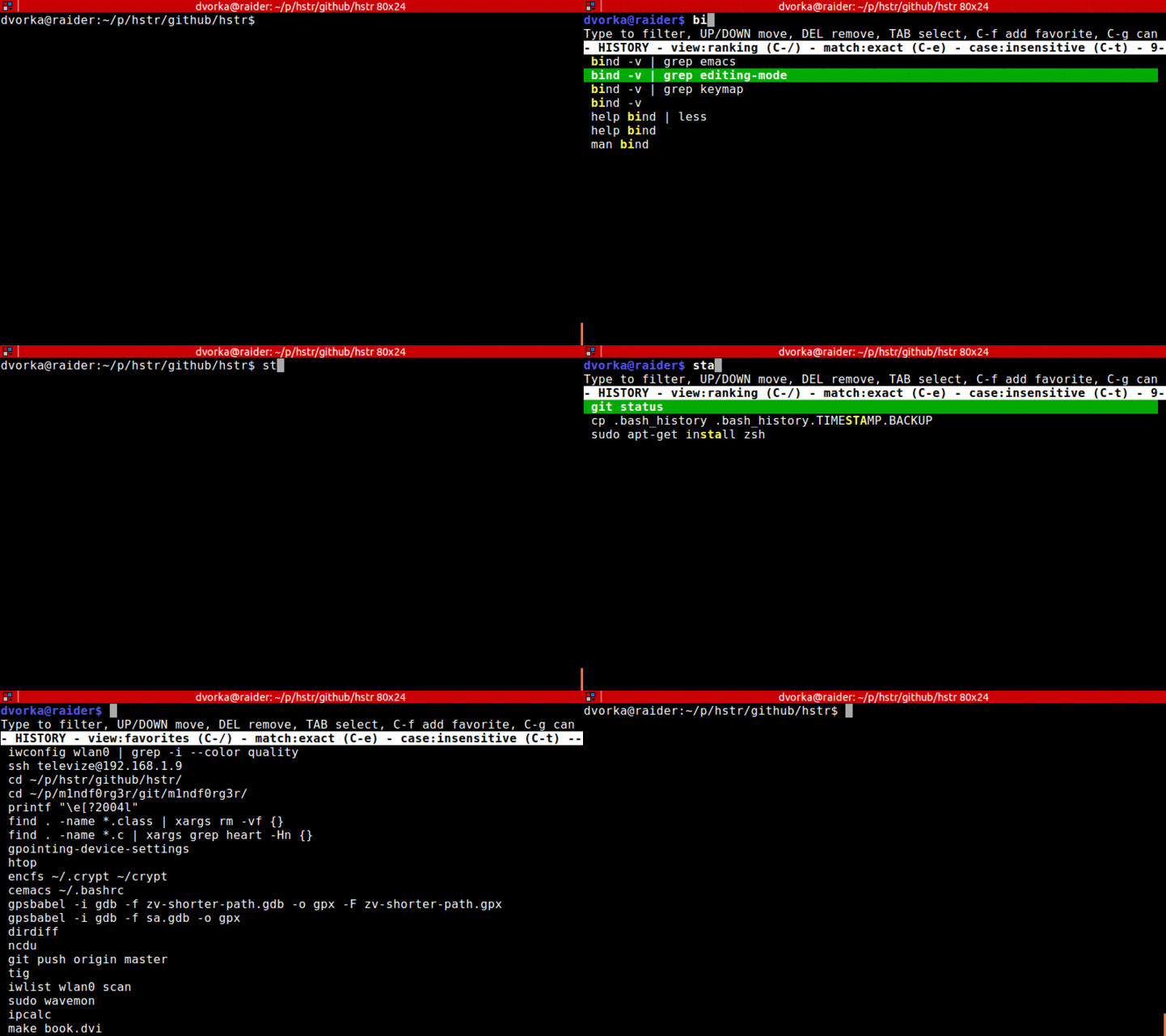
It’s interactive, so you can search for, and edit the command, before executing it.
On Ubuntu, you can install hstr with the following one-liner:
sudo add-apt-repository ppa:ultradvorka/ppa && sudo apt-get update && sudo apt-get install hstr && hstr --show-configuration >> ~/.bashrc && . ~/.bashrc
or step by step:
sudo add-apt-repository ppa:ultradvorka/ppa
sudo apt-get update
sudo apt-get install hstr
Install hstr on Fedora, RHEL or CentOS:
sudo dnf install hstr -y
On macOS with homebrew:
brew install hstr
…then configure it with:
hstr --show-configuration >> ~/.bashrc
This will replace the default Ctrl-R behavior.
Run hstr --show-configuration to determine what will be appended to your Bash profile.
More configuration options available on project homepage at Github:
https://github.com/dvorka/hstr
All methods was sourced from stackoverflow.com or stackexchange.com, is licensed under cc by-sa 2.5, cc by-sa 3.0 and cc by-sa 4.0