I am running the latest version of Linux Mint with Cinnamon. I’m trying to map Caps Lock to Ctrl, but I cannot figure out how to do it. All web searches I’ve done have led me to older versions of Linux Mint (there is no keyboard layout option in my settings). How can I do this?
Answers:
Thank you for visiting the Q&A section on Magenaut. Please note that all the answers may not help you solve the issue immediately. So please treat them as advisements. If you found the post helpful (or not), leave a comment & I’ll get back to you as soon as possible.
Method 1
You can accomplish this with xmodmap. Add the following to ~/.xmodmap:
remove Lock = Caps_Lock
keysym Caps_Lock = Control_L
add Control = Control_L
and run the command xmodmap ~/.xmodmap. You can put this command in whatever startup files are processed by your WM or DE. This will only work in X but it will work regardless of what graphical environment you use.
Method 2
I found it. It was moved to the regional preferences section:
Go to settings > regional preferences > keyboard layouts > settings and expand the caps lock section.
UPDATE:
In Linux Mint 17.1 you can get to it via;
System Settings > Hardware > Keyboard > Keyboard Layouts > Options > Caps Lock key behavior
Method 3
No need to use the obsolete xmodmap as there’s already an xkb option – namely ctrl:nocaps e.g. in terminal:
setxkbmap -option ctrl:nocaps
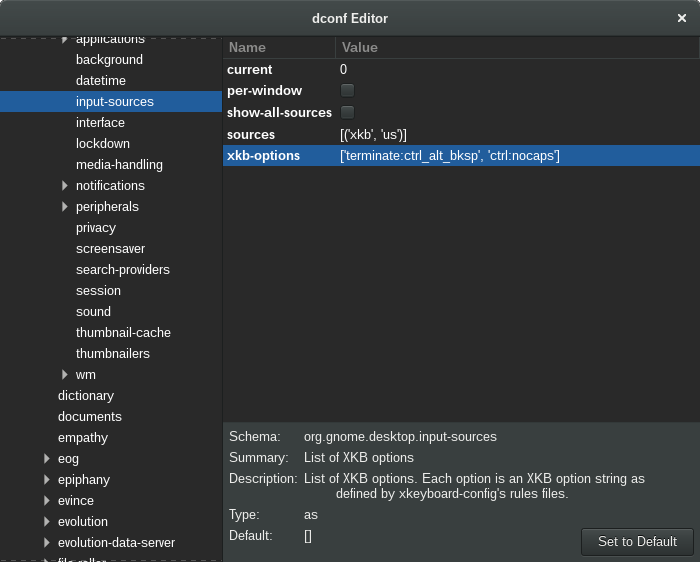
With gnome 3 you can either use dconf-editor and add ctrl:nocaps to your xkb-options under org > gnome > desktop > input sources:
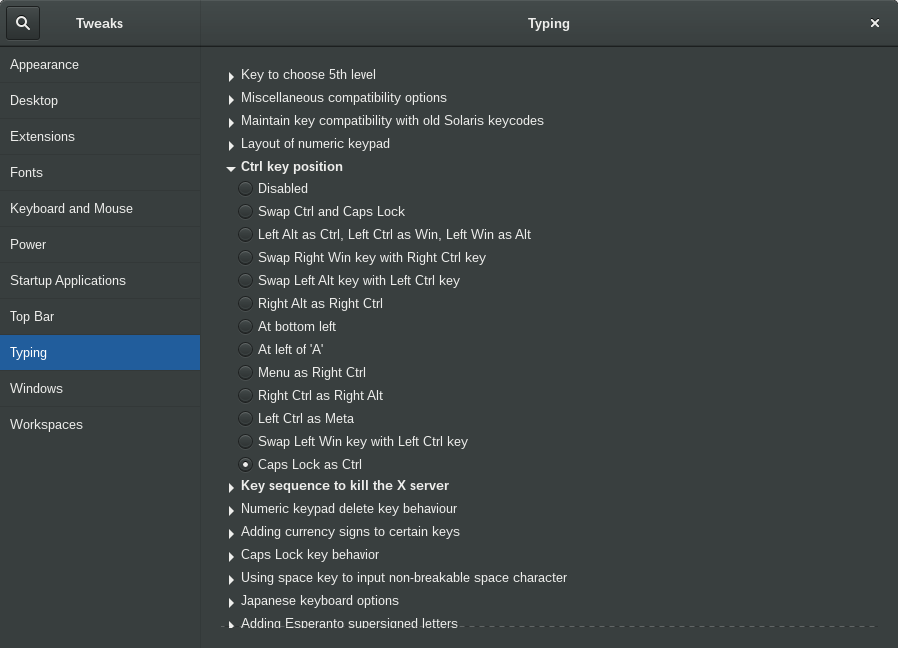
or simply enable Caps Lock as Ctrl in gnome-tweak-tool under Typing > Ctrl key position:
Method 4
For LinuxMint 17 with KDE it was:
System Settings > Input Devices > Keyboard > Advanced > Ctrl key position
Method 5
I realize that this already has an accepted answer, but here is the One True Way to change Caps Lock to ctrl. This works on all versions of Linux, all distros, for the entire system (console, X, whatever). It sets the mapping in the kernel where it should be.
(echo $(dumpkeys |grep -i keymaps); echo keycode 58 = Control) | loadkeys -
Add this to a start up script (e.g., /etc/rc.local, or create your own).
On Debian (and derivatives) dumpkeys/loadkeys is part of the kbd package, if for some reason it’s not already installed.
Method 6
On Mint 17.2, select Preferences -> Keyboard -> Layouts -> Options, select Caps Lock key behavior, select “Make Caps Lock an additional control.”
Method 7
Updating this thread for Linux Mint 18.3 (Beta) as this option seems to be a moving target.
- Click on Control Center from the Start Menu and select the Keyboard button.
- In the popup window, select the Layouts tab.
- In the Layouts window. click on the Options button towards the bottom.
- In the Options list, expand the one that says “Ctrl key position”.
- Towards the bottom select the checkbox next to “Swap Ctrl and Caps Lock”.
Method 8
Here is a distilled version:
0) Make sure Caps Lock is OFF
1) Create the following file:
/etc/udev/hwdb.d/10-caps-modifier.hwdb
---
evdev:atkbd:dmi:*            # built-in keyboard: match all AT keyboards for now
  KEYBOARD_KEY_3a=leftctrl   # bind capslock to leftctrl
2) Run the following command:
$ systemd-hwdb update
3) Run the following command to make the remapping take immediate effect:
$ udevadm trigger
This was tested on Ubuntu 18.04.2 LTS running Xfce. The remapping works great in tty consoles, and the X input system.
Thanks to this page for all the details: https://wiki.archlinux.org/index.php/Map_scancodes_to_keycodes but it took a lot of effort to parse out what actually needed to be done.
All methods was sourced from stackoverflow.com or stackexchange.com, is licensed under cc by-sa 2.5, cc by-sa 3.0 and cc by-sa 4.0