I’m running into a weird error when trying to install Django on my computer.
This is the sequence that I typed into my command line:
C:Python34> python get-pip.py
Requirement already up-to-date: pip in c:python34libsite-packages
Cleaning up...

C:Python34> pip install Django
'pip' is not recognized as an internal or external command,
operable program or batch file.

C:Python34> libsite-packagespip install Django
'libsite-packagespip' is not recognized as an internal or external command,
operable program or batch file.
What could be causing this?
This is what I get when I type in echo %PATH%:
C:Python34>echo %PATH%
C:Program FilesImageMagick-6.8.8-Q16;C:Program Files (x86)InteliCLS Client
;C:Program FilesInteliCLS Client;C:Windowssystem32;C:Windows;C:WindowsS
ystem32Wbem;C:WindowsSystem32WindowsPowerShellv1.0;C:Program Files (x86)
Windows LiveShared;C:Program Files (x86)IntelOpenCL SDK2.0binx86;C:Progr
am Files (x86)IntelOpenCL SDK2.0binx64;C:Program FilesIntelIntel(R) Mana
gement Engine ComponentsDAL;C:Program FilesIntelIntel(R) Management Engine C
omponentsIPT;C:Program Files (x86)IntelIntel(R) Management Engine Components
DAL;C:Program Files (x86)IntelIntel(R) Management Engine ComponentsIPT;C:P
rogram Files (x86)nodejs;C:Program Files (x86)Herokubin;C:Program Files (x
86)gitcmd;C:RailsInstallerRuby2.0.0bin;C:RailsInstallerGitcmd;C:RailsIn
stallerRuby1.9.3bin;C:UsersJaviAppDataRoamingnpm
Answers:
Thank you for visiting the Q&A section on Magenaut. Please note that all the answers may not help you solve the issue immediately. So please treat them as advisements. If you found the post helpful (or not), leave a comment & I’ll get back to you as soon as possible.
Method 1
You need to add the path of your pip installation to your PATH system variable. By default, pip is installed to C:Python34Scriptspip (pip now comes bundled with new versions of python), so the path “C:Python34Scripts” needs to be added to your PATH variable.
To check if it is already in your PATH variable, type echo %PATH% at the CMD prompt
To add the path of your pip installation to your PATH variable, you can use the Control Panel or the setx command. For example:
setx PATH "%PATH%;C:Python34Scripts"
Note:
According to the official documentation, “[v]ariables set with setx variables are available in future command windows only, not in the current command window”. In particular, you will need to start a new cmd.exe instance after entering the above command in order to utilize the new environment variable.
Thanks to Scott Bartell for pointing this out.
Method 2
For Windows, when you install a package, you type:
python -m pip install [packagename]
Method 3
As of now, version 3.7.3 I had a little bit of an issue with getting the right system variable.
Try this:
-
Type
start %appdata%in cmd. -
After that file explorer should pop up in
../AppData/Roaming.
Go back one directory and navigate to Local/Programs/Python/Python37-32/Scripts.
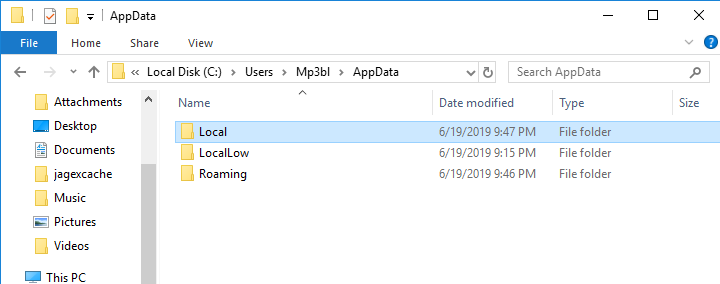
NOTE: The version number may be different so if you copy and paste the above file path it could not work.
After you do this you now have the correct location of your downloaded Python. Copy your file path by selecting the whole directory in the address bar.
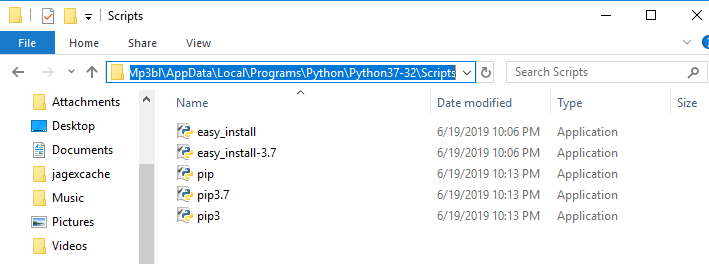
Once you do that click the start icon and navigate to the Control Panel → System and Security → System. Then click “Advanced System Settings” on the left side of the panel.
Once there, click Environment Variables on the bottom right and there will be two boxes, an upper and a lower box. In the upper box: Click on the ‘Path’ Variable and click Edit located on the right. Click New and paste your directory Path. It should look something like this:
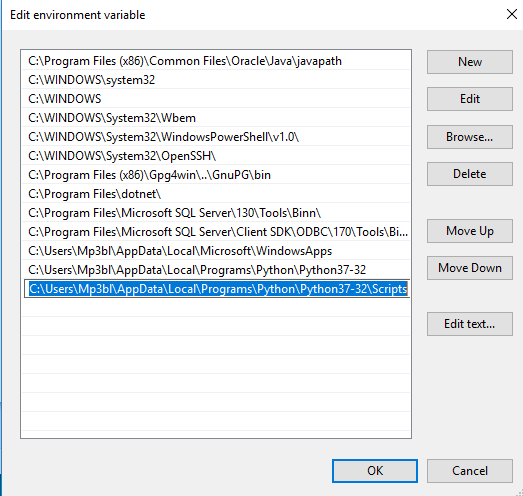
Click OK three times, open a new window of cmd and type: pip. See if it works.
Method 4
For me the command:
set PATH=%PATH%;C:Python34Scripts
worked immediately (try after echo %PATH% and you will see that your path has the value C:Python34Scripts).
Thanks to: Adding a directory to the PATH environment variable in Windows
Method 5
Alternate way.
If you don’t want to add the PATH as the previous well written answers pointed out,
but you want to execute pip as your command then you can do that with py -m as prefix.
Given that you have to do it again and again.
eg.
py -m <command>
as in
py -m pip install --upgrade pip setuptools
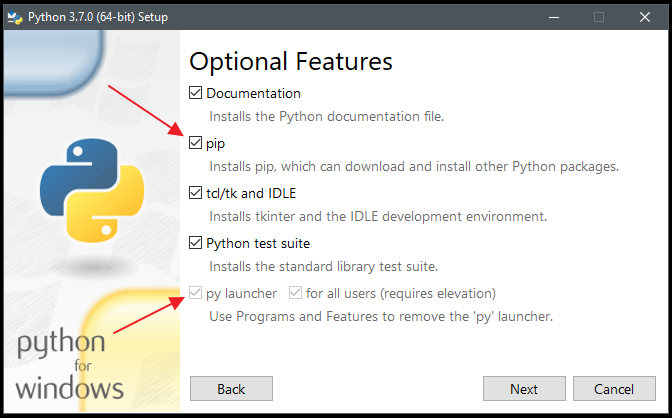
Also make sure to have pip and py installed
Method 6
The only way that worked on my Windows 10 machine was as follows:
py -3 -m pip install xxxxx
Method 7
Also, the long method – it was a last resort after trying all previous answers:
C:python27scriptspip.exe install [package].whl
This after cd in directory where the wheel is located.
Method 8
As per Python 3.6 Documentation
It is possible that pip does not get installed by default. One
potential fix is:
python -m ensurepip --default-pip
Method 9
Go to control Panel >> Uninstall or change Program and double click on Python XXX to modify install. Make sure PIP component is checked and install.
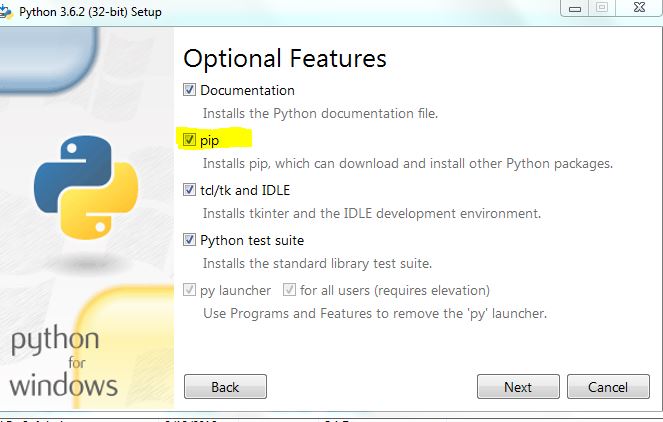
Method 10
Control Panel -> add/remove programs -> Python -> Modify -> optional Features (you can click everything) then press next -> Check “Add python to environment variables” -> Install
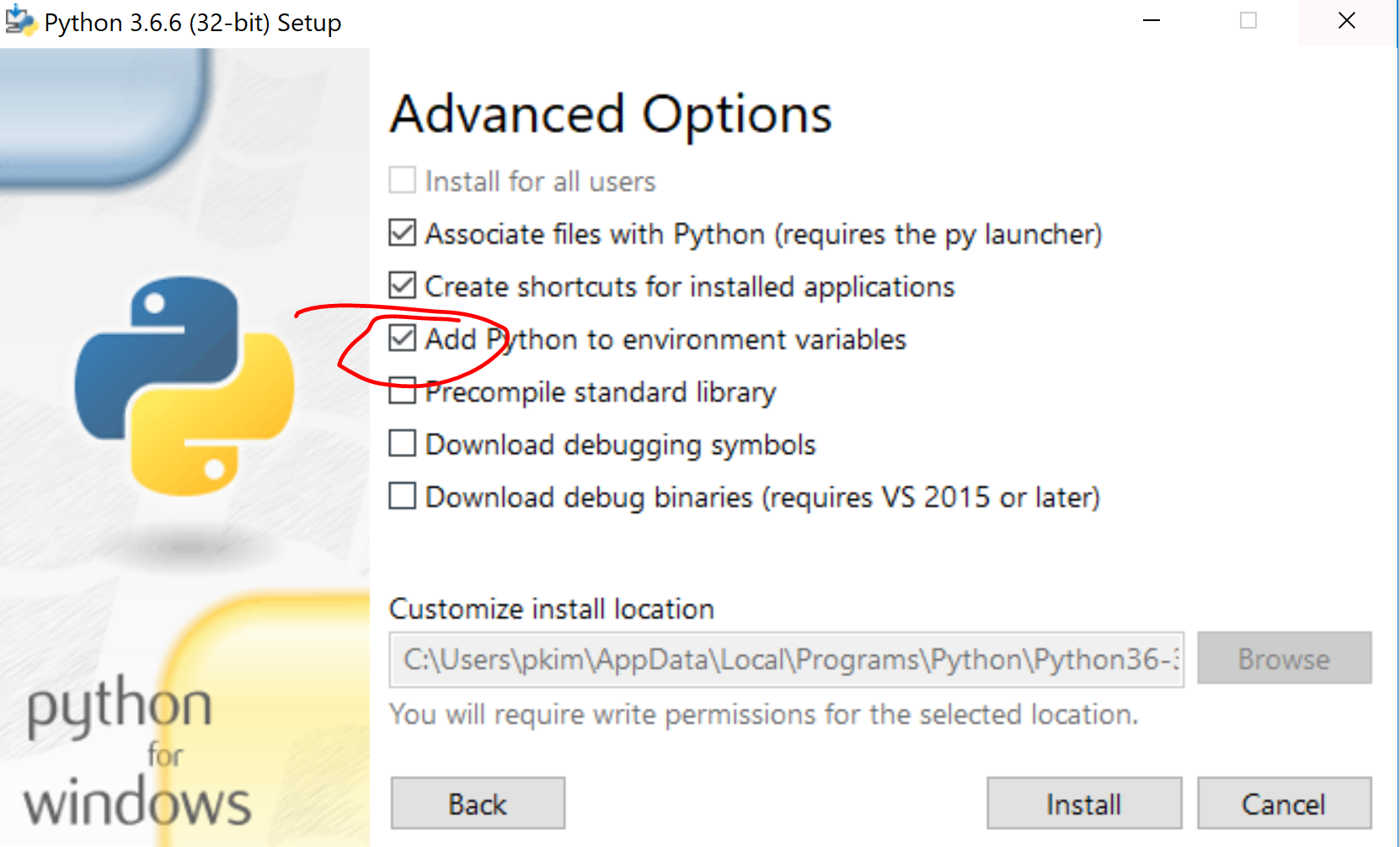
And that should solve your path issues, so jump to command prompt and you can use pip now.
Method 11
I was having the same problem just now.
After adding the proper folder (C:Python33Scripts) to the path, I still could not get pip to run. All it took was running
pip.exe install -package- instead of
pip install -package-.
Method 12
Try going to Windows PowerShell or cmd prompt and typing:
python -m pip install openpyxl
Method 13
In latest version Python 3.6.2 and above, is available in
C:Program Files (x86)Python36-32Scripts
You can add the path to our environment variable path as below
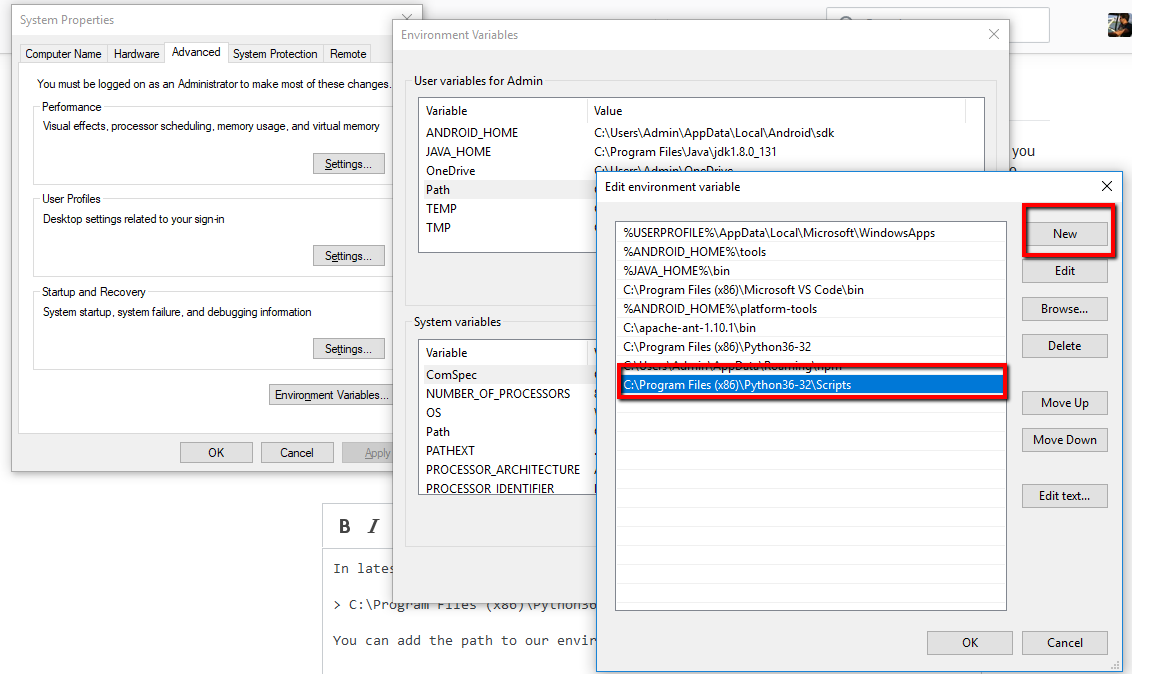
Make sure you close your command prompt or Git after setting up your path. Also should you open your command prompt in administrator mode. This is example for Windows 10.
Method 14
Use
set Path = `%PATH%;C:Python34;C:Python27Scripts`
Method 15
Or if you are using PyCharm (2017-03-03) like me, just change directory in terminal and install:
cd C:Users{user}PycharmProjectstestvenvScripts
pip install ..
Method 16
Most frequently it is:
in cmd.exe write
python -m pip install --user [name of your module here without brackets]
Method 17
Even I’m new to this, but pip install django worked for me.
The path should be set as where the script folder of the Python installation is, i.e.C:Python34Scripts.
I suppose it’s because Django is a framework which is based on Python, and that’s why this directory structure has to be maintained while installing.
Method 18
I have just installed Python 3.6.2.
I got the path as
C:UsersUSERNAMEAppDataLocalProgramsPythonPython36-32Scripts
Method 19
You can try pip3. Something like:
pip3 install pandas
Method 20
None of these actually worked for me, but running
python -m pip install -U pip
and then adding the specified directory to the PATH as suggested got it working
Method 21
In Windows, open cmd and find the location of PYTHON_HOME using where python. Now add this location to your environment variable PATH using:
set PATH=%PATH%;<PYTHON_HOME>Scripts
Or refer to this.
In Linux, open a terminal and find the location of PYTHON_HOME using which python. Now add the PYTHON_HOME/Scripts to the PATH variable using:
PATH=$PATH:<PYTHON_HOME>Scripts
export PATH
Method 22
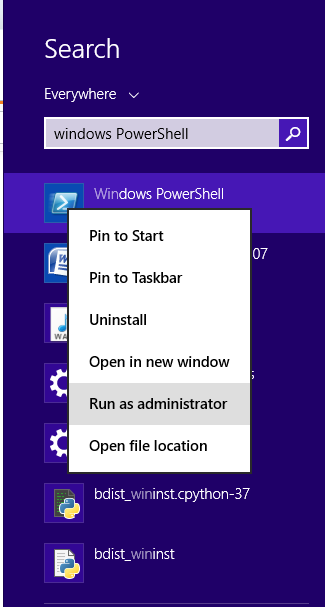
I was facing the same issue. Run Windows PowerShell as Administrator. It resolved my issue.
Method 23
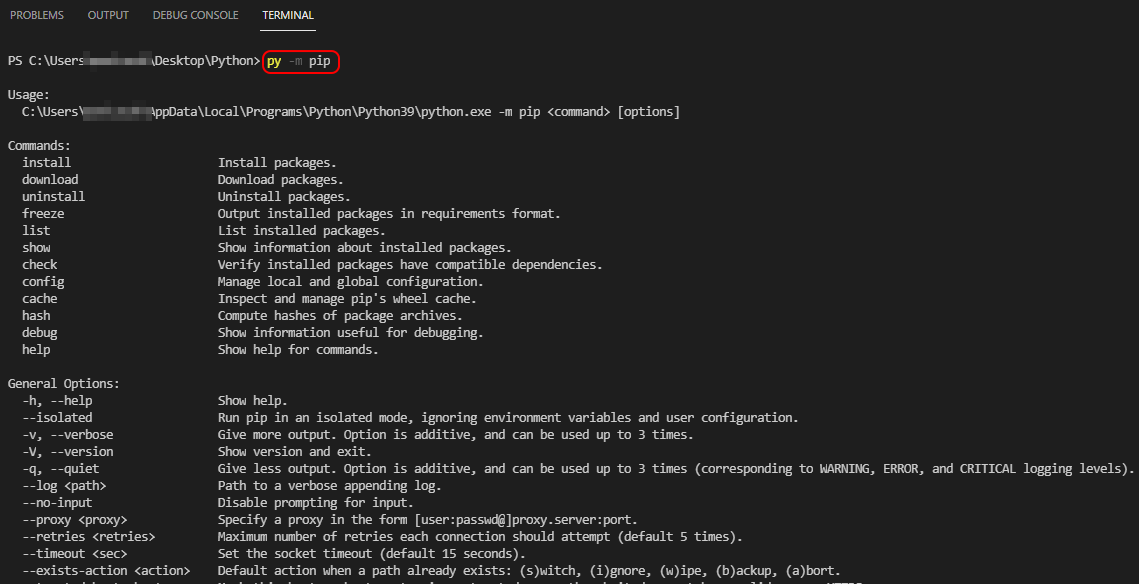
In your Python folder path in Terminal, just type
py -m pip
in order to check the current version of your pip.
You will also see a list of commands, you can use…
Method 24
I think from Python 2.7.9 and higher pip comes pre installed and it will be in your scripts folder.
So you have to add the “scripts” folder to the path. Mine is installed in C:Python27Scripts. Check yours to see what your path is so that you can alter the below accordingly. Then go to PowerShell, paste the below code in PowerShell and hit Enter key. After that, reboot and your issue will be resolved.
[Environment]::SetEnvironmentVariable("Path", "$env:Path;C:Python27Scripts", "User")
Method 25
In a Windows environment, just execute the below commands in a DOS shell.
path=%path%;D:Program Filespython3.6.4Scripts;
(new path=current path;path of the Python script folder)
Method 26
For Mac, run the below command in a terminal window:
echo export "PATH=$HOME/Library/Python/2.7/bin:$PATH"
Method 27
I deleted the older version using the control panel and then installed the new version however the newer version was not reflecting pip even after adding the right paths in the environment variables. However, the thing that worked for me was deleting the folders of old python that were there in the local App folder even after uninstall. For me, the path was like below. Deleting this folder solved my issue
C:UsersusernameAppDataLocalProgramsPython38
Method 28
I had this same issue. You just need to go to your
C:Python27Scripts
and add it to environment variables. After path setting just run pip.exe file on C:Python27Scripts and then try pip in cmd. But if nothing happens try running all pip applications like pip2.7 and pip2.exe. And pip will work like a charm.
Method 29
Small clarification: in “Windows 7 64 bit PC”, after adding ...Python34Scripts to the path variable, pip install pygame didn’t work for me.
So I checked the “…Python34Scripts” folder, it didn’t have pip, but it had pip3 and pip3.4. So I ran pip3.4 install pygame .... .whl. It worked.
(Further open a command window in the same folder where you have the downloaded pygame...whl file.)
Method 30
When installing SQL 2019 Python, there are known issues for PIP which require a fix (step 7)
https://docs.microsoft.com/en-us/sql/advanced-analytics/known-issues-for-sql-server-machine-learning-services?view=sql-server-ver15
pip is configured with locations that require TLS/SSL, however the ssl module in Python is not available.
Workaround
Copy the following files:

libssl-1_1-x64.dll
libcrypto-1_1-x64.dll

from the folder
C:Program FilesMicrosoft SQL ServerMSSSQL15.MSSQLSERVERPYTHON_SERVICESLibrarybin
to the folder
C:Program FilesMicrosoft SQL ServerMSSSQL15.MSSQLSERVERPYTHON_SERVICESDLLs

Then open a new DOS command shell prompt.
All methods was sourced from stackoverflow.com or stackexchange.com, is licensed under cc by-sa 2.5, cc by-sa 3.0 and cc by-sa 4.0