I have troubles to import the basemap module of mpl_toolkits in python. Here is what I get when I run the test.py script from the module directory:
/usr/lib/python2.7/dist-packages/mpl_toolkits/basemap$ python test.py
Traceback (most recent call last):
File "test.py", line 1, in <module>
from mpl_toolkits.basemap import Basemap, shiftgrid
ImportError: No module named basemap
I can’t get it since sys.path gives a list of paths where I am sure the directory “basemap” is, in the “mpl_toolkits” directory. There is no problem to import mpl_toolkits. Here is a thing I tried, to manually add the path, and the result:
>>> import sys
>>> sys.path.append('/usr/lib/python2.7/dist-packages/mpl_toolkits/basemap')
>>> import basemap
Traceback (most recent call last):
File "<stdin>", line 1, in <module>
File "basemap/__init__.py", line 30, in <module>
from mpl_toolkits.basemap import pyproj
ImportError: No module named basemap
I tried to uninstall an reinstall basemap from source (carefully following these instructions), from apt-get, from conda, but it does not change anything: I can’t import basemap.
Thank you for your help
Answers:
Thank you for visiting the Q&A section on Magenaut. Please note that all the answers may not help you solve the issue immediately. So please treat them as advisements. If you found the post helpful (or not), leave a comment & I’ll get back to you as soon as possible.
Method 1
I was in the same situation until a minute ago, installing it through this made the trick:
sudo apt-get install libgeos-3.5.0
sudo apt-get install libgeos-dev
pip install https://github.com/matplotlib/basemap/archive/master.zip
Method 2
I was facing this issue and I was able to solve it using anaconda
After activating my profile
source activate MyProfileName
conda install basemap

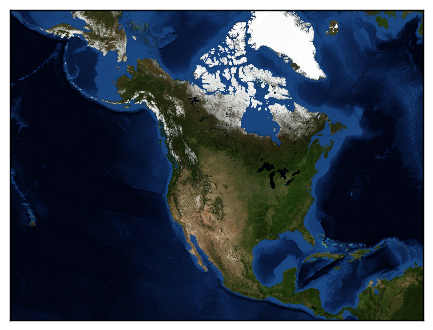
from mpl_toolkits.basemap import Basemap
import matplotlib.pyplot as plt
# setup Lambert Conformal basemap.
# set resolution=None to skip processing of boundary datasets.
m = Basemap(width=12000000,height=9000000,projection='lcc',
            resolution=None,lat_1=45.,lat_2=55,lat_0=50,lon_0=-107.)
m.bluemarble()
plt.show()
Method 3
I do not use Anaconda, using MacOS, and I have found this solution works for me. I guess it is straight forward, and should work with both Linux and MacOs.
https://stackoverflow.com/a/53171723/2570842
brew install geos
pip3 install https://github.com/matplotlib/basemap/archive/master.zip
For Ubuntu,
sudo apt-get install geos
sudo pip3 install https://github.com/matplotlib/basemap/archive/master.zip
Method 4
I had the same issue; trying to access basemap using sys would produce that error. But this worked for me:
import mpl_toolkits
mpl_toolkits.__path__.append('/usr/lib/python2.7/dist-packages/mpl_toolkits/')
from mpl_toolkits.basemap import Basemap
Method 5
Download it from here and install it manually. Make sure to download the right version(i.e. if you are Python3.6 then download basemap‑1.2.0‑cp36‑cp36m‑win_amd64.whl)
Reference: https://stackoverflow.com/a/33020524/8730201
Method 6
For me, a simple
pip3 install basemap
did the trick.
Method 7
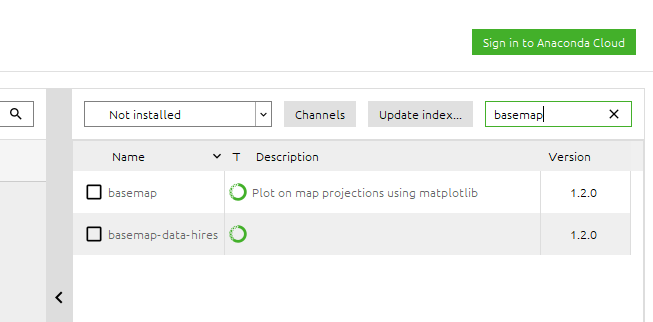
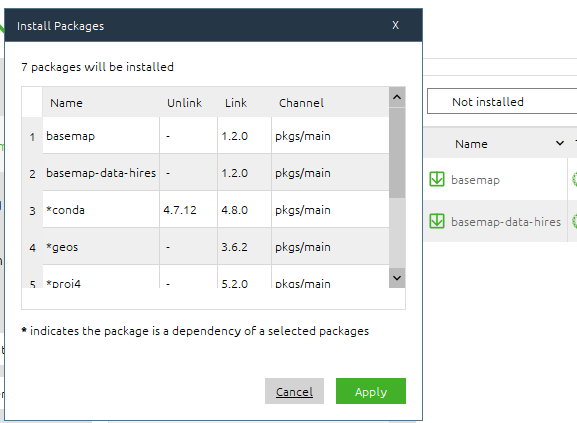
conda install -c anaconda basemap
OR
Go to Anaconda Navigator, search for basemap and click Apply.
Method 8
In my Case It works
sudo apt install python3-mpltoolkits.basemap
Method 9
I followed this answer:
https://stackoverflow.com/a/43234894/3818277
Though, I can have wrongly installed mpl_toolkits (or I do not know), in my case I found out, that basemap is located in pymodules like that:
    mpl_toolkits.__path__.append('/usr/lib/pymodules/python2.7/mpl_toolkits/')
    from mpl_toolkits.basemap import Basemap
So this worked for me on ubuntu 14.04 LTS.
Method 10
After a day of trying different methods, this worked for me:
conda install -c conda-forge basemap
Method 11
The only solution that worked for windows.
Download wheel package from here: https://www.lfd.uci.edu/~gohlke/pythonlibs/#basemap
Navigate to download location in terminal.
Install using pip install
Method 12
I was able to get basemap working through the following steps. Note that I did a --user install.
- Create shallow clone of basemap (
git clone --depth 1 [email protected]:matplotlib/basemap.git) or extract the tarball of the current version. - Install the necessary prerequisite libraries (on Ubuntu,
libgeos-dev,libproj-dev,libgeos++-dev,proj-data,proj-bin,libgeos-c1v5,libgeos,libproj12, I think). pip install --user pyproj matplotlib geos(not actually sure ifgeosis necessary).
Now, here’s where I had to improvise a little bit. When I install basemap using python setup.py install, it creates a new egg directory among my Python packages. That directory contains an mpl_toolkits subdirectory which duplicates a separate mpl_toolkits directory installed by matplotlib.
So, instead, I did
python setup.py build_ext --inplace
cp -a lib/mpl_toolkits/basemap /my/python/packages/dir/mpl_toolkits/basemap
cp lib/_geoslib.so /my/python/packages/dir
I am now able to run examples like simpletest.py.
Method 13
I faced the same problem. Couldn’t import the Basemap:
from mpl_toolkits.basemap import Basemap
but surprisingly Pycharm saw the library which was apparently installed in this location:
lib/python3.8/site-packages/basemap-1.2.1-py3.8-linux-x86_64.egg/mpl_toolkits/basemap/
So, to make it work, I just created a symbolic link in lib/python3.8/site-packages/mpl_toolkits/:
ln -s ../basemap-1.2.1-py3.8-linux-x86_64.egg/mpl_toolkits/basemap/ basemap
I know it’s not a clean solution, but may be sufficient in some cases.
Method 14
On Colab you might have to add the basemap module to mpl_toolkits
!pip install basemap
from mpl_toolkits import basemap
At least, I had the same problem and this worked for me.
Method 15
For Windows:
To install basemap you need to download the wheel file from this path:
https://www.lfd.uci.edu/~gohlke/pythonlibs/#basemap
for python 3.10 this will be the file:
basemap‑1.3.2‑cp310‑cp310‑win_amd64.whl
Then you have to go to the folder where the above mentioned .whl file is saved and run this command from there:
pip install basemap‑1.3.2‑cp310‑cp310‑win_amd64.whl
For Mac OS please refer:
https://github.com/matplotlib/basemap/releases:
Make sure you have:
brew install geos
brew install matplotlib
brew install numpy
brew install proj
Add export GEOS_DIR="/user/local/Cellar/geos/3.10.2/" to your .bash profile and reload it via:
source ~/.bash_profile
git clone --depth 1 https://github.com/matplotlib/basemap.git
then in the basemap/packages/basemap directory
pip3 install
For Colab there are slight variation from Akima’s answer since its been a while:
!sudo apt-get install libgeos-3.6.2
!sudo apt-get install libgeos-dev
!pip install git+https://github.com/matplotlib/basemap#subdirectory=packages/basemap


Method 16
This will help you :
!pip install basemap
!pip install basemap-data
you can check this notebook for more information:
for more examples of machine learning algorithms please visit:
Method 17
If you’re using Anaconda, it has a package for basemap
conda install basemap
(pip doesn’t have the basemap package any more)
OR
If you using Ubuntu system you can try
apt install python3-mpltoolkits.basemap
Method 18
I had trouble with that. Fortunately, I solved the problem. Firstly, I suggest you to set Anaconda up, if you don’t have. Then follow steps below;
- Create a new environment in anaconda.
- Install Jupyter Notebook and launch it. If it works, turn it off.
- Change your anaconda environment in your terminal.
- Try installation commands below;
conda install basemap
conda install forge …
pip install basemap
All methods was sourced from stackoverflow.com or stackexchange.com, is licensed under cc by-sa 2.5, cc by-sa 3.0 and cc by-sa 4.0