Trying to set up a background for my tkinter window. I have a square background image, which fades to black around the edges, and then the main window has a black background. The image is placed over the background, and if the window is wider than it is tall, the image centers itself in the middle over the black background, and it all looks very nice.
However when the window is smaller than the image in width and height, it puts the center of the image in the center of the window, so you don’t see the whole image, and it looks a little odd. Is there a way of resizing the image so that if the largest of the width and height of the window is smaller than the image, the image is adjusted to that size, keeping aspect ratio.
So say the background image is 600x600:
- In a
800x400window, the image does not resize, and centers itself vertically. - In a
500x400window, the image resizes to500x500, and still centers itself vertically. - In a
400x900window, the image does not resize, and centers itself horizontally.
The centering functionality is already there, I just need the resize functionality.
Currently what I have is:
from tkinter import *

root = Tk()
root.title("Title")
root.geometry("600x600")
root.configure(background="black")

background_image = PhotoImage(file="Background.gif")

background = Label(root, image=background_image, bd=0)
background.pack()

root.mainloop()
Not sure if there is a way of doing this in tkinter? Or if perhaps I would write my own function that resizes the image according to the window size, however the image needs to resize relatively smoothly and quickly if the user resizes the window at any point.
Answers:
Thank you for visiting the Q&A section on Magenaut. Please note that all the answers may not help you solve the issue immediately. So please treat them as advisements. If you found the post helpful (or not), leave a comment & I’ll get back to you as soon as possible.
Method 1
This is example application that uses Pillow to resize image on the Label as the label changes size:
from tkinter import *

from PIL import Image, ImageTk

root = Tk()
root.title("Title")
root.geometry("600x600")
root.configure(background="black")


class Example(Frame):
    def __init__(self, master, *pargs):
        Frame.__init__(self, master, *pargs)


        self.image = Image.open("./resource/Background.gif")
        self.img_copy= self.image.copy()


        self.background_image = ImageTk.PhotoImage(self.image)

        self.background = Label(self, image=self.background_image)
        self.background.pack(fill=BOTH, expand=YES)
        self.background.bind('<Configure>', self._resize_image)

    def _resize_image(self,event):

        new_width = event.width
        new_height = event.height

        self.image = self.img_copy.resize((new_width, new_height))

        self.background_image = ImageTk.PhotoImage(self.image)
        self.background.configure(image =  self.background_image)


e = Example(root)
e.pack(fill=BOTH, expand=YES)


root.mainloop()
This is how it works using Lenna image as example:
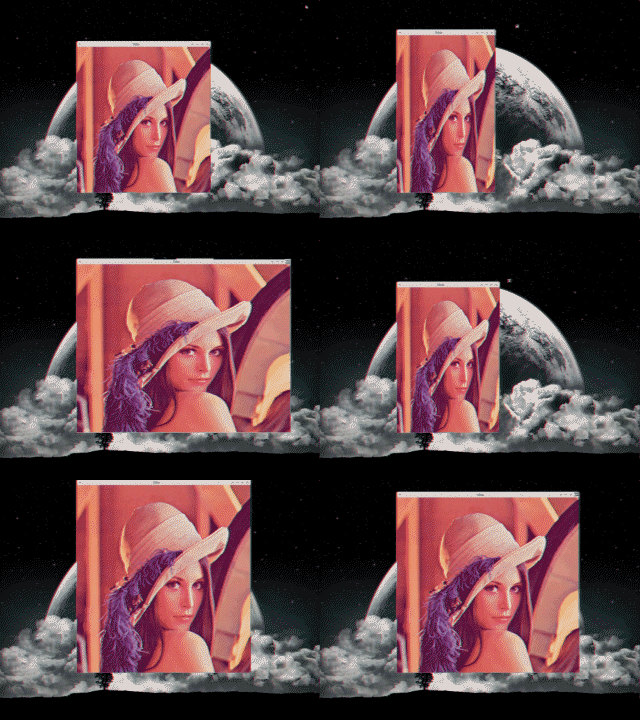
Method 2
I have modified the above code so it is not in a class
#!/usr/bin/python3.5

from tkinter import *
from tkinter import ttk
from PIL import Image, ImageTk

root = Tk()
root.title("Title")
root.geometry('600x600')

def resize_image(event):
    new_width = event.width
    new_height = event.height
    image = copy_of_image.resize((new_width, new_height))
    photo = ImageTk.PhotoImage(image)
    label.config(image = photo)
    label.image = photo #avoid garbage collection

image = Image.open('image.gif')
copy_of_image = image.copy()
photo = ImageTk.PhotoImage(image)
label = ttk.Label(root, image = photo)
label.bind('<Configure>', resize_image)
label.pack(fill=BOTH, expand = YES)

root.mainloop()
Method 3
Just sugesting a slight change in the answer. Using self.master.winfo_width(),self.master.winfo_height() instead of ‘event’ makes he adjustment to size much quicker.
import tkinter as tk
from PIL import Image, ImageTk
class Layout:
     def __init__(self,master):
       self.master = master
       self.rootgeometry()
       self.canvas = tk.Canvas(self.master)
       self.canvas.pack()
       self.background_image = Image.open('image_file.PNG')
       self.image_copy = self.background_image.copy()
       self.background = ImageTk.PhotoImage(self.background_image)
       self.loadbackground()

    def loadbackground(self):
       self.label = tk.Label(self.canvas, image = self.background)
       self.label.bind('<Configure>',self.resizeimage)
       self.label.pack(fill='both', expand='yes')


   def rootgeometry(self):
       x=int(self.master.winfo_screenwidth()*0.7)
       y=int(self.master.winfo_screenheight()*0.7)
       z = str(x) +'x'+str(y)
       self.master.geometry(z)

  def resizeimage(self,event):
       image = self.image_copy.resize((self.master.winfo_width(),self.master.winfo_height()))
       self.image1 = ImageTk.PhotoImage(image)
       self.label.config(image = self.image1)

root = tk.Tk()
a = Styling.Layout(root)
root.mainloop()
Method 4
i have created function for calling resize a single time with methods after et after cancel
    def on_resize(self, evt):

        if self.inter == 0:
            self.inter = 1
            self.minuteur = self.fenetrePrincipale.after(100, self.endResize)
        else:
            self.minuteur = self.fenetrePrincipale.after_cancel(self.minuteur)
            self.minuteur = self.fenetrePrincipale.after(100, self.endResize)

    def endResize(self):
        self.inter = 0
        self.fenetrePrincipale.background = self.fenetrePrincipale.background.resize((self.fenetrePrincipale.winfo_width(), self.fenetrePrincipale.winfo_height()))
        self.pixi = ImageTk.PhotoImage(self.fenetrePrincipale.background)
        self.canvas.configure(width=self.fenetrePrincipale.winfo_width(), height=self.fenetrePrincipale.winfo_height())
        self.canvas.create_image(0, 0, anchor=NW, image=self.pixi)
Here is the principle, after defines a timer and a function to be recalled at the end, after_cancel cleans the timer so each iteration of the function cleans the timer and starts it, at the last iteration of resize the timer remains triggered.
for more information on cancel and timer with after:
after detailled
All methods was sourced from stackoverflow.com or stackexchange.com, is licensed under cc by-sa 2.5, cc by-sa 3.0 and cc by-sa 4.0