There’s a pretty detailed set of instructions for how to take screenshots under debian online. The first paragraph suggests that debian supports an inbuilt screenshot facility:
"Print Screen" key to take a screenshot of the whole screen.
Alt+"Print Screen" key to take a screenshot of the current active window.
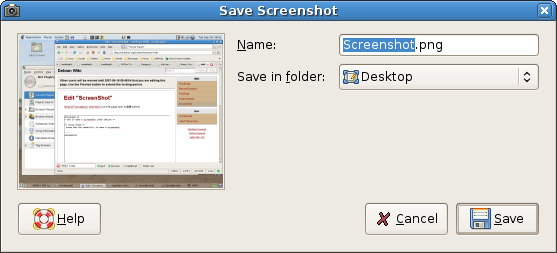
The instructions imply that when I press PrtScn I should see this popup.
However, I am running Debian Jessie and when I press PrtScn I just hear a camera shutter sound and don’t see a popup. I tried pasting into GIMP (edit->paste) but there was nothing on the clipboard.
The fact that I’m hearing the shutter sound suggests that something is happening, but how do I get a copy of the image?
Answers:
Thank you for visiting the Q&A section on Magenaut. Please note that all the answers may not help you solve the issue immediately. So please treat them as advisements. If you found the post helpful (or not), leave a comment & I’ll get back to you as soon as possible.
Method 1
GNOME has an in-built screenshot feature for quite some time. Screenshots are stored in $HOME/Pictures, there is no dialog or any confirmation. You just hear the camera click when pressing the screenshot shortcut. By default, the shortcuts are:
- PrtScn – capture whole screen
- Alt + PrtScn – capture the current window
- Shift + PrtScn – the cursor changes to crosshairs, now you can select the region to be captured.
- Ctrl + Shift + PrtScn – Same as above but save to clipboard.
Method 2
I would suggest installing the application shutter for taking screenshots. Should be in the repos for Debian. The main site for the app is here: http://shutter-project.org/.
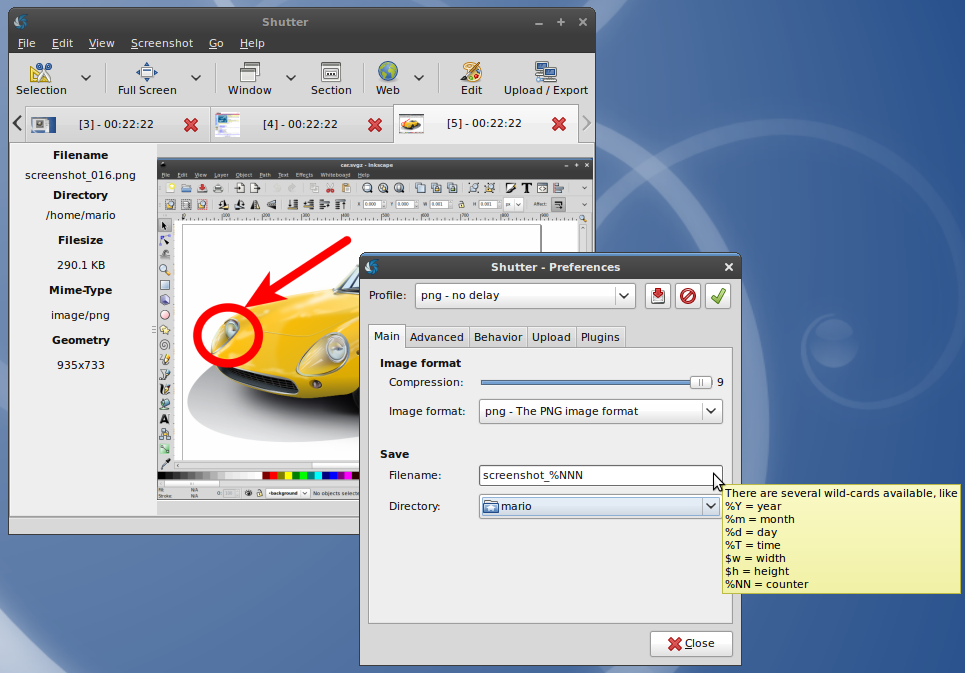
It allows you to configure the PrtScr button so that it captures the screen within Shutter, rather than use GNOME’s method for capturing. It also allows you to capture regions, whole windows, the entire desktop, right click dialogs etc. It also allows for annotating images by adding arrows, circles, blurring out text etc.
I use it every day and it’s by far the best screen capturing tool I’ve found in my many years of using Linux. Take a look at the screenshot gallery on the project’s website along with the various screencasts showing it in action:
Making it the default for PrtScr
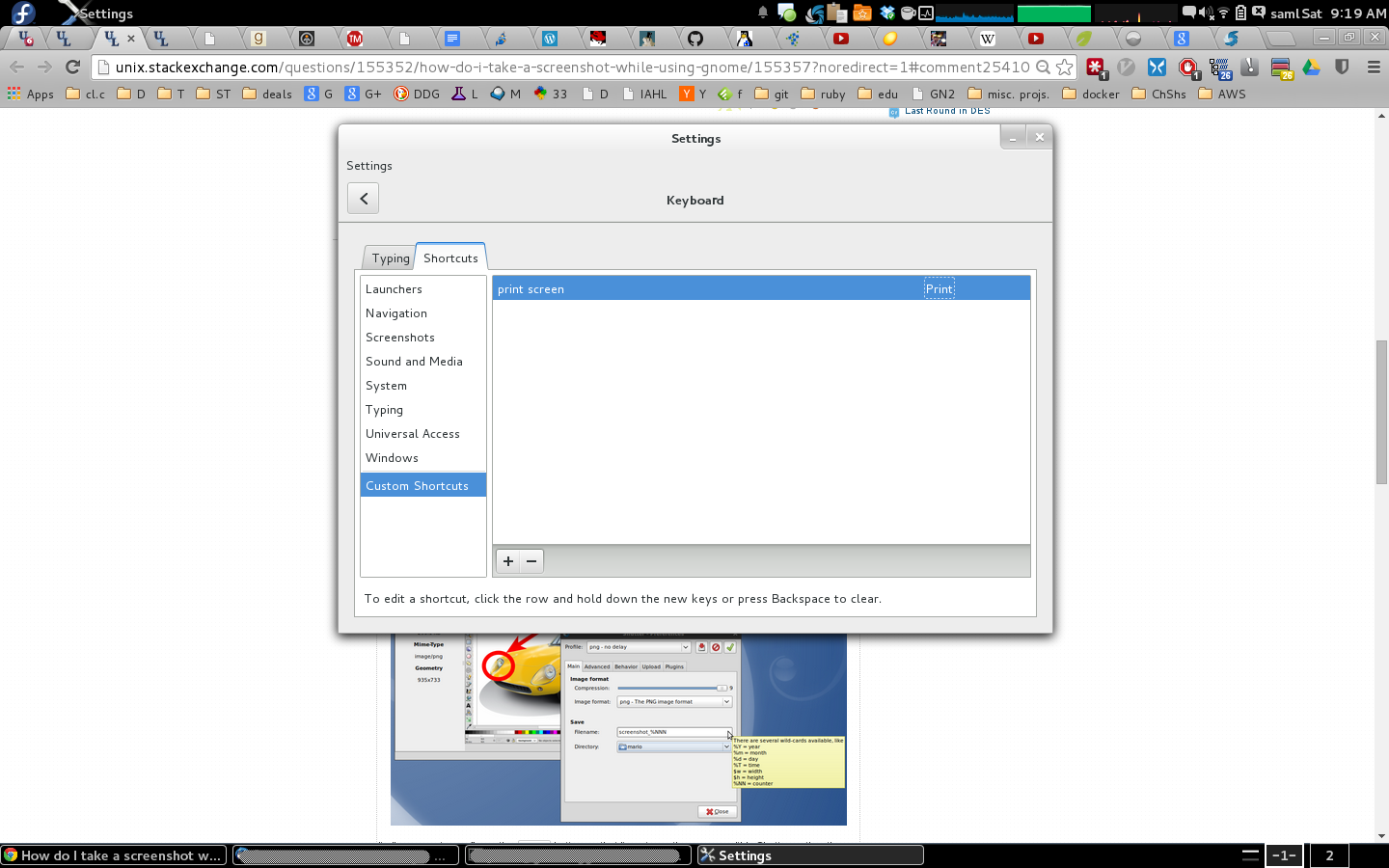
If you’d like to make this change you can do so under GNOME’s Settings dialog, specifically the Keyboard applet’s Shortcut’s tab.
$ gnome-control-center
Will get you to the Settings dialog. From there click on the Keyboard applet, then the Shortcut tab. From here you’ll notice one of the choices on the left, it should say Screenshots.
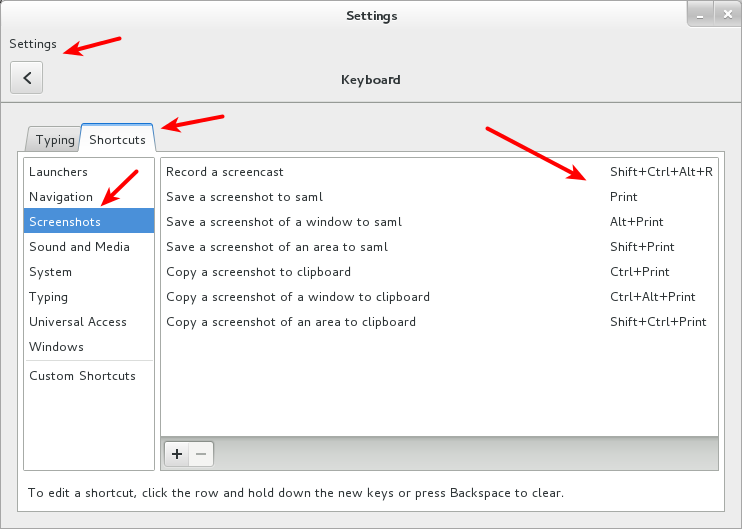
From here you can see what keyboard shortcuts are present on your system, and Shutter can act as a drop in replacement for them by grabbing the full screen, active window, region, etc. But to override them you’ll have to add entries under the Custom Shortcuts like so:
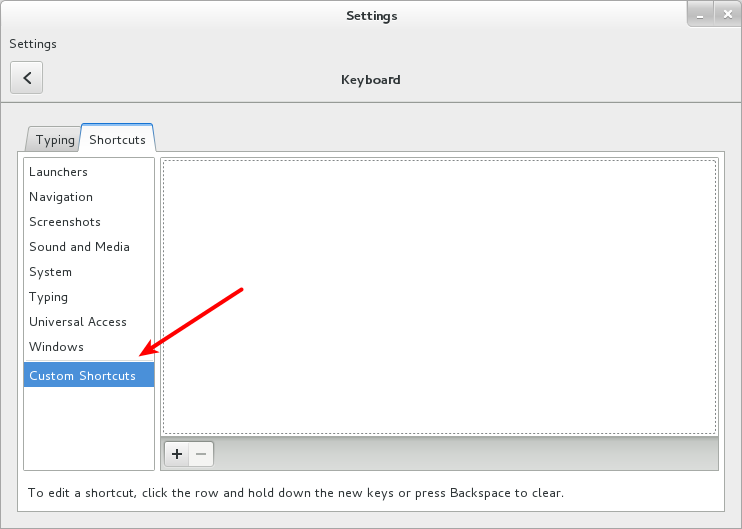
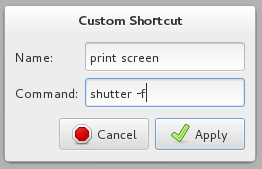
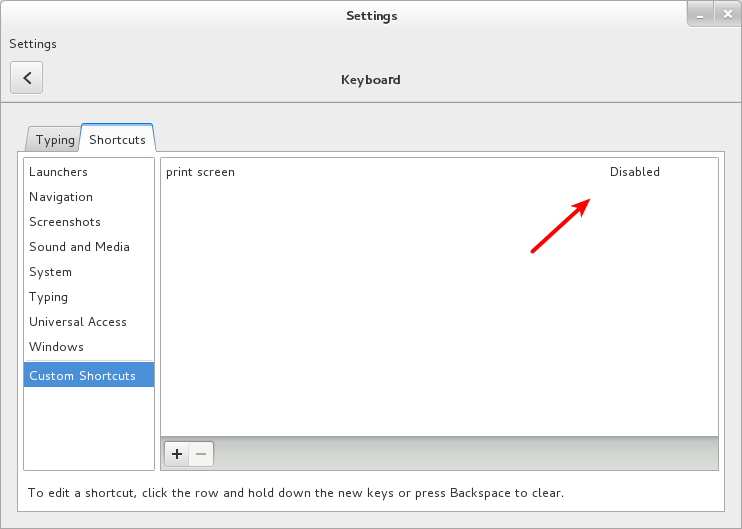
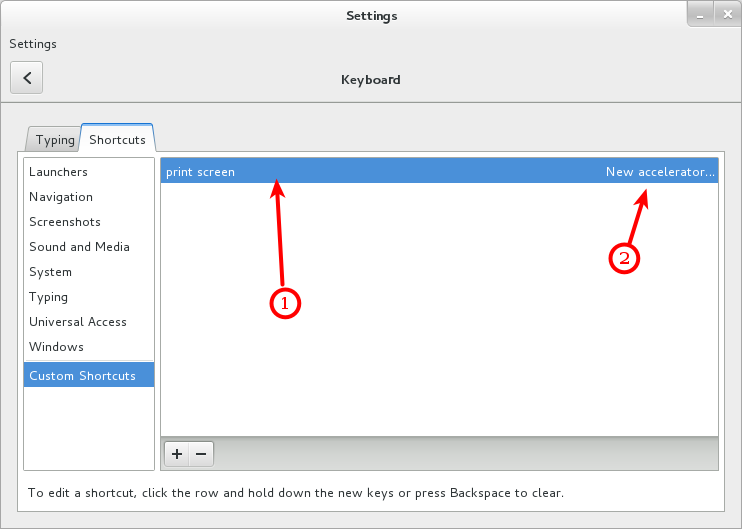
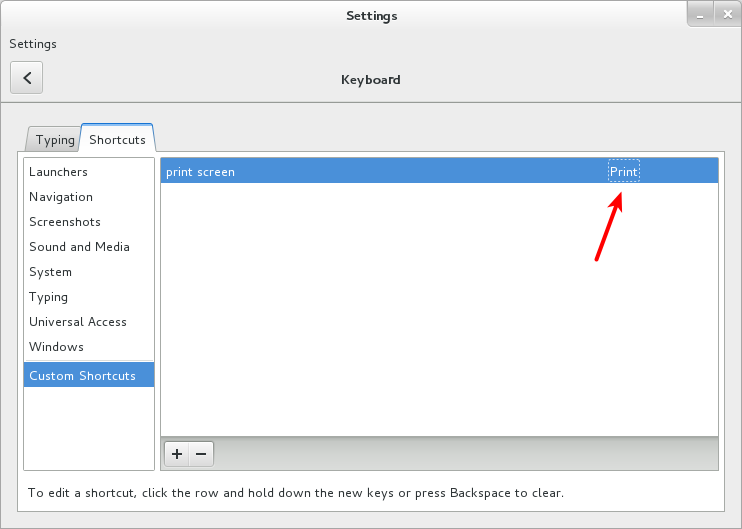
Shutter can be called via command line to do the screen shooting so simply changing the action when one of the buttons is pressed, to the corresponding shutter command, to map other types of actions. From shutter‘s usage page:
$ shutter --help
Usage:
    shutter [options]

...

  Capture Mode Options:
    -s, --select=[X,Y,WIDTH,HEIGHT]
            Capture an area of the screen. Providing X,Y,WIDTH,HEIGHT is
            optional.

    -f, --full
            Capture the entire screen.

    -w, --window=[NAME_PATTERN]
            Select a window to capture. Providing a NAME_PATTERN (Perl-style
            regex) ist optional.

    -a, --active
            Capture the current active window.

    --section
            Capture a section. You will be able to select any child window
            by moving the mouse over it.

    -m, --menu
            Capture a menu.

    -t, --tooltip
            Capture a tooltip.

    --web=[URL]
            Capture a webpage. Providing an URL ist optional.

    -r, --redo
            Redo last screenshot.

...
So with that mapping in place you can now hit the PrtScr button and get a full screen grab like so:
Method 3
The screenshot recipe you are asking about uses the gnome-utils package. However, as you can check, the last Debian release that included that package was squeeze.
Since the functionality you describe uses gnome-utils, and since that package is no longer in Debian, it is not surprising the method does not work.
Additionally you can check the info tab of https://wiki.debian.org/ScreenShots, and you’ll see the image from there that you include in your question was added in 2007.
Summary: I recommend you use another method to obtain a screenshot. There are many such methods.
Method 4
As of 2017 (I’m using openSUSE Leap 42.2 with GNOME 3.20), there are two ways of taking screenshots while using GNOME:
- One of them is using keyboard shortcuts, well documented by the @Skyr’s answer
- The other is using the GNOME Screenshot app, as documented at GNOME Help:
- Open Screenshot from the Activities overview.
- In the Screenshot window, select whether to grab the whole screen, the current window, or an area of the screen. Set a delay if you need to select a window or otherwise set up your desktop for the screenshot. Then choose any effects you want.
- Click Take Screenshot.
If you selected Select area to grab, the pointer changes into a crosshair. Click and drag the area you want for the screenshot.
- In the Save Screenshot window, enter a file name and choose a folder, then click Save.https://en.wikipedia.org/wiki/Screenshot
Alternatively, import the screenshot directly into an image-editing application without saving it first. Click Copy to Clipboard then paste the image in the other application, or drag the screenshot thumbnail to the application.
According to Wikipedia:
GNOME Screenshot is a utility used in the GNOME desktop environment for taking screenshots. It was part of the GNOME Utilities (gnome-utils) package, but was split into its own package[3] for the 3.3.1 version in 2011.[4]
I can confirm that on openSUSE: my system has a package called gnome-screenshot installed. I didn’t have to install it manually, maybe it already comes with GNOME on openSUSE.
Debian and Ubuntu also have packages called gnome-screenshot.
Method 5
Although GNOME may not be able to take screenshots in its native way, there is a huge chance it has GIMP installed. It is even available in Tails.
GIMP is able to take screenshots of an entire screen or distinct windows.
Open GIMP, File > Create > Screenshot.
Method 6
It might happen that gnome is not installed on your machine, if you are receiving messages as “GNOME SCREENSHOT” is not working, then in that case please install gnome using the following command:
sudo yum install gnome-utils -y
Method 7
I had the same problem understanding it.
It is only when you actually open the program and manually click on the button to take the screenshot that you get the window you are showing.
When you just press PrtScr, you do get the screenshot but you have to know where to look for it. I’m using a Raspberry Pi with Raspbian OS, so I have to go to /home/pi to get my images and then drag them to the folder i want. You could also try to look for them in your Images folder.
All methods was sourced from stackoverflow.com or stackexchange.com, is licensed under cc by-sa 2.5, cc by-sa 3.0 and cc by-sa 4.0