Ok i installed vnc server on RHEL 5.9 and also installed Tightvnc viewer on windows 7 and from RHEL i started vncserver and assigned the password using vncpasswd.
Then from tightvnc viewer i gave the IP and listening port xxx.xxx.xxx.xxx:1. It successfully connected with VNC server installed and running on RHEL. And then I gave the password and then BOOOM it gave me this hideous interface
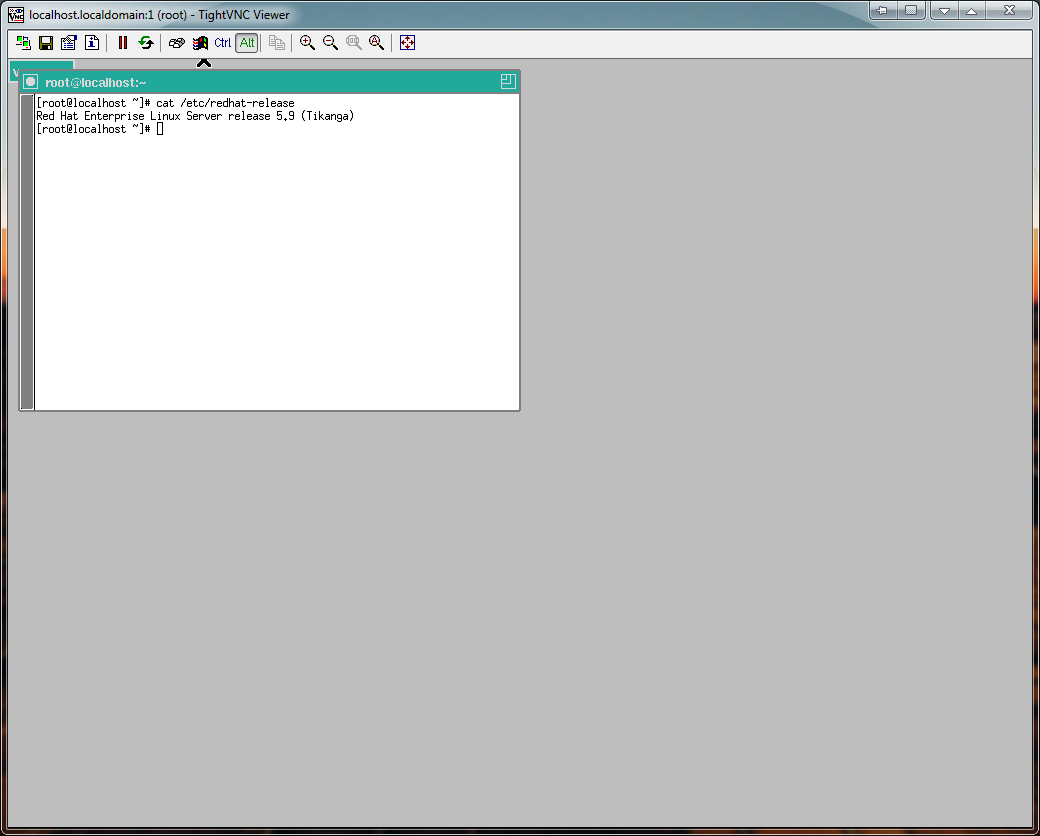
When Actual Desktop is like this
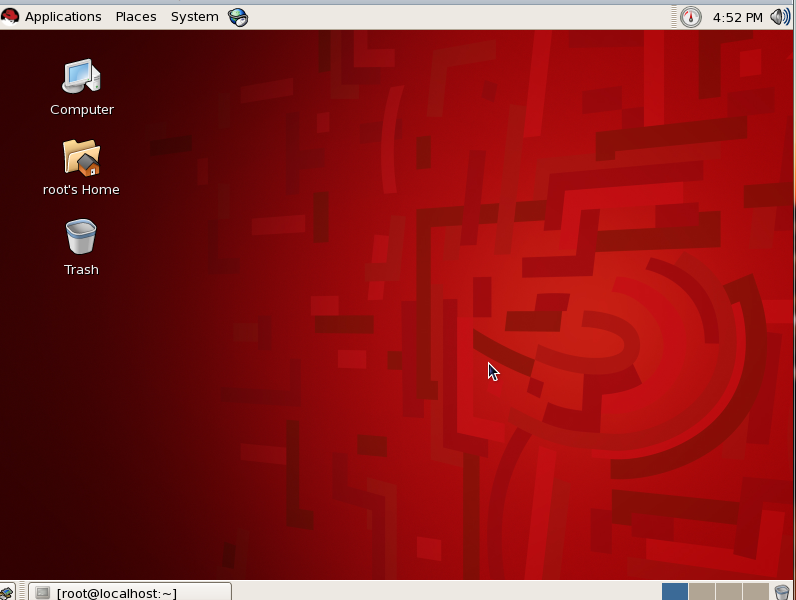
Ok people tell me what Im missing
Answers:
Thank you for visiting the Q&A section on Magenaut. Please note that all the answers may not help you solve the issue immediately. So please treat them as advisements. If you found the post helpful (or not), leave a comment & I’ll get back to you as soon as possible.
Method 1
What you see probably is the X11 session defined in ~/.vnc/xstartup, a minimal X11 session, maybe something like (this is how it looks like on Debian)
#!/bin/sh
[ -x /etc/vnc/xstartup ] && exec /etc/vnc/xstartup
[ -r $HOME/.Xresources ] && xrdb $HOME/.Xresources
xsetroot -solid grey
vncconfig -iconic &
x-terminal-emulator -geometry 80x24+10+10 -ls -title "$VNCDESKTOP Desktop" &
x-window-manager &
on another display, probably :1.
There’re two things you can do:
- To access a different desktop that looks the same, you have to start it in this
xstartupfile, e.g.
withexec gnome-sessionor something similar, have a look for
documentation onxinitrcorxsession[rc]) - To access the same desktop session, you need a different VNC server.
x11vnccan do desktop sharing; in your GNOME environment, Vino is probably the preferable choice (as Ignacio pointed out)
Method 2
vncserver doesn’t connect to the actual desktop; it creates a virtual desktop that is configured separately. If you want to access the actual desktop then you need to use either the VNC X extension or Vino.
Method 3
Please uncomment following two lines in xstartup file under ~/.vnc/xstartup:
Before:
#unset SESSION_MANAGER
#exec /etc/X11/xinit/xinitrc

[ -x /etc/vnc/xstartup ] && exec /etc/vnc/xstartup
[ -r $HOME/.Xresources ] && xrdb $HOME/.Xresources
xsetroot -solid grey
vncconfig -iconic &
xterm -geometry 80x24+10+10 -ls -title "$VNCDESKTOP Desktop" &
twm &
After:
unset SESSION_MANAGER
exec /etc/X11/xinit/xinitrc

[ -x /etc/vnc/xstartup ] && exec /etc/vnc/xstartup
[ -r $HOME/.Xresources ] && xrdb $HOME/.Xresources
xsetroot -solid grey
vncconfig -iconic &
xterm -geometry 80x24+10+10 -ls -title "$VNCDESKTOP Desktop" &
twm &
Method 4
I faced the same issue on solaris 11 and after a little search I found out the gnome desktop is not even installed. So I installed it using:
pkg install --accept solaris-desktop
Then killed the running vnc-server:
vncserver -kill :1
and after running vnc again using this command
vncserver -kill :1
I was able to see the real desktop using vnc-viewer.
Method 5
#!/bin/sh
[ -x /etc/vnc/xstartup ] && exec /etc/vnc/xstartup
[ -r $HOME/.Xresources ] && xrdb $HOME/.Xresources
xsetroot -solid grey
vncconfig -iconic &
x-terminal-emulator -geometry 80x24+10+10 -ls -title "$VNCDESKTOP Desktop" &
gnome-session &
Add gnome-session & at the end of the xstartup file
All methods was sourced from stackoverflow.com or stackexchange.com, is licensed under cc by-sa 2.5, cc by-sa 3.0 and cc by-sa 4.0