I’m having trouble getting command line arguments passed to Python programs if I try to execute them directly as executable commands from a Windows command shell. For example, if I have this program (test.py):
import sys
print "Args: %r" % sys.argv[1:]
And execute:
>test foo
Args: []
as compared to:
>python test.py foo
Args: ['foo']
My configuration has:
PATH=...;C:python25;...
PATHEXT=...;.PY;....

>assoc .py
.py=Python.File

>ftype | grep Python
Python.CompiledFile="C:Python25python.exe" "%1" %*
Python.File="C:Python25python.exe" "%1" %*
Python.NoConFile="C:Python25pythonw.exe" "%1" %*
Answers:
Thank you for visiting the Q&A section on Magenaut. Please note that all the answers may not help you solve the issue immediately. So please treat them as advisements. If you found the post helpful (or not), leave a comment & I’ll get back to you as soon as possible.
Method 1
I think I solved this. For some reason there is a SECOND place in the registry (besides that shown by the file associations stored in HKEY_CLASSES_ROOTPython.Fileshellopencommand):
[HKEY_CLASSES_ROOTApplicationspython.exeshellopencommand]
@=""C:\Python25\python.exe" "%1" %*"
This seems to be the controlling setting on my system. The registry setting above adds the “%*” to pass all arguments to python.exe (it was missing in my registry for some reason).
Method 2
My setting was under yet another registry key, HKEY_CLASSES_ROOTpy_auto_file. The other keys mentioned also existed, but Windows was using this one for some reason.
Method 3
For Python 3.3 on Windows 7, my setting was under another registry key; the key I changed to make the arguments get passed was
HKEY_USERSS-1-5-21-3922133726-554333396-2662258059-1000_Classespy_auto_fileshellopencommand
It was "C:PythonPython33python.exe" "%1". I only appended %* to it. The key’s value is now "C:PythonPython33python.exe" "%1" %*.
I had several (at least five) other keys with the value "C:PythonPython33python.exe" "%1", but this is the one I changed that made it work.
Method 4
Here are .reg files to fix for Python 3.6, 2.7 and Anaconda3:
python-3.6.0.reg
Windows Registry Editor Version 5.00

[HKEY_CLASSES_ROOT.py]
@="Python.File"
"Content Type"="text/plain"

[HKEY_CLASSES_ROOT.pyc]
@="Python.CompiledFile"
"Content Type"="text/plain"

[HKEY_CLASSES_ROOT.pyw]
@="Python.NoConFile"
"Content Type"="text/plain"


[HKEY_CLASSES_ROOTpy_auto_file]

[HKEY_CLASSES_ROOTpy_auto_fileDefaultIcon]
@="C:\Python36\DLLs\py.ico"

[HKEY_CLASSES_ROOTpy_auto_fileshellopencommand]
@=""C:\Python36\python.exe" "%1" %*"


[HKEY_CLASSES_ROOTPython.File]
@="Python File"

[HKEY_CLASSES_ROOTPython.FileDefaultIcon]
@="C:\Python36\DLLs\py.ico"

[HKEY_CLASSES_ROOTPython.Fileshellopencommand]
@=""C:\Python36\python.exe" "%1" %*"


[HKEY_CLASSES_ROOTPython.CompiledFile]
@="Compiled Python File"

[HKEY_CLASSES_ROOTPython.CompiledFileDefaultIcon]
@="C:\Python36\DLLs\pyc.ico"

[HKEY_CLASSES_ROOTPython.CompiledFileshellopencommand]
@=""C:\Python36\python.exe" "%1" %*"


[HKEY_CLASSES_ROOTPython.NoConFile]
@="Python File (no console)"

[HKEY_CLASSES_ROOTPython.NoConFileDefaultIcon]
@="C:\Python36\DLLs\py.ico"

[HKEY_CLASSES_ROOTPython.NoConFileshellopencommand]
@=""C:\Python36\python.exe" "%1" %*"
python-2.7.0.reg
Windows Registry Editor Version 5.00

[HKEY_CLASSES_ROOT.py]
@="Python.File"
"Content Type"="text/plain"

[HKEY_CLASSES_ROOT.pyc]
@="Python.CompiledFile"
"Content Type"="text/plain"

[HKEY_CLASSES_ROOT.pyw]
@="Python.NoConFile"
"Content Type"="text/plain"


[HKEY_CLASSES_ROOTpy_auto_file]

[HKEY_CLASSES_ROOTpy_auto_fileDefaultIcon]
@="C:\Python27\DLLs\py.ico"

[HKEY_CLASSES_ROOTpy_auto_fileshellopencommand]
@=""C:\Python27\python.exe" "%1" %*"


[HKEY_CLASSES_ROOTPython.File]
@="Python File"

[HKEY_CLASSES_ROOTPython.FileDefaultIcon]
@="C:\Python27\DLLs\py.ico"

[HKEY_CLASSES_ROOTPython.Fileshellopencommand]
@=""C:\Python27\python.exe" "%1" %*"


[HKEY_CLASSES_ROOTPython.CompiledFile]
@="Compiled Python File"

[HKEY_CLASSES_ROOTPython.CompiledFileDefaultIcon]
@="C:\Python27\DLLs\pyc.ico"

[HKEY_CLASSES_ROOTPython.CompiledFileshellopencommand]
@=""C:\Python27\python.exe" "%1" %*"


[HKEY_CLASSES_ROOTPython.NoConFile]
@="Python File (no console)"

[HKEY_CLASSES_ROOTPython.NoConFileDefaultIcon]
@="C:\Python27\DLLs\py.ico"

[HKEY_CLASSES_ROOTPython.NoConFileshellopencommand]
@=""C:\Python27\python.exe" "%1" %*"
ananconda3.reg (change username)
Windows Registry Editor Version 5.00

[HKEY_CLASSES_ROOT.py]
@="Python.File"
"Content Type"="text/plain"

[HKEY_CLASSES_ROOT.pyc]
@="Python.CompiledFile"
"Content Type"="text/plain"

[HKEY_CLASSES_ROOT.pyw]
@="Python.NoConFile"
"Content Type"="text/plain"


[HKEY_CLASSES_ROOTpy_auto_file]

[HKEY_CLASSES_ROOTpy_auto_fileDefaultIcon]
@="C:\Users\username\Anaconda3\DLLs\py.ico"

[HKEY_CLASSES_ROOTpy_auto_fileshellopencommand]
@=""C:\Users\username\Anaconda3\python.exe" "%1" %*"


[HKEY_CLASSES_ROOTPython.File]
@="Python File"

[HKEY_CLASSES_ROOTPython.FileDefaultIcon]
@="C:\Users\username\Anaconda3\DLLs\py.ico"

[HKEY_CLASSES_ROOTPython.Fileshellopencommand]
@=""C:\Users\username\Anaconda3\python.exe" "%1" %*"


[HKEY_CLASSES_ROOTPython.CompiledFile]
@="Compiled Python File"

[HKEY_CLASSES_ROOTPython.CompiledFileDefaultIcon]
@="C:\Users\username\Anaconda3\DLLs\pyc.ico"

[HKEY_CLASSES_ROOTPython.CompiledFileshellopencommand]
@=""C:\Users\username\Anaconda3\python.exe" "%1" %*"


[HKEY_CLASSES_ROOTPython.NoConFile]
@="Python File (no console)"

[HKEY_CLASSES_ROOTPython.NoConFileDefaultIcon]
@="C:\Users\username\Anaconda3\DLLs\py.ico"

[HKEY_CLASSES_ROOTPython.NoConFileshellopencommand]
@=""C:\Users\username\Anaconda3\python.exe" "%1" %*"
Method 5
To make it working for me, I had to use the registry path:
HKEY_CLASSES_ROOTpy_auto_fileshellopencommand
and added a %*
Method 6
If fixed this on my Windows 10 system by editing the following registry keys:
ComputerHKEY_CLASSES_ROOTpy_auto_fileshellopencommand
ComputerHKEY_CLASSES_ROOTPython.FileShellOpenCommand
ComputerHKEY_CLASSES_ROOTApplicationspython.exeshellopencommand
to this value:
"C:Python27python.exe" "%1" %*
Method 7
A lot of thanks for the most of other answers for helping me to find the solution!
My case was to open .py-files with py.exe (not python.exe directly), this case it noted in a couple of comments, but I decided to post this as a separate answer to emphasize the difference.
So I have my .py-files associated with C:Windowspy.exe and in C:Windowspy.ini config I have a couple of shebang definitions
[commands]
<my_venv_py> = C:Programsmy_venv_pyScriptspython.exe
<my_venv_py_w> = C:Programsmy_venv_pyScriptspythonw.exe
to use in my scripts like this #!<MY_VENV_PY>.
And on Microsoft Windows 7 [Version 6.1.7601] my python script did NOT received the args like this
script.py 1 2
but this worked fine
py script.py 1 2
File associations were OK
> assoc .py
.py=Python.File

> ftype | grep Python
File STDIN:
Python.CompiledFile="C:Windowspy.exe" "%1" %*
Python.File=C:Windowspy.exe "%L" %*
Python.NoConFile="C:Windowspyw.exe" "%1" %*
I’ve tried much of registry changes, but the last helped was the following change (saved to a .reg-file and run). I’ve found this registry key searching "%1" string with initial value "C:Windowspy.exe" "%1" and added %* in the end as other answers note:
Windows Registry Editor Version 5.00

[HKEY_CLASSES_ROOTApplicationspy.exeshellopencommand]
@=""C:\Windows\py.exe" "%1" %*"
For information, before I tried to setup these keys and values and did not helped (at least before the noted above):
Windows Registry Editor Version 5.00

[HKEY_CLASSES_ROOT.py]
@="Python.File"
[HKEY_CURRENT_USERSoftwareClasses.py]
@="Python.File"
[HKEY_LOCAL_MACHINESOFTWAREClasses.py]
@="Python.File"
[HKEY_CURRENT_USERSoftwareMicrosoftWindowsCurrentVersionExplorerFileExts.py]
@="Python.File"

[HKEY_CLASSES_ROOTpy_auto_file]
@="Python File"
[HKEY_CLASSES_ROOTpy_auto_fileshellopencommand]
@=""C:\Windows\py.exe" "%1" %*"

[HKEY_CLASSES_ROOTPython.File]
@="Python File"
[HKEY_CLASSES_ROOTPython.FileShellOpencommand]
@=""C:\Windows\py.exe" "%1" %*"
Method 8
Had to modify this in Windows 10 to get it to work (%* at the end)
ComputerHKEY_USERSS-1-5-21-2364940108-955964078-1358188674-1001SoftwareClassesApplicationspy.exeshellopencommand
Method 9
Interesting. Works here using python 2.6 and Windows XP (5.1.2600):
C:Documents and Settingshbrown>python test.py foo
['test.py', 'foo']

C:Documents and Settingshbrown>test.py foo
['C:\Documents and Settings\hbrown\test.py', 'foo']

C:Documents and Settingshbrown>test foo
['C:\Documents and Settings\hbrown\test.py', 'foo']

C:Documents and Settingshbrown>type test.py
import sys
print sys.argv

C:Documents and Settingshbrown>echo %PATHEXT%
.COM;.EXE;.BAT;.CMD;.VBS;.VBE;.JS;.JSE;.WSF;.WSH;.PY

C:Documents and Settingshbrown>assoc .py
.py=Python.File
Method 10
Your program associations for .py files might be messed up. Just re-associate .py files with your python executable.
Right click a .py file > Open with > Choose default program ... > [find C:PythonXYpython.exe]
Method 11
I checked all registry keys with python.exe and py_auto_file and made them point to my current python installation including th %* at the end that passes arguments. They were quite a few:
- HKEY_CLASSES_ROOTApplicationspython.exeshellopencommand:
- org: “C:miniconda3python.exe” “%1” “%*”
- changed: “C:Python35python.exe” “%1” “%*”
- HKEY_CLASSES_ROOTpy_auto_fileshellopencommand
- org: “C:Program FilesSublime Text 3sublime_text.exe” “%1”
- changed: “C:Python35python.exe” “%1” “%*”
- HKEY_CURRENT_USERSoftwareClassespy_auto_fileshellopencommand
- org: “C:Python35python.exe” “%1” “%*”
- HKEY_USERSS-1-5-21-2621213409-1291422344-4183577876-2165SoftwareClassespy_auto_fileshellopencommand
- org: “C:Python35python.exe” “%1” “%*”
- HKEY_USERSS-1-5-21-2621213409-1291422344-4183577876-2165_Classespy_auto_fileshellopencommand
- org: “C:Python35python.exe” “%1” “%*”
- HKEY_CLASSES_ROOTApplicationspythonw.exeshellopencommand
- org: “C:Python34pythonw.exe” “%1”
- changed: “C:Python35pythonw.exe” “%1” “%*”
- HKEY_CURRENT_USERSoftwareClassesApplicationspython.exeshellopencommand
- org: “C:Python35python.exe” “%1” “%*”
But that didn’t do the job for me. I had to change my default python application as well.
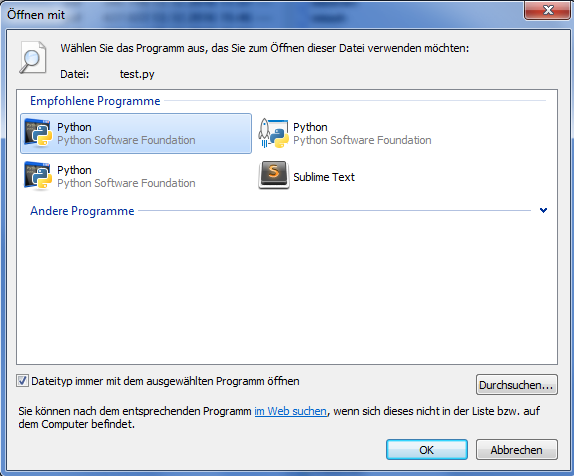
As one can see I have 3 Python versions installed. It is impossible to see which is which here so I tried all three of them as my default python application. Eventually I was able to get my script arguments with one of these three.
Method 12
By looking through the Windows registry, I found all the places where anything like
Python36pythonw.exe "%1" %* appears.
When I type python app.py args at the command prompt, everything works properly.
When I use just the app name (app.py args) Windows opens app.py in Python, but the app fails when it tries to access argv[1], because len(argv) is 1.
Apparently Windows knows enough to pass a py file to Python, but I can’t figure out from looking at registry entries how it constructs the command. It appears to be using "%1" rather than "%1" %*.
All methods was sourced from stackoverflow.com or stackexchange.com, is licensed under cc by-sa 2.5, cc by-sa 3.0 and cc by-sa 4.0