I need to create a virtual output in PulseAudio so as to be able to capture and stream audio from a specific source.
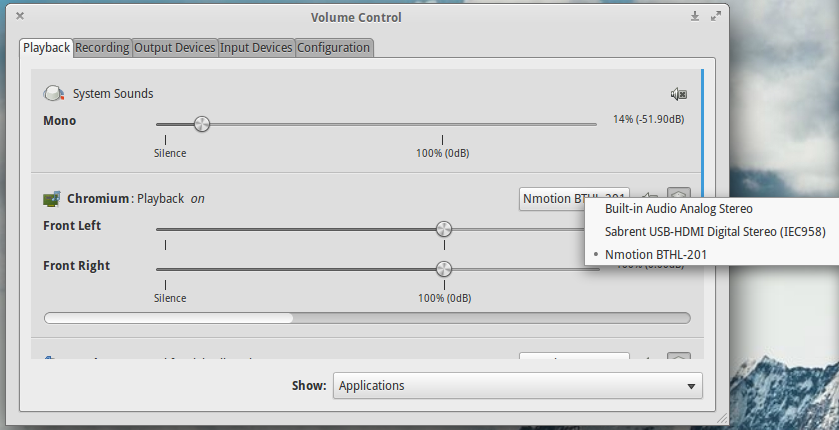
I know that it’s possible to re-route a specific application’s output to a given output device like so, using pavucontrol:
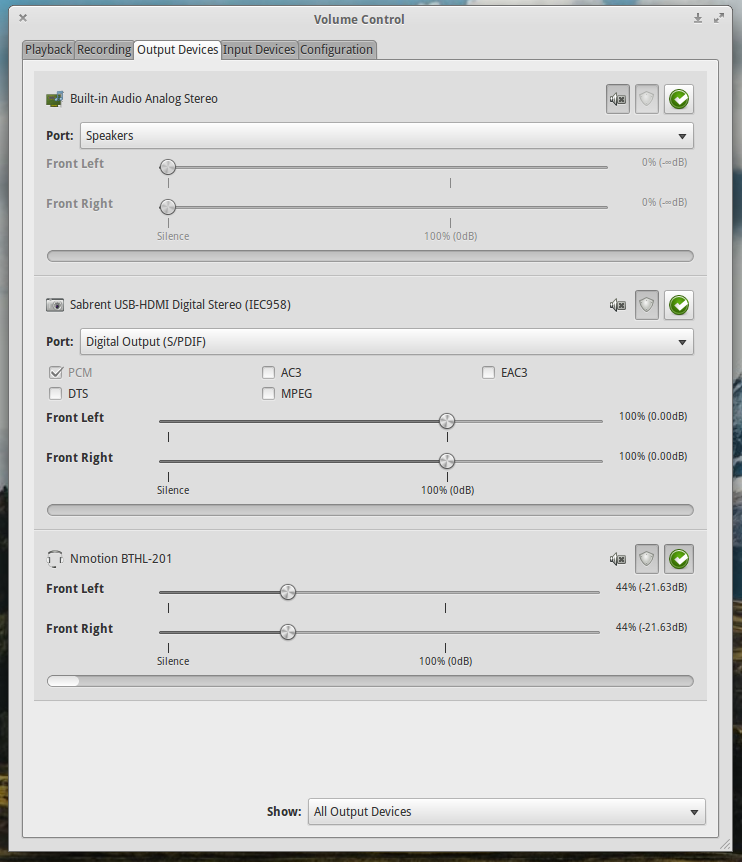
I’m looking to add another virtual output to the “Output Devices”:
Is this possible, and if so, how can I do it?
Answers:
Thank you for visiting the Q&A section on Magenaut. Please note that all the answers may not help you solve the issue immediately. So please treat them as advisements. If you found the post helpful (or not), leave a comment & I’ll get back to you as soon as possible.
Method 1
You can add a sink with
pacmd load-module module-null-sink sink_name=MySink
pacmd update-sink-proplist MySink device.description=MySink
You can add a loopback device with the command
pacmd load-module module-loopback sink=MySink
Method 2
sudo modprobe snd_aloop
Adds a loopback device to ALSA, which appears in the PulseAudio Volume Control. Redirect your stream there, and presto!
Not sure how to add multiple loopback devices.
Method 3
A little complement to @mxc’s answer, as he said you can use the module-null-sink as a virtual output with:
pacmd load-module module-null-sink sink_name=MySink
This creates a new sink (“virtual output”) that you can use for your application. For every sink you create, pulseaudio will also create a monitor source, so in addition to your MySink output device, you will have a MySink.monitor input device that you can use to capture what is sent to your virtual output.
This way it is easy to capture, restream or record the audio an application outputs.
This is a pure Pulseaudio solution and doesn’t require Alsa, so it will also work with a different backend than Alsa for Pulseaudio.
Method 4
I never could get snd_aloop to work on my systems. Furthermore using ffmpeg -f pulse -i alsa_output.pci-0000_00_1f.3.analog-stereo.monitor etc. caused there to be a 1-2 second lag in the system audio recording. The answer by mxc helped me to find my solution, but I wanted to add a little bit of information.
I first needed to set my Pulse Monitor of Built-in Audio to default. Then I ran the commands listed above. I wanted this to be the default on my profile every time so I created ~/.config/pulse/default.pa and added the following lines:
.include /etc/pulse/default.pa

set-default-source alsa_output.pci-0000_00_1f.3.analog-stereo.monitor
load-module module-null-sink sink_name=MySink
update-sink-proplist MySink device.description=MySink
load-module module-loopback sink=MySink
The first line includes the system-wide PulseAudio settings. Then the last four lines are prioritized for the user over any system settings. Of course any of the last four lines can be run in the terminal when preceded by pacmd.
To get the name of your Pulse Monitor of Built-in Audio device run:
pacmd list-sources | awk '/index:/ {print $0}; /name:/ {print $0}; /device.description/ {print $0}'
Method 5
Besides creating the sink, most applications filter out monitor sources. To be able to pick the source directly for example in Google Meet, the module-remap-source helps.
# create sink
pactl load-module module-null-sink sink_name=virtmic
    sink_properties=device.description=Virtual_Microphone_Sink
# remap the monitor to a new source
pactl load-module module-remap-source
    master=virtmic.monitor source_name=virtmic
    source_properties=device.description=Virtual_Microphone
(found this from https://aweirdimagination.net/2020/07/19/virtual-microphone-using-gstreamer-and-pulseaudio/)
Another possibility is to create a file ~/.config/pulse/default.pa
with content:
.include /etc/pulse/default.pa

load-module module-null-sink sink_name=virtmic sink_properties=device.description=Virtual_Microphone_Sink
load-module module-remap-source master=virtmic.monitor source_name=virtmic source_properties=device.description=Virtual_Microphone
run pulseaudio -k to reload the configuration
You can use pavucontrol to route the audio from any application (like Spotify) to the virtual microphone sink.
All methods was sourced from stackoverflow.com or stackexchange.com, is licensed under cc by-sa 2.5, cc by-sa 3.0 and cc by-sa 4.0