I have a VM webserver setup and I have installed and started Apache. The VM has a bridged network interface and can be pinged from the host using 192.168.0.2.
However, if I type that same IP address into the browser on the host machine, I was expecting to see the default apache page generated on the VM, but instead, I get can't connect to 192.168.0.2 in the host machines browser.
I’ve clearly missed something out. Anyone know what I have missed or done wrong?
Output from VM netstat -tnlp
tcp     0     0 0.0.0.0:22        0.0.0.0:*     LISTEN     950/sshd
tcp     0     0 127.0.0.1:25      0.0.0.0:*     LISTEN    1026/master
tcp     0     0 :::22                  :::*     LISTEN     904/sshd
tcp     0     0 ::1:25                 :::*     LISTEN     980/master
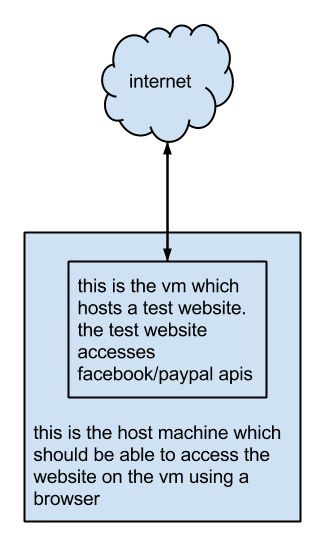
Rough drawing of what I’m thinking the network activity/connectivity would look like.
Answers:
Thank you for visiting the Q&A section on Magenaut. Please note that all the answers may not help you solve the issue immediately. So please treat them as advisements. If you found the post helpful (or not), leave a comment & I’ll get back to you as soon as possible.
Method 1
Issue #1 – VM networking types
There are 3 modes of networking:
- NAT
- Host Only
- Bridged
Details on setting them up
- This AU Q&A titled: “In VirtualBox, how do I set up host-only virtual machines that can access the Internet?“, shows how to do #2.
- This article titled: “How to Setup VirtualBox Guest Additions and Network“, shows how to do #3.
When to use each?
- #1: For development of Facebook/web apps that are on other servers
- #2: If you want to build your own app, and test it from the VirtualBox host (not just the guest VM)
- #3: If you want to build an app and test it from other systems on LAN
Issue #2 – firewall blocking?
Depending on which distro you’re using, the firewall might be blocking your web browser from accessing your Apache instance. This would make sense given you’re able to ping the system, but not access it via port 80, which is the port that Apache is listening on.
temporarily disabling it
On CentOS you use this command to disable it.
$ /etc/init.d/iptables stop
check that Apache’s listening
You can also confirm that it’s listening on this port.
$ netstat -antp | grep :80 | head -1 | column -t
tcp  0  0  :::80  :::*  LISTEN  3790/httpd
confirm firewall’s off
The firewall can be confirmed that it’s wide open.
$ iptables -L
Chain INPUT (policy ACCEPT)
target     prot opt source               destination

Chain FORWARD (policy ACCEPT)
target     prot opt source               destination

Chain OUTPUT (policy ACCEPT)
target     prot opt source               destination
If this solves your issue then you can permanently add a rule that allows traffic in via TCP port 80.
adding a rule for TCP port 80
$ /etc/init.d/iptables restart
$ iptables -A INPUT -p tcp -m tcp --dport 80 -j ACCEPT
$ /etc/init.d/iptables save
NOTE: This will make the rule persist between reboots.
firewall is accepting TCP port 80
A system that has the port 80 open would look something like this:
$ iptables -L
Chain INPUT (policy ACCEPT)
target     prot opt source               destination
ACCEPT     all  --  anywhere             anywhere            state RELATED,ESTABLISHED
ACCEPT     icmp --  anywhere             anywhere
ACCEPT     all  --  anywhere             anywhere
ACCEPT     all  --  anywhere             anywhere
ACCEPT     tcp  --  anywhere             anywhere            state NEW tcp dpt:ssh
ACCEPT     tcp  --  anywhere             anywhere            state NEW tcp dpt:http
ACCEPT     tcp  --  anywhere             anywhere            state NEW tcp dpt:https
ACCEPT     tcp  --  anywhere             anywhere            state NEW tcp dpt:8834
REJECT     all  --  anywhere             anywhere            reject-with icmp-host-prohibited

Chain FORWARD (policy ACCEPT)
target     prot opt source               destination
ACCEPT     all  --  anywhere             anywhere            state RELATED,ESTABLISHED
ACCEPT     icmp --  anywhere             anywhere
ACCEPT     all  --  anywhere             anywhere
ACCEPT     all  --  anywhere             anywhere
REJECT     all  --  anywhere             anywhere            reject-with icmp-host-prohibited

Chain OUTPUT (policy ACCEPT)
target     prot opt source               destination
Issue #3 – Apache listening?
In the above issue we saw that Apache was listening, but sometimes it’s mis-configured so that it’s only listening on 1 IP address, or that it’s listening on a different network interface. The command netstat can be used to double check this as well as reviewing the Apache configuration files.
$ netstat -anpt | grep :80 | column -t
tcp  0  0  0.0.0.0:80  0.0.0.0:*  LISTEN  1750/httpd
This shows that Apache is listening on all interfaces (IP 0.0.0.0).
I won’t repeat what @Lekensteyn‘s answer which covers this particular issue in more details here.
References
Method 2
On CentOS 7, firewalld has replaced iptables as the default firewall.
I had to use
systemctl stop firewalld
to pause the firewall to test the connection from host to CentOS VM.
See more here: https://stackoverflow.com/questions/24756240/how-can-i-use-iptables-on-centos-7
Method 3
Your Apache installation is likely configured to listen on localhost only. You can verify that by running in your guest:
$ netstat -tnl | grep :80
Proto Recv-Q Send-Q Local Address      Foreign Address  State
tcp        0      0 0.0.0.0:80         0.0.0.0:*        LISTEN
tcp6       0      0 :::80              :::*             LISTEN
If it says 0.0.0.0:80, it listens on all interfaces. In your case, I would expect 127.0.0.1:80 instead. To solve this, edit your Apache config (somewhere in /etc/httpd/conf/) and change:
Listen 127.0.0.1:80
to:
Listen 80
You can also use nmap to verify the available services on your machine. It should look like:
$ nmap 192.168.0.2

Starting Nmap 6.40 ( http://nmap.org ) at 2014-01-11 15:22 CET
Nmap scan report for localhost (192.168.0.2)
Host is up (0.0036s latency).
Not shown: 998 closed ports
PORT   STATE SERVICE
22/tcp open  ssh
80/tcp open  http

Nmap done: 1 IP address (1 host up) scanned in 0.21 seconds
All methods was sourced from stackoverflow.com or stackexchange.com, is licensed under cc by-sa 2.5, cc by-sa 3.0 and cc by-sa 4.0