BACKGROUND
An SD card has been configured for a Raspberry pi. The goal is to replicate the SD card exactly (OS, apps, data) so that the replica will function in a rPi exactly like the original master SD card.
UPDATE: Assume:
- replication will be performed an laptop configured with a UNIX like
operating system - replication shall not be performed from the rPi
- the target SD card is the same make / model
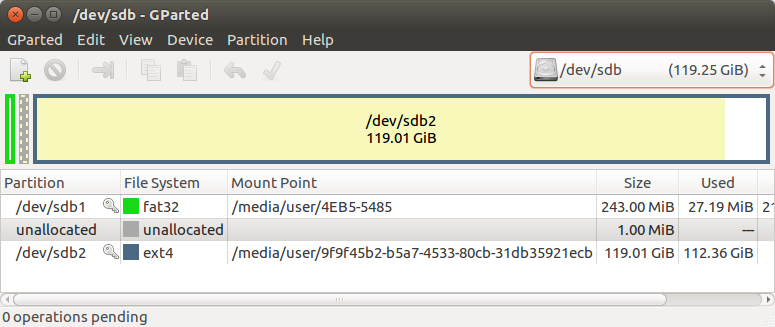
- the source SD card is partitioned with different file systems:
Questions
What UNIX cloning options are available for an Ubuntu HP laptop with an SD card slot and a USB SD card reader / writer.
Does it make a difference if the USB SD card RW is the reader or writer?
An objective (constraint) is to avoid buying additional hardware.
Solution Observations
date; sudo sh -c 'cat sdcard.image >/dev/mmcblk0'; date
Mon Jun 3 17:53:18 EDT 2019
[sudo] password for user:
Mon Jun 3 23:42:17 EDT 2019
date; sudo sh -c 'pv sdcard.image >/dev/mmcblk0'; date
Tue Jun 4 00:33:50 EDT 2019
[sudo] password for user:
119GiB 6:06:12 [5.56MiB/s] [================================>] 100%
Tue Jun 4 06:43:05 EDT 2019
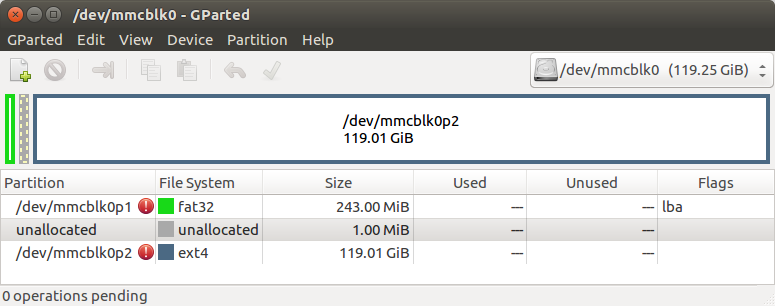
gParted analysis of of flashed SD-card shows identical partitioning:
MacOS OSX
diskutil list
Be sure to unmount SD card when writing to it:
sudo diskutil unmount /dev/disk#
where # is 1,2,3…
Answers:
Thank you for visiting the Q&A section on Magenaut. Please note that all the answers may not help you solve the issue immediately. So please treat them as advisements. If you found the post helpful (or not), leave a comment & I’ll get back to you as soon as possible.
Method 1
If you’re just looking to copy an SD card exactly from one to another then you can do so with dd on the command line.
You should NOT do this from your raspberry pi from it’s own OS. This is because the OS may write to the SD card while copying and corrupt the copy.
To copy an sd card, plug both into your two readers (it doesn’t matter whether or not they are USB). Then check the contents of /dev. The cards should show up as /dev/sd*. Eg /dev/sdb. Be careful because your internal hard drive might already be on /dev/sda.
Make sure that neither SD card is mounted, read through the output from typing this at the command prompt:
mount | grep /dev/sd
Also check the output of so that you know which card has which filename (as root):
sudo blkid
To actually copy (eg from /dev/sdb to /dev/sdc) type (as root):
dd if=/dev/sdb of=/dev/sdc bs=4096 status=progress
Method 2
Unix systems make storage devices available via a device file. Device files behave like ordinary files in many ways. In particular, to make an exact copy of storage device, you just copy the content of the source device into the target device.
First you need to determine the source device file and the target device file. The name depends on your Unix variant and how it’s configured, but in practice device files are always under the /dev directory. If you have the SD card mounted, you can find what the device file is with
df /media/sdcard1/some/file/on/the/sdcard
The device file is in the first column. Other tools can provide the same information, for example kernel log messages when you insert the SD card, or the lsblk command on Linux.
There may be partitions on the card. If so, copy the whole card, even if there is a single partition, because some boot-time information may be located outside of the partition. For example, if df shows /dev/sdb1 on Linux, copy /dev/sdb and not just /dev/sdb1.
If you pull the SD card out and reinsert it, it will usually have the same device file name as before, but this is not guaranteed.
Before copying, make sure that:
- The source device is not mounted or is only mounted read-only.
- The target device is not mounted at all.
- The target device is at least as large as the source. On Linux,
lsblkdisplays the device size. - You have the correct target device. Note that the command below will overwrite its contents without asking for confirmation!
Suppose that you’ve identified that the source device is /dev/sdb and the target device is /dev/sdc. To copy the contents, run the following command as root:
cat /dev/sdb >/dev/sdc
If you use sudo, the redirection > needs to happen as root, so you need to write something like
sudo sh -c 'cat /dev/sdb >/dev/sdc'
Alternatively, to make sure you don’t accidentally overwrite the wrong device, you may proceed in two steps:
- Give the user (
gatorbackin my example) permission to read from the source device (dev/sdbin my example) and to write to the source device (/dev/sdcin my example).sudo setfacl -m user:gatorback:r /dev/sdb sudo setfacl -m user:gatorback:w /dev/sdc
- Perform the copy without sudo.
cat /dev/sdb >/dev/sdc
You can copy the disk image to a file, then copy the image file to the target device. This is useful if you need to make multiple copies, or if you only have one SD card reader, or to reduce the risk of copying in the wrong direction.
sudo cat /dev/sdb >sdcard.image- Pull out the source card and insert the target card.
- Optionally, verify the content by mounting the image, e.g.
sudo mount -o loop -r sdcard.image /mnt. sudo sh -c 'cat sdcard.image >/dev/sdb'
If you want to see progress information conveniently, use pv instead of cat (pv is rarely installed by default, but it’s available as a package on most distributions).
All methods was sourced from stackoverflow.com or stackexchange.com, is licensed under cc by-sa 2.5, cc by-sa 3.0 and cc by-sa 4.0